Installation
System Requirements
Recommended:
- CPU: Intel® Core™ i5 or AMD Phenom processor (or faster)
- RAM: 8 GB or more
- GPU: Integrated or dedicated GPU with 2 GB RAM (GeForce GTX with 6 GB RAM or higher recommended for faster processing)
- Display: Minimum 1024×768 resolution
- Storage: 4 GB free HDD space (more for large datasets); SSD recommended with at least 4× dataset size free space
- Operating System:
- MacOS: Catalina (10.15) or newer, Big Sur, Monterey (PIX4Dfields 1.11)
- Windows: Windows 10 (64-bit) or newer
Installation Steps
-
Go to the Pix4D Official Website.
Professional photogrammetry and dronemapping software | Pix4D.
-
Select Pix4D Fields under Products.

-
Complete the registration process to enable the download.
-
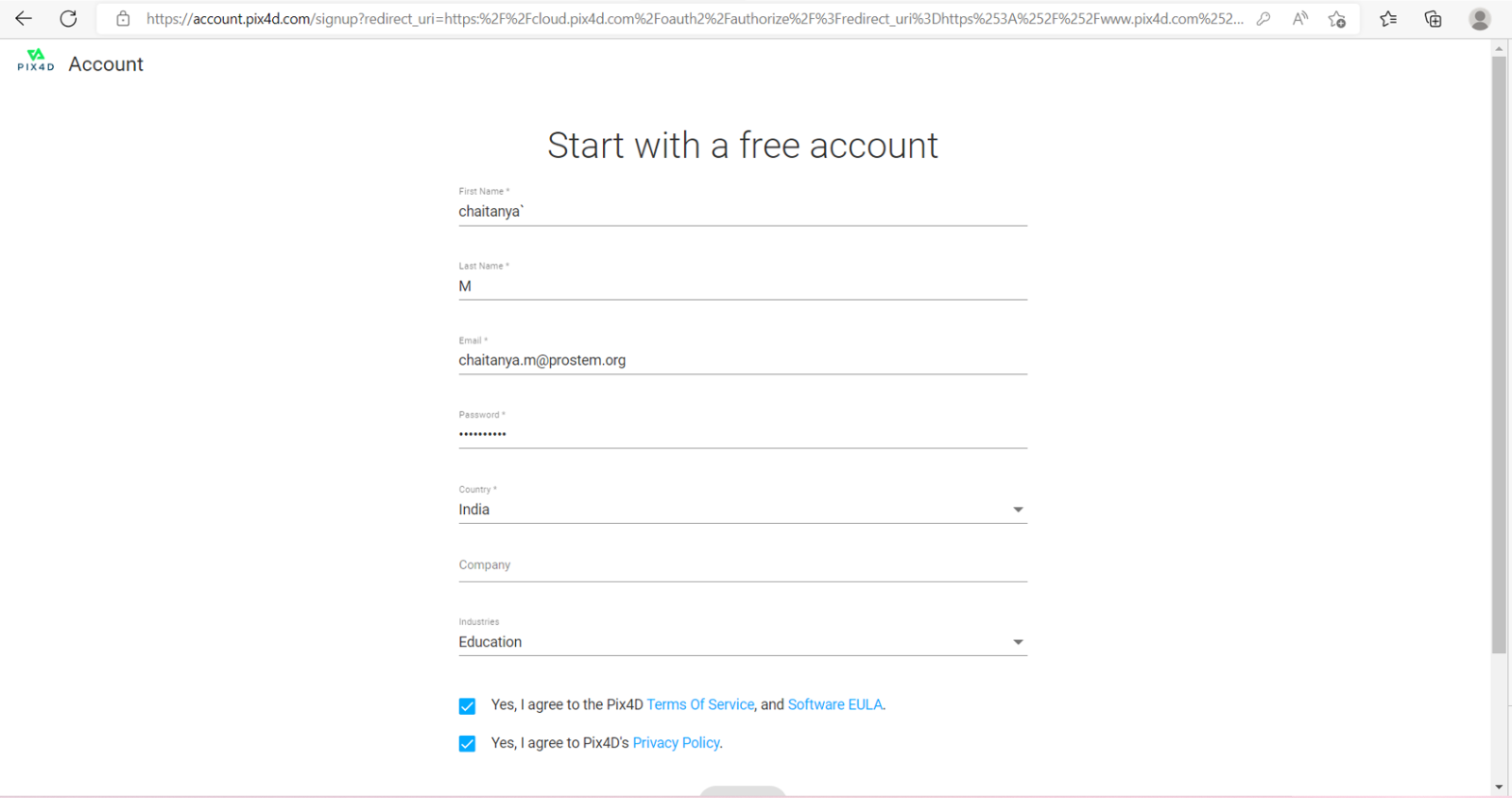
Create a free account by providing the required details.
-
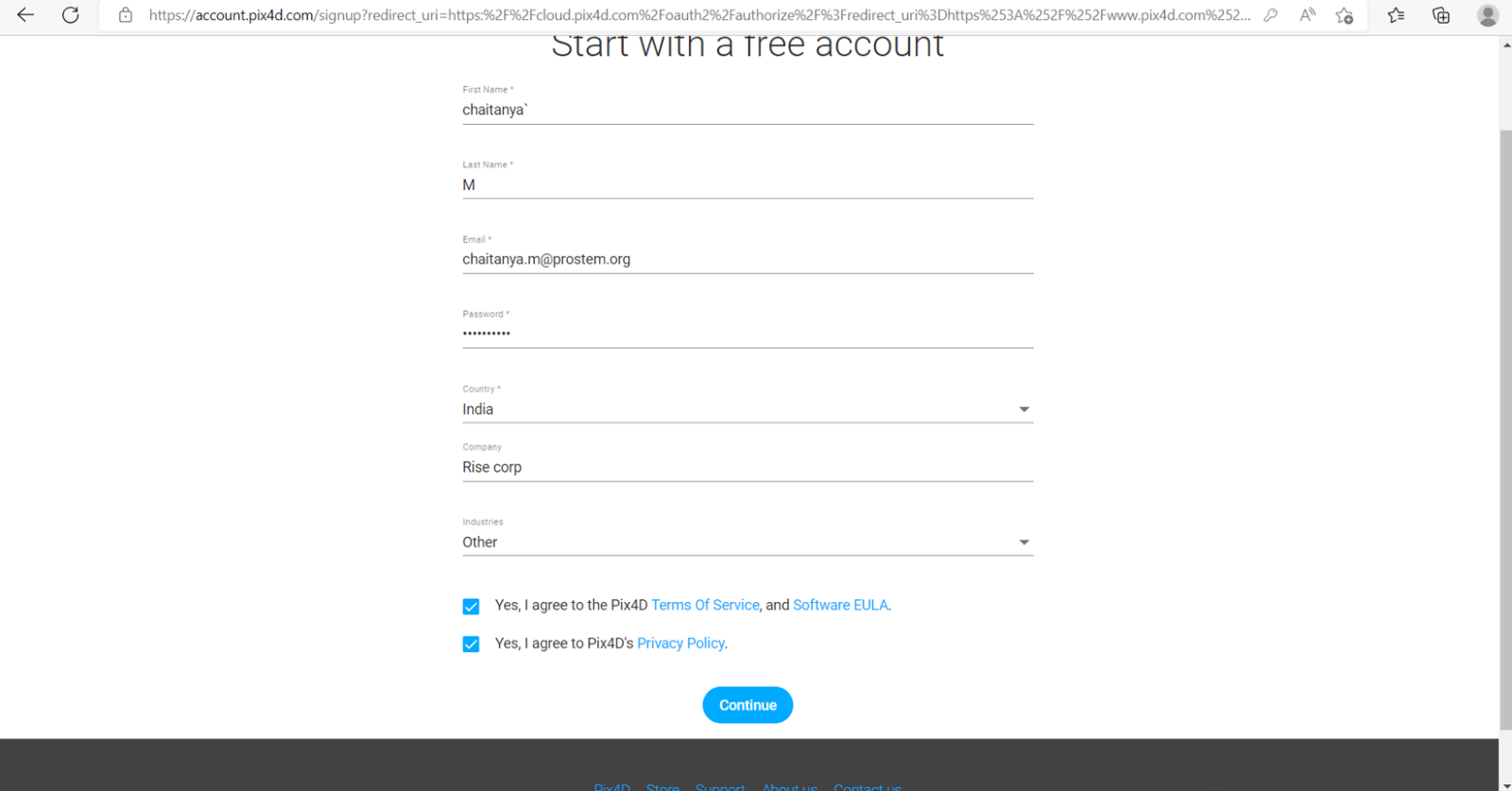
Agree to the Terms and Conditions, Software EULA, and Privacy Policy to activate the Continue button.
-
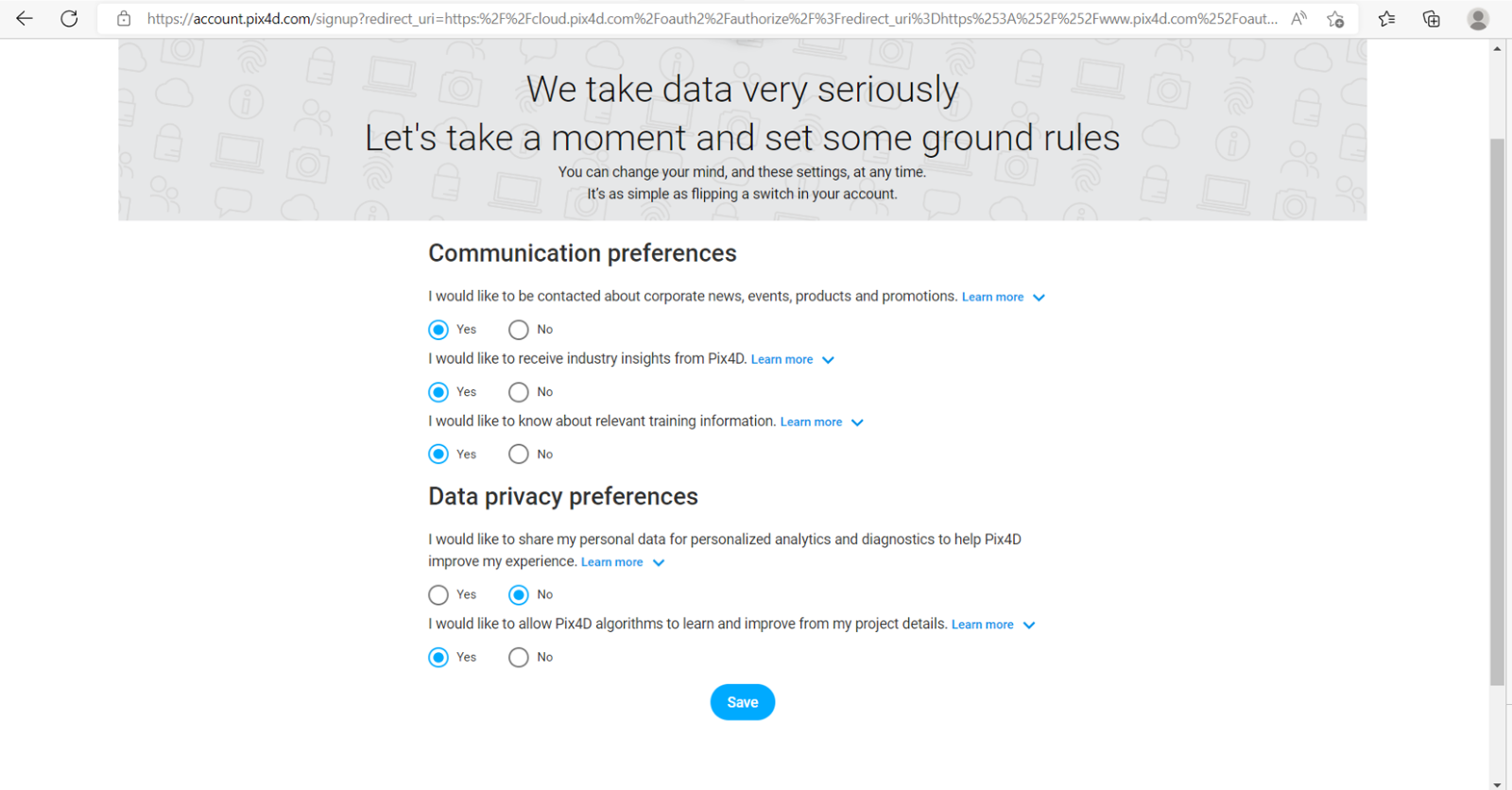
Click Continue and configure Communication Preferences and Data Privacy Preferences. Then click Save.
-
The
.exeinstallation file will start downloading. -
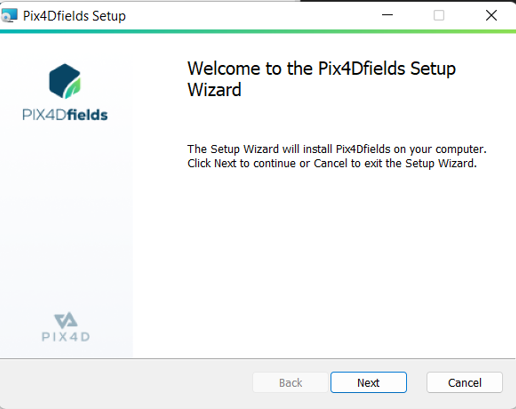
Open the downloaded file and select Run as Administrator to start installation.
-
Click Next to proceed through the installation steps.
-
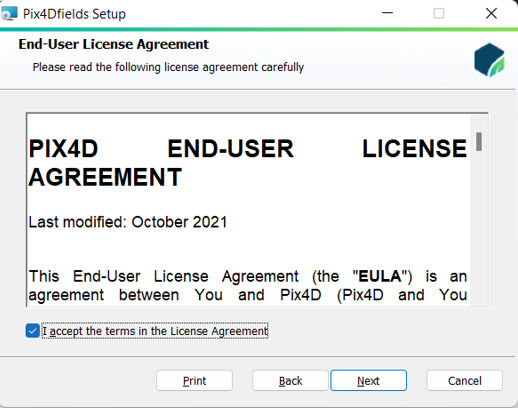
Accept the License Agreement and click Next.
-
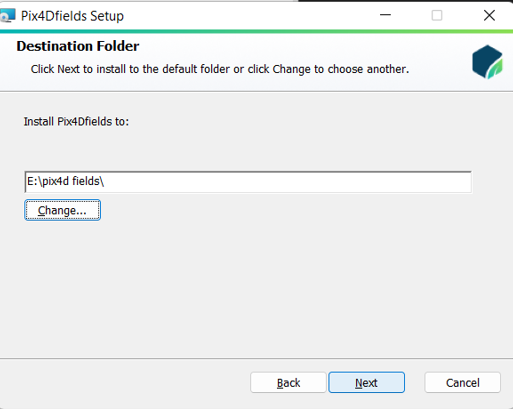
Choose the installation location (any disk is allowed) and click Next.
-
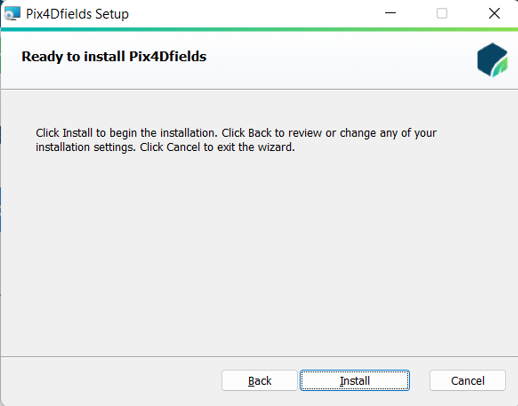
Click Install to begin the installation process. It may take a few minutes.
-
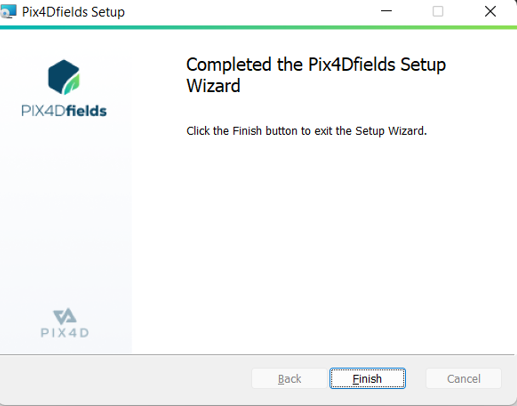
Once installation is complete, click Finish to exit the setup.