Excel
Overview
DPL Studio provides an Excel Automation feature within the Automation module. This feature enables users to open DPL Packs directly in Microsoft Excel, retrieve query data, and work with the data through a dedicated DPL Studio ribbon integrated into Excel. The integration provides a seamless workflow between DPL Studio and Microsoft Excel, allowing users to analyze, manipulate, and report on data contained within DPL Packs.
Enabling the Excel Automation Service
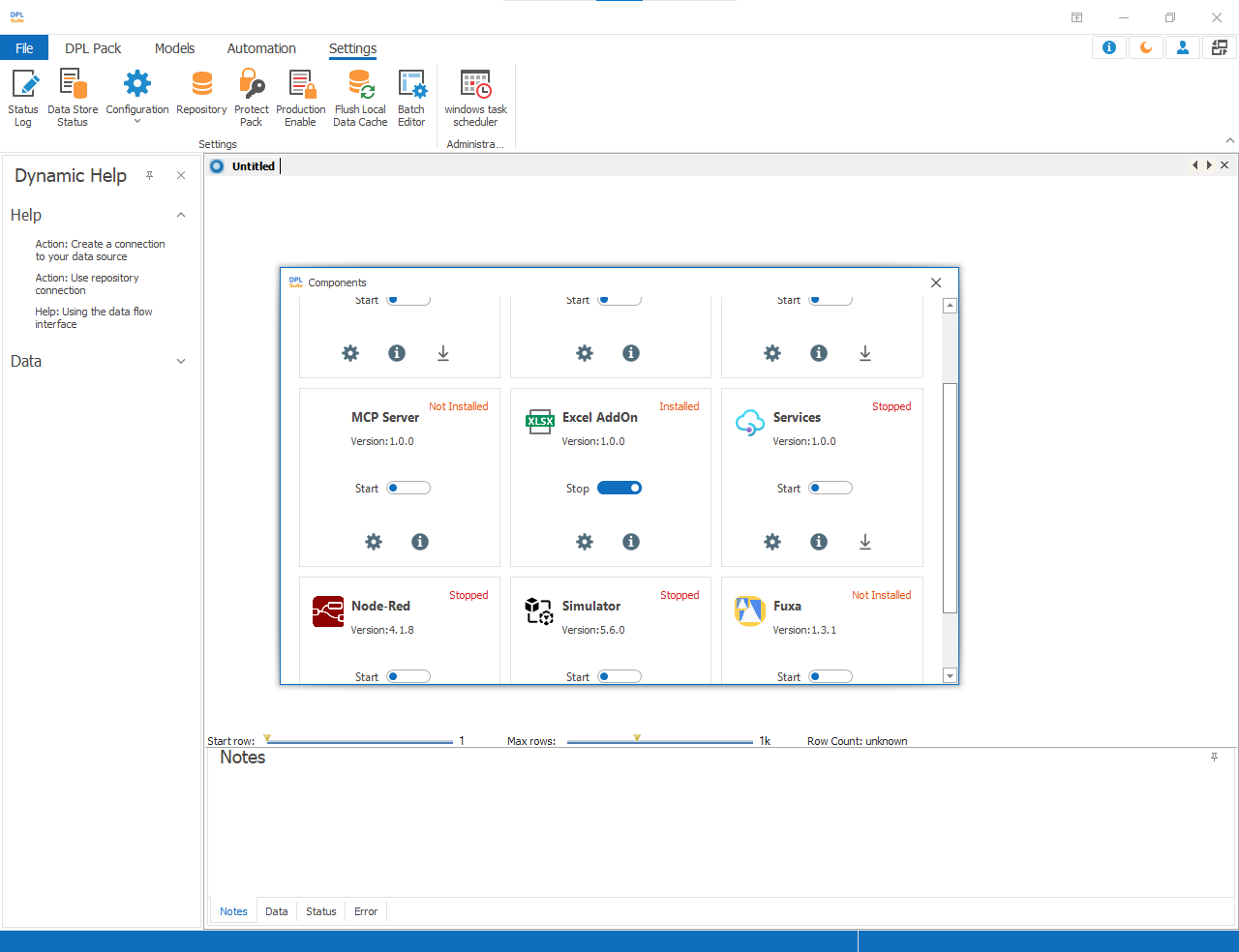
Before using Excel Automation, the Excel Add-on Service must be enabled in DPL Studio.
- Open DPL Studio.
- Navigate to Settings.
- Under Configuration, select Component.
- Locate the Excel Add-on component.
- Enable the component to start the service.
Once enabled, the Excel Add-on Service initializes and becomes available through the Automation menu in DPL Studio.
Accessing Excel Automation
After enabling the Excel Add-on Service:
- Open DPL Studio.
- Navigate to Automation → Excel.
- Select Excel.
DPL Studio launches Microsoft Excel with the DPL Studio ribbon automatically loaded.
DPL Studio Ribbon in Excel
When Microsoft Excel opens, an additional ribbon tab named DPL Studio is displayed. The ribbon provides tools for interacting with DPL Packs and importing data directly into Excel.
Loading a DPL Pack
To Load a DPL Pack
- In Excel, select the DPL Studio ribbon.
- Click Load.
- Browse to the desired DPL Pack (.dplpack) file.
- Select the file and click Open.
The Excel add-in performs the following actions:
- Opens the selected DPL Pack
- Reads the package configuration
- Extracts available query data
- Loads the data into Excel worksheets
The imported data can then be used for analysis, reporting, charting, and other Excel operations.