AWS EKS cluster Deployment
Cluster Creation: -
-
Sign-in to the AWS account and navigate to EKS dashboard.
-
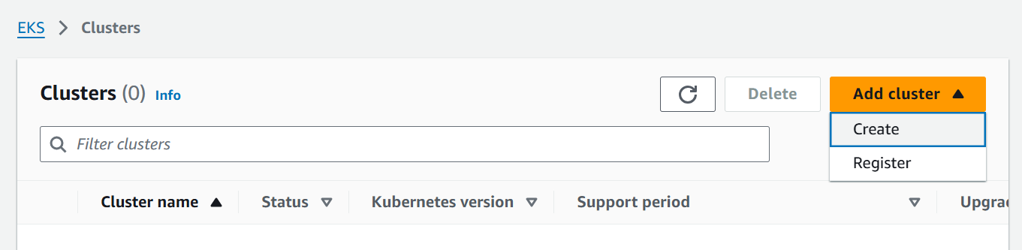
Click on "Add cluster" and select "Create"
- Enter name for the cluster and in the "Cluster IAM role" click on create role and make the following selection
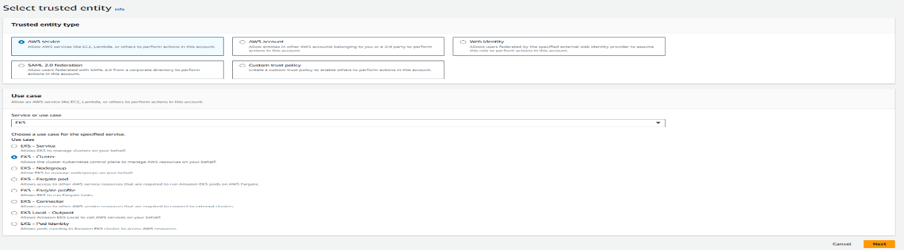
- Click on Next and name the IAM role and click on Next to review and create the role
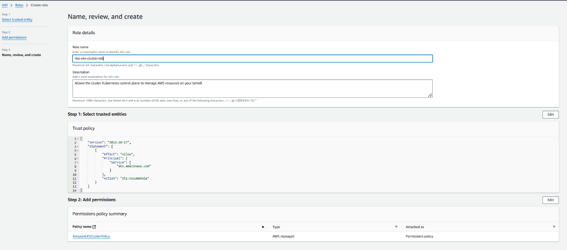
-
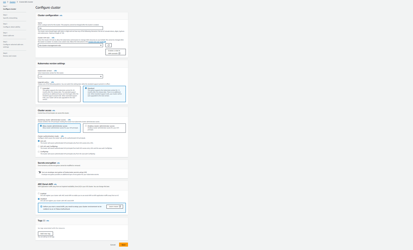
Now browse back to the cluster creation page and select the newly created cluster role and proceed to select the Kubernetes version and upgrade policy of your choice.
-
Proceed with default selections and click on Next
-
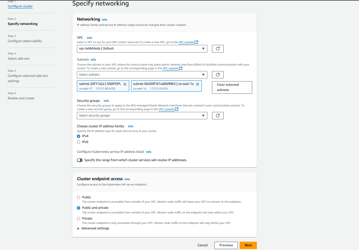
In the Networking tab select the VPC and the subnet in the vpc where you want to deploy the cluster.
-
Make sure you select the cluster endpoint of your choice whether its Public, private or Hybrid and click on Next.
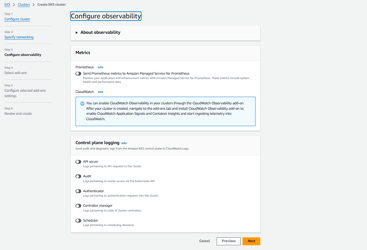
- In Configure Observability make your slections of your choice we will go with default for now and click on Next.
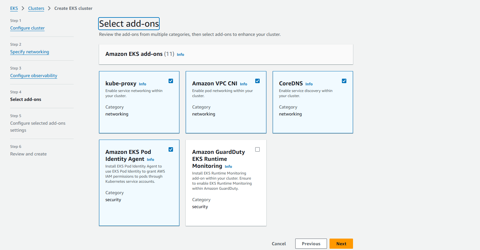
- In Add-ons section make your custom selection and click on Next.
-
In Configure selected add-ons settings part review versions of the Addons and click on Next.
-
In the final selection review everything you selected and click on Create.
-
Wait for a while until AWS creates a cluster with all the control plane components and then proceed with the creation of Node groups.
Nodes Creation: -
In the above setup we have configured AWS managed control plane. For our pods to get deployed in the cluster we need servers to host our pods. We need to create a node group configuration which will manage the backend servers to host our application pods.
- Select the created cluster and switch to "Compute" tab.
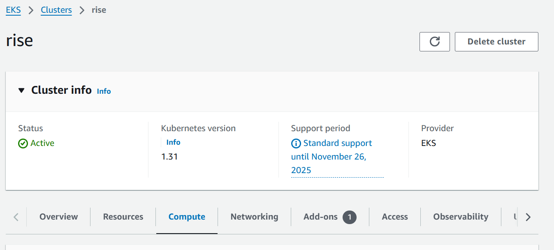
- Click on "Add node group"
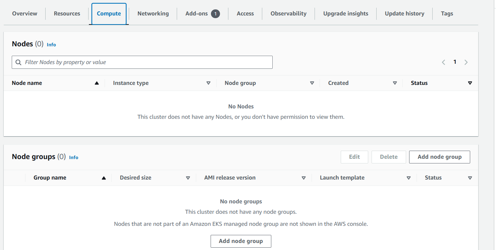
- Enter name for the node group and in the "Node IAM role" click on create role and make the following selection and click on Next.
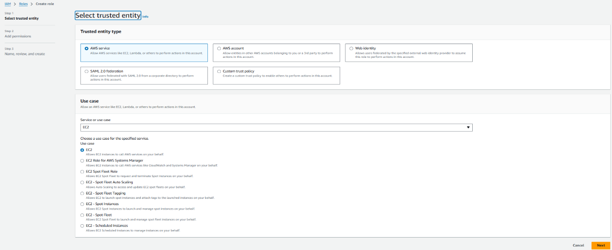
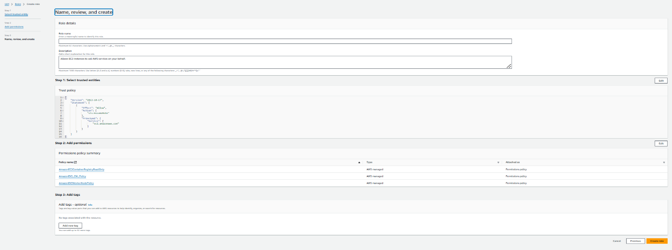
- Select the following and click on Next. Review and create the node group role.
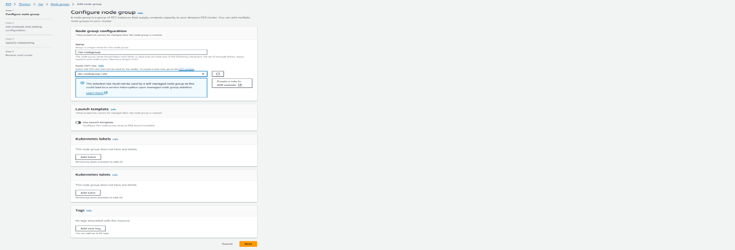
- Navigate back to Node group configuration and select the IAM role created and click on Next.
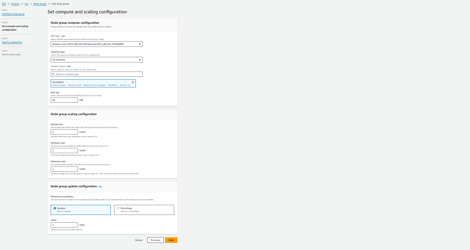
- In the "Set compute and scaling configuration" section select the type of EC2 you want to procure, Backend storage, Number of nodes, Auto-scaling and proceed to Networking section.
-
Select the subnets where you want to deploy the Nodes and proceed to Review and create page.
-
Review the configuration selected and click on create. This will take a while to create the Node group configuration. This configuration handles the EC2 deployments to host the pods.
Till now we have created the Control Plane and Node plane. We can control access to the cluster using the security groups under "Networking" tab. To view the deployed resources navigate to "Resources" tab.
To download the Kubernetes cluster config file use the following command
aws eks update-kubeconfig --region regioncode --name cluster-name
Change the region code and cluster-name from the above command with your custom attributes.