Configuration
Remote creation
-
To create a remote please follow the below steps
-
Once we login to the server with valid credentials enter the below command
-
rclone config
-
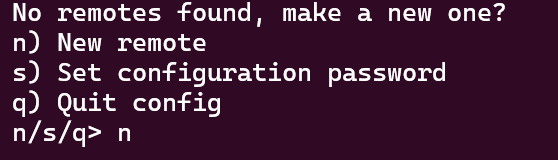
It will shows the below options
-
n-will allow you to the create a new remote .
-
s- For set configuration password
-
q- For Quit config
-
Enter an option - n
-
Enter name for new remote. name> Google-Drive
-
Then the storage options will be appeared
-
Option Storage. Type of storage to configure. Choose a number from below, or type in your own value.
 1 / 1Fichier
   \ (fichier)
 2 / Akamai NetStorage
   \ (netstorage)
 3 / Alias for an existing remote
   \ (alias)
 4 / Amazon S3 Compliant Storage Providers including AWS, Alibaba, ArvanCloud, Ceph, ChinaMobile, Cloudflare, DigitalOcean, Dreamhost, GCS, HuaweiOBS, IBMCOS, IDrive, IONOS, LyveCloud, Leviia, Liara, Linode, Magalu, Minio, Netease, Petabox, RackCorp, Rclone, Scaleway, SeaweedFS, StackPath, Storj, Synology, TencentCOS, Wasabi, Qiniu and others
   \ (s3)
 5 / Backblaze B2
   \ (b2)
 6 / Better checksums for other remotes
   \ (hasher)
 7 / Box
   \ (box)
 8 / Cache a remote
   \ (cache)
 9 / Citrix Sharefile
   \ (sharefile)
10 / Combine several remotes into one
   \ (combine)
11 / Compress a remote
   \ (compress)
12 / Dropbox
   \ (dropbox)
13 / Encrypt/Decrypt a remote
   \ (crypt)
14 / Enterprise File Fabric
   \ (filefabric)
15 / FTP
   \ (ftp)
16 / Google Cloud Storage (this is not Google Drive)
   \ (google cloud storage)
17 / Google Drive
   \ (drive)
18 / Google Photos
   \ (google photos)
19 / HTTP
   \ (http)
20 / Hadoop distributed file system
   \ (hdfs)
21 / HiDrive
   \ (hidrive)
22 / Image and Video API + AI-powered DAM | ImageKit.io
   \ (imagekit)
23 / In memory object storage system.
   \ (memory)
24 / Internet Archive
   \ (internetarchive)
25 / Jottacloud
   \ (jottacloud)
26 / Koofr, Digi Storage and other Koofr-compatible storage providers
   \ (koofr)
27 / Linkbox
   \ (linkbox)
28 / Local Disk
   \ (local)
29 / Mail: почта, поиск в интернете, новости, игры  Cloud
   \ (mailru)
30 / Mega
   \ (mega)
31 / Microsoft Azure Blob Storage
   \ (azureblob)
32 / Microsoft Azure Files
   \ (azurefiles)
33 / Microsoft OneDrive
   \ (onedrive)
34 / OpenDrive
   \ (opendrive)
35 / OpenStack Swift (Rackspace Cloud Files, Blomp Cloud Storage, Memset Memstore, OVH)
   \ (swift)
36 / Oracle Cloud Infrastructure Object Storage
   \ (oracleobjectstorage)
37 / Pcloud
   \ (pcloud)
38 / PikPak
   \ (pikpak)
39 / Proton Drive
   \ (protondrive)
40 / put.io: Stash your digital goods here!
   \ (putio)
41 / QingCloud Object Storage
   \ (qingstor)
42 / Quatrix by Maytech
   \ (quatrix)
43 / SMB / CIFS
   \ (smb)
44 / SSH/SFTP
   \ (sftp)
45 / Sia Decentralized Cloud
   \ (sia)
46 / Storj Decentralized Cloud Storage
   \ (storj)
47 / Sugarsync
   \ (sugarsync)
48 / Transparently chunk/split large files
   \ (chunker)
49 / Ulož.to Disk - The Personal Backup Service
   \ (ulozto)
50 / Union merges the contents of several upstream fs
   \ (union)
51 / Uptobox
   \ (uptobox)
52 / WebDAV
   \ (webdav)
53 / Yandex Disk
   \ (yandex)
54 / Zoho
   \ (zoho)
55 / Premiumize.me, All in One Cloud-Downloading
   \ (premiumizeme)
56 / seafile
   \ (seafile)
-
select the Storage number you need to configure
-
Storage> 17(example we are configuring for Google drive)
-
Option client_id. Google Application Client Id Setting your own is recommended. See Google drive for how to create your own. If you leave this blank, it will use an internal key which is low performance. Enter a value. Press Enter to leave empty. client_id>xxxxxxxxxxxxxxxxxxxxxxxxxxxxxxxxxxxxxxxxxxxxxxxxxxxx
-
Option client_secret. OAuth Client Secret. Leave blank normally. Enter a value. Press Enter to leave empty. client_secret>xxxxxxxxxxxxxxxxxxxxxxxxxxxxxxxxxxxxxxxxxxxxxx
Client id and client secret will be given by your Administrator
Create a client-id and Client Secret Step 1:Create a client-id and Client Secret
-
Go to the Google Cloud Console: Visit Google Cloud Console.
-
Create a new project:
-
Click on the project dropdown (top left) and select New Project.
-
Give your project a name (e.g., Rclone Drive Access).
-
Click Create.
-
-
Select your project: Make sure your new project is selected in the project dropdown.
Step 2: Enable Google Drive API
-
Go to the APIs & Services Dashboard: Click on the Navigation menu (≡), select APIs & Services, and then Library.
-
Search for "Google Drive API":
-
Type "Google Drive API" in the search bar.
-
Click on Google Drive API and then click Enable.
Step 3: Configure OAuth Consent Screen
-
Go to the OAuth Consent Screen:
-
In the APIs & Services section, select OAuth consent screen.
-
Choose External and click Create.
-
-
Fill out the required information:
-
App name: Enter a name (e.g., Rclone App).
-
User support email: Select your email address.
-
Developer contact information: Enter your email address.
-
Click Save and Continue until the consent screen is configured.
-
Step 4: Create OAuth 2.0 Credentials
-
Go to the Credentials page: In the APIs & Services section, select Credentials.
-
Create OAuth Client ID:
-
Click Create Credentials and select OAuth client ID.
-
Select Desktop app as the application type.
-
Enter a name for your OAuth 2.0 client ID (e.g., Rclone Desktop).
-
Click Create.
-
-
Get the Client ID and Secret:
-
After creating, you will see a screen showing your Client ID and Client Secret.
-
Copy these values to a safe place.
-
- Next Scope option is given for access control
Option scope. Comma separated list of scopes that rclone should use when requesting access from drive. Choose a number from below, or type in your own value. Press Enter to leave empty.
 1 / Full access all files, excluding Application Data Folder.
   \ (drive)
 2 / Read-only access to file metadata and file contents.
   \ (drive.readonly)
   / Access to files created by rclone only.
 3 | These are visible in the drive website.
   | File authorization is revoked when the user deauthorizes the app.
   \ (drive.file)
   / Allows read and write access to the Application Data folder.
 4 | This is not visible in the drive website.
   \ (drive.appfolder)
   / Allows read-only access to file metadata but
 5 | does not allow any access to read or download file content.
   \ (drive.metadata.readonly)
scope> 1(here we are giving full access control for google drive)
-
Option service_account_file.
-
Service Account Credentials JSON file path.
-
Leave blank normally.
-
Needed only if you want use SA instead of interactive login.
-
Leading ~ will be expanded in the file name as will environment variables such as
${RCLONE_CONFIG_DIR}. -
Enter a value. Press Enter to leave empty.
-
service_account_file>(press enter for leave default)
-
Edit advanced config?
y) Yesn) No (default)y/n> n(due to leave as default config)Use web browser to automatically authenticate rclone with remote?-
Say Y if the machine running rclone has a web browser you can use
-
Say N if running rclone on a (remote) machine without web browser access If not sure try Y. If Y failed, try N.
-
y) Yes (default)
n) No
y/n> N
-
Now Rclone authorization code will be given
-
Option config_token. For this to work, you will need rclone available on a machine that has a web browser available. For more help and alternate methods see: Remote Setup Execute the following on the machine with the web browser (same rclone version recommended):
       rclone authorize "google-drive"
       "eyJjbGllbnRfaWxxxxxxxxxxxxxxxxxxxxxU3LTQ4OWItYWQ1xxxxxxxxxxxxxxxxxxxbnRfc2VjcmV0Ijoic3hrOFF
       +xxxxxxxxxxxxxxxxxxxxb1RoTmlfc2EtSlxcIn0"
Then paste the result
-
Now we can authorize this by below command
-
rclone authorize "Google drive " “eyJjbGllbnRfaWxxxxxxxxxxxxxxxxxxxxxU3LTQ4OWItYWQ1xxxxxxxxxxxxxxxxxxxbnRfc2VjcmV0Ijoic3hrOFF+xxxxxxxxxxxxxxxxxxxxb1RoTmlfc2EtSlxcIn0"
-
now you will following link of rclone access control
-
If your browser doesn't open automatically go to the following link: http://127.0.0.1:53682/auth?statexxxxxxxxxxxxxxxxxxxxxx
-
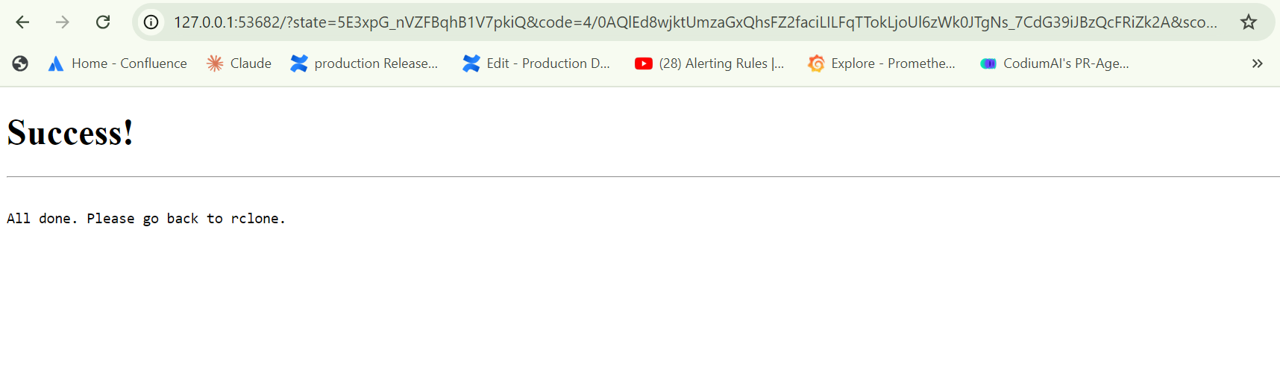
Login to your google drive account and and accept the rclone connection request
-
Connection successful message will be show as below
Mount Configuration
-
To create a mount point we need to install Fuse as a prerequisite of else some times its all on default
-
To install fuse use bellow commands
sudo apt-get update
sudo apt-get install fuse
Mount the Remote
-
Create a mount point
-
we need a directory where the remote storage will be mounted so that we create directory by using below command
mkdir -p /mnt/myremote
-
Mount the remote using Rclone Use the following command to mount the remote to the directory. Replace my remote with the name of your remote configuration and /path/to/mount/point with your actual mount point (e.g., /home/Googledrive/).
-
rclone mount Googledrive: /home/Googledrive/
-
/home/Googledrive/ directory where the remote will be mounted.
Access the Mounted Remote
After mounting, you can access the remote storage just like any local directory by below command
cd /home/Googledrive/
ls
- You should see the files and folders from your remote storage
Unmount the Remote
- To unmount the remote use below coomand
fusermount -u /home/Googledrive/
Syncing Files with Google Drive
-
Sync Local Directory to Google Drive
-
The following command syncs a local directory to Google Drive
-
rclone sync /path/to/local/dir mygoogledrive:/path/to/remote/dir
-
Sync Google Drive to Local Directory
-
Sync files from Google Drive to a local directory
-
rclone sync mygoogledrive:/path/to/remote/dir /path/to/local/dir
Reference Documentation Link:Google drive
Azure Blob Storage-Configuration
Remote Creation
-
To create a remote please follow the below steps
-
Once we login to the server with valid credentials enter the below command
-
rclone config
-
It will shows the below options
-
n-will allow you to the create a new remote .
-
s- For set configuration password
-
q- For Quit config
-
Enter an option - n
-
Enter name for new remote.
- name>AzureBlogStorage
-
Then the storage options will be appeared
-
Option Storage. Type of storage to configure. Choose a number from below, or type in your own value.
 1 / 1Fichier
   \ (fichier)
 2 / Akamai NetStorage
   \ (netstorage)
 3 / Alias for an existing remote
   \ (alias)
 4 / Amazon S3 Compliant Storage Providers including AWS, Alibaba, ArvanCloud, Ceph, ChinaMobile, Cloudflare, DigitalOcean, Dreamhost, GCS, HuaweiOBS, IBMCOS, IDrive, IONOS, LyveCloud, Leviia, Liara, Linode, Magalu, Minio, Netease, Petabox, RackCorp, Rclone, Scaleway, SeaweedFS, StackPath, Storj, Synology, TencentCOS, Wasabi, Qiniu and others
   \ (s3)
 5 / Backblaze B2
   \ (b2)
 6 / Better checksums for other remotes
   \ (hasher)
 7 / Box
   \ (box)
 8 / Cache a remote
   \ (cache)
 9 / Citrix Sharefile
   \ (sharefile)
10 / Combine several remotes into one
   \ (combine)
11 / Compress a remote
   \ (compress)
12 / Dropbox
   \ (dropbox)
13 / Encrypt/Decrypt a remote
   \ (crypt)
14 / Enterprise File Fabric
   \ (filefabric)
15 / FTP
   \ (ftp)
16 / Google Cloud Storage (this is not Google Drive)
   \ (google cloud storage)
17 / Google Drive
   \ (drive)
18 / Google Photos
   \ (google photos)
19 / HTTP
   \ (http)
20 / Hadoop distributed file system
   \ (hdfs)
21 / HiDrive
   \ (hidrive)
22 / Image and Video API + AI-powered DAM | ImageKit.io
   \ (imagekit)
23 / In memory object storage system.
   \ (memory)
24 / Internet Archive
   \ (internetarchive)
25 / Jottacloud
   \ (jottacloud)
26 / Koofr, Digi Storage and other Koofr-compatible storage providers
   \ (koofr)
27 / Linkbox
   \ (linkbox)
28 / Local Disk
   \ (local)
29 / Mail: почта, поиск в интернете, новости, игры  Cloud
   \ (mailru)
30 / Mega
   \ (mega)
31 / Microsoft Azure Blob Storage
   \ (azureblob)
32 / Microsoft Azure Files
   \ (azurefiles)
33 / Microsoft OneDrive
   \ (onedrive)
34 / OpenDrive
   \ (opendrive)
35 / OpenStack Swift (Rackspace Cloud Files, Blomp Cloud Storage, Memset Memstore, OVH)
   \ (swift)
36 / Oracle Cloud Infrastructure Object Storage
   \ (oracleobjectstorage)
37 / Pcloud
   \ (pcloud)
38 / PikPak
   \ (pikpak)
39 / Proton Drive
   \ (protondrive)
40 / put.io: Stash your digital goods here!
   \ (putio)
41 / QingCloud Object Storage
   \ (qingstor)
42 / Quatrix by Maytech
   \ (quatrix)
43 / SMB / CIFS
   \ (smb)
44 / SSH/SFTP
   \ (sftp)
45 / Sia Decentralized Cloud
   \ (sia)
46 / Storj Decentralized Cloud Storage
   \ (storj)
47 / Sugarsync
   \ (sugarsync)
48 / Transparently chunk/split large files
   \ (chunker)
49 / Ulož.to Disk - The Personal Backup Service
   \ (ulozto)
50 / Union merges the contents of several upstream fs
   \ (union)
51 / Uptobox
   \ (uptobox)
52 / WebDAV
   \ (webdav)
53 / Yandex Disk
   \ (yandex)
54 / Zoho
   \ (zoho)
55 / Premiumize.me, All in One Cloud-Downloading
   \ (premiumizeme)
56 / seafile
   \ (seafile)
-
select the Storage number you need to configure
-
Storage>31 (Micro soft Azure blob storage)
-
Option account.
- Azure Storage Account Name.
- Set this to the Azure Storage Account Name in use.
- Leave blank to use SAS URL or Emulator, otherwise it needs to be set.
- If this is blank and if env_auth is set it will be read from the
- environment variable AZURE_STORAGE_ACCOUNT_NAME if possible.
- Enter a value. Press Enter to leave empty.
- account>(Here we need to provide Azure Account name)
-
Option env_auth.
- Read credentials from runtime (environment variables, CLI or MSI).
- See the authentication docs for full info.
- Enter a boolean value (true or false). Press Enter for the default (false).
- env_auth>(Press enter for the Default)
-
Option key.
- Storage Account Shared Key.
- Leave blank to use SAS URL or Emulator.
- Enter a value. Press Enter to leave empty.
- key>xxxxxxxxxxxxxxxxxxxxxxxxxxxxxxxxxxxxxxxx(Here we need to supply the Account shared key from our portal.azure.com for create Azure portal )
Creating an Azure Blob Storage Account
-
Sign in to the Azure Portal (Microsoft Azure ).
-
Click on "Create a resource" in the upper left corner.
-
Search for "Storage account" and select it from the results.
-
Click "Create" to start the storage account creation process.
-
Fill in the required details:
-
Subscription: Choose your Azure subscription
-
Resource group: Create a new one or select an existing group
-
Storage account name: Enter a unique name (this will be your account name for rclone)
-
Location: Choose a region close to you or your users
-
Performance: Select "Standard" for most use cases
-
Account kind: Choose "StorageV2 (general purpose v2)"
-
Replication: Choose based on your needs (e.g., Locally-redundant storage (LRS) for lower costs)
-
-
Click "Review + create", then "Create" after reviewing your settings.
-
Wait for the deployment to complete.
Obtaining Storage Account Name and Key After your storage account is created, you need to get the account name and key:
-
Go to your newly created storage account in the Azure Portal.
-
In the left menu, under "Settings", click on "Access keys".
-
You'll see two keys listed. You can use either key1 or key2.
-
The "Storage account name" at the top of this page is what you'll use as the account in rclone.
-
Copy one of the "Key" values - this is what you'll use as the key in rclone.
-
Option sas_url. SAS URL for container level access only. Leave blank if using account/key or Emulator. Enter a value. Press Enter to leave empty. sas_url>(leave for default)
-
Option client_id. ID of the service principal's tenant. Also called its directory ID. Set this if using
-
Service principal with client secret
-
Service principal with certificate
-
User with username and password Enter a value. Press Enter to leave empty. client>(you can enter your client id or else leave for default by press enter)
-
-
Option client_id. The ID of the client in use. Set this if using
-
Service principal with client secret
-
Service principal with certificate
-
-
User with username and password
- Enter a value. Press Enter to leave empty.
- client_id>(Client id creation method as shown below)
-
Option client_secret.
-
One of the service principal's client secrets
-
Set this if using
- Service principal with client secret
- Enter a value. Press Enter to leave empty.
- client_secret>(Client id creation method as shown below)
Creating an Azure Client id and client secret
-
Sign in to the Azure Portal (Microsoft Azure ).
-
Navigate to "Azure Active Directory" > "App registrations" > "New registration".
-
Provide a name for your application (e.g., "RcloneAzureBlob").
-
For "Supported account types", choose "Accounts in this organizational directory only".
-
Leave the "Redirect URI" blank and click "Register".
-
After creation, note down the "Application (client) ID" from the overview page.
-
Go to "Certificates & secrets" > "New client secret".
-
Provide a description and select an expiration period, then click "Add".
-
Immediately copy the "Value" of the secret. This is your client secret and will only be shown once.
Granting Access to Your Storage Account
-
Go to your storage account in the Azure Portal.
-
Click on "Access Control (IAM)" in the left menu.
-
Click "Add" > "Add role assignment".
-
Choose a role (e.g., "Storage Blob Data Contributor" for full access).
-
In "Assign access to", select "User, group, or service principal".
-
Search for and select the application you created earlier.
-
Click "Save".
Option client_certificate_path. Path to a PEM or PKCS12 certificate file including the private key. Set this if using
-
Service principal with certificate Enter a value. Press Enter to leave empty. client_certificate_path>(leave of Default and press enter)
-
Option client_certificate_password. Password for the certificate file (optional). Optionally set this if using
- Service principal with certificate
And the certificate has a password.
Choose an alternative below. Press Enter for the default (n).
y) Yes, type in my own passwordg) Generate random passwordn) No, leave this optional password blank (default)y/g/n>n(default)
- Service principal with certificate
And the certificate has a password.
Choose an alternative below. Press Enter for the default (n).
-
Edit advanced config?
y) Yesn) No (default)y/n> n(default) -
Configuration complete. Options:
-
type: azureblob Keep this "Azureblob staorage" remote? y) Yes this is OK (default) e) Edit this remote d) Delete this remote y/e/d>y(enter y for the default)
-
our remote will ab added
Mount Configuration
-
To create a mount point we need to install Fuse as a prerequisite of else some times its all on default
-
To install fuse use bellow commands
sudo apt-get update
sudo apt-get install fuse
Mount the Remote
-
Create a mount point
-
we need a directory where the remote storage will be mounted so that we create directory by using below command
mkdir -p /mnt/myremote
-
Mount the remote using Rclone Use the following command to mount the remote to the directory. Replace my remote with the name of your remote configuration and /path/to/mount/point with your actual mount point (e.g., /home/Azure-storage/).
-
rclone mount Azurestorage: /home/Azure-storage/
-
/home/Azure-storage/ directory where the remote will be mounted.
Reference Documentation Link:Microsoft Azure Blob Storage
AWS S3 Bucket Configuration
Remote Creation
-
To create a remote please follow the below steps
-
Once we login to the server with valid credentials enter the below command
-
rclone config
-
It will shows the below options
n-will allow you to the create a new remote .
s- For set configuration password
q- For Quit config
Enter an option - n
Enter name for new remote. name>AWS-S3-Bucket
Then the storage options will be appeared
Option Storage. Type of storage to configure. Choose a number from below, or type in your own value.
 1 / 1Fichier
   \ (fichier)
 2 / Akamai NetStorage
   \ (netstorage)
 3 / Alias for an existing remote
   \ (alias)
 4 / Amazon S3 Compliant Storage Providers including AWS, Alibaba, ArvanCloud, Ceph, ChinaMobile, Cloudflare, DigitalOcean, Dreamhost, GCS, HuaweiOBS, IBMCOS, IDrive, IONOS, LyveCloud, Leviia, Liara, Linode, Magalu, Minio, Netease, Petabox, RackCorp, Rclone, Scaleway, SeaweedFS, StackPath, Storj, Synology, TencentCOS, Wasabi, Qiniu and others
   \ (s3)
 5 / Backblaze B2
   \ (b2)
 6 / Better checksums for other remotes
   \ (hasher)
 7 / Box
   \ (box)
 8 / Cache a remote
   \ (cache)
 9 / Citrix Sharefile
   \ (sharefile)
10 / Combine several remotes into one
   \ (combine)
11 / Compress a remote
   \ (compress)
12 / Dropbox
   \ (dropbox)
13 / Encrypt/Decrypt a remote
   \ (crypt)
14 / Enterprise File Fabric
   \ (filefabric)
15 / FTP
   \ (ftp)
16 / Google Cloud Storage (this is not Google Drive)
   \ (google cloud storage)
17 / Google Drive
   \ (drive)
18 / Google Photos
   \ (google photos)
19 / HTTP
   \ (http)
20 / Hadoop distributed file system
   \ (hdfs)
21 / HiDrive
   \ (hidrive)
22 / Image and Video API + AI-powered DAM | ImageKit.io
   \ (imagekit)
23 / In memory object storage system.
   \ (memory)
24 / Internet Archive
   \ (internetarchive)
25 / Jottacloud
   \ (jottacloud)
26 / Koofr, Digi Storage and other Koofr-compatible storage providers
   \ (koofr)
27 / Linkbox
   \ (linkbox)
28 / Local Disk
   \ (local)
29 / Mail: почта, поиск в интернете, новости, игры  Cloud
   \ (mailru)
30 / Mega
   \ (mega)
31 / Microsoft Azure Blob Storage
   \ (azureblob)
32 / Microsoft Azure Files
   \ (azurefiles)
33 / Microsoft OneDrive
   \ (onedrive)
34 / OpenDrive
   \ (opendrive)
35 / OpenStack Swift (Rackspace Cloud Files, Blomp Cloud Storage, Memset Memstore, OVH)
   \ (swift)
36 / Oracle Cloud Infrastructure Object Storage
   \ (oracleobjectstorage)
37 / Pcloud
   \ (pcloud)
38 / PikPak
   \ (pikpak)
39 / Proton Drive
   \ (protondrive)
40 / put.io: Stash your digital goods here!
   \ (putio)
41 / QingCloud Object Storage
   \ (qingstor)
42 / Quatrix by Maytech
   \ (quatrix)
43 / SMB / CIFS
   \ (smb)
44 / SSH/SFTP
   \ (sftp)
45 / Sia Decentralized Cloud
   \ (sia)
46 / Storj Decentralized Cloud Storage
   \ (storj)
47 / Sugarsync
   \ (sugarsync)
48 / Transparently chunk/split large files
   \ (chunker)
49 / Ulož.to Disk - The Personal Backup Service
   \ (ulozto)
50 / Union merges the contents of several upstream fs
   \ (union)
51 / Uptobox
   \ (uptobox)
52 / WebDAV
   \ (webdav)
53 / Yandex Disk
   \ (yandex)
54 / Zoho
   \ (zoho)
55 / Premiumize.me, All in One Cloud-Downloading
   \ (premiumizeme)
56 / seafile
   \ (seafile)
select the Storage number you need to configure
Storage>4
Option provider. Choose your S3 provider. Choose a number from below, or type in your own value. Press Enter to leave empty.
 1 / Amazon Web Services (AWS) S3
   \ (AWS)
 2 / Alibaba Cloud Object Storage System (OSS) formerly Aliyun
   \ (Alibaba)
 3 / Arvan Cloud Object Storage (AOS)
   \ (ArvanCloud)
 4 / Ceph Object Storage
   \ (Ceph)
 5 / China Mobile Ecloud Elastic Object Storage (EOS)
   \ (ChinaMobile)
 6 / Cloudflare R2 Storage
   \ (Cloudflare)
 7 / DigitalOcean Spaces
   \ (DigitalOcean)
 8 / Dreamhost DreamObjects
   \ (Dreamhost)
 9 / Google Cloud Storage
   \ (GCS)
10 / Huawei Object Storage Service
   \ (HuaweiOBS)
11 / IBM COS S3
   \ (IBMCOS)
12 / IDrive e2
   \ (IDrive)
13 / IONOS Cloud
   \ (IONOS)
14 / Seagate Lyve Cloud
   \ (LyveCloud)
15 / Leviia Object Storage
   \ (Leviia)
16 / Liara Object Storage
   \ (Liara)
17 / Linode Object Storage
   \ (Linode)
18 / Magalu Object Storage
   \ (Magalu)
19 / Minio Object Storage
   \ (Minio)
20 / Netease Object Storage (NOS)
   \ (Netease)
21 / Petabox Object Storage
   \ (Petabox)
22 / RackCorp Object Storage
   \ (RackCorp)
23 / Rclone S3 Server
   \ (Rclone)
24 / Scaleway Object Storage
   \ (Scaleway)
25 / SeaweedFS S3
   \ (SeaweedFS)
26 / StackPath Object Storage
   \ (StackPath)
27 / Storj (S3 Compatible Gateway)
   \ (Storj)
28 / Synology C2 Object Storage
   \ (Synology)
29 / Tencent Cloud Object Storage (COS)
   \ (TencentCOS)
30 / Wasabi Object Storage
   \ (Wasabi)
31 / Qiniu Object Storage (Kodo)
   \ (Qiniu)
32 / Any other S3 compatible provider
   \ (Other)
provider> 1
Option env_auth. Get AWS credentials from runtime (environment variables or EC2/ECS meta data if no env vars). Only applies if access_key_id and secret_access_key is blank. Choose a number from below, or type in your own boolean value (true or false). Press Enter for the default (false).
 1 / Enter AWS credentials in the next step.
   \ (false)
 2 / Get AWS credentials from the environment (env vars or IAM).
   \ (true)
env_auth> 1
Creating an AWS S3 Bucket
Sign in to the AWS Management Console.
-
Navigate to the S3 service.
-
Click "Create bucket".
-
Provide a unique name for your bucket.
-
Choose the AWS Region where you want the bucket to reside.
-
Configure options as needed (versioning, logging, tags, etc.).
-
Set permissions (public access settings, access control lists, bucket policies).
-
Review and create the bucket.
-
Obtaining AWS Access Key ID and Secret Access Key
-
Sign in to the AWS Management Console.
-
click on your account name in the top right corner and select "Security credentials".
-
Expand the "Access keys" section.
-
Click "Create New Access Key".
-
-
Download the key file or copy the Access Key ID and Secret Access Key.
-
Option access_key_id. AWS Access Key ID. Leave blank for anonymous access or runtime credentials. Enter a value. Press Enter to leave empty. access_key_id>xxxxxxxxxxxxxxxxxxxxxxxxxxxxxxxx
-
Option secret_access_key. AWS Secret Access Key (password). Leave blank for anonymous access or runtime credentials. Enter a value. Press Enter to leave empty. secret_access_key>xxxxxxxxxxxxxxxxxxxxxxxxxxxxxxxxxxxxx
-
Option region. Region to connect to. Choose a number from below, or type in your own value. Press Enter to leave empty.
   / The default endpoint - a good choice if you are unsure.
 1 | US Region, Northern Virginia, or Pacific Northwest.
   | Leave location constraint empty.
   \ (us-east-1)
   / US East (Ohio) Region.
 2 | Needs location constraint us-east-2.
   \ (us-east-2)
   / US West (Northern California) Region.
 3 | Needs location constraint us-west-1.
   \ (us-west-1)
   / US West (Oregon) Region.
 4 | Needs location constraint us-west-2.
   \ (us-west-2)
   / Canada (Central) Region.
 5 | Needs location constraint ca-central-1.
   \ (ca-central-1)
   / EU (Ireland) Region.
 6 | Needs location constraint EU or eu-west-1.
   \ (eu-west-1)
   / EU (London) Region.
 7 | Needs location constraint eu-west-2.
   \ (eu-west-2)
   / EU (Paris) Region.
 8 | Needs location constraint eu-west-3.
   \ (eu-west-3)
   / EU (Stockholm) Region.
 9 | Needs location constraint eu-north-1.
   \ (eu-north-1)
   / EU (Milan) Region.
10 | Needs location constraint eu-south-1.
   \ (eu-south-1)
   / EU (Frankfurt) Region.
11 | Needs location constraint eu-central-1.
   \ (eu-central-1)
   / Asia Pacific (Singapore) Region.
12 | Needs location constraint ap-southeast-1.
   \ (ap-southeast-1)
   / Asia Pacific (Sydney) Region.
13 | Needs location constraint ap-southeast-2.
   \ (ap-southeast-2)
   / Asia Pacific (Tokyo) Region.
14 | Needs location constraint ap-northeast-1.
   \ (ap-northeast-1)
   / Asia Pacific (Seoul).
15 | Needs location constraint ap-northeast-2.
   \ (ap-northeast-2)
   / Asia Pacific (Osaka-Local).
16 | Needs location constraint ap-northeast-3.
   \ (ap-northeast-3)
   / Asia Pacific (Mumbai).
17 | Needs location constraint ap-south-1.
   \ (ap-south-1)
   / Asia Pacific (Hong Kong) Region.
18 | Needs location constraint ap-east-1.
   \ (ap-east-1)
   / South America (Sao Paulo) Region.
19 | Needs location constraint sa-east-1.
   \ (sa-east-1)
   / Israel (Tel Aviv) Region.
20 | Needs location constraint il-central-1.
   \ (il-central-1)
   / Middle East (Bahrain) Region.
21 | Needs location constraint me-south-1.
   \ (me-south-1)
   / Africa (Cape Town) Region.
22 | Needs location constraint af-south-1.
   \ (af-south-1)
   / China (Beijing) Region.
23 | Needs location constraint cn-north-1.
   \ (cn-north-1)
   / China (Ningxia) Region.
24 | Needs location constraint cn-northwest-1.
   \ (cn-northwest-1)
   / AWS GovCloud (US-East) Region.
25 | Needs location constraint us-gov-east-1.
   \ (us-gov-east-1)
   / AWS GovCloud (US) Region.
26 | Needs location constraint us-gov-west-1.
   \ (us-gov-west-1)
region> 1
-
Option endpoint. Endpoint for S3 API. Leave blank if using AWS to use the default endpoint for the region. Enter a value. Press Enter to leave empty. endpoint> Enter to leave empty for default
-
Option location_constraint. Location constraint - must be set to match the Region. Used when creating buckets only. Choose a number from below, or type in your own value.
-
Press Enter to leave empty.
 1 / Empty for US Region, Northern Virginia, or Pacific Northwest
   \ ()
 2 / US East (Ohio) Region
   \ (us-east-2)
 3 / US West (Northern California) Region
   \ (us-west-1)
 4 / US West (Oregon) Region
   \ (us-west-2)
 5 / Canada (Central) Region
   \ (ca-central-1)
 6 / EU (Ireland) Region
   \ (eu-west-1)
 7 / EU (London) Region
   \ (eu-west-2)
 8 / EU (Paris) Region
   \ (eu-west-3)
 9 / EU (Stockholm) Region
   \ (eu-north-1)
10 / EU (Milan) Region
   \ (eu-south-1)
11 / EU Region
   \ (EU)
12 / Asia Pacific (Singapore) Region
   \ (ap-southeast-1)
13 / Asia Pacific (Sydney) Region
   \ (ap-southeast-2)
14 / Asia Pacific (Tokyo) Region
   \ (ap-northeast-1)
15 / Asia Pacific (Seoul) Region
   \ (ap-northeast-2)
16 / Asia Pacific (Osaka-Local) Region
   \ (ap-northeast-3)
17 / Asia Pacific (Mumbai) Region
   \ (ap-south-1)
18 / Asia Pacific (Hong Kong) Region
   \ (ap-east-1)
19 / South America (Sao Paulo) Region
   \ (sa-east-1)
20 / Israel (Tel Aviv) Region
   \ (il-central-1)
21 / Middle East (Bahrain) Region
   \ (me-south-1)
22 / Africa (Cape Town) Region
   \ (af-south-1)
23 / China (Beijing) Region
   \ (cn-north-1)
24 / China (Ningxia) Region
   \ (cn-northwest-1)
25 / AWS GovCloud (US-East) Region
   \ (us-gov-east-1)
26 / AWS GovCloud (US) Region
   \ (us-gov-west-1)
location_constraint>
Option acl. Canned ACL used when creating buckets and storing or copying objects. This ACL is used for creating objects and if bucket_acl isn't set, for creating buckets too. For more info visit https://docs.aws.amazon.com/AmazonS3/latest/dev/acl-overview.html#canned-acl Note that this ACL is applied when server-side copying objects as S3 doesn't copy the ACL from the source but rather writes a fresh one. If the acl is an empty string then no X-Amz-Acl: header is added and the default (private) will be used. Choose a number from below, or type in your own value. Press Enter to leave empty.
   / Owner gets FULL_CONTROL.
 1 | No one else has access rights (default).
   \ (private)
   / Owner gets FULL_CONTROL.
 2 | The AllUsers group gets READ access.
   \ (public-read)
   / Owner gets FULL_CONTROL.
 3 | The AllUsers group gets READ and WRITE access.
   | Granting this on a bucket is generally not recommended.
   \ (public-read-write)
   / Owner gets FULL_CONTROL.
 4 | The AuthenticatedUsers group gets READ access.
   \ (authenticated-read)
   / Object owner gets FULL_CONTROL.
 5 | Bucket owner gets READ access.
   | If you specify this canned ACL when creating a bucket, Amazon S3 ignores it.
   \ (bucket-owner-read)
   / Both the object owner and the bucket owner get FULL_CONTROL over the object.
 6 | If you specify this canned ACL when creating a bucket, Amazon S3 ignores it.
   \ (bucket-owner-full-control)
acl> 1(we are giving full access )
- Option sse_kms_key_id. If using KMS ID you must provide the ARN of Key. Choose a number from below, or type in your own value. Press Enter to leave empty.
 1 / None
   \ ()
 2 / arn:aws:kms:*
   \ (arn:aws:kms:us-east-1:*)
sse_kms_key_id> 1

Option storage_class.
The storage class to use when storing new objects in S3.
Choose a number from below, or type in your own value.
Press Enter to leave empty.
 1 / Default
   \ ()
 2 / Standard storage class
   \ (STANDARD)
 3 / Reduced redundancy storage class
   \ (REDUCED_REDUNDANCY)
 4 / Standard Infrequent Access storage class
   \ (STANDARD_IA)
 5 / One Zone Infrequent Access storage class
   \ (ONEZONE_IA)
 6 / Glacier storage class
   \ (GLACIER)
 7 / Glacier Deep Archive storage class
   \ (DEEP_ARCHIVE)
 8 / Intelligent-Tiering storage class
   \ (INTELLIGENT_TIERING)
 9 / Glacier Instant Retrieval storage class
   \ (GLACIER_IR)
storage_class> 2(we are using standard class)
Edit advanced config?
y) Yes
n) No (default)
y/n> n
Configuration complete.
Options:
type: s3
provider: AWS
region: us-east-1
acl: private
storage_class: STANDARD Keep this "S3-AWS-Bucket" remote? y) Yes this is OK (default) e) Edit this remote d) Delete this remote y/e/d> y
Now the remote will be generated
Mount Configuration
To create a mount point, we need to install FUSE as a prerequisite. Sometimes it's already installed by default.
To install FUSE, use these commands
sudo apt-get update
sudo apt-get install fuse
Mount the Remote Create a mount point
mkdir -p /mnt/s3bucket
rclone mount AWSS3Bucket:bucket-name /mnt/s3bucket
Access the Mounted Remote
cd /mnt/s3bucket
ls
Reference Documentation Link:Amazon S3
GCP-Bucket Configuration
Remote Creation
To create a remote please follow the below steps
Once we login to the server with valid credentials enter the below command
rclone config
It will shows the below options
n-will allow you to the create a new remote .
s- For set configuration password
q- For Quit config
Enter an option - n
Enter name for new remote. name>GCP-Bucket
Then the storage options will be appeared
- Option Storage. Type of storage to configure. Choose a number from below, or type in your own value.
 1 / 1Fichier
   \ (fichier)
 2 / Akamai NetStorage
   \ (netstorage)
 3 / Alias for an existing remote
   \ (alias)
 4 / Amazon S3 Compliant Storage Providers including AWS, Alibaba, ArvanCloud, Ceph, ChinaMobile, Cloudflare, DigitalOcean, Dreamhost, GCS, HuaweiOBS, IBMCOS, IDrive, IONOS, LyveCloud, Leviia, Liara, Linode, Magalu, Minio, Netease, Petabox, RackCorp, Rclone, Scaleway, SeaweedFS, StackPath, Storj, Synology, TencentCOS, Wasabi, Qiniu and others
   \ (s3)
 5 / Backblaze B2
   \ (b2)
 6 / Better checksums for other remotes
   \ (hasher)
 7 / Box
   \ (box)
 8 / Cache a remote
   \ (cache)
 9 / Citrix Sharefile
   \ (sharefile)
10 / Combine several remotes into one
   \ (combine)
11 / Compress a remote
   \ (compress)
12 / Dropbox
   \ (dropbox)
13 / Encrypt/Decrypt a remote
   \ (crypt)
14 / Enterprise File Fabric
   \ (filefabric)
15 / FTP
   \ (ftp)
16 / Google Cloud Storage (this is not Google Drive)
   \ (google cloud storage)
17 / Google Drive
   \ (drive)
18 / Google Photos
   \ (google photos)
19 / HTTP
   \ (http)
20 / Hadoop distributed file system
   \ (hdfs)
21 / HiDrive
   \ (hidrive)
22 / Image and Video API + AI-powered DAM | ImageKit.io
   \ (imagekit)
23 / In memory object storage system.
   \ (memory)
24 / Internet Archive
   \ (internetarchive)
25 / Jottacloud
   \ (jottacloud)
26 / Koofr, Digi Storage and other Koofr-compatible storage providers
   \ (koofr)
27 / Linkbox
   \ (linkbox)
28 / Local Disk
   \ (local)
29 / Mail: почта, поиск в интернете, новости, игры  Cloud
   \ (mailru)
30 / Mega
   \ (mega)
31 / Microsoft Azure Blob Storage
   \ (azureblob)
32 / Microsoft Azure Files
   \ (azurefiles)
33 / Microsoft OneDrive
   \ (onedrive)
34 / OpenDrive
   \ (opendrive)
35 / OpenStack Swift (Rackspace Cloud Files, Blomp Cloud Storage, Memset Memstore, OVH)
   \ (swift)
36 / Oracle Cloud Infrastructure Object Storage
   \ (oracleobjectstorage)
37 / Pcloud
   \ (pcloud)
38 / PikPak
   \ (pikpak)
39 / Proton Drive
   \ (protondrive)
40 / put.io: Stash your digital goods here!
   \ (putio)
41 / QingCloud Object Storage
   \ (qingstor)
42 / Quatrix by Maytech
   \ (quatrix)
43 / SMB / CIFS
   \ (smb)
44 / SSH/SFTP
   \ (sftp)
45 / Sia Decentralized Cloud
   \ (sia)
46 / Storj Decentralized Cloud Storage
   \ (storj)
47 / Sugarsync
   \ (sugarsync)
48 / Transparently chunk/split large files
   \ (chunker)
49 / Ulož.to Disk - The Personal Backup Service
   \ (ulozto)
50 / Union merges the contents of several upstream fs
   \ (union)
51 / Uptobox
   \ (uptobox)
52 / WebDAV
   \ (webdav)
53 / Yandex Disk
   \ (yandex)
54 / Zoho
   \ (zoho)
55 / Premiumize.me, All in One Cloud-Downloading
   \ (premiumizeme)
56 / seafile
   \ (seafile)
select the Storage number you need to configure
Storage>16
- Option client_id. OAuth Client Id. Leave blank normally. Enter a value. Press Enter to leave empty. client_id>
Creating a GCP Storage Bucket
Sign in to the Google Cloud Console (https://console.cloud.google.com/).
Navigate to the "Cloud Storage" service.
Click "Create Bucket".
Provide a unique name for your bucket.
Choose the location type and specific location.
Select a storage class.
Choose how to control access to objects.
Click "Create"
Obtaining GCP Credentials For Service Account:
In the Google Cloud Console, go to "IAM & Admin" > "Service Accounts".
Click "Create Service Account".
Provide a name and description, then click "Create".
Assign roles (e.g., "Storage Object Creator" for write access).
Click "Continue" and then "Done".
Find the service account in the list, click on the three dots, and select "Manage keys".
Click "Add Key" > "Create new key".
Choose JSON format and click "Create".
Save the JSON file securely.
In this file we will get client id and client secret enter the client id
Option client_secret. OAuth Client Secret. Leave blank normally. Enter a value. Press Enter to leave empty. client_secret>(enter the client secret form json file)
Option project_number. Project number. Optional - needed only for list/create/delete buckets - see your developer console. Enter a value. Press Enter to leave empty. project_number>(This is an optional)
Option user_project. User project. Optional - needed only for requester pays. Enter a value. Press Enter to leave empty. user_project>leave empty
Option service_account_file. Service Account Credentials JSON file path. Leave blank normally. Needed only if you want use SA instead of interactive login. Leading ~ will be expanded in the file name as will environment variables such as
${RCLONE_CONFIG_DIR}.
Enter a value. Press Enter to leave empty. service_account_file>Click enter for default
Option anonymous. Access public buckets and objects without credentials. Set to 'true' if you just want to download files and don't configure credentials. Enter a boolean value (true or false). Press Enter for the default (false). anonymous>Click Enter for defaut
Option object_acl. Access Control List for new objects. Choose a number from below, or type in your own value. Press Enter to leave empty. / Object owner gets OWNER access. 1 | All Authenticated Users get READER access. \ (authenticatedRead) / Object owner gets OWNER access. 2 | Project team owners get OWNER access. \ (bucketOwnerFullControl) / Object owner gets OWNER access. 3 | Project team owners get READER access. \ (bucketOwnerRead) / Object owner gets OWNER access. 4 | Default if left blank. \ (private) / Object owner gets OWNER access. 5 | Project team members get access according to their roles. \ (projectPrivate) / Object owner gets OWNER access. 6 | All Users get READER access. \ (publicRead) object_acl>1(All Authenticated Users get READER access. \ (authenticatedRead))
Option bucket_acl. Access Control List for new buckets. Choose a number from below, or type in your own value. Press Enter to leave empty. / Project team owners get OWNER access. 1 | All Authenticated Users get READER access. \ (authenticatedRead) / Project team owners get OWNER access. 2 | Default if left blank. \ (private) 3 / Project team members get access according to their roles. \ (projectPrivate) / Project team owners get OWNER access. 4 | All Users get READER access. \ (publicRead) / Project team owners get OWNER access. 5 | All Users get WRITER access. \ (publicReadwrite
bucket_acl>5(All Users get WRITER access)
\Option bucket_policy_only. Access checks should use bucket-level IAM policies. If you want to upload objects to a bucket with Bucket Policy Only set then you will need to set this. When it is set, rclone:
ignores ACLs set on buckets
ignores ACLs set on objects
creates buckets with Bucket Policy Only set Docs: Uniform bucket-level access | Cloud Storage | Google Cloud Enter a boolean value (true or false). Press Enter for the default (false). bucket_policy_only>Enter for default
Option location. Location for the newly created buckets. Choose a number from below, or type in your own value. Press Enter to leave empty. 1 / Empty for default location (US) \ () 2 / Multi-regional location for Asia \ (asia) 3 / Multi-regional location for Europe \ (eu) 4 / Multi-regional location for United States \ (us) 5 / Taiwan \ (asia-east1) 6 / Hong Kong \ (asia-east2) 7 / Tokyo \ (asia-northeast1) 8 / Osaka \ (asia-northeast2) 9 / Seoul \ (asia-northeast3) 10 / Mumbai \ (asia-south1) 11 / Delhi \ (asia-south2) 12 / Singapore \ (asia-southeast1) 13 / Jakarta \ (asia-southeast2) 14 / Sydney \ (australia-southeast1) 15 / Melbourne \ (australia-southeast2) 16 / Finland \ (europe-north1) 17 / Belgium \ (europe-west1) 18 / London \ (europe-west2) 19 / Frankfurt \ (europe-west3) 20 / Netherlands \ (europe-west4) 21 / Zürich \ (europe-west6) 22 / Warsaw \ (europe-central2) 23 / Iowa \ (us-central1) 24 / South Carolina \ (us-east1) 25 / Northern Virginia \ (us-east4) 26 / Oregon \ (us-west1) 27 / California \ (us-west2) 28 / Salt Lake City \ (us-west3) 29 / Las Vegas \ (us-west4) 30 / Montréal \ (northamerica-northeast1) 31 / Toronto \ (northamerica-northeast2) 32 / São Paulo \ (southamerica-east1) 33 / Santiago \ (southamerica-west1) 34 / Dual region: asia-northeast1 and asia-northeast2. \ (asia1) 35 / Dual region: europe-north1 and europe-west4. \ (eur4) 36 / Dual region: us-central1 and us-east1. \ (nam4)
location>Enter your location
Option storage_class. The storage class to use when storing objects in Google Cloud Storage. Choose a number from below, or type in your own value. Press Enter to leave empty. 1 / Default \ () 2 / Multi-regional storage class \ (MULTI_REGIONAL) 3 / Regional storage class \ (REGIONAL) 4 / Nearline storage class \ (NEARLINE) 5 / Coldline storage class \ (COLDLINE) 6 / Archive storage class \ (ARCHIVE) 7 / Durable reduced availability storage class \ (DURABLE_REDUCED_AVAILABILITY) storage_class>Enter your storage class type
Option env_auth. Get GCP IAM credentials from runtime (environment variables or instance meta data if no env vars). Only applies if service_account_file and service_account_credentials is blank. Choose a number from below, or type in your own boolean value (true or false). Press Enter for the default (false). 1 / Enter credentials in the next step. \ (false) 2 / Get GCP IAM credentials from the environment (env vars or IAM). \ (true) env_auth>2
Edit advanced config? y) Yes n) No (default) y/n>n
Configuration complete. Options:
type: google cloud storage
object_acl: authenticatedRead
bucket_acl: publicReadWrite
storage_class: MULTI_REGIONAL
env_auth: true Keep this "gcp-bucket" remote? y) Yes this is OK (default) e) Edit this remote d) Delete this remote y/e/d>y
finally our google storage bucket is integrated with rclone
Mount the Remote Create a mount point:
mkdir -p /mnt/gcp-bucket
Mount the remote using rclone. Replace GCPStorage with the name of your remote configuration and adjust the mount point as needed
rclone mount GCPStorage:bucket-name /mnt/gcp-bucket
/mnt/gcp-bucket is the directory where the remote will be mounted.
Access the Mounted Remote
After mounting, you can access the GCP Storage bucket just like any local directory:
cd /mnt/gcp-bucket ls