Installation
Unity Hub V3.5.0
Unity Editor V2020.3.18f1
System Requirements:
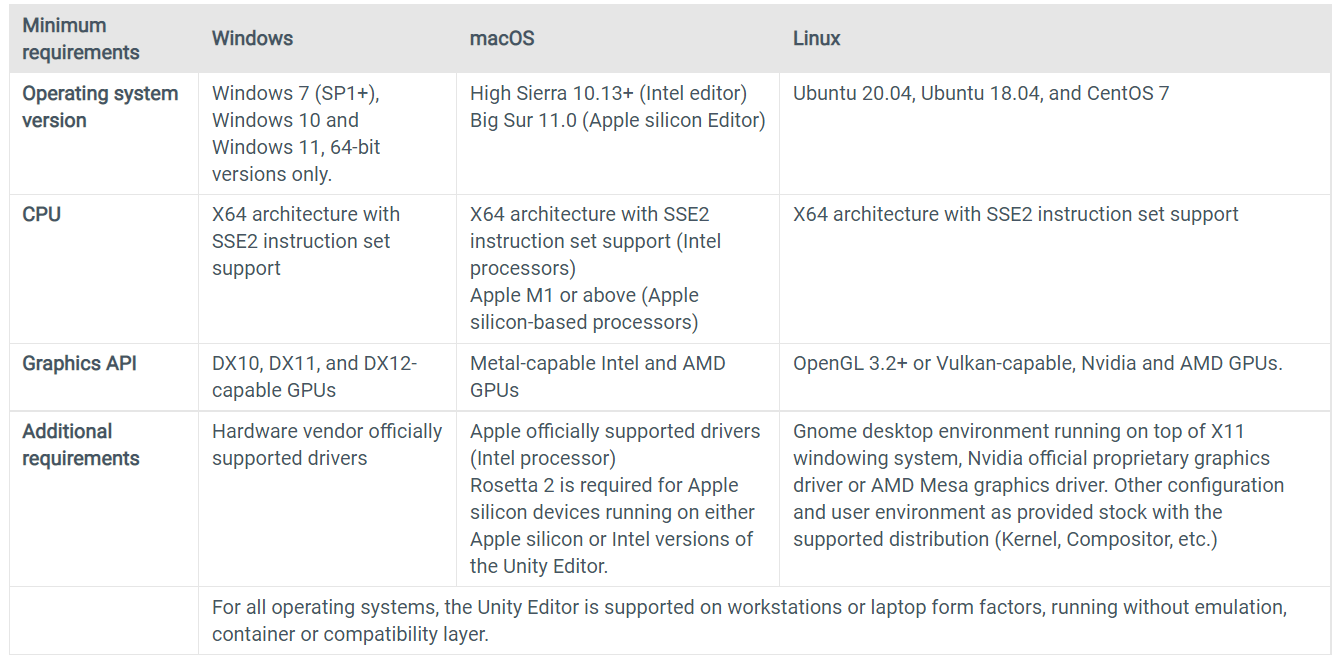
- Operating System: Windows 7 SP1+, 8, 10 (64-bit versions only); macOS 10.12+; Ubuntu 16.04, 18.04, and CentOS 7.
- Graphics Card: DX10 (shader model 4.0) capabilities required for Windows.
- Unity is supported on both Windows and macOS, with the minimum requirements shown below:
Installation Process:
-
Visit the Unity Website
Go to Download - Unity (unity3d.com) to download Unity Hub and Unity Editor.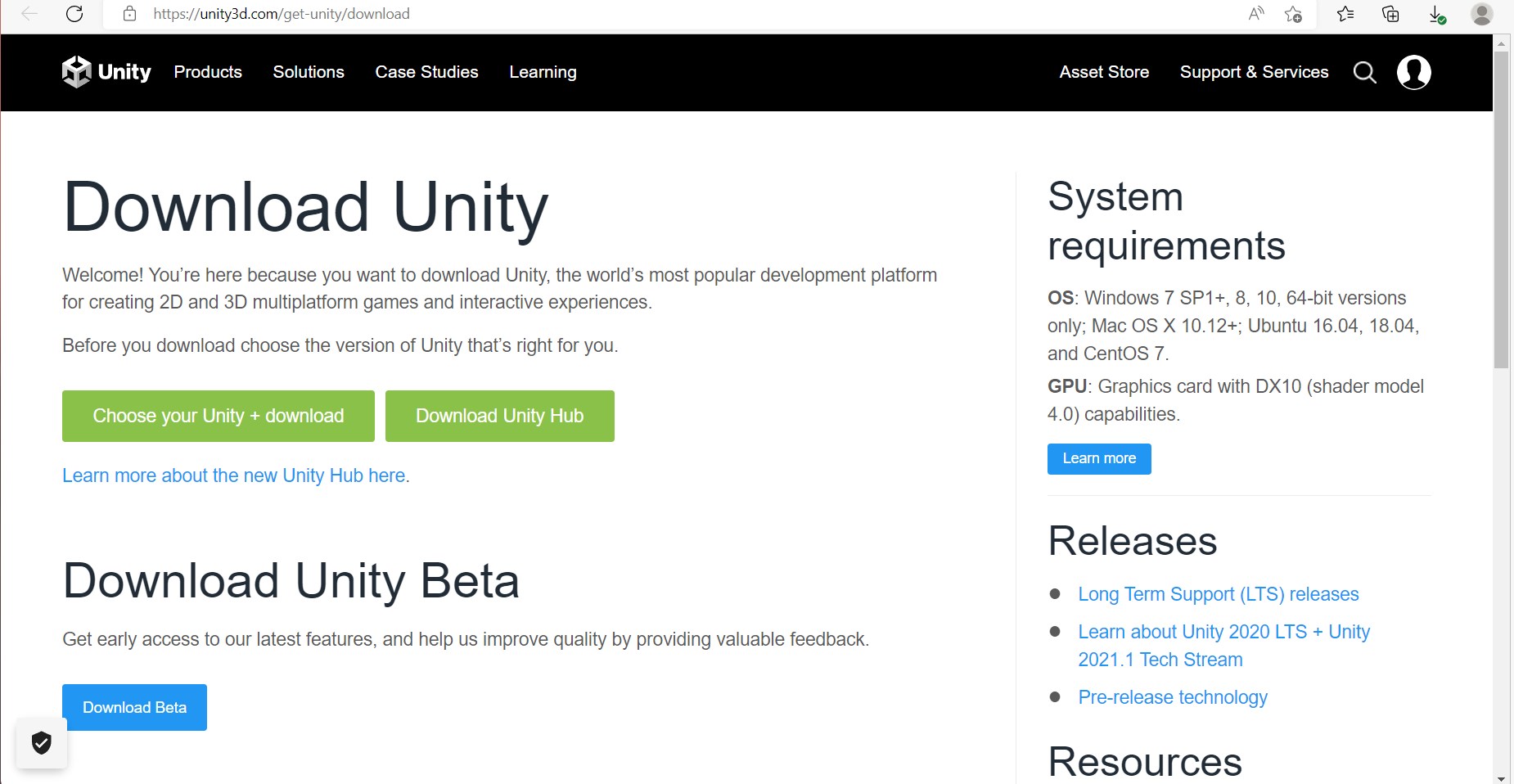
-
Sign In or Create a Unity ID
Click the user icon in the top-right corner.
If you already have a Unity ID, log in. If not, click Create a Unity ID to sign up.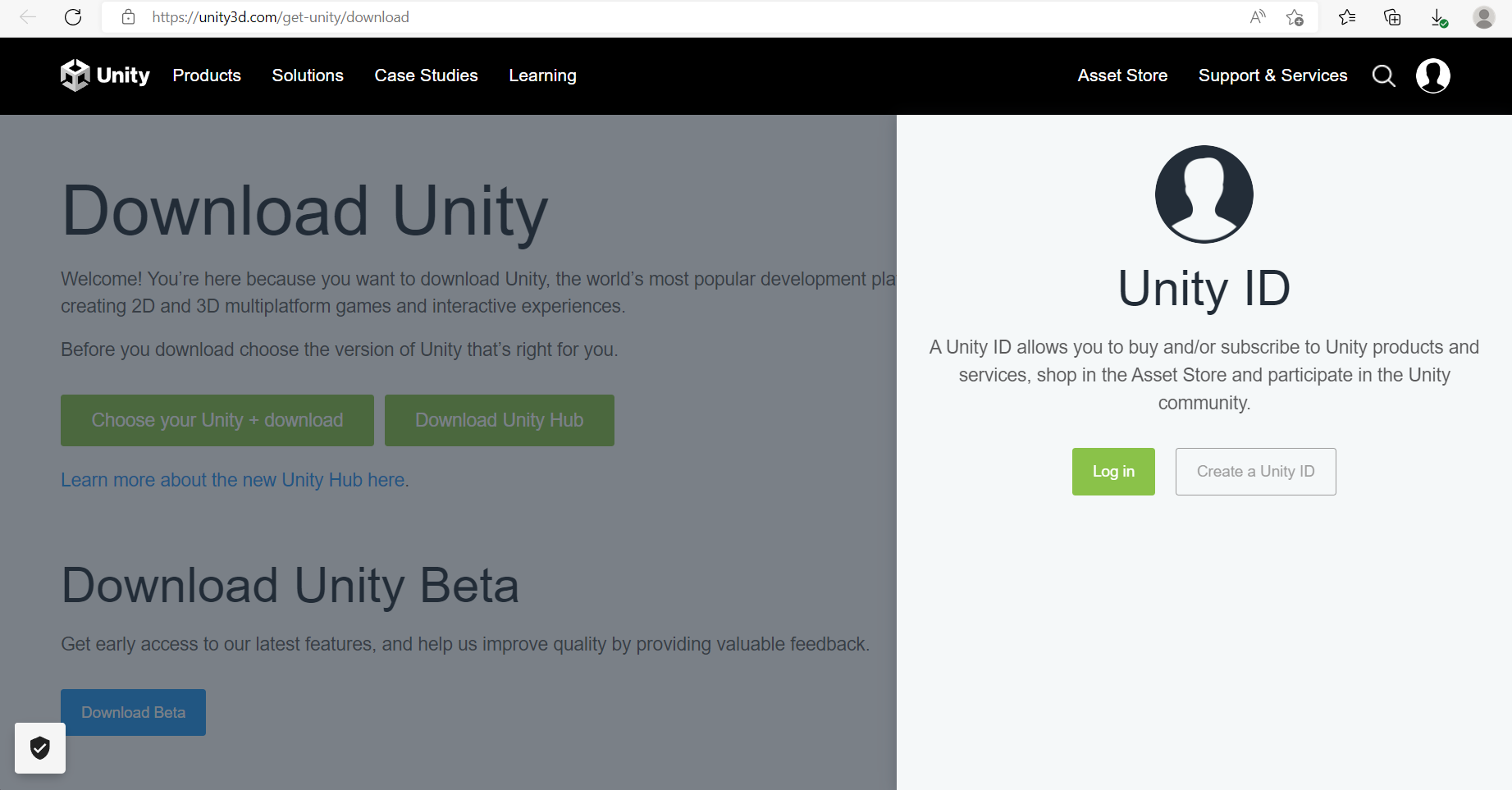
-
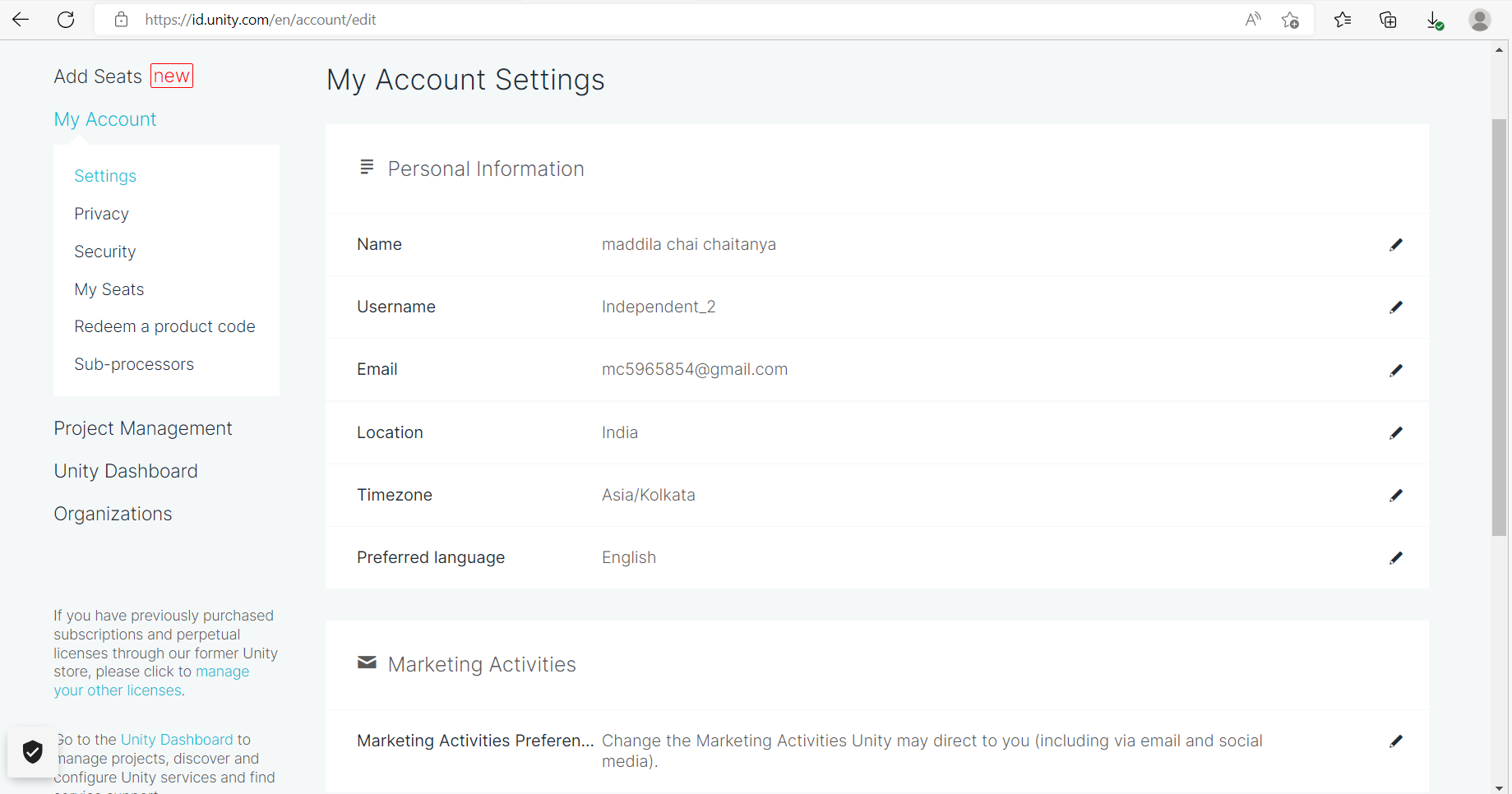
Fill in Required Details
Complete the sign-up form with the required details to create your Unity ID. -
Download Unity Hub
After signing in, go back and click Unity Hub to begin downloading Unity Hub.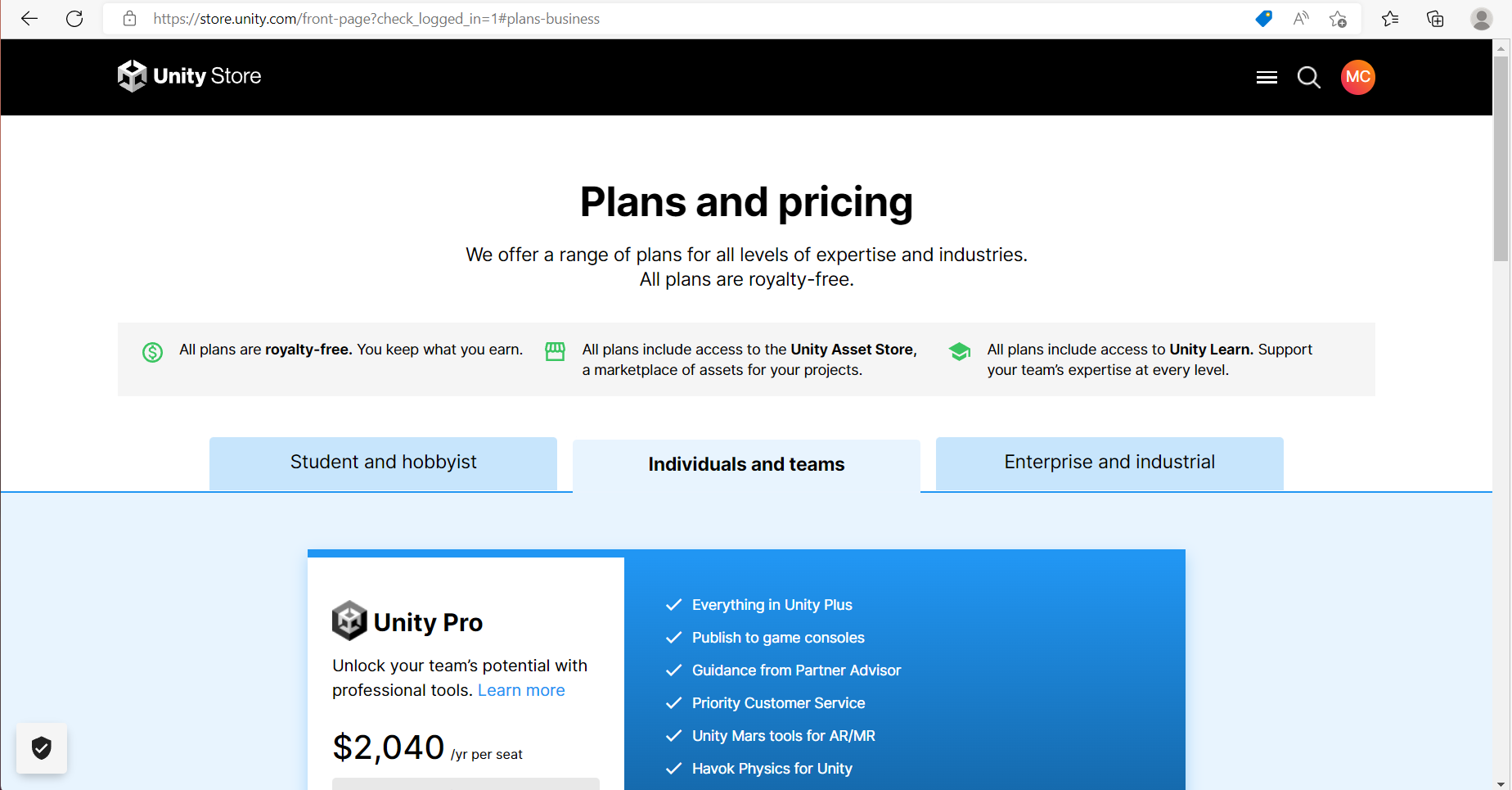
-
Select Student and Hobbyist Option
On the page, select Student and Hobbyist for free access.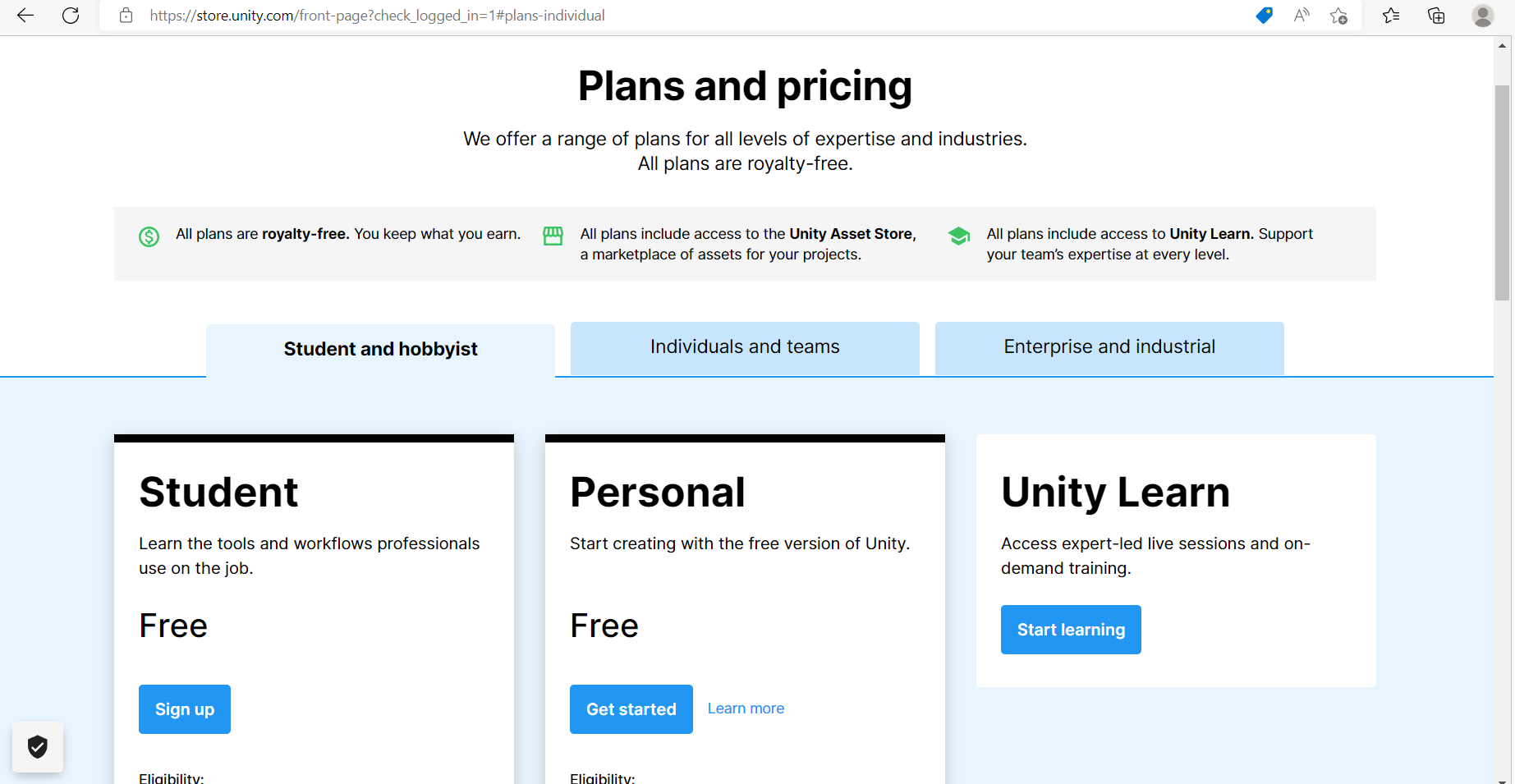
-
Download Unity Editor
After selecting your usage, click to download Unity Editor. -
Run the Unity Hub Installer
Once downloaded, click Show in Folder and run the installer as Administrator. -
Agree to the Terms
In the installation wizard, click I Agree to proceed.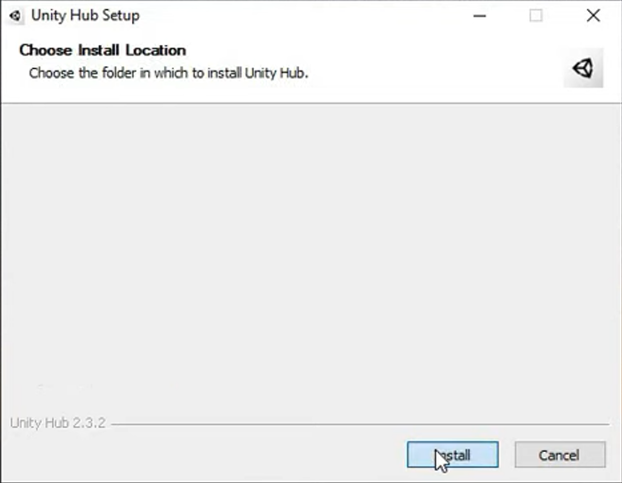
-
Choose Installation Location
Select Install and choose the location where Unity should be installed.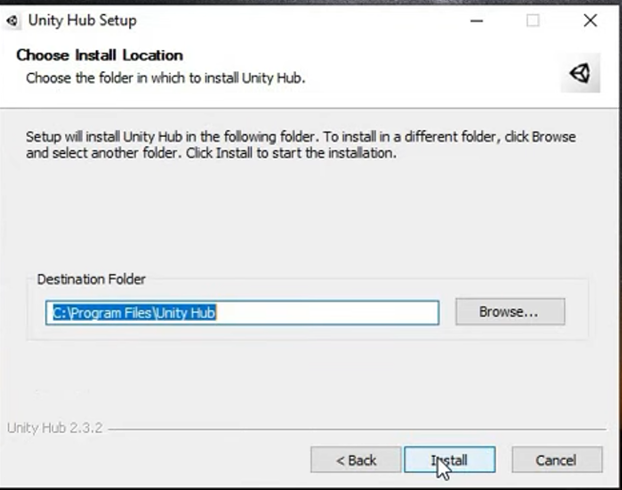
-
Select the Disk and Create Folder
Click Browse, select the disk, and create a folder for the installation.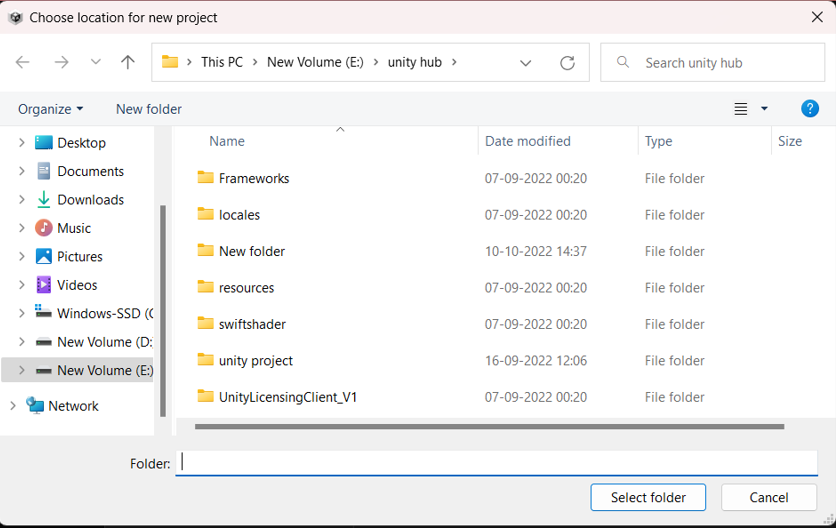
-
Installation Progress
The installation process will begin and appear as shown below.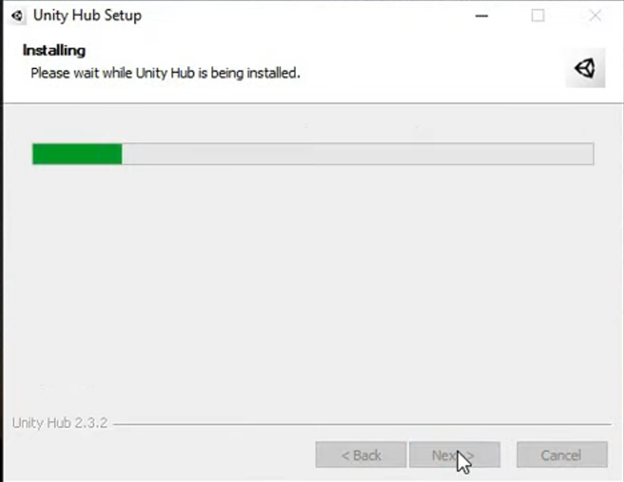
-
Installation Complete
Once installation is complete, the window will close, and another pop-up will appear.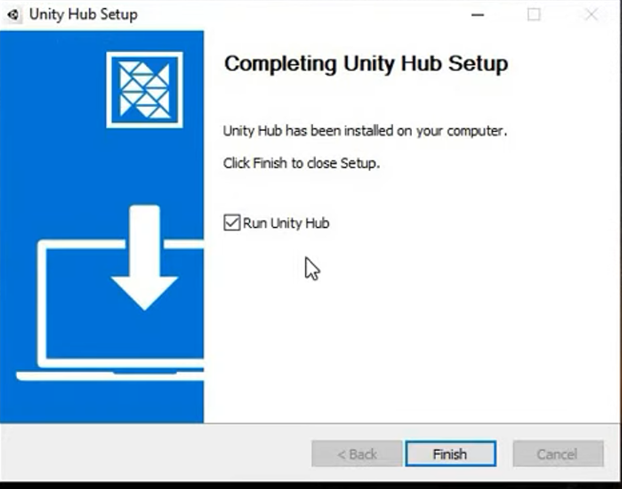
-
Run Unity Hub
You can select Run Unity Hub or click Finish to complete the setup. -
Allow Network Access
Open Unity Hub and allow access for both networks when prompted.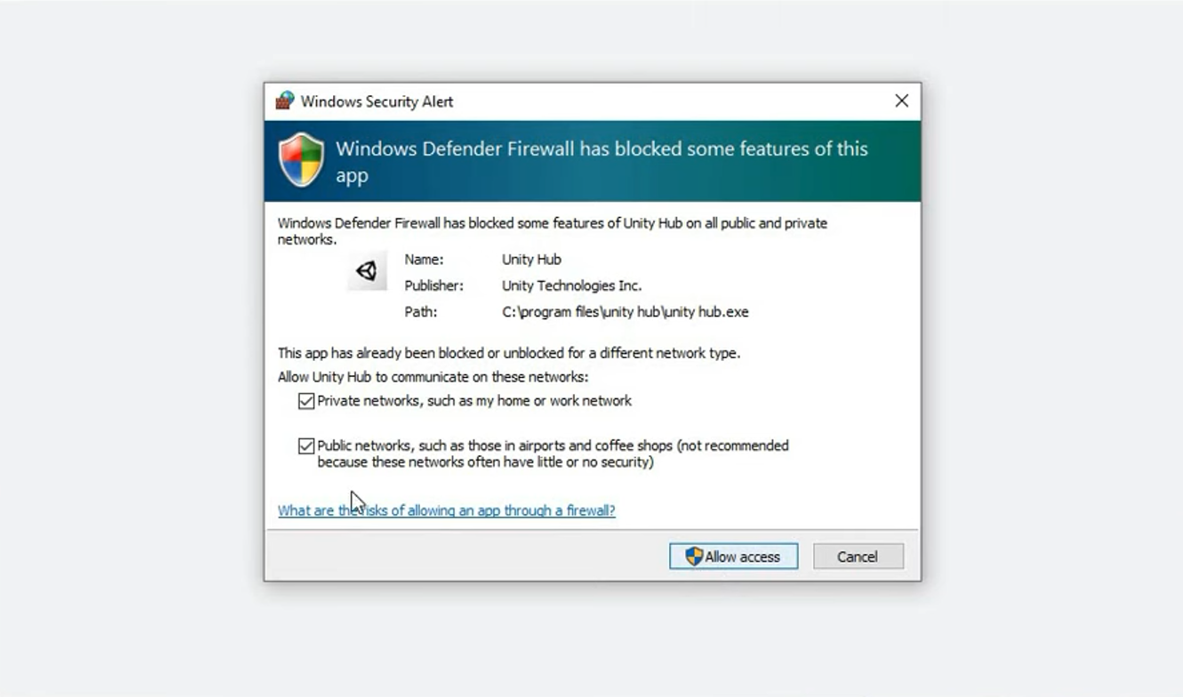
-
Install Unity Editor
Next, install the Unity Editor by selecting the appropriate version (Unity Editor V2020.3.18f1) and clicking Run as Administrator.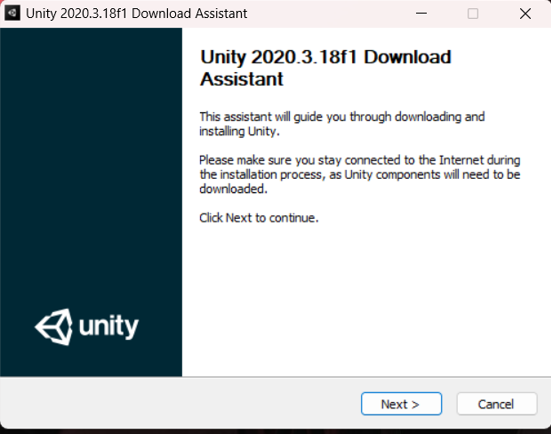
-
Agree to Terms
Accept the terms and conditions, then click Next.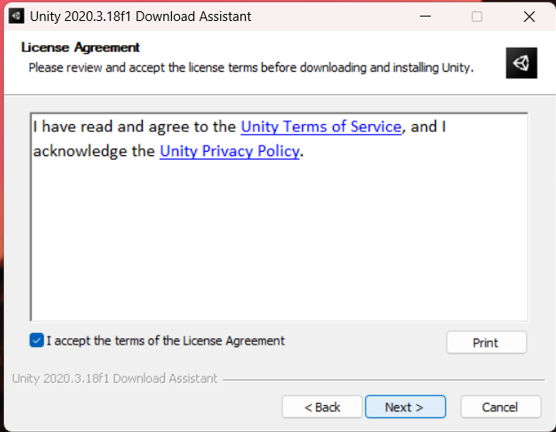
-
Select Components
Choose the components you wish to install, and click Next.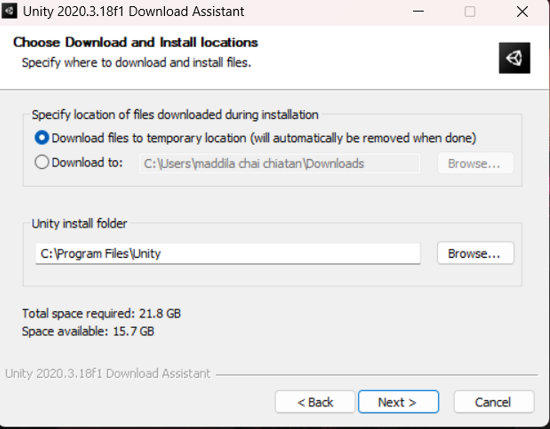
-
Choose Installation Path
Select the location for the Unity Editor installation.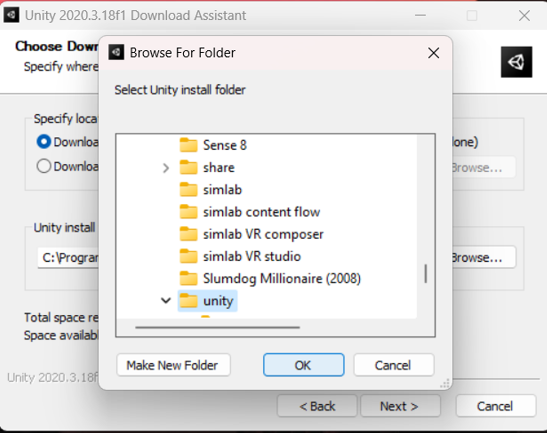
-
Verify Path and Start Installation
Confirm the installation path and click Next to begin the installation.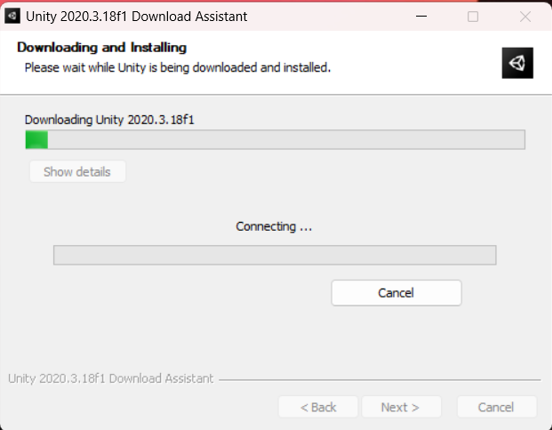
Unity Hub and Editor must be installed on the same disk. If they are on different disks, it will not work correctly.