Configuration
This section explains how to configure Autodesk 3ds Max settings for optimal performance and user customization.
-
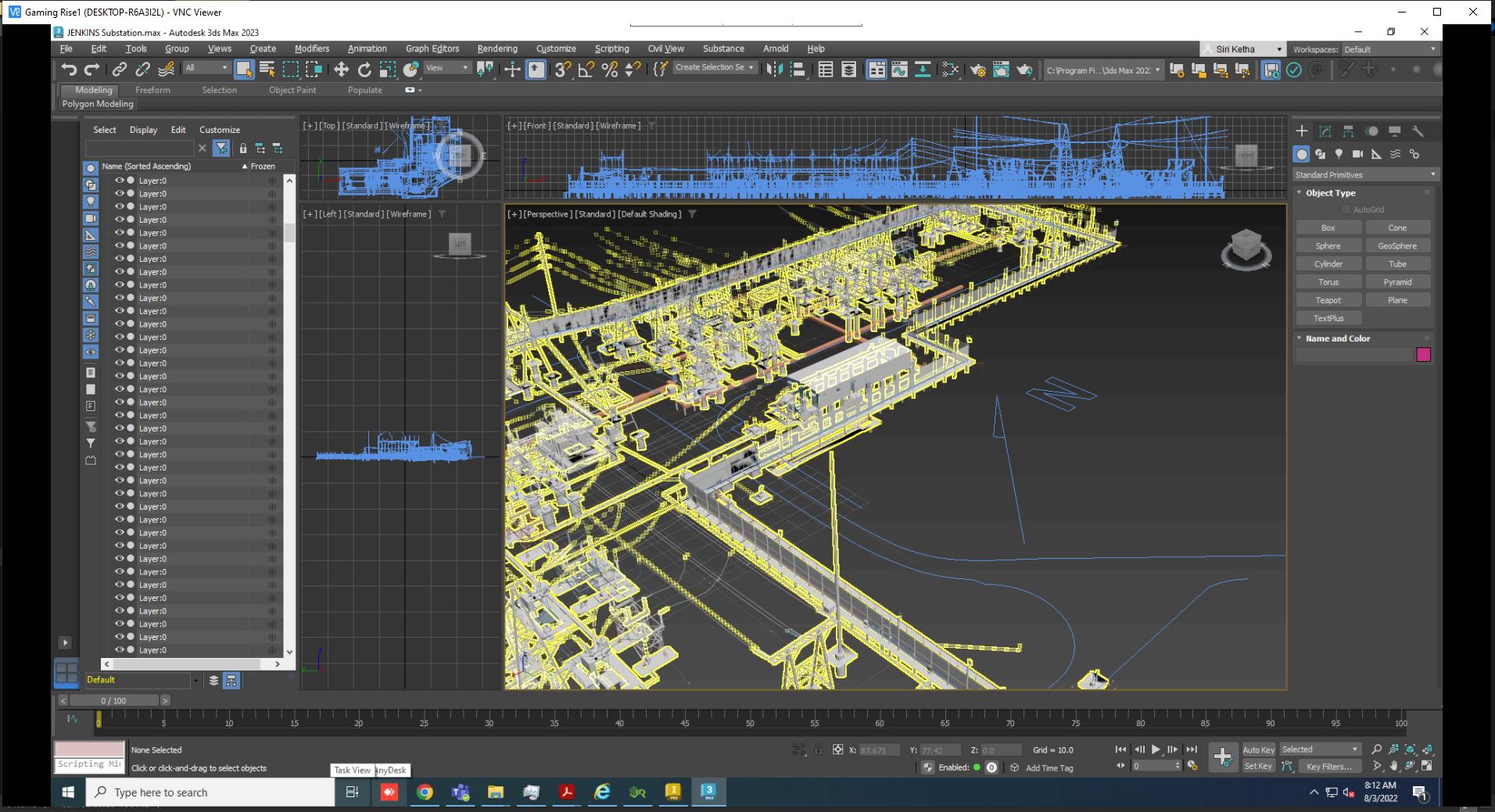
Open the Autodesk 3ds Max application.
-
Go to Customize → Preferences to open the configuration window.
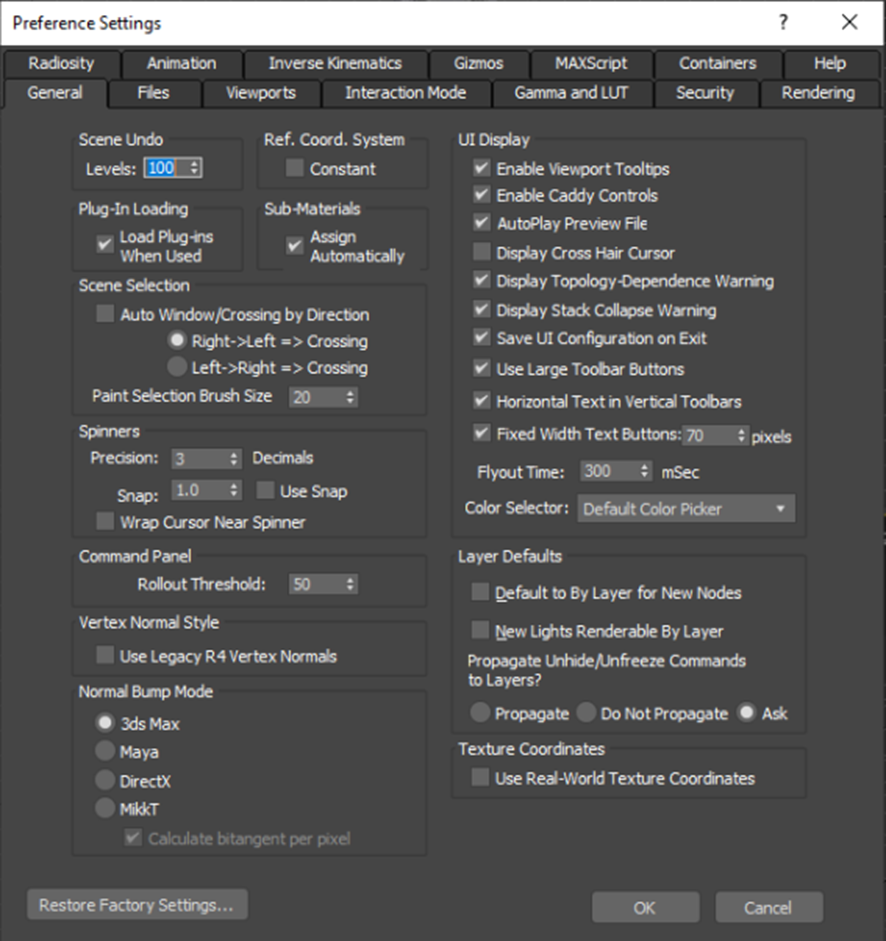
General Settings
In the General category, you can adjust several key preferences:
- Scene Undo settings
- Plug-in loading behavior
- Sub-material handling
- Reference coordinate system options
- Scene selection and spinner behavior
- Command panel and vertex normal display
- Normal bump mode
- UI display and layer defaults
- Texture coordinates
- Restore factory settings
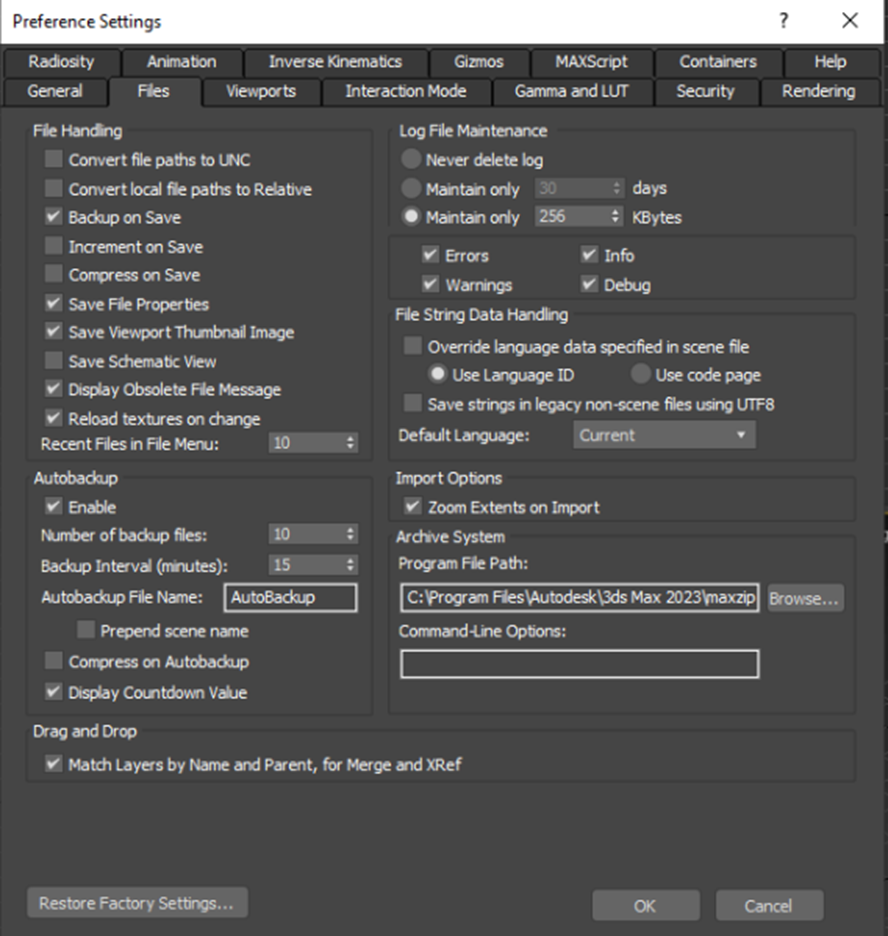
Files Settings
Under the Files category, you can manage:
- File handling and import options
- Auto-backup configuration
- Drag-and-drop behavior
- Log file maintenance
- Archive system and command line options
- File string data handling
- Restore factory settings
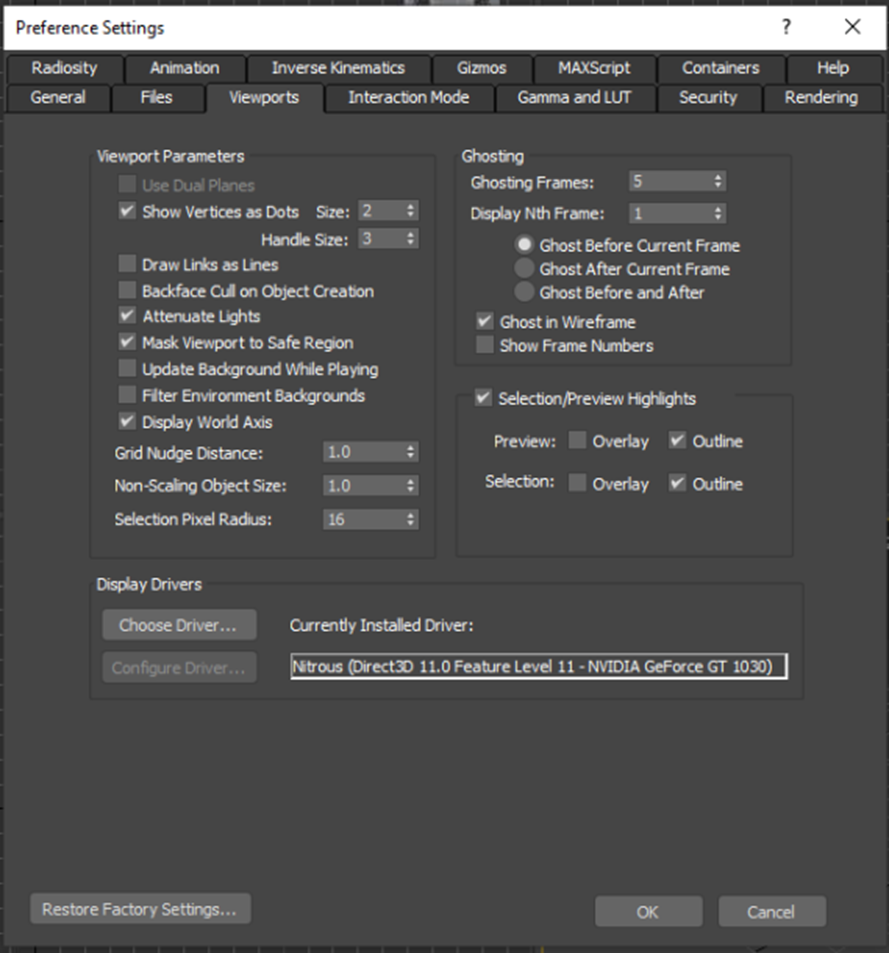
Viewports
In the Viewports section, customize:
- Viewport parameters and display drivers
- Ghosting effects
- Selection highlight options
- Restore factory settings
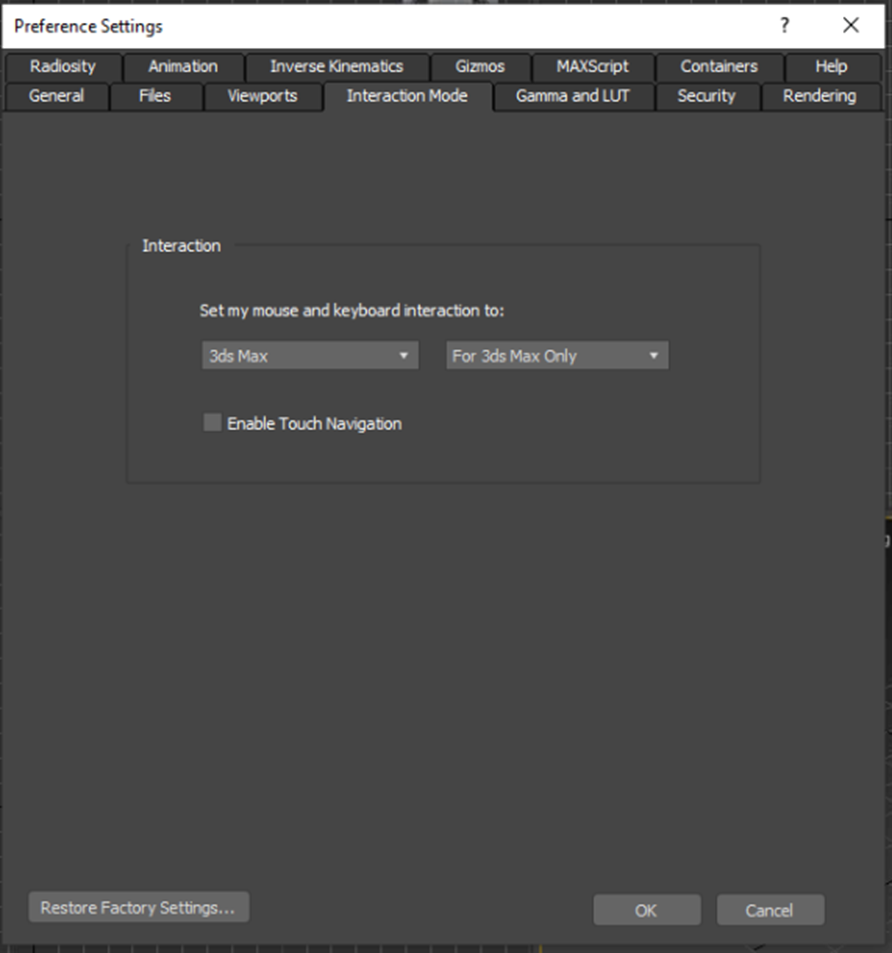
Interaction Mode
The Interaction Mode category includes:
- General interaction settings
- Restore factory defaults
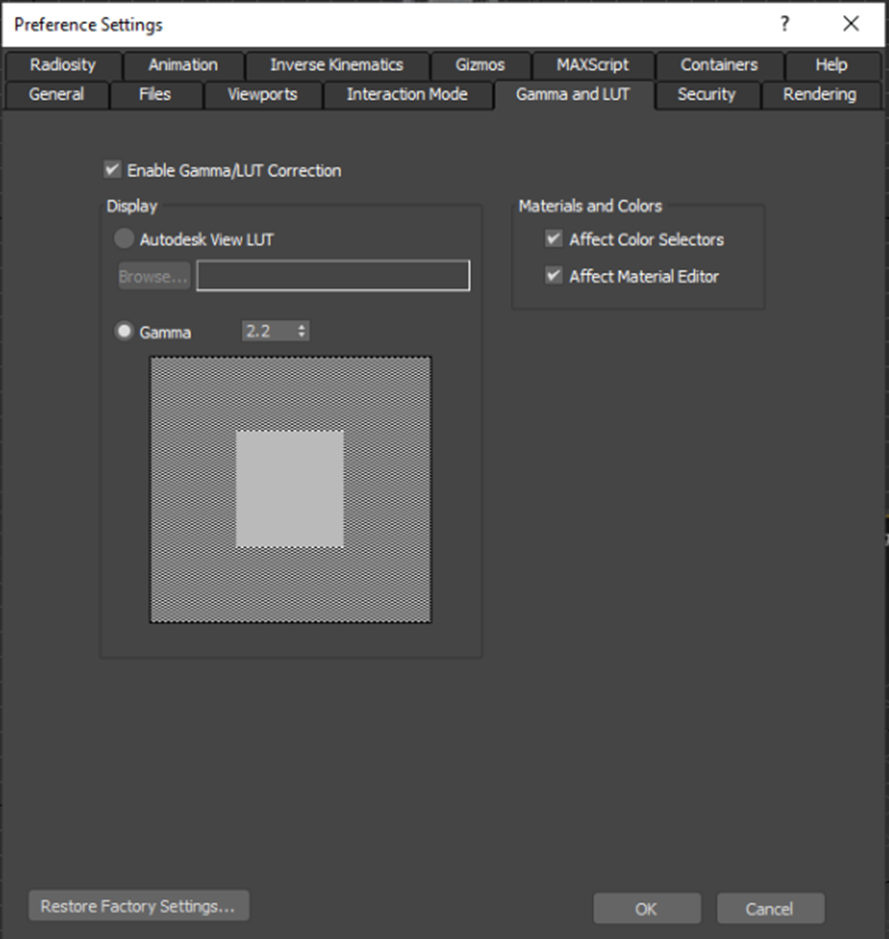
Gamma and LUT
Under Gamma and LUT, you can manage:
- Gamma/LUT correction options
- Material and color adjustments
- Restore factory settings
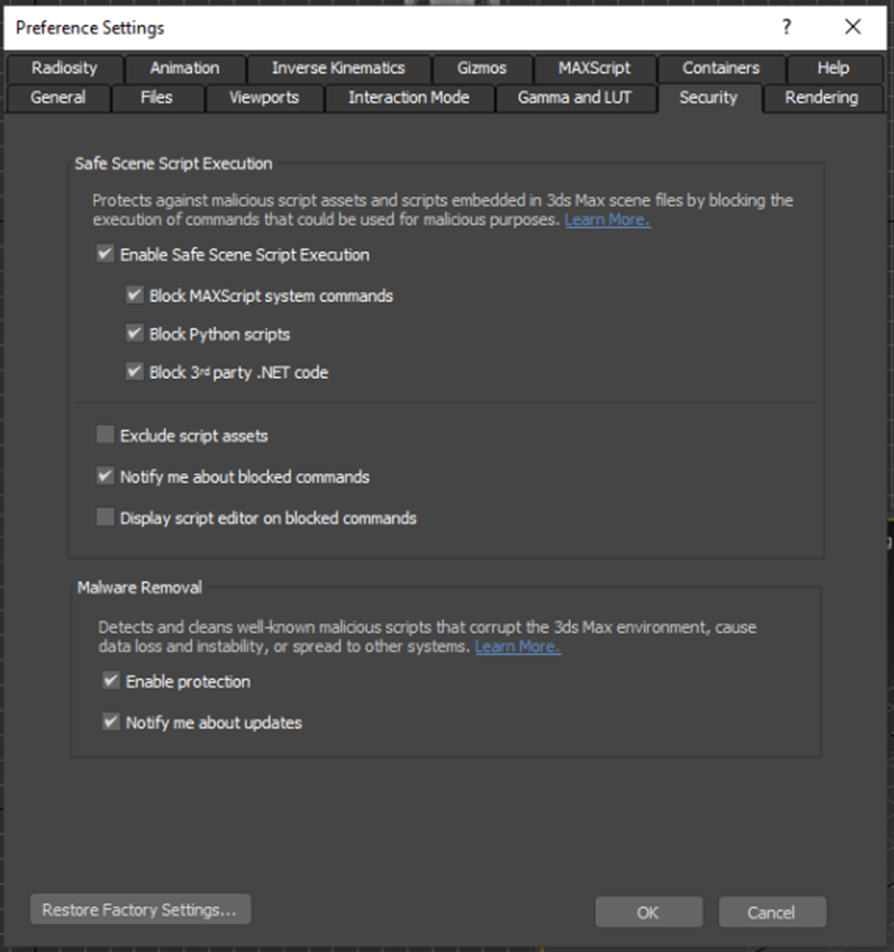
Security
In the Security category, configure:
- Safe scene script execution
- Malware removal options
- Restore factory settings
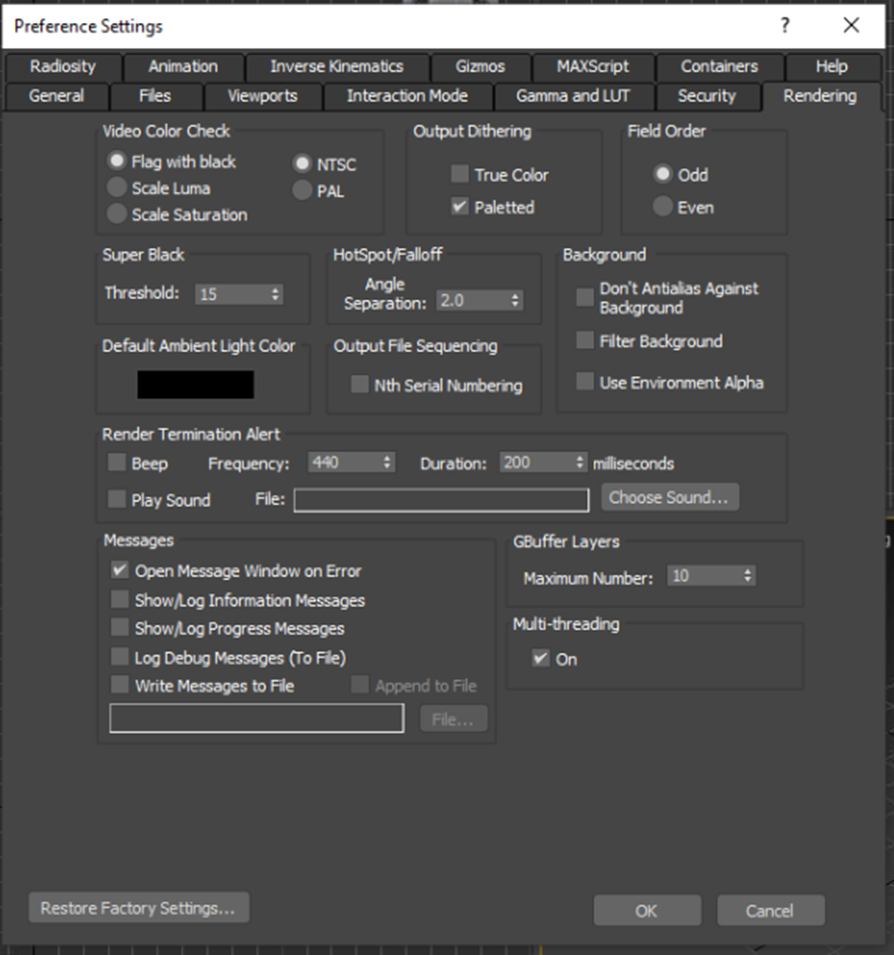
Rendering
Within the Rendering section, customize settings such as:
- Video color checks and black levels
- Ambient light color and render alerts
- Dithering, hotspot/falloff, and field order
- Messages and GBuffer layers
- Output sequencing and multi-threading
- Restore factory settings
Radiosity
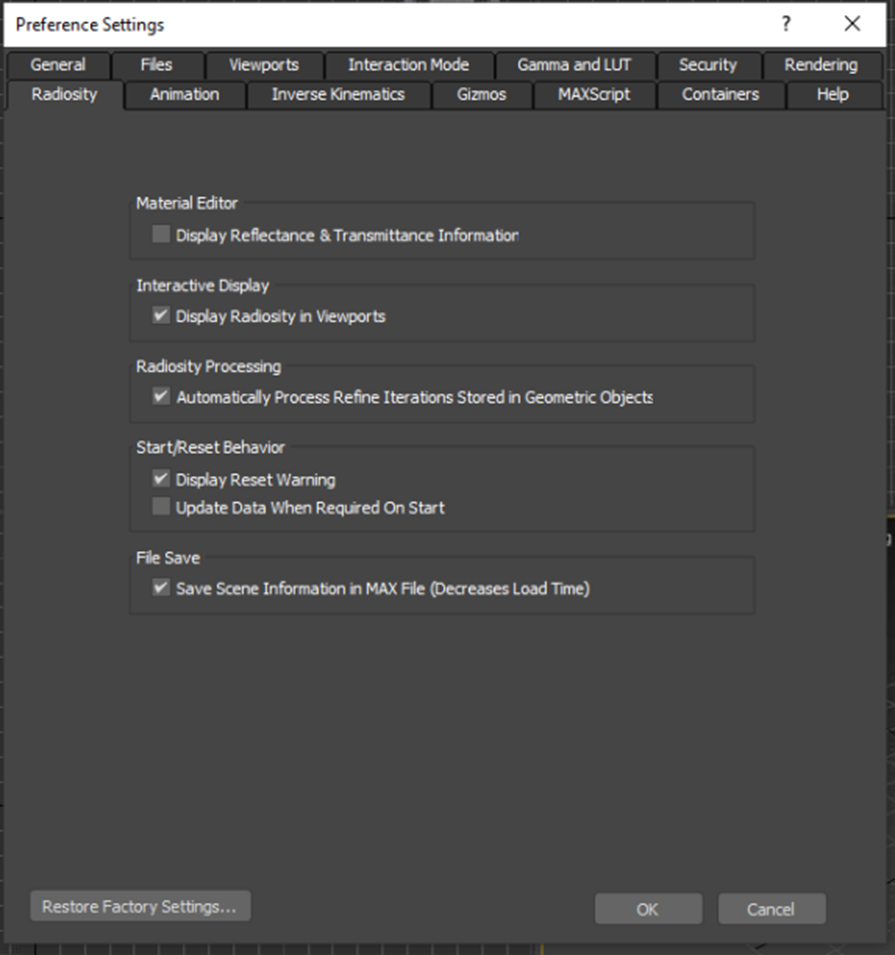
In Radiosity, you can adjust:
- Material editor and display performance
- Radiosity processing options
- Start/reset behaviors and save options
- Restore factory settings
Animation
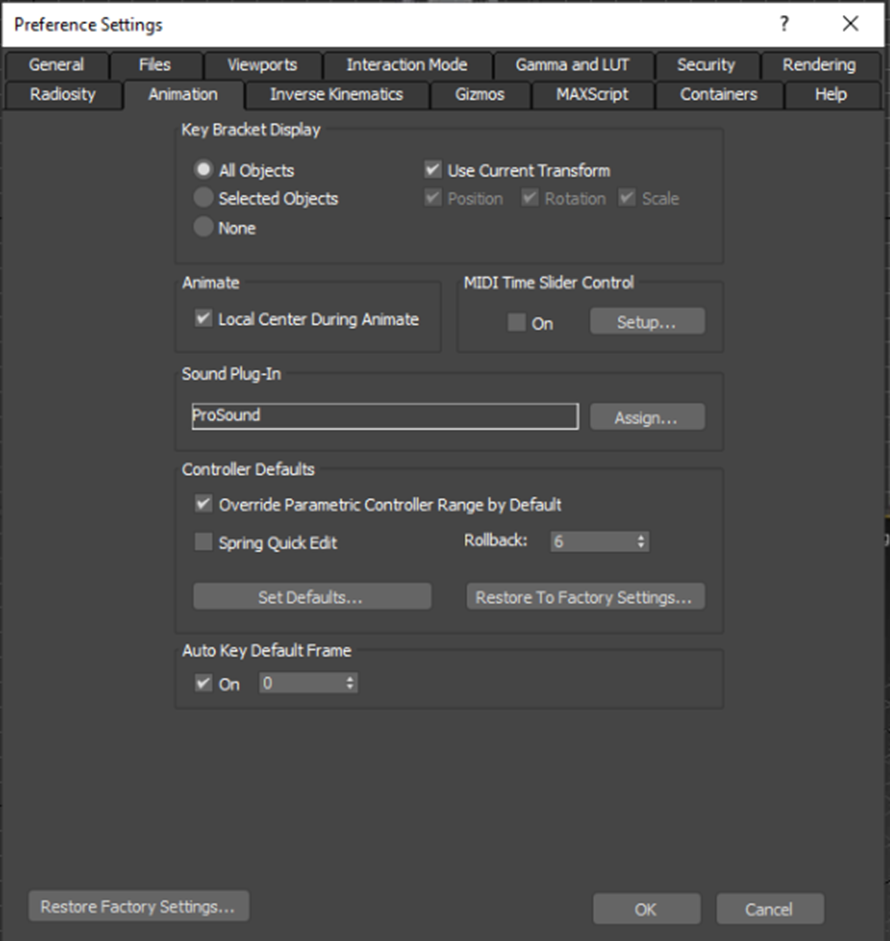
In the Animation category, configure:
- Key bracket display and animation controls
- Sound plug-in settings
- Controller defaults and auto-key options
- Restore factory settings
Inverse Kinematics
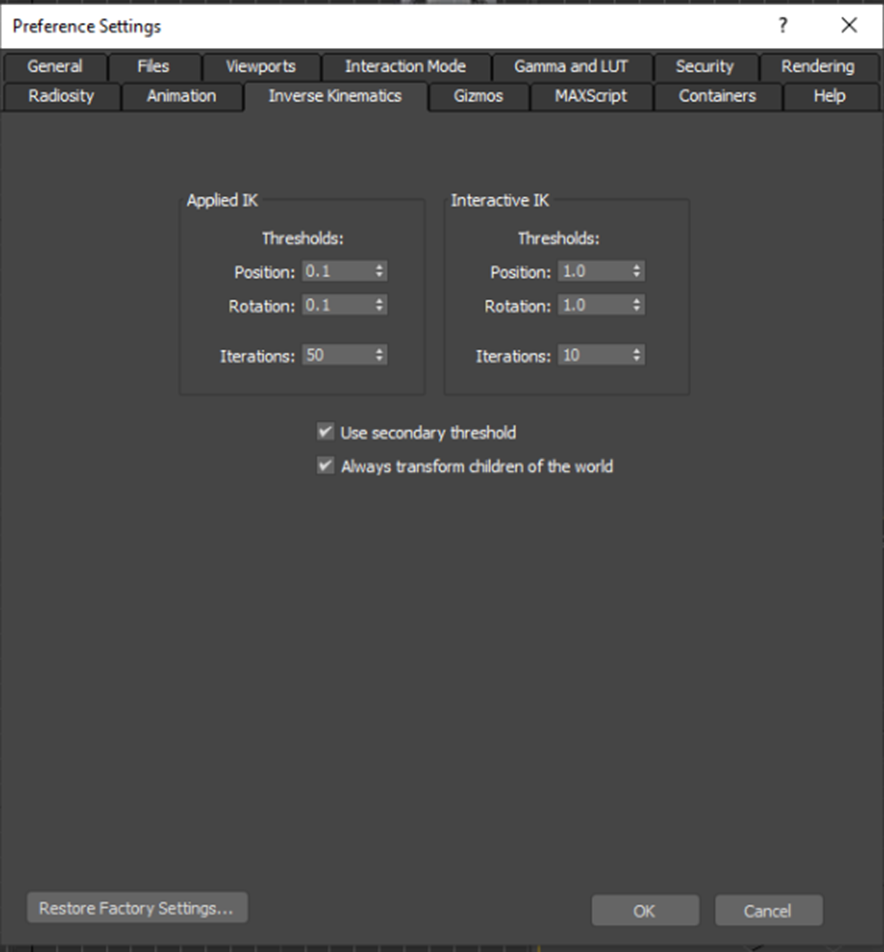
The Inverse Kinematics section allows you to set:
- Applied and interactive IK controls
- Secondary threshold usage
- Child transformation behavior
- Restore factory settings
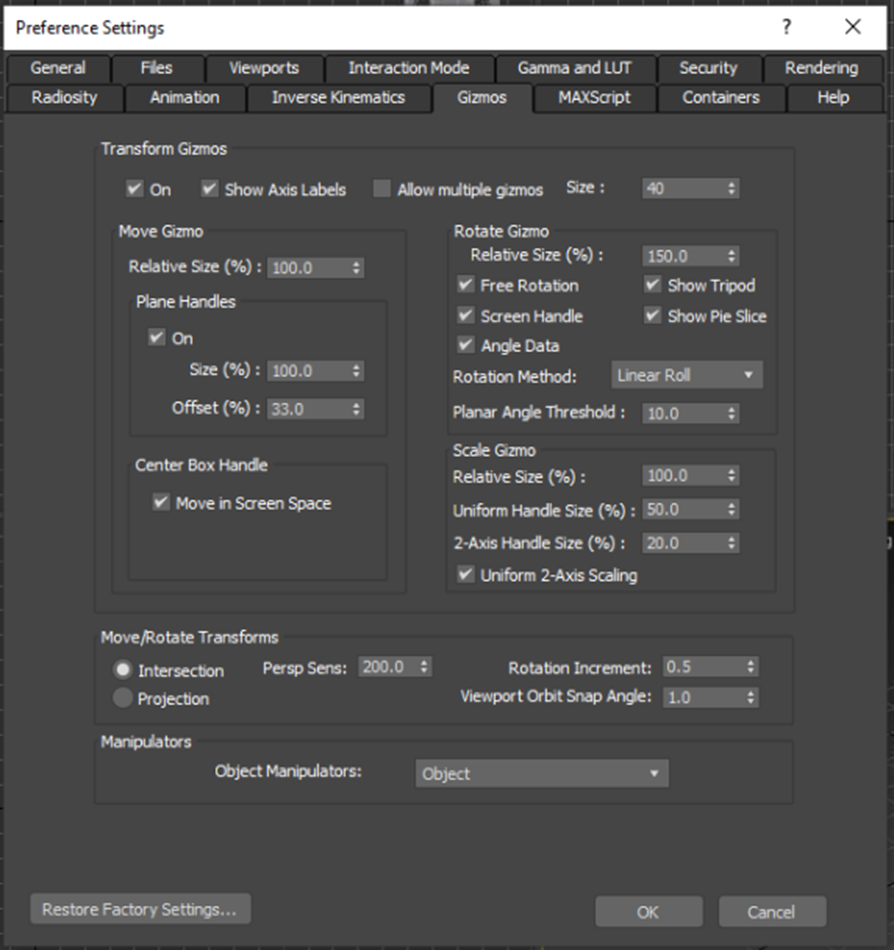
Gizmos
Under Gizmos, you can customize:
- Transform, move, and rotate gizmo settings
- Move/rotate transform preferences
- Manipulator behavior
- Restore factory settings
Maxscript
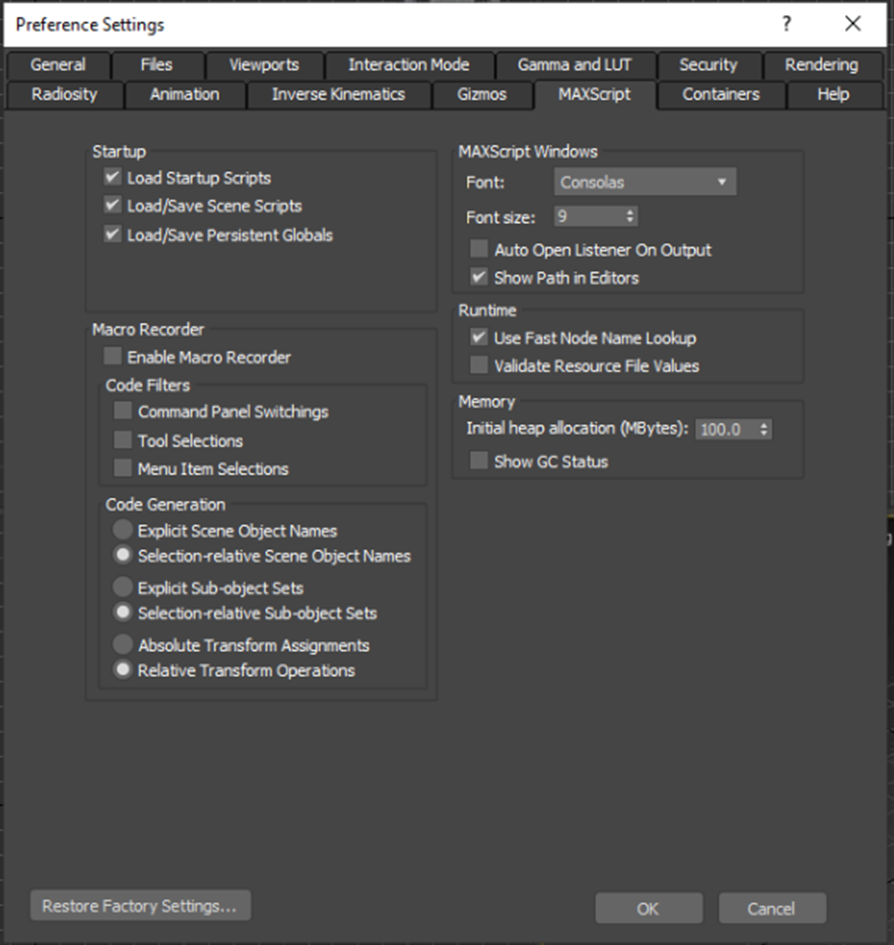
In the Maxscript category, manage scripting preferences such as:
- Startup and macro recording
- Code generation
- Script runtime and memory usage
- Restore factory settings
Containers
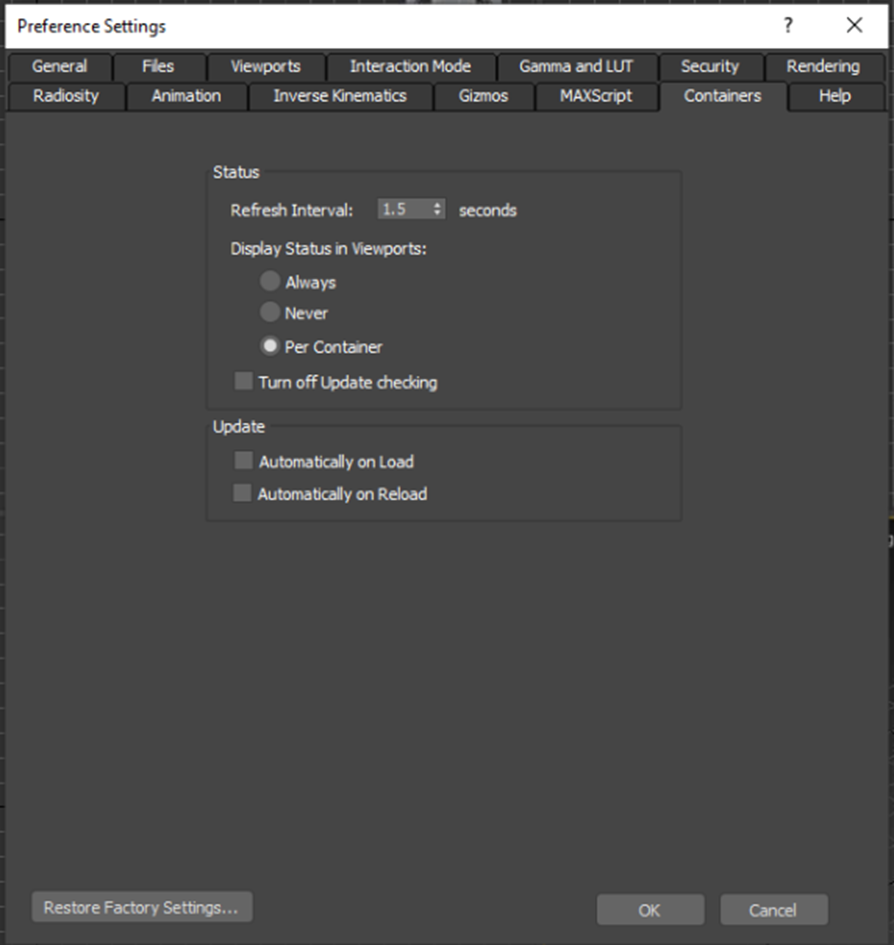
Under Containers, you can configure:
- Status and update behaviors
- Restore factory settings
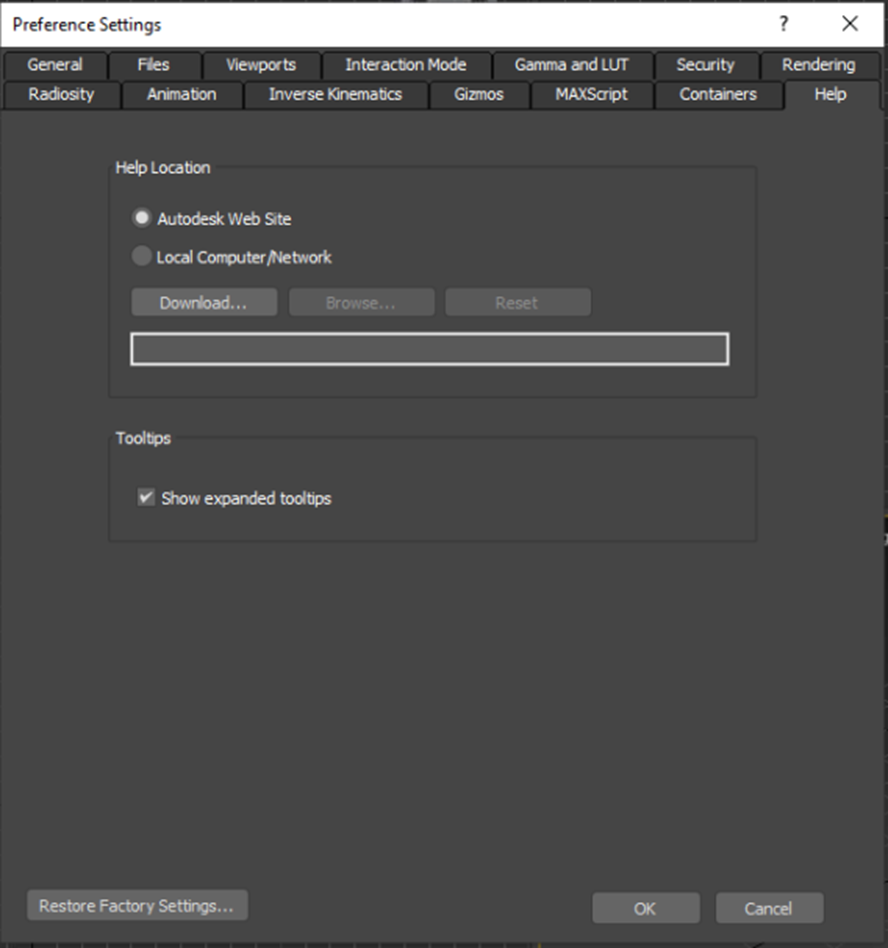
Help
In the Help category, adjust:
- Help file location
- Tooltip preferences
- Restore factory settings