DWG to FBX Conversion Workflow
This workflow demonstrates importing AutoCAD DWG files and exporting them as FBX for use in game engines, XR applications, or other 3D software.
Step-by-Step Process
-
Launch 3ds Max
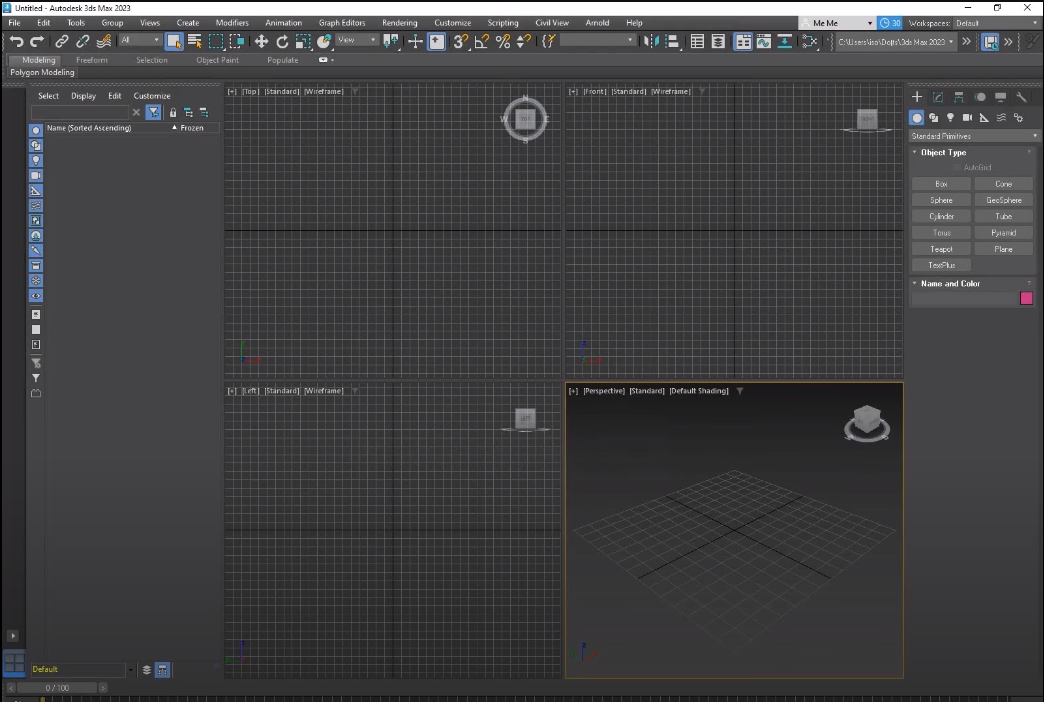
-
Import DWG File
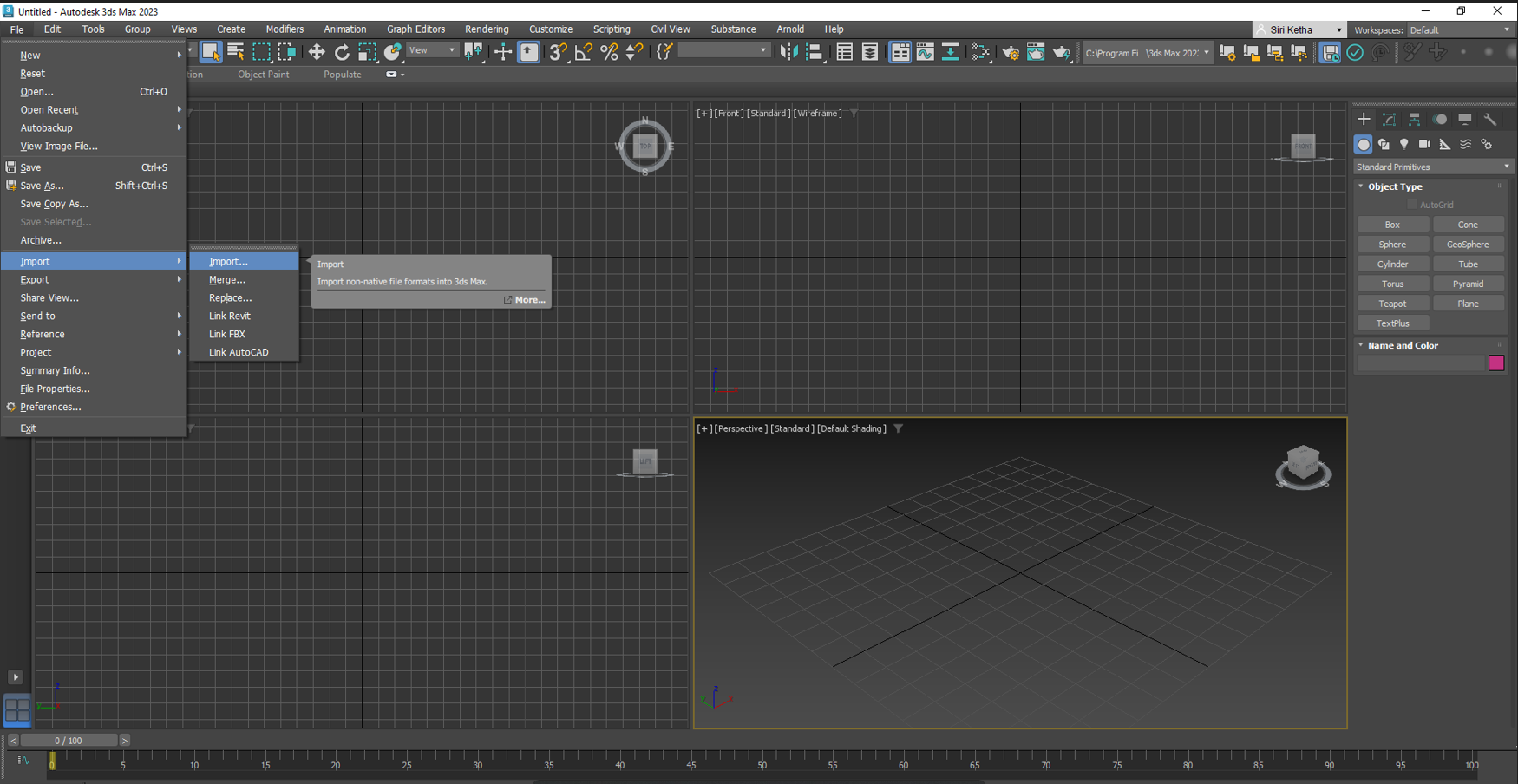
- Go to File → Import
- Select your DWG file and click Open
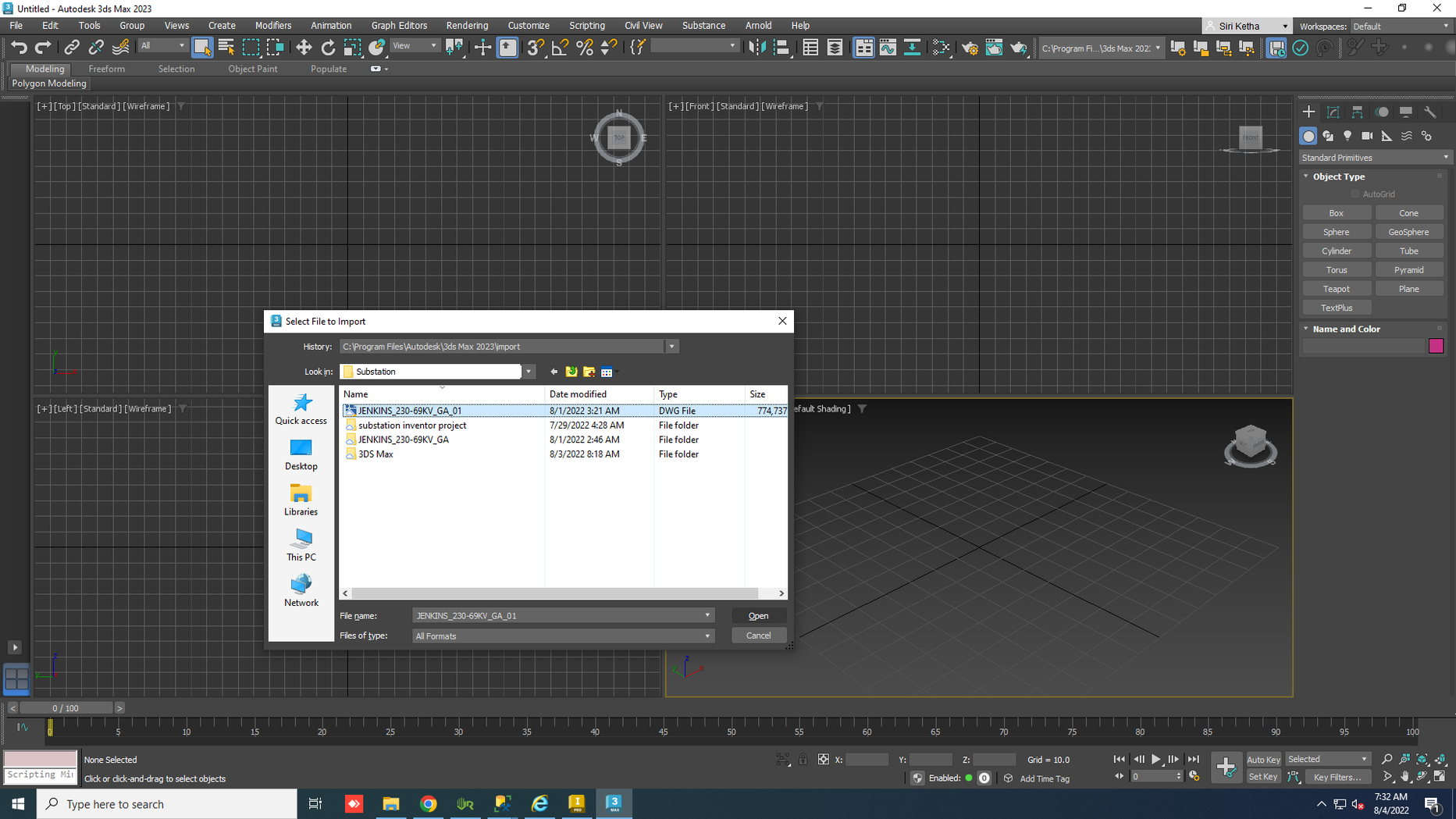
- Go to File → Import
-
Configure Import Settings
- Adjust mesh smoothing, model scale, lights, and other import options
- Click OK to import
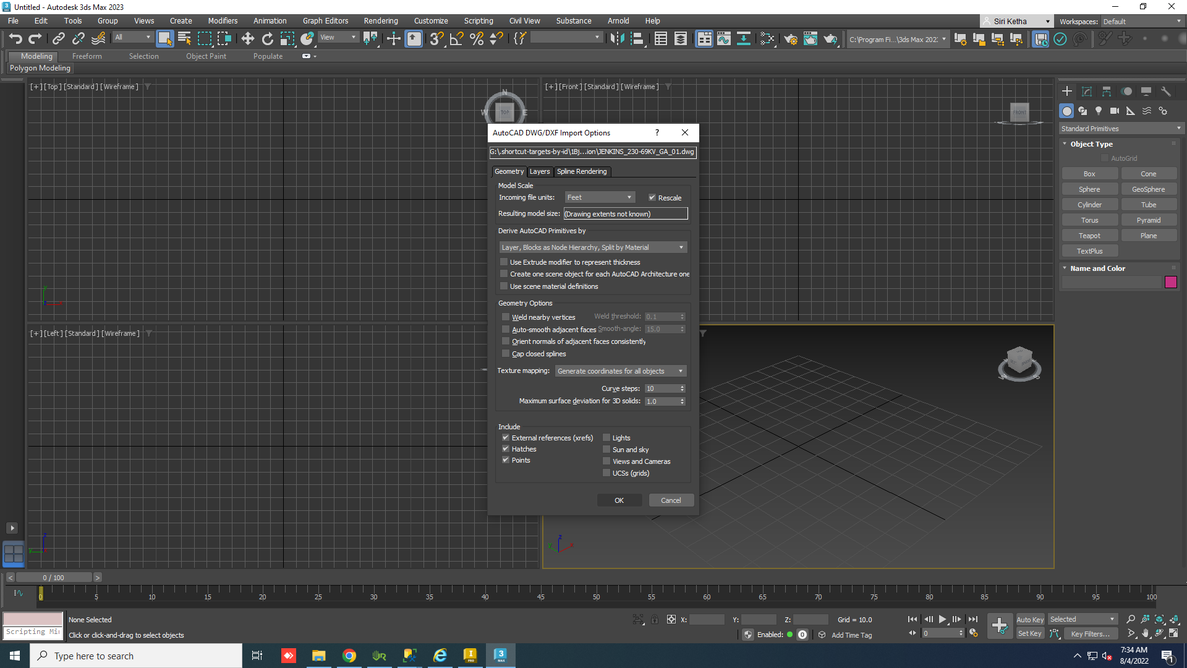
-
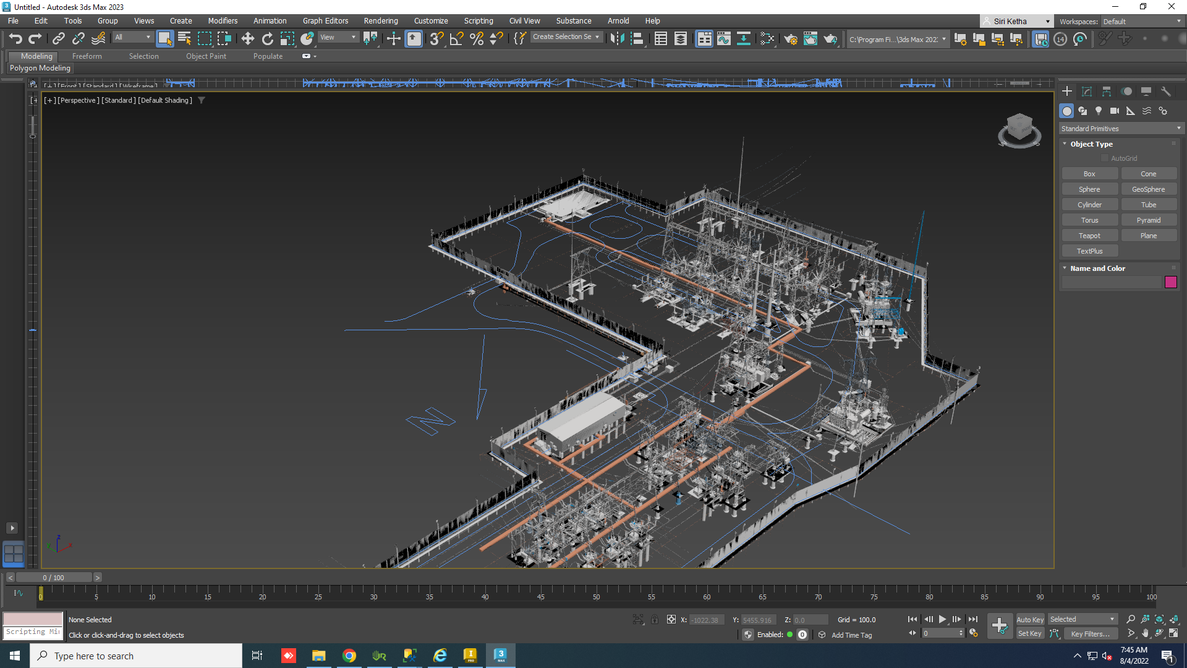
Verify Imported Geometry
Imported DWG appears in the viewport:
-
Export as FBX
- Go to File → Export (or Export Selected)
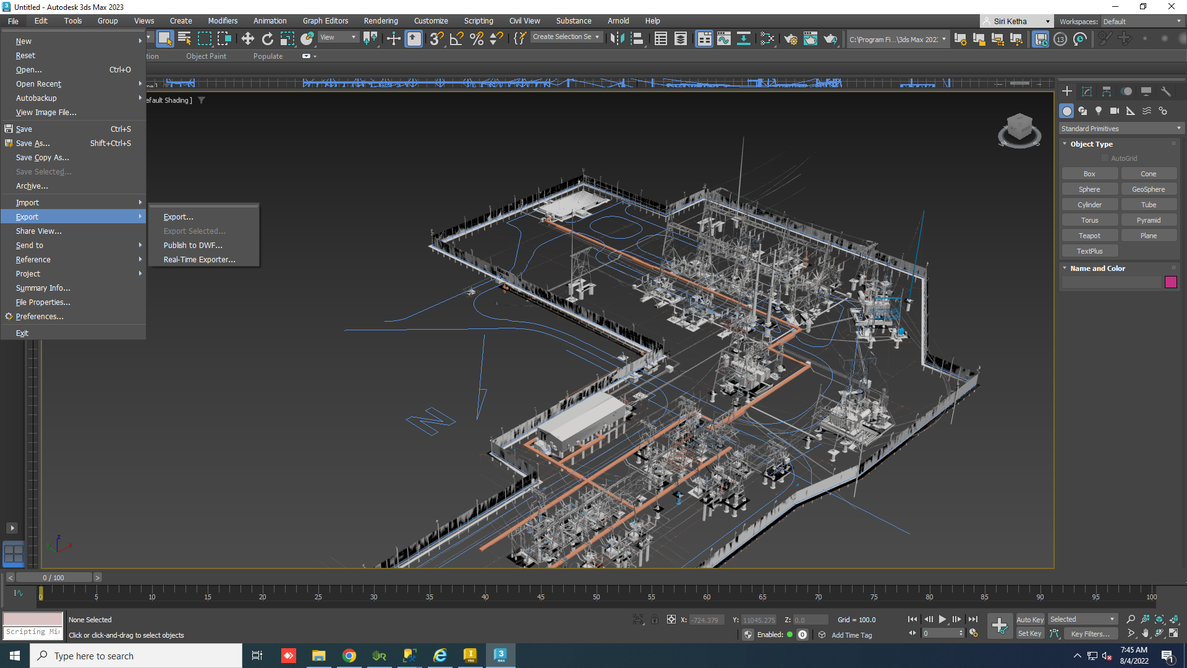
- Go to File → Export (or Export Selected)
-
Configure FBX Export
- Choose FBX format and specify filename
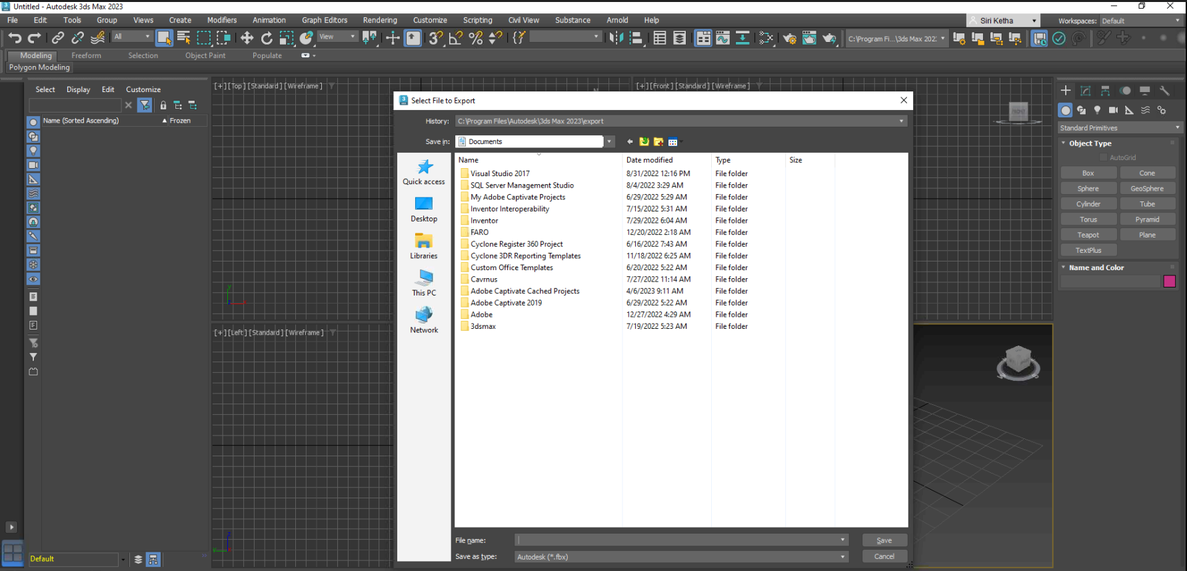
- Set geometry presets (scale, smoothing, etc.)
- Click OK to export
- Choose FBX format and specify filename
Result
FBX file successfully exported and ready for use in Unity, Unreal Engine, or other 3D applications.