Installation
System Requirements
- Operating System: 64-bit Microsoft® Windows® 11 or Windows® 10. Refer to Autodesk’s Product Support Lifecycle for compatibility information.
- Browser: Autodesk recommends using the latest version of the following web browsers for accessing online content:
- Microsoft Edge
- Google Chrome™
- Mozilla® Firefox®
- Microsoft® Internet Explorer®
- Processor: 64-bit Intel® or AMD® multi-core processor with SSE4.2 instruction set.
- Graphics: Refer to the 3ds Max Certified Hardware list for supported systems and graphics cards.
- RAM: 4 GB minimum (8 GB or more recommended).
- Disk Space: 9 GB of free disk space for installation.
- Input Device: Three-button mouse recommended.
Installation Steps
1. Visit the Autodesk website.

2. Create a student account on Autodesk’s website.
3. Once your account is created, click Sign In.
4. Enter your email address and click Next.
5. Enter your password and click Sign In.
6. After signing in, a pop-up window will appear. Click View All Products.

7. Scroll down to find Autodesk 3ds Max and click on it.
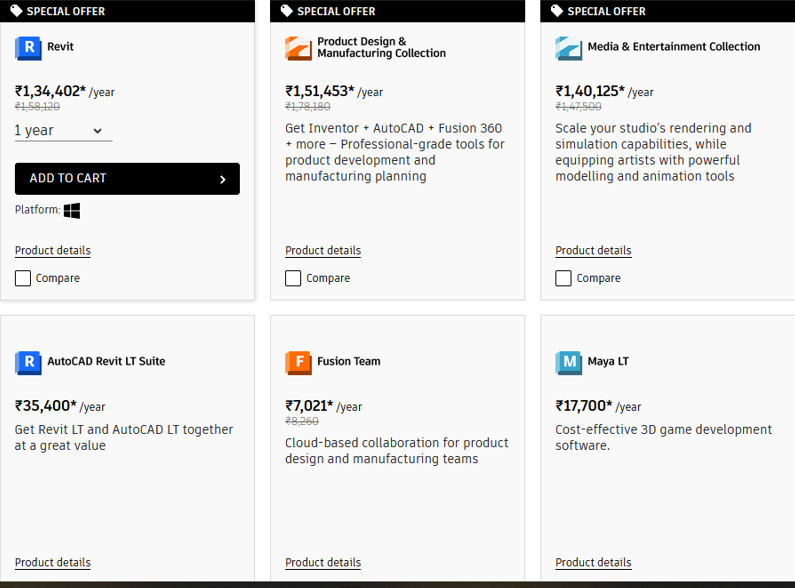
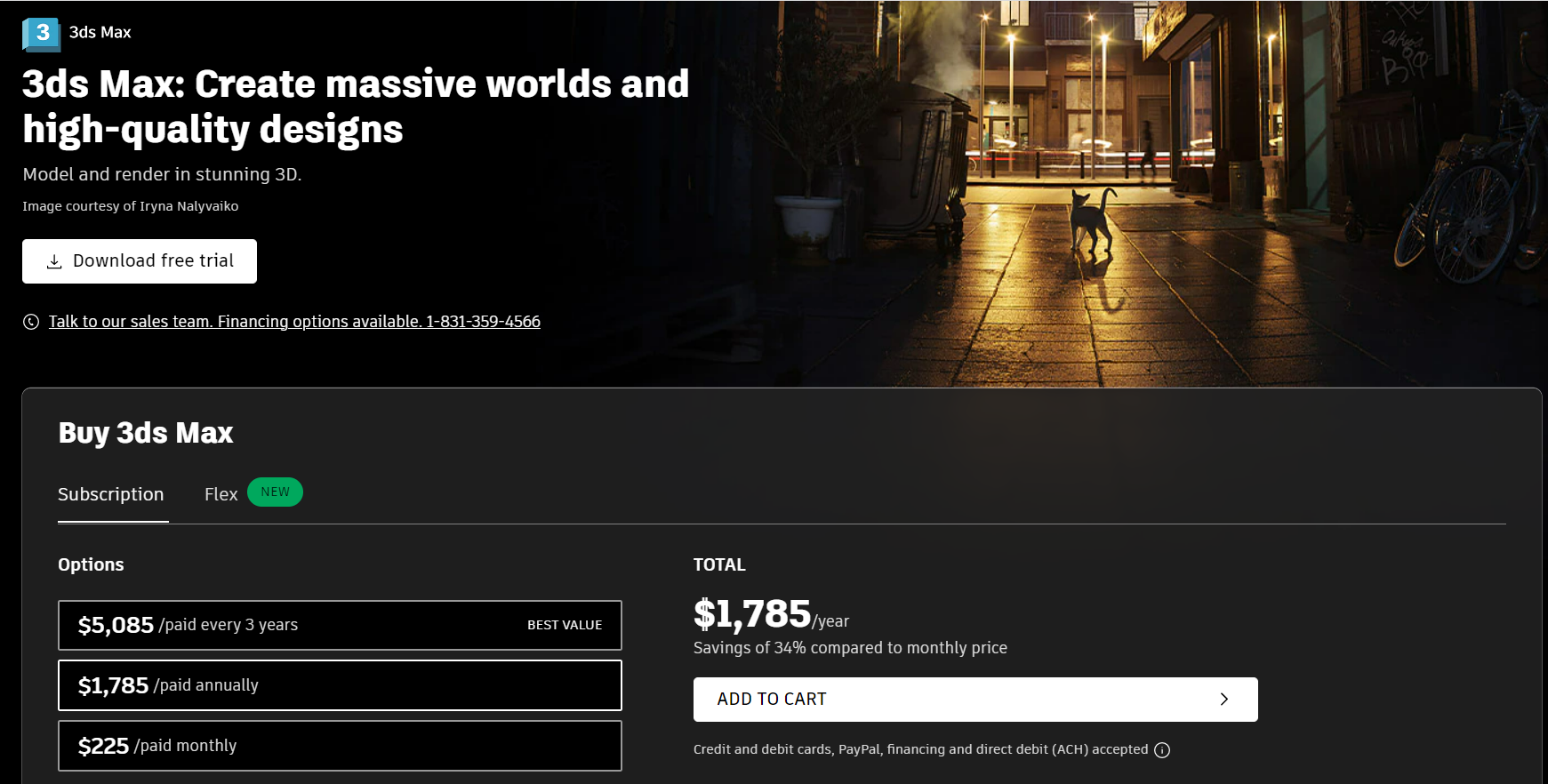
8. Download the Autodesk 3ds Max installer and complete any required verification or billing steps.
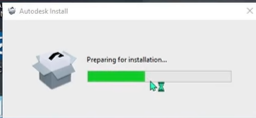
9. Once downloaded, run the installer to prepare for installation.
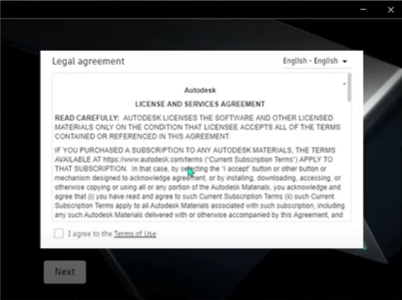
10. When the Autodesk License and Service Agreement window appears, read the terms carefully and click Next.
11. Choose the installation path for the software and click Install.
12. Wait for the installation to complete.
13. Once installation is complete, click Finish to close the setup.
Your Autodesk 3ds Max software is now ready to launch.