Licensing
This section explains how to activate and manage your Autodesk 3ds Max 2023 license through Student and Professional access.
Student License
-
After completing the Autodesk sign-in process:

-
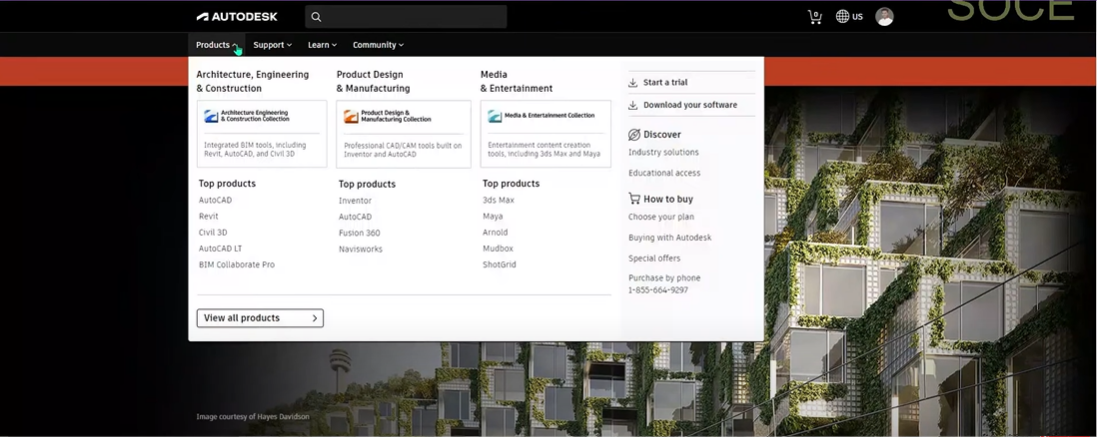
Select the Products menu.
-
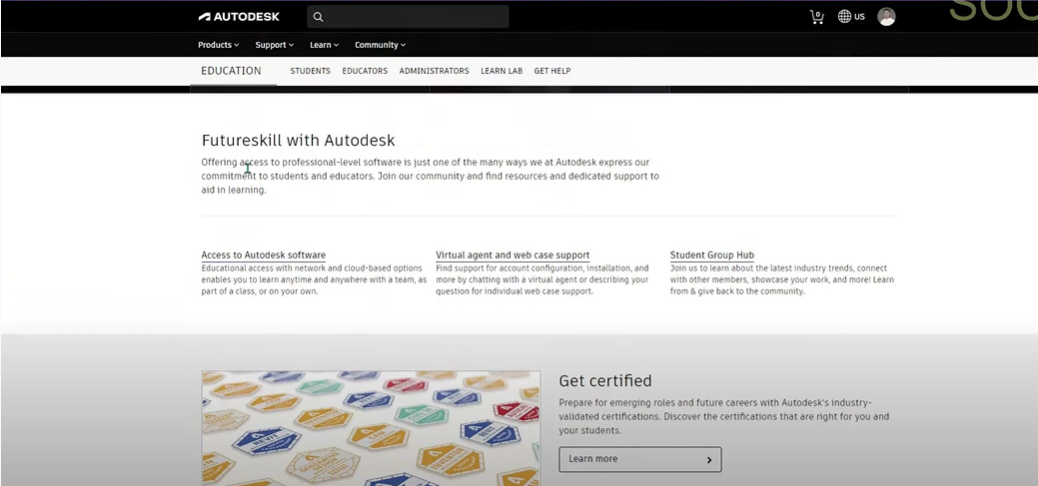
Under Discover, click Educational Access.
-
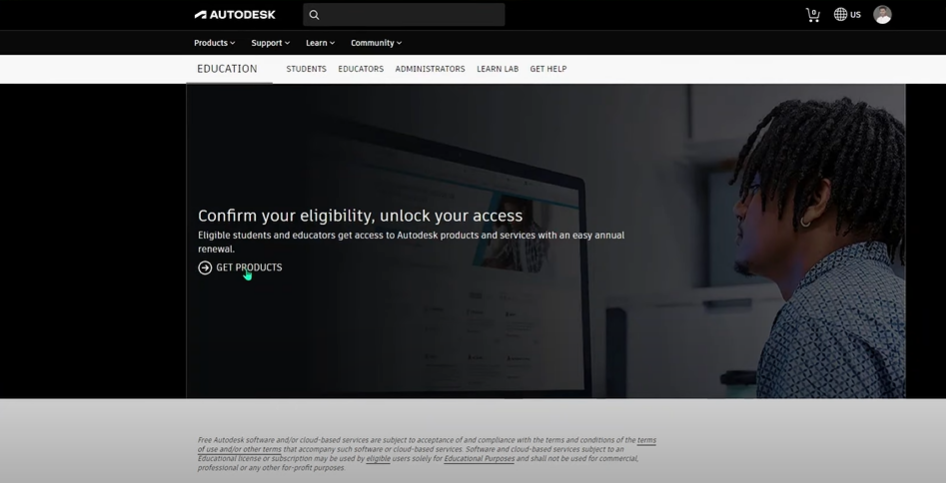
Scroll down to find the Get Products option.
-
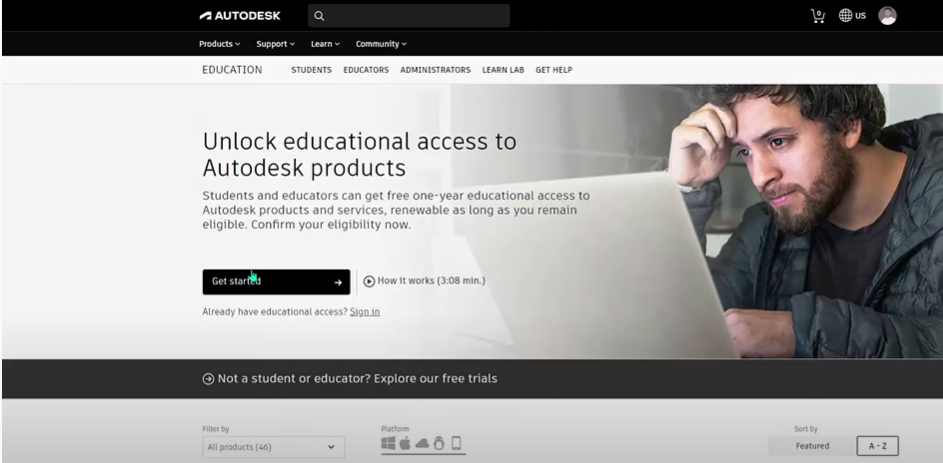
Click Get Products to continue.
-
Scroll down and locate Autodesk 3ds Max, then click Get Started.
-
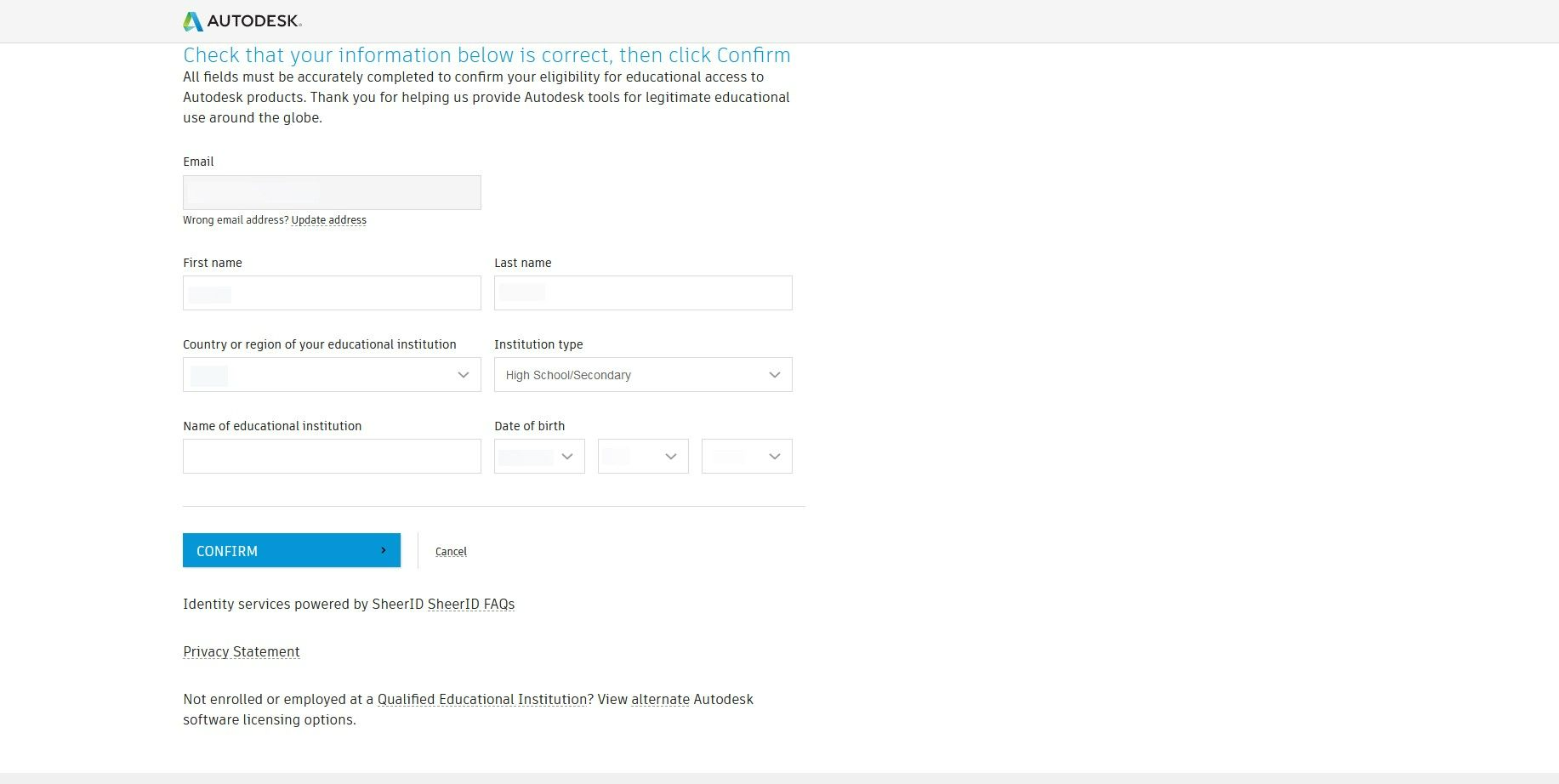
Enter your academic information and click Confirm.
-
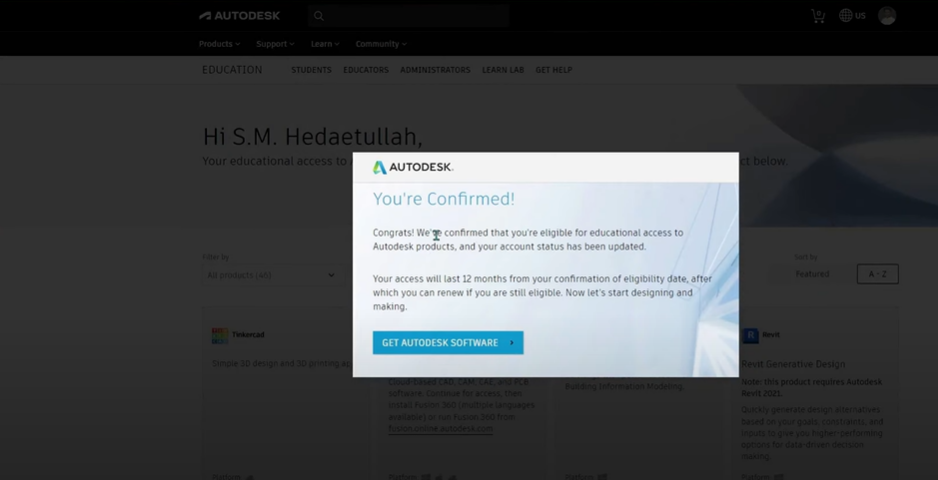
Click Get Autodesk Software, and your download will begin automatically.
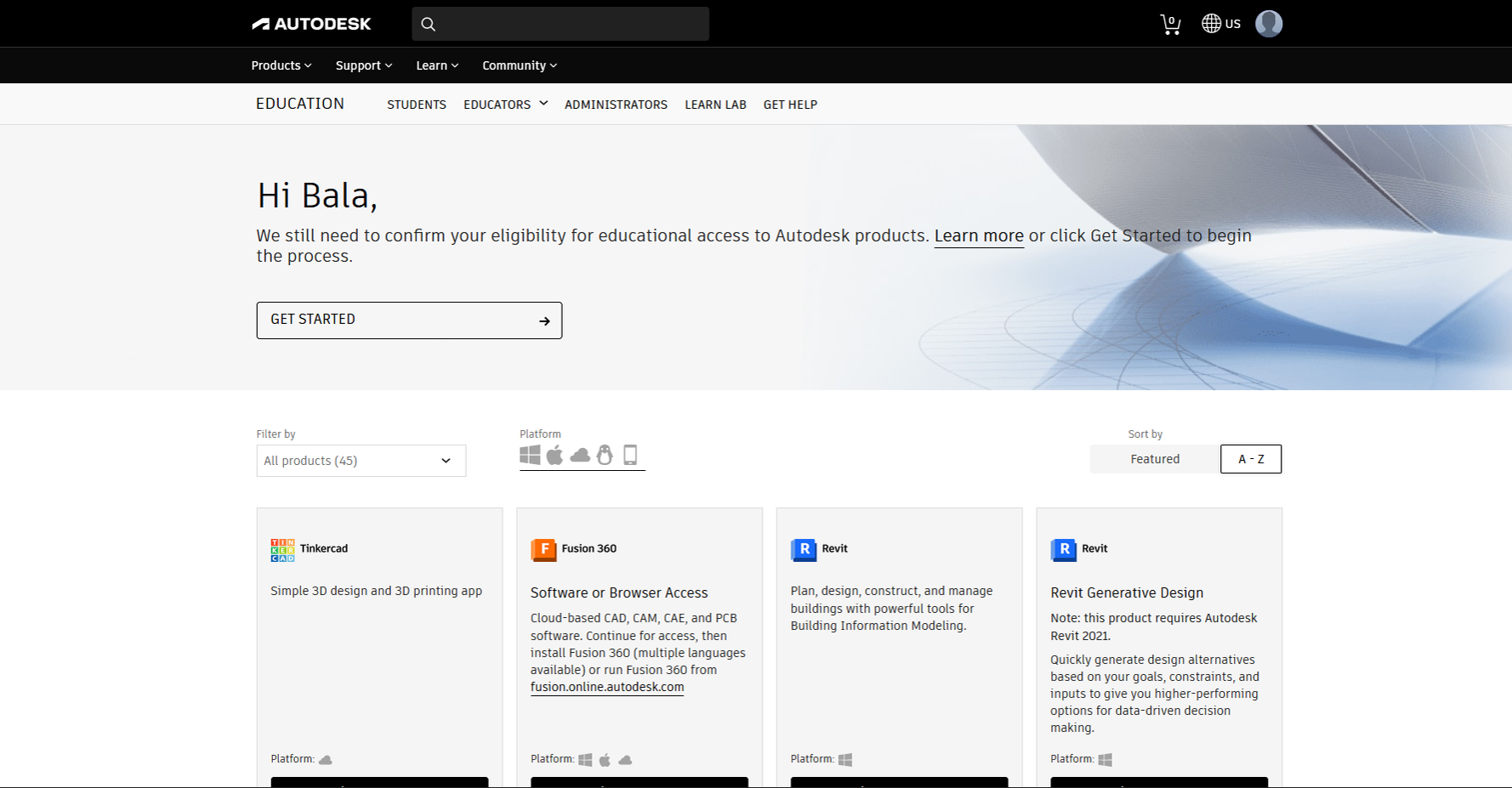
Once the installation is complete, launch Autodesk 3ds Max. The student license will activate automatically when you sign in with your Autodesk account.
Professional License
-
Go to the official Autodesk website.

-
Click Sign In.

-
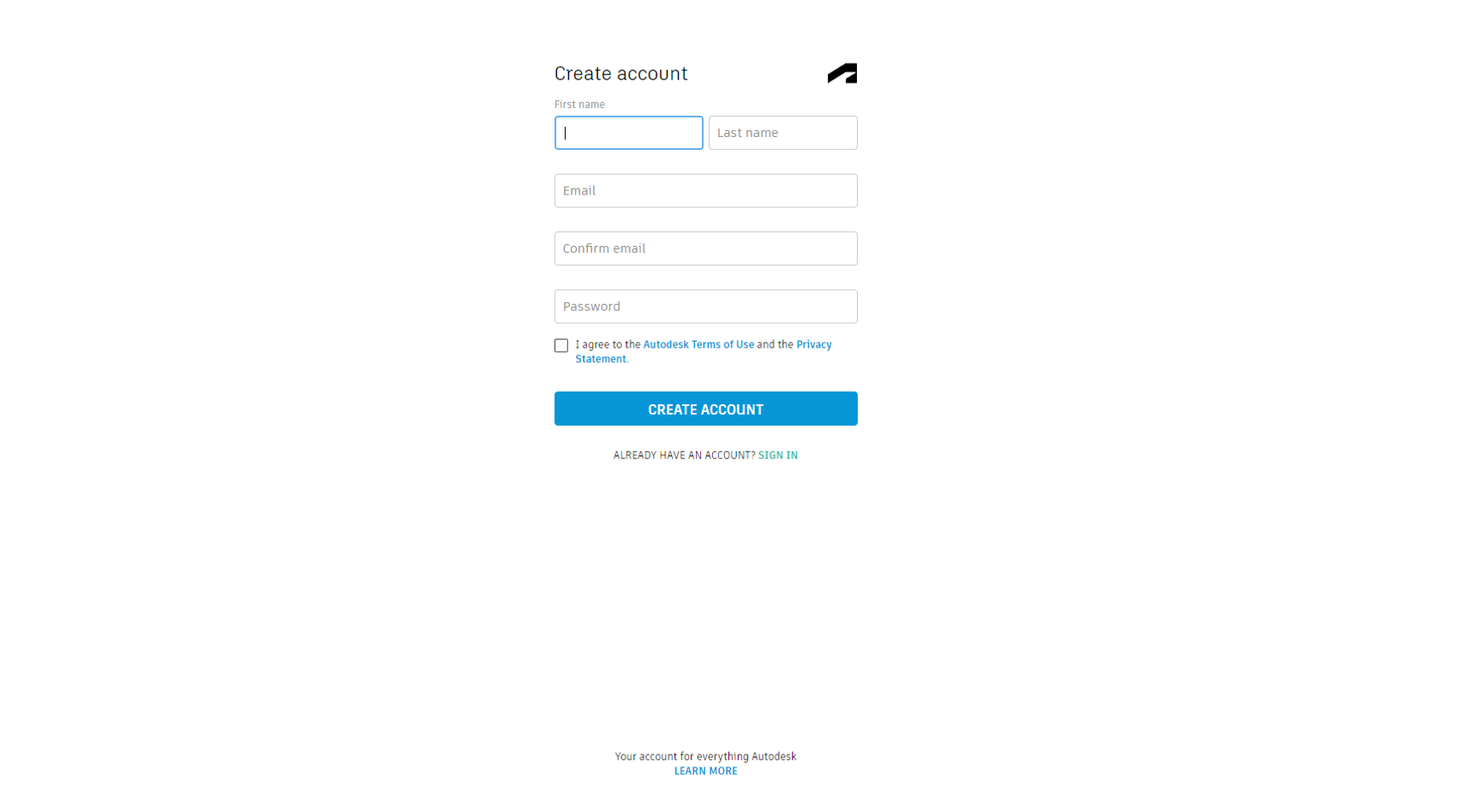
Select Create Account to set up a new Autodesk account.
-
Fill in the required details and click Create Account to complete registration.
-
Sign in using your new credentials.

-
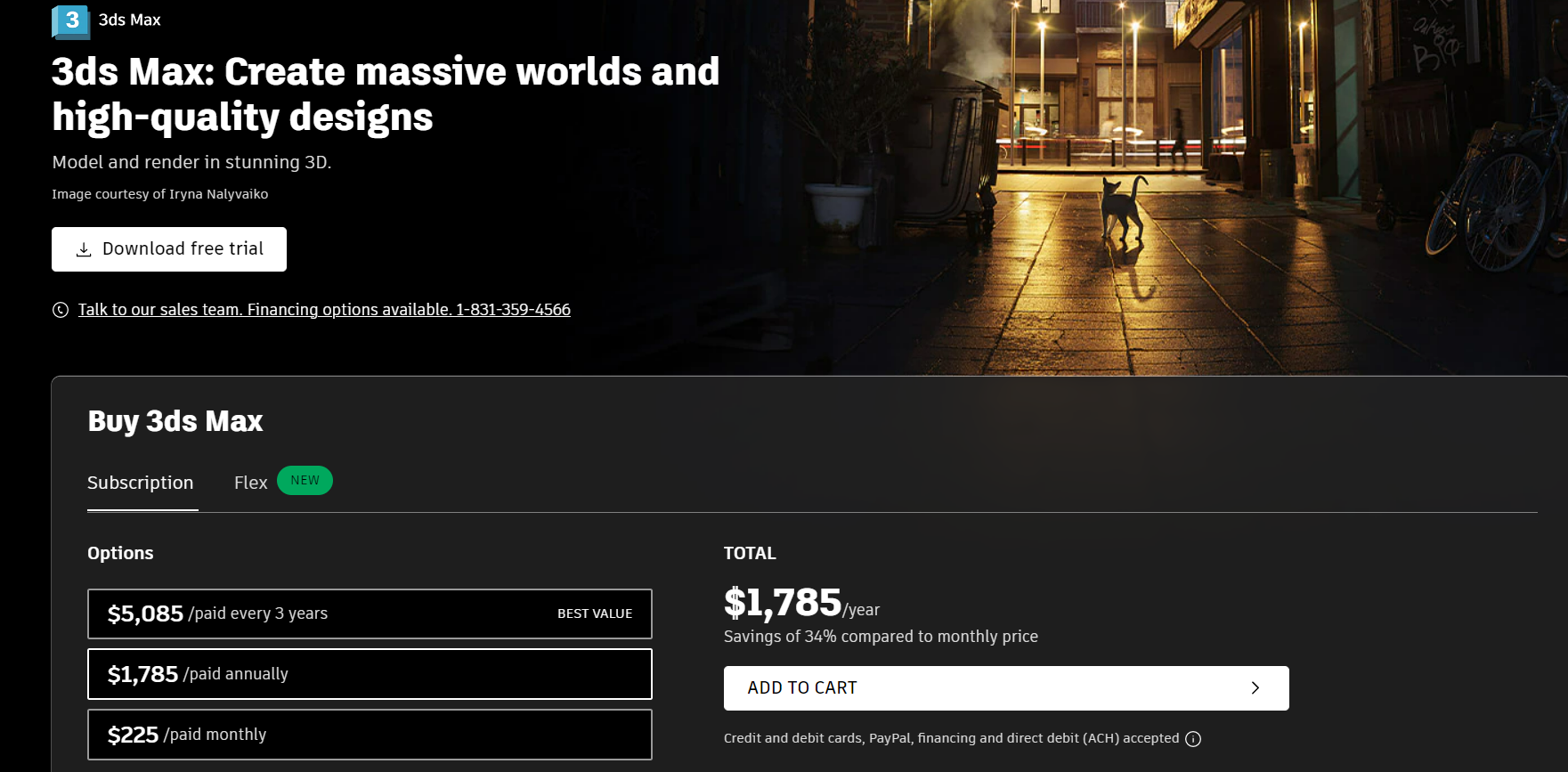
Go to the Products menu and select Autodesk 3ds Max.
-
Click Add to Basket and proceed with the billing process.
-
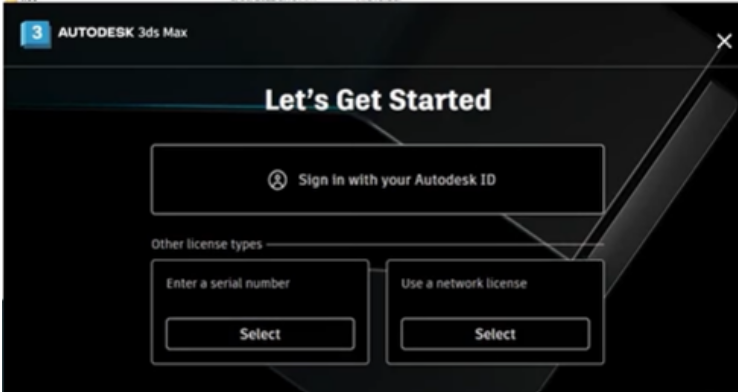
After installation, open Autodesk 3ds Max. You’ll see the following startup screen:
-
Select Sign in with your Autodesk ID and enter your account credentials to activate your professional license.
Once signed in, Autodesk 3ds Max will automatically recognize and apply your active license, granting full access to the software.