Configuration
1. Introduction
This document provides step-by-step instructions to configure AutoCAD application settings for user preferences, display options, file paths, and performance optimization. The guide helps users customize AutoCAD according to project needs and improve efficiency.
2. Launching AutoCAD and Accessing Options
2.1 Steps
-
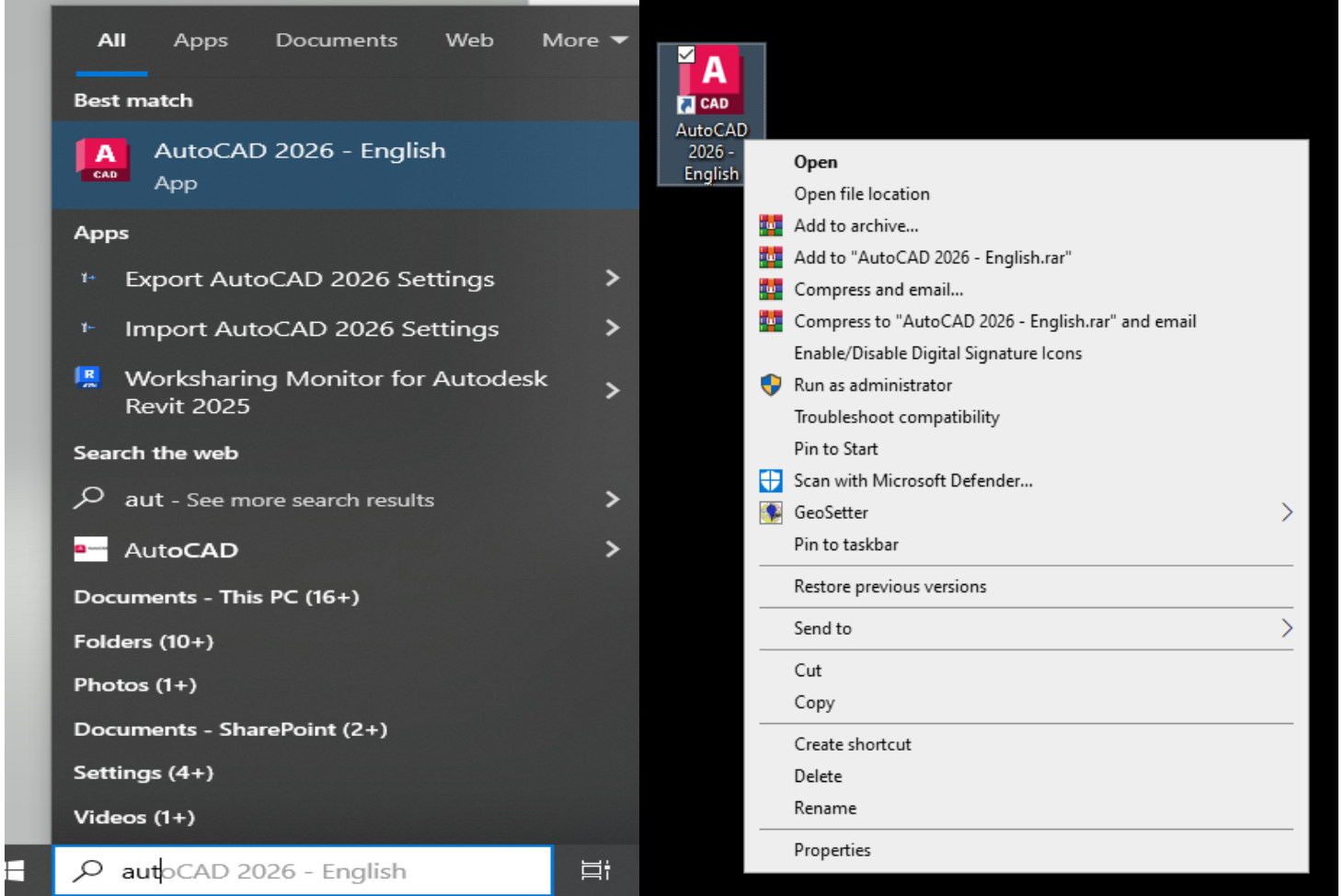
Open AutoCAD. Double-click the AutoCAD icon on your desktop or search for it from the Start menu.
-
Open the Options window.
-
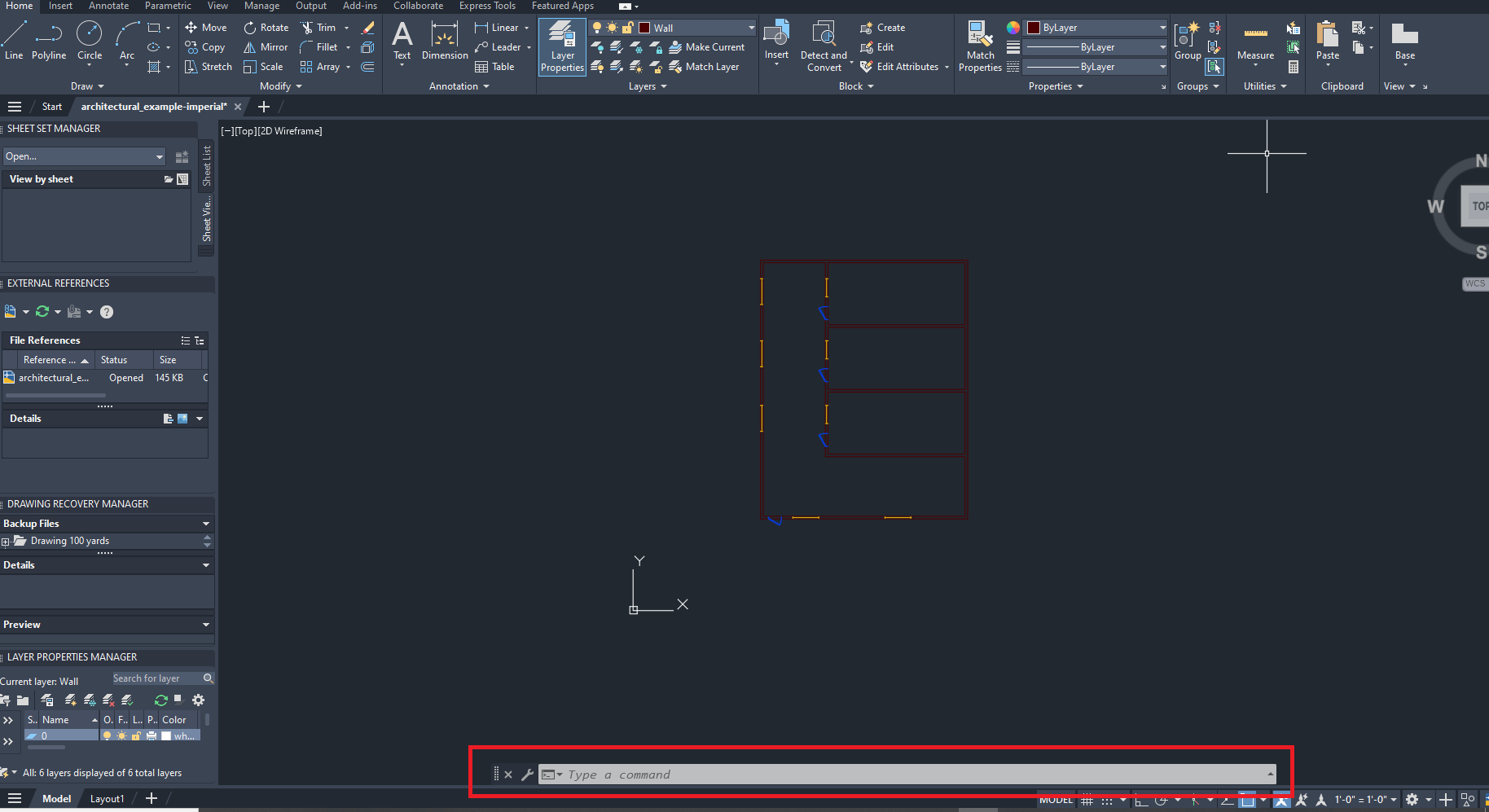
Type
OPTIONSin the command line and press Enter.

Or
-
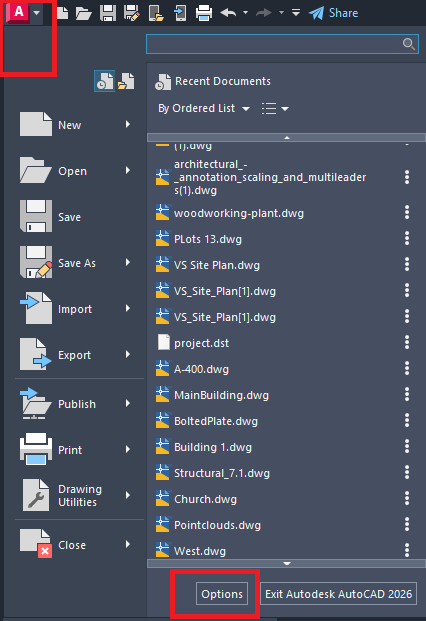
Click the Application Menu (A icon) → Options.
-
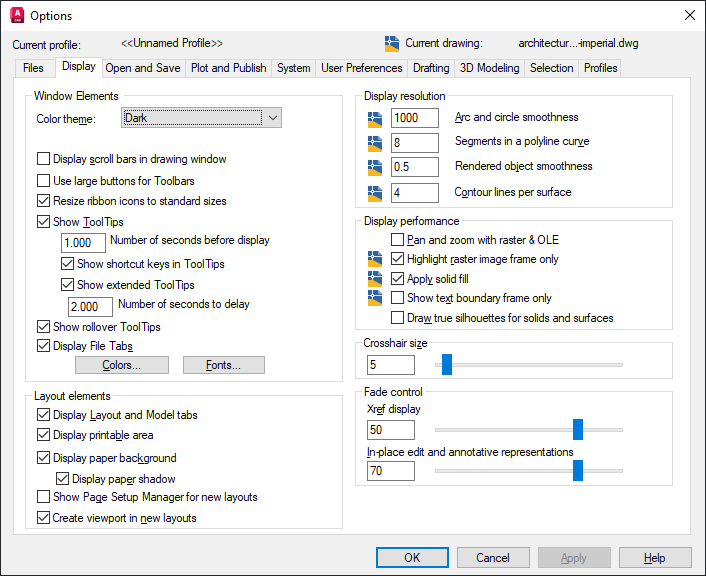
The Options dialog box opens with several tabs that control different AutoCAD settings.
3. Configuration Tabs Overview
The Options dialog box contains multiple tabs that control files, display, saving, plotting, system behavior, and user preferences.
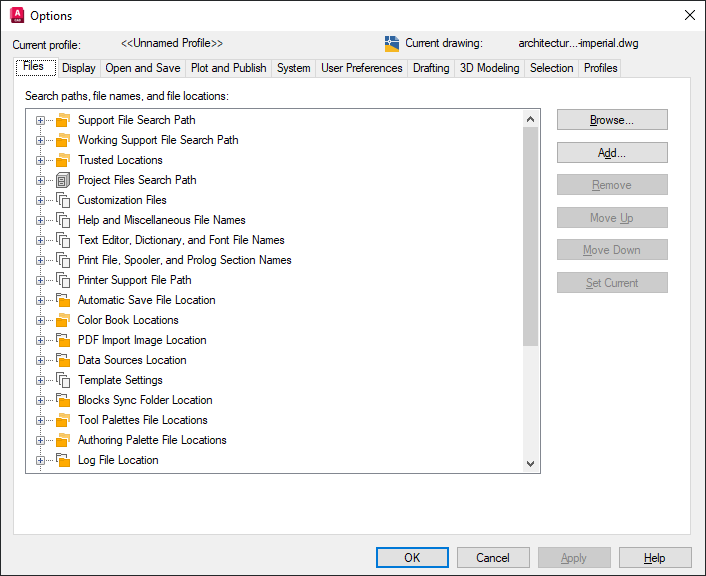
3.1 Files Tab
Purpose: Manage file locations, support paths, and templates.
| Setting | Description | Example use |
|---|---|---|
| Support File Search Path | Paths AutoCAD searches for fonts, linetypes, hatches, etc. | Add company standard folders. |
| Template Settings | Default drawing templates (DWT). | Load standard title block automatically. |
| Plot and Publish Log | Location for plot and publish log files. | Store logs on a shared network folder for QA. |
3.2 Display Tab
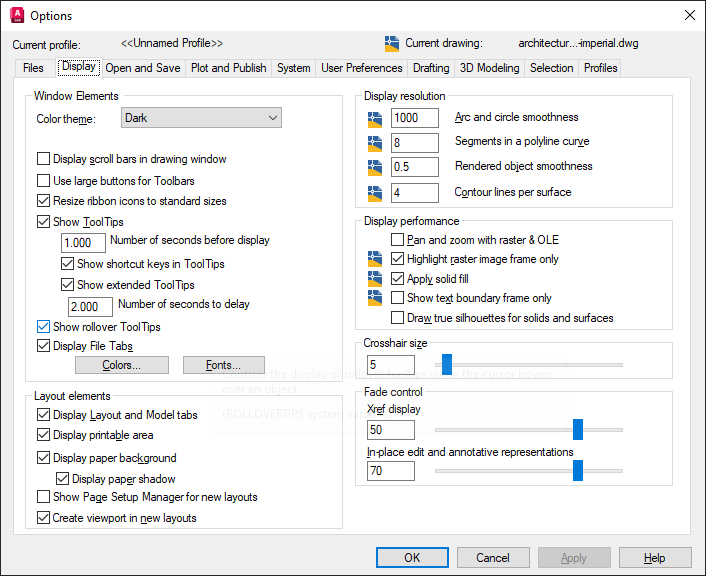
Purpose: Customize the appearance of drawing windows and the user interface.
| Option | Description | Example use |
|---|---|---|
| Colors | Change background, grid, and crosshair colors. | Use dark background for better contrast. |
| Crosshair Size | Adjust cursor crosshair size. | Increase to 100% on large monitors. |
| Layout Elements | Show or hide layout tabs, scroll bars, etc. | Hide scroll bars for more workspace. |
| Font & Text Size | Change UI font and size. | Increase font on high‑resolution screens. |
Steps to change colors, font, and size
- Open Options → Display tab, then choose Colors if needed.
- Click Fonts....
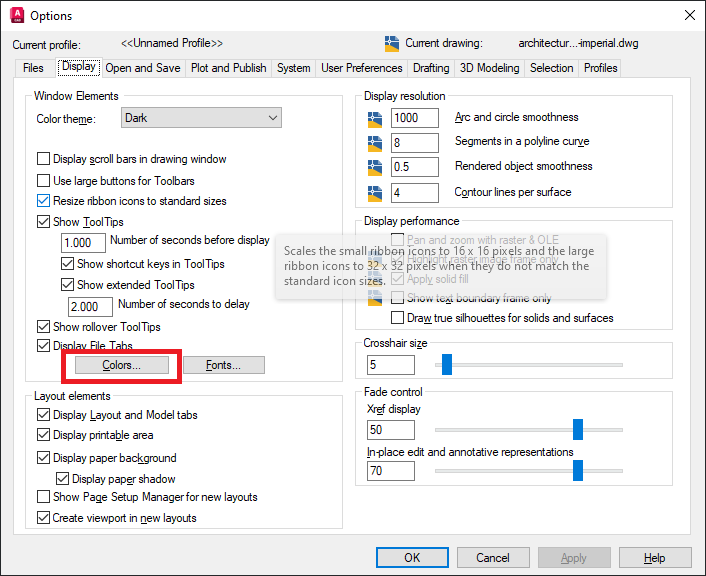
- Choose a new Font style and Size.
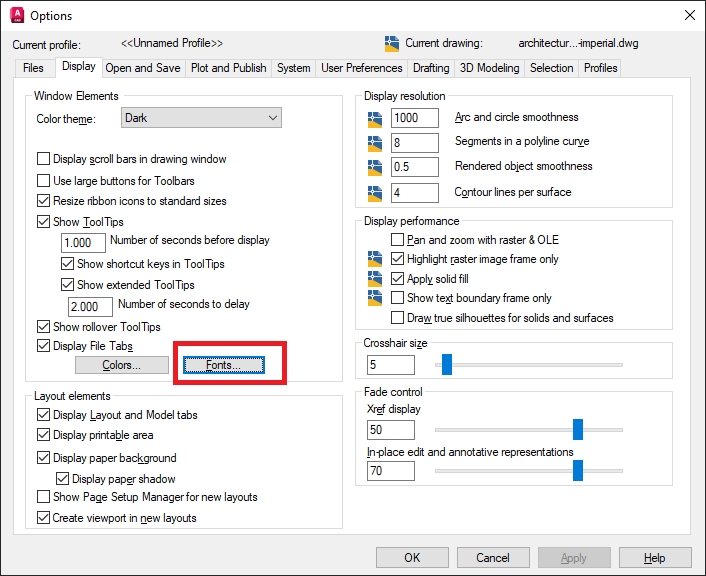
- Click OK → Apply → Close.

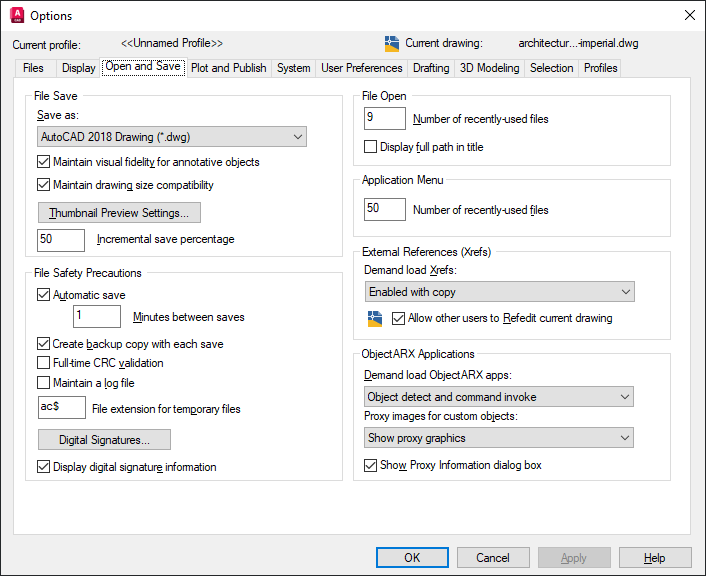
3.3 Open and Save Tab
Purpose: Control file saving, automatic save, and file version settings.
| Setting | Description | Example use |
|---|---|---|
| File Save Format | Default DWG version (for example, AutoCAD 2018). | Maintain compatibility with older projects. |
| Automatic Save | Interval for autosave files. | Set autosave every 10 minutes. |
| File Safety Precautions | Backup (.bak) file behavior. | Enable to reduce risk of data loss. |
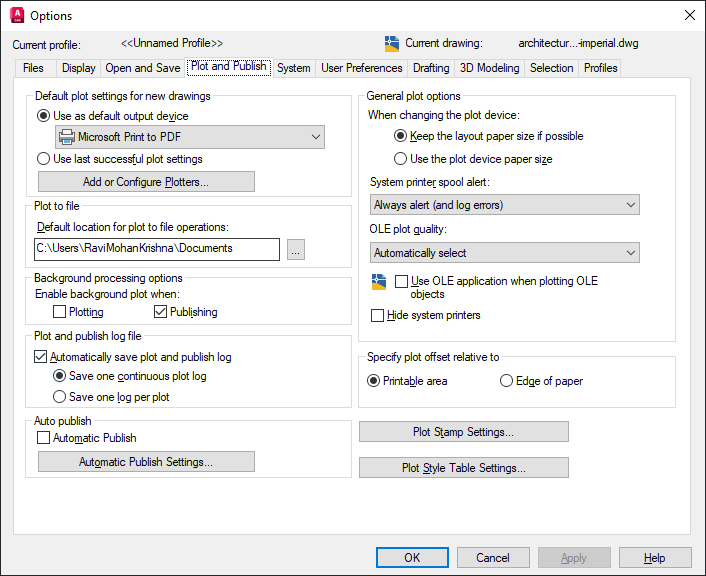
3.4 Plot and Publish Tab
Purpose: Configure plotting and PDF output options.
| Setting | Description | Example use |
|---|---|---|
| Default Plotter | Default printer or PDF plotter (.pc3). | Use DWG To PDF.pc3 for PDF output. |
| Plot Style Table | Controls lineweights and colors. | Apply company-standard CTB/STB plot styles. |
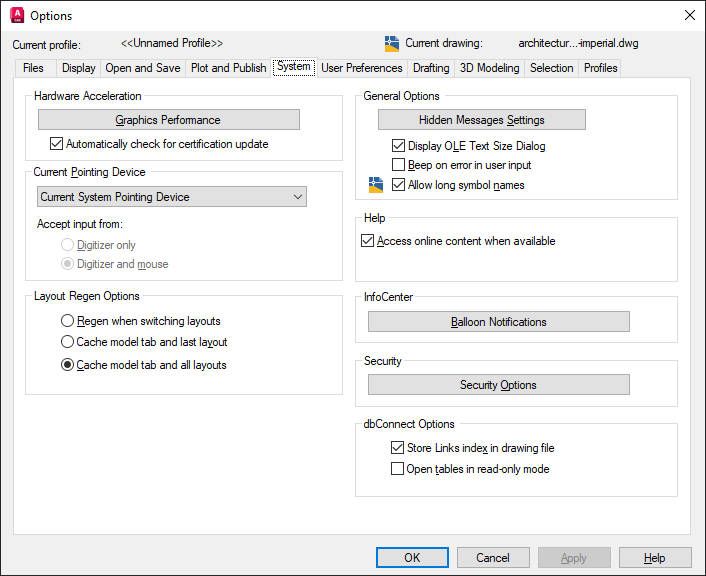
3.5 System Tab
Purpose: Control performance, graphics, and system notifications.
| Setting | Description | Example use |
|---|---|---|
| Graphics Performance | GPU acceleration and display tuning. | Turn on for smoother zoom and pan. |
| System Variables | Internal tuning parameters. | Optimize for heavy 3D or large drawings. |
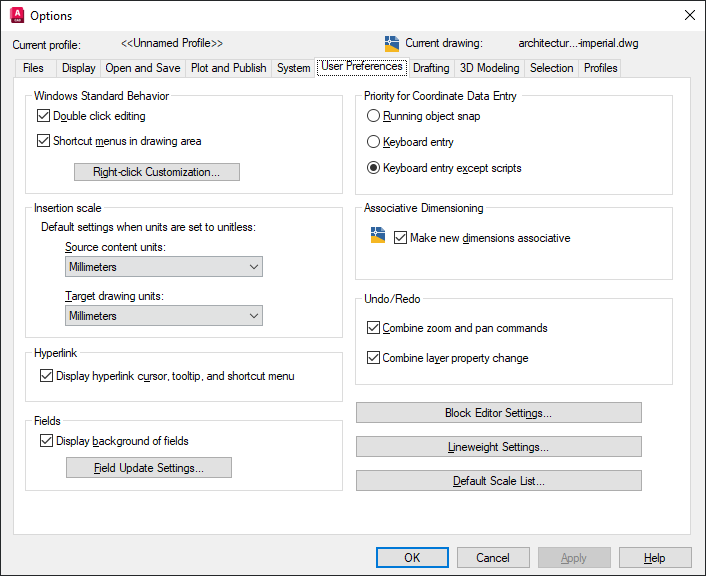
3.6 User Preferences Tab
Purpose: Customize input behavior, right‑click menus, and insertion units.
| Option | Description | Example use |
|---|---|---|
| Right‑Click Customization | Assign behavior to right‑click. | Enable “Repeat last command”. |
| Insertion Scale | Unit for inserted blocks. | Set to Millimeters for metric projects. |
3.7 Drafting Tab
Purpose: Control drafting aids such as snaps and tracking.
| Setting | Description | Example use |
|---|---|---|
| Snap Marker Color | Color of object snap marker. | Improve visibility on dark backgrounds. |
| AutoSnap Settings | Tooltips, markers, and magnet snaps. | Align geometry precisely while drawing. |

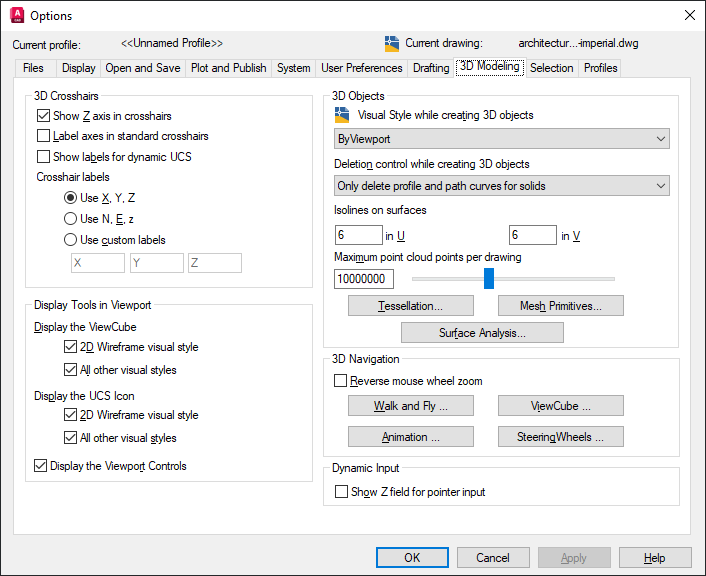
3.8 3D Modeling Tab
Purpose: Configure 3D display, navigation, and visual styles.
| Setting | Description | Example use |
|---|---|---|
| Cross Sections | Controls section and visual style display. | Apply conceptual or realistic shading. |
| Gizmos | Enables 3D move/rotate/scale gizmos. | Simplify 3D transformations. |
3.9 Selection Tab
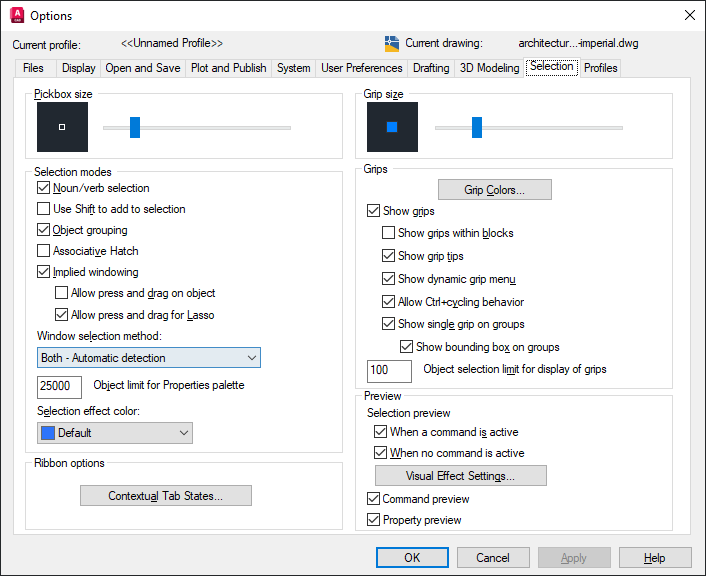
Purpose: Control how objects are selected and highlighted.
| Option | Description | Example use |
|---|---|---|
| Pickbox Size | Size of the selection box. | Use smaller boxes for precise selection. |
| Selection Preview | Highlights objects on hover. | See what will be selected before clicking. |
3.10 Profiles Tab
Purpose: Save, export, and import complete AutoCAD configuration profiles.
3.10.1 Exporting a configuration profile
- Go to Options → Profiles.
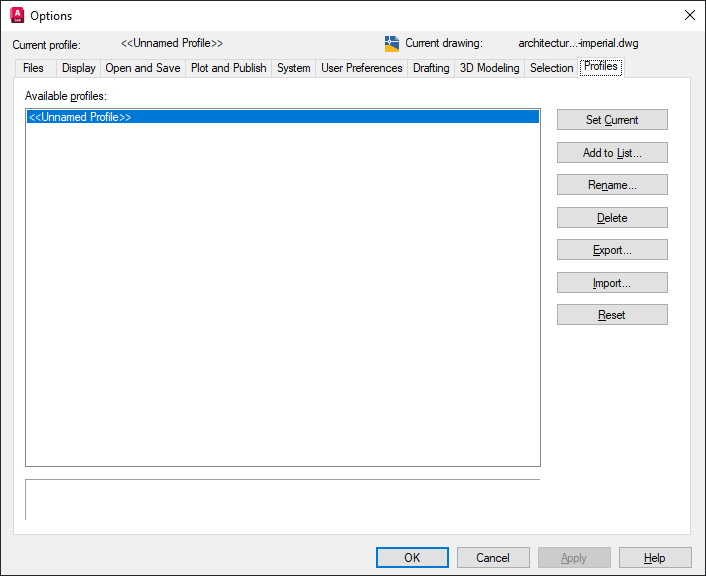
- Select the active profile.
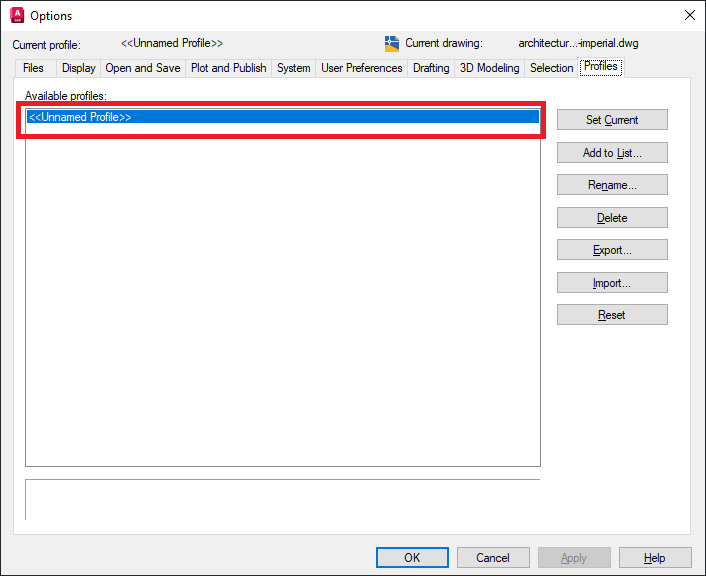
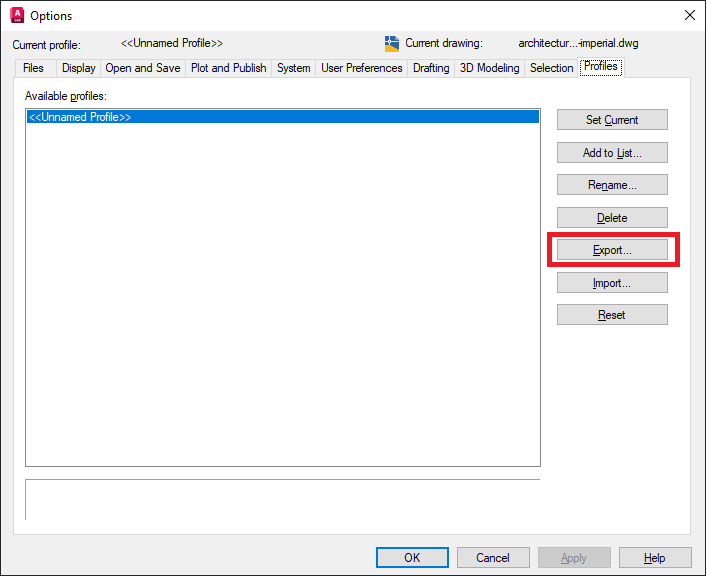
- Click Export... and save the profile as an
.argfile.
- On another system, click Import..., select the
.argfile, and set the imported profile as Current.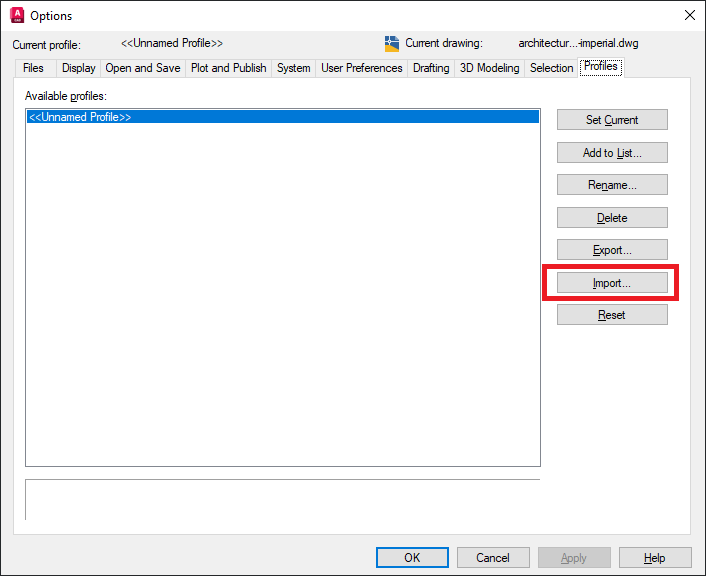
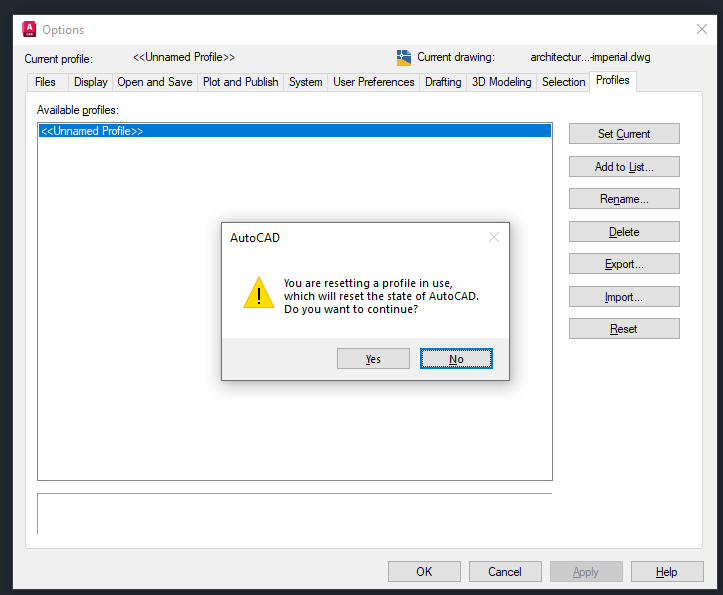
4. Restoring Default Configuration
If settings are heavily changed or corrupted, you can reset AutoCAD to defaults.
- Open Options → Profiles → Reset to restore default profile settings.
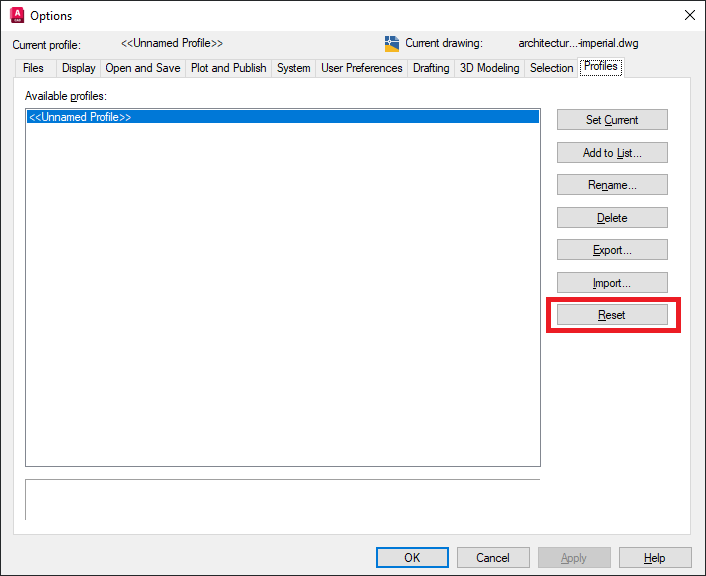
- Optionally run the
RESETUIcommand to restore the workspace layout.