Licensing
1. Overview
This section explains how to obtain and activate Autodesk AutoCAD using either a student licence (through Autodesk Education access) or a professional licence (commercial subscription).
2. Student Licence – Autodesk AutoCAD
Use this process if you are a student or educator eligible for Autodesk’s free Education plan.
2.1 Access Education products
-
After completing the Autodesk sign-in process, open your Autodesk account page.

-
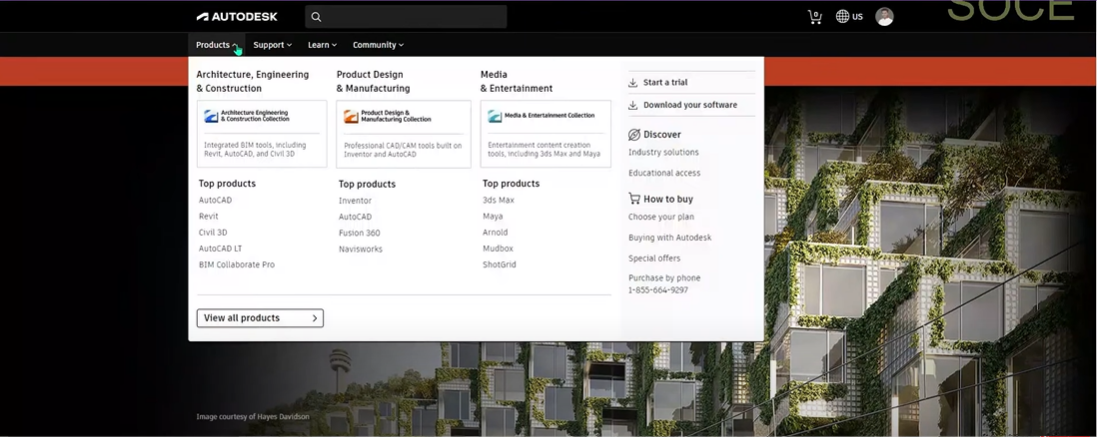
Select the Products menu to view available products.
-
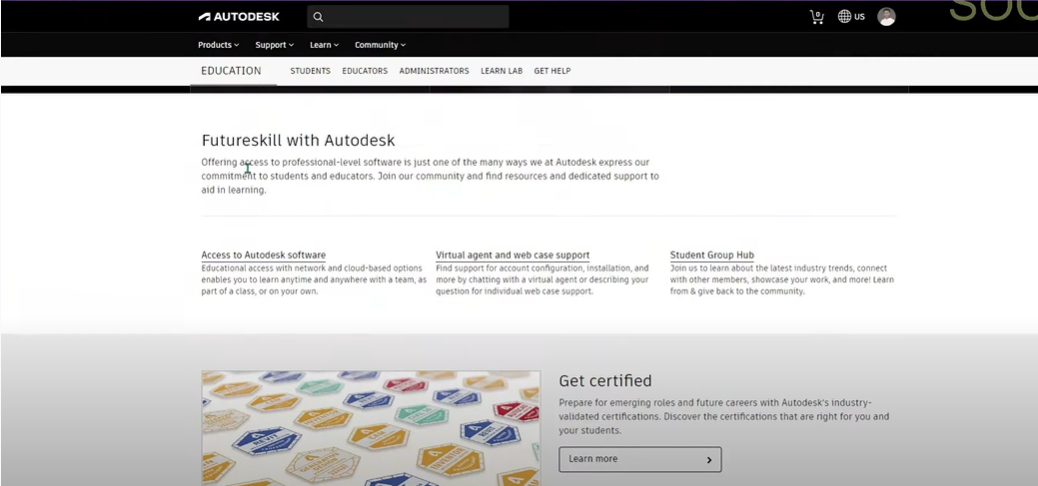
Under the Discover or Education section, go to Educational access.
-
Scroll down the page until you see the Get products option.

-
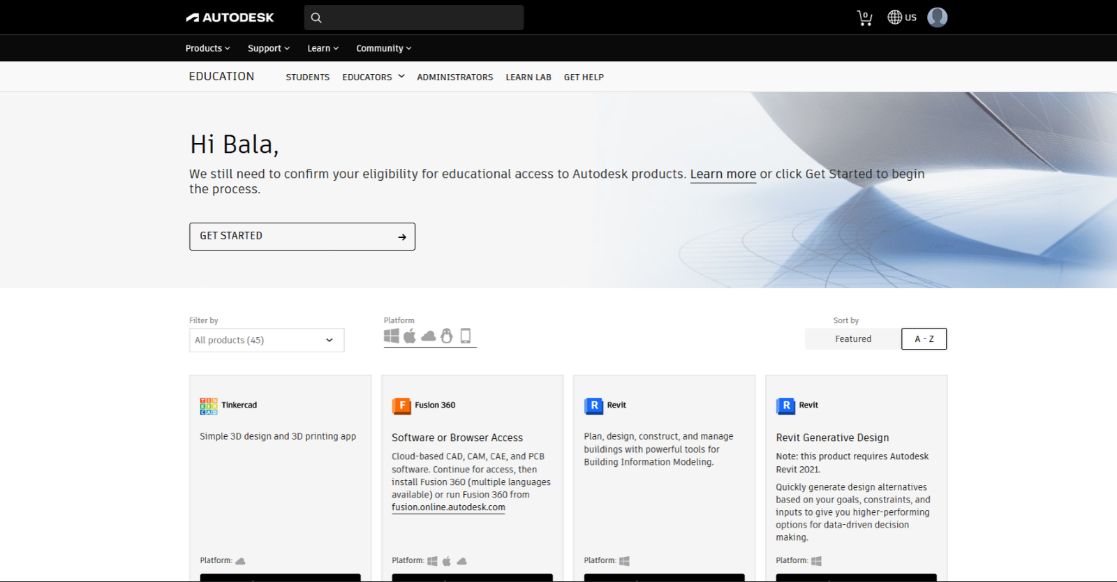
Click Get products to open the Education product catalog.

2.2 Request AutoCAD student access
-
Scroll to find Autodesk AutoCAD in the list of education products.
-
Click Get started under AutoCAD.
-
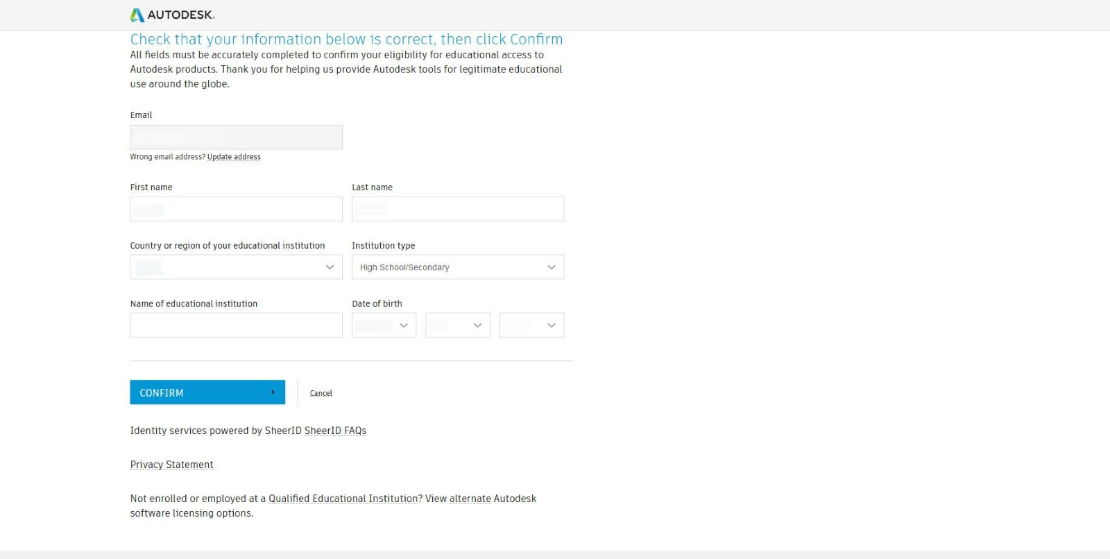
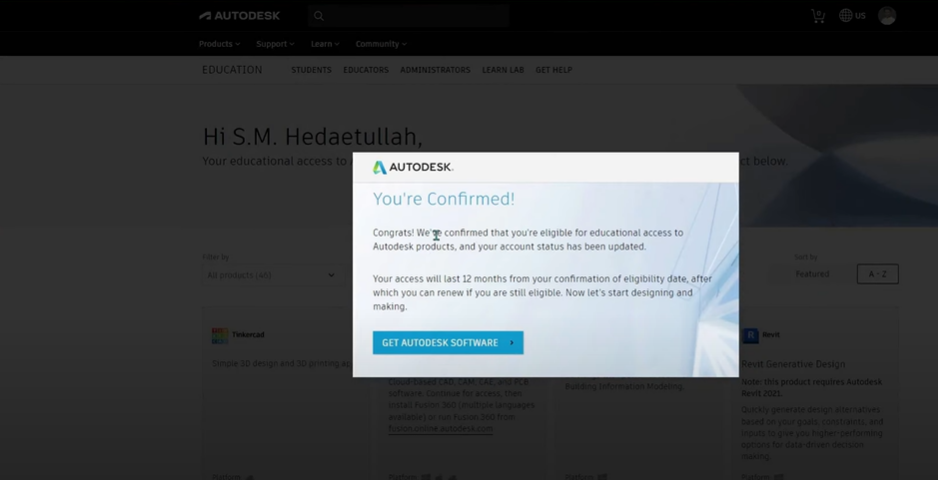
Fill in your educational details (role, institution, country, expected graduation, etc.) and click Confirm to complete verification.
-
When verification is approved, click Get Autodesk software (or Get product) on the AutoCAD tile.
-
Download and install the software; sign in with the same Autodesk Education account to activate the student licence.
3. Professional Licence – Autodesk AutoCAD
Use this process for a commercial (paid) AutoCAD subscription.
3.1 Create or sign in to Autodesk account
-
Open the official Autodesk website (for example, Autodesk Account or AutoCAD product page).

-
Click Sign in.

-
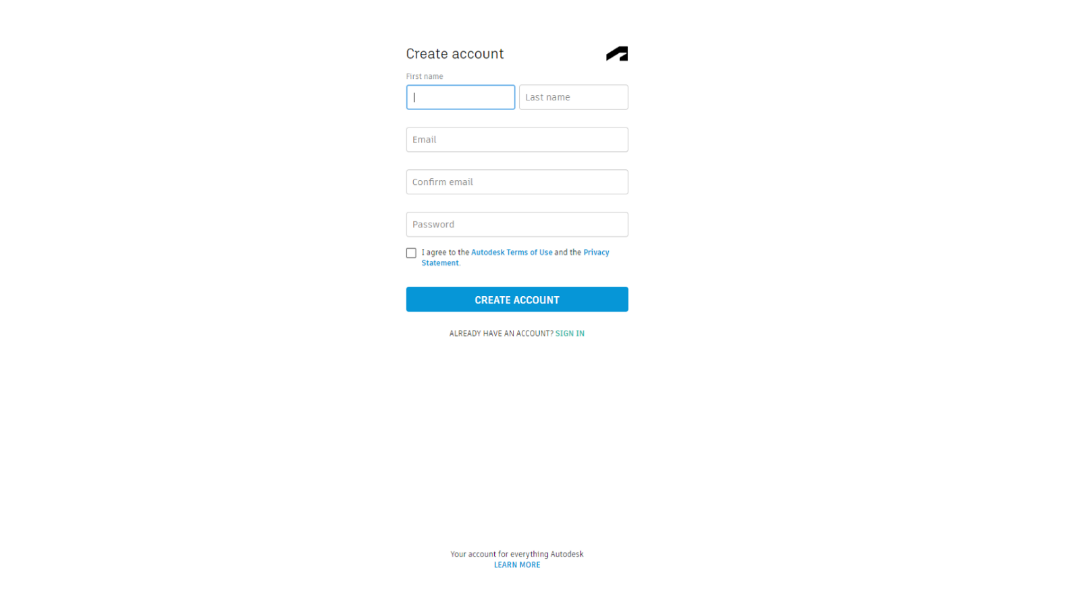
If you do not have an Autodesk ID, click Create account.
-
Enter your details (name, email, password), accept terms, and click Create account.

-
After creating the account, click Sign in again and enter the same email and password, then Next.


3.2 Purchase and activate AutoCAD
-
From the Autodesk Products or All products and services menu, select Autodesk AutoCAD.

-
Choose your subscription plan, click Add to basket, and complete the billing and payment process.
-
After purchase, download and install Autodesk AutoCAD from your Autodesk Account.
-
When AutoCAD starts for the first time, select Sign in with your Autodesk ID and enter the same account credentials used for purchase.
Once you sign in successfully, your professional licence is activated and AutoCAD is ready to use.