pano2vr workflow-1
Converting TruView Local Export Cube Face Images to a Single Equirectangular JPEG Image
-
Export Raw Scan Data to TruView Local Files
- Use Cyclone Register 360 to export the raw scan data to TruView Local files.
-
TruView Local File Structure
- In TruView Local, each scan station has a folder containing six different types of images, each with varying dimensions.
-
Convert Six Cube Face Images to an Equirectangular Image
- Use Pano2VR to convert the six cube face images into a single equirectangular image.
-
Launch Pano2VR Desktop Application
- Open the Pano2VR desktop application.
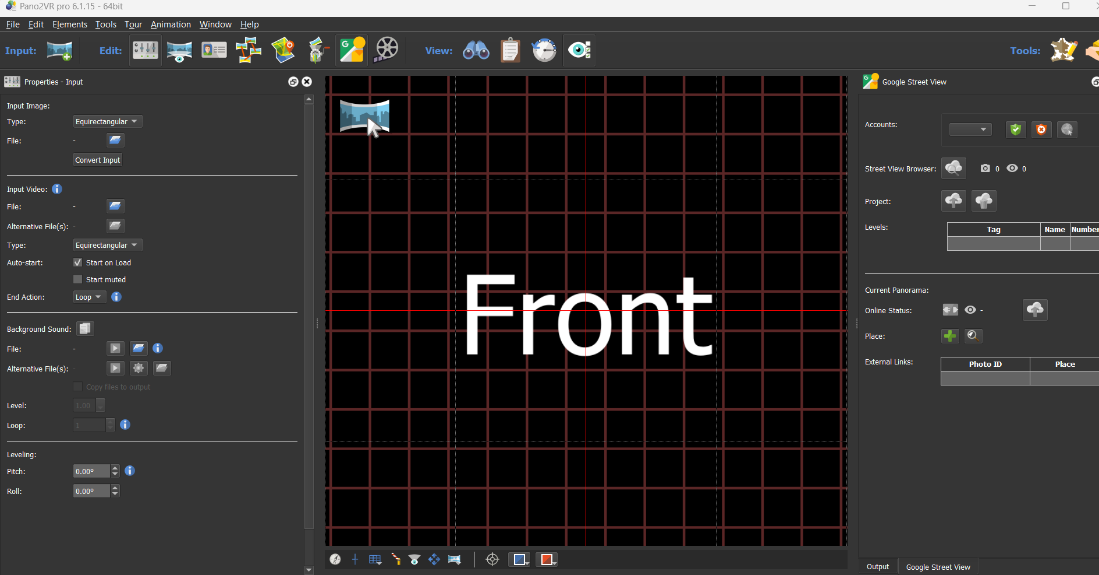
-
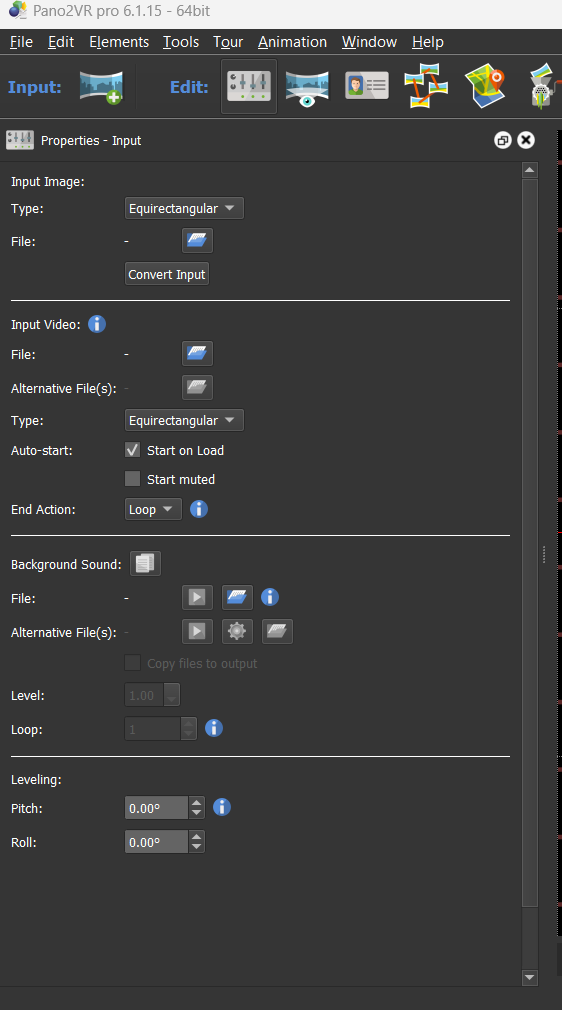
Input Image Section
- In the left menu, you'll see options like Input Image and Input Video.
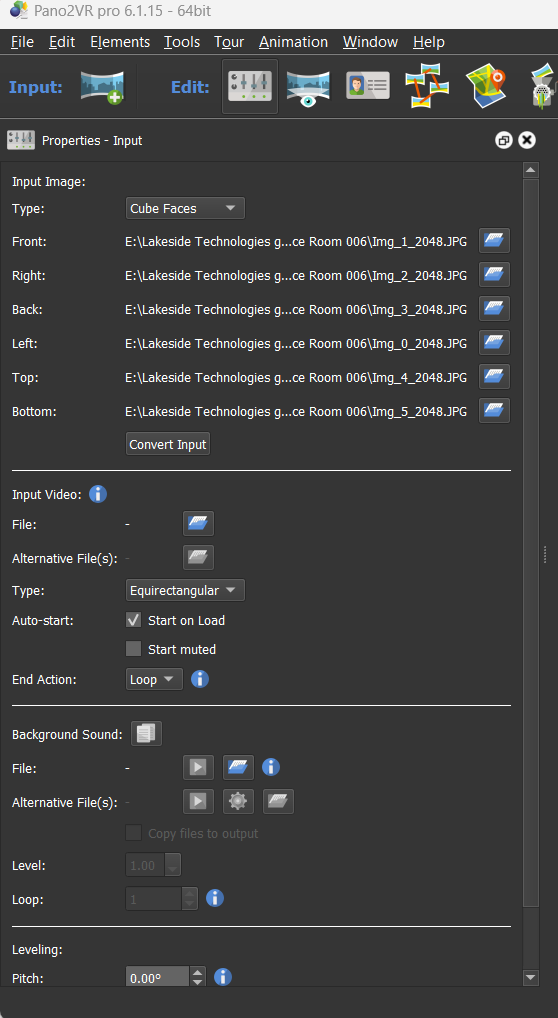
- Select Cube Faces as the image type in the Input Image section. This will display a section for uploading the six faces of the image.
-
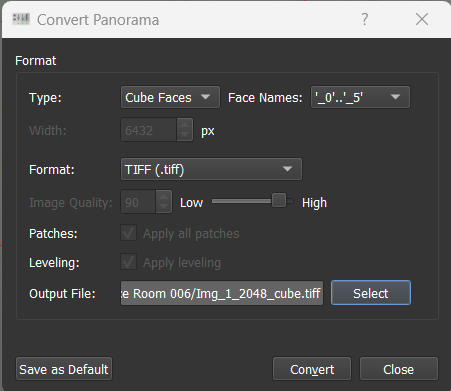
Convert Input
- Click on the Convert Input button. A pop-up window will appear.
-
Select Output Formats
- In the pop-up, choose the desired format for the conversion (e.g., Equirectangular, HDR, etc.).
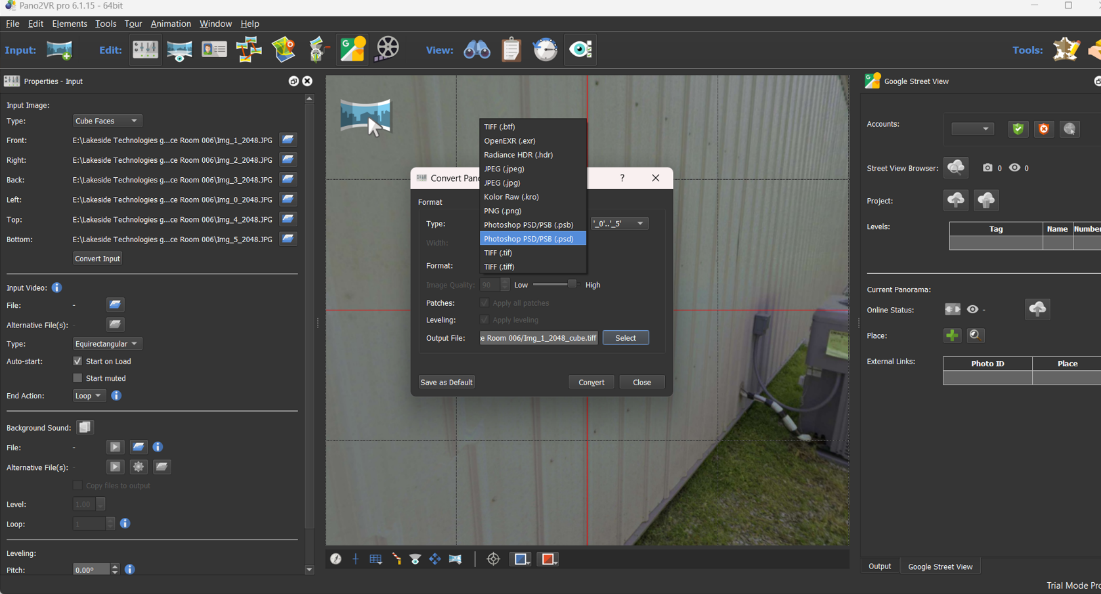
-
Upload Six Cube Face Images
- Upload the six cube face images in the correct sequence, ensuring they are properly aligned by manually checking the preview section.
-
Convert to Desired Format
- After confirming the images are correctly aligned, click Convert Input to convert the images into your desired file format (e.g., Equirectangular, HDR).
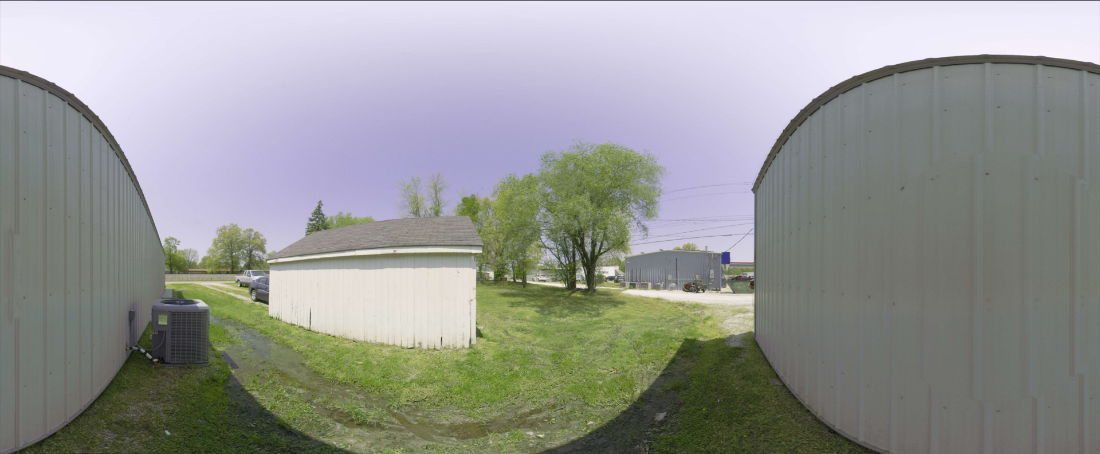
Note:
- You can import the images in the sequence of [1, 2, 3, 0, 4, 5], which aligns the images automatically in the application without needing trial and error.