Licensing
Free Trial
-
Visit the Pano2VR - Virtual Tour Software website.
-
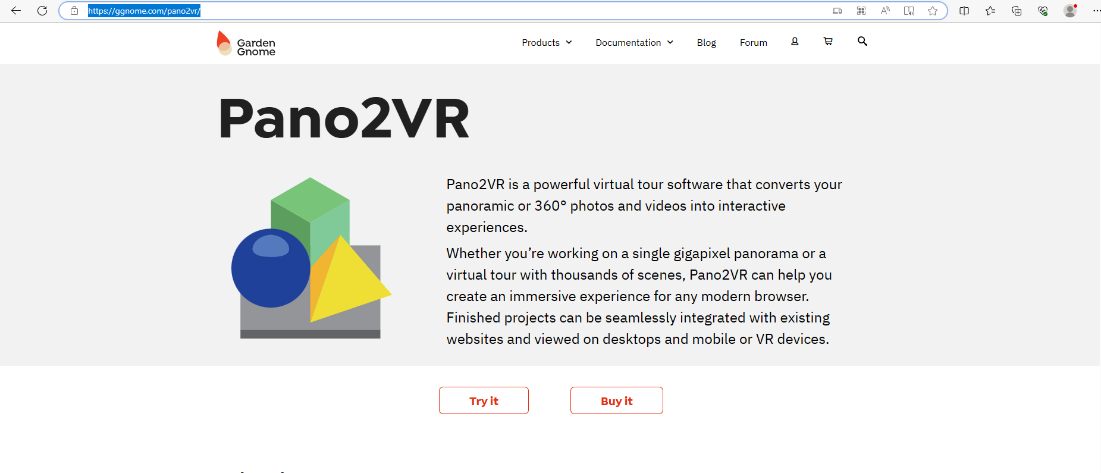
The homepage will appear as shown below:
-
Click on the Profile symbol to create an account for downloading the software and purchasing the license.
-
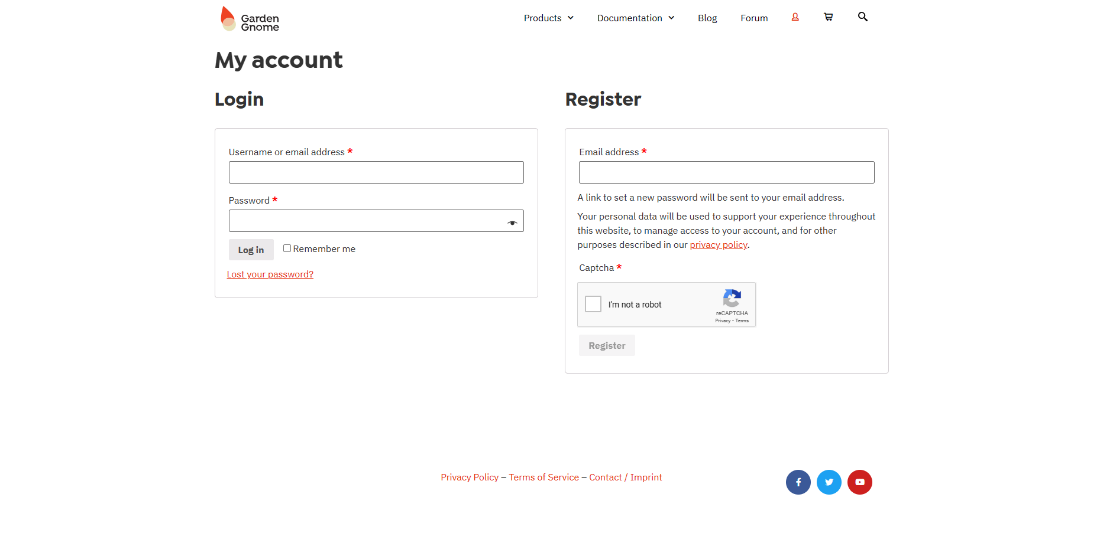
After clicking the profile symbol, it will display the following:
-
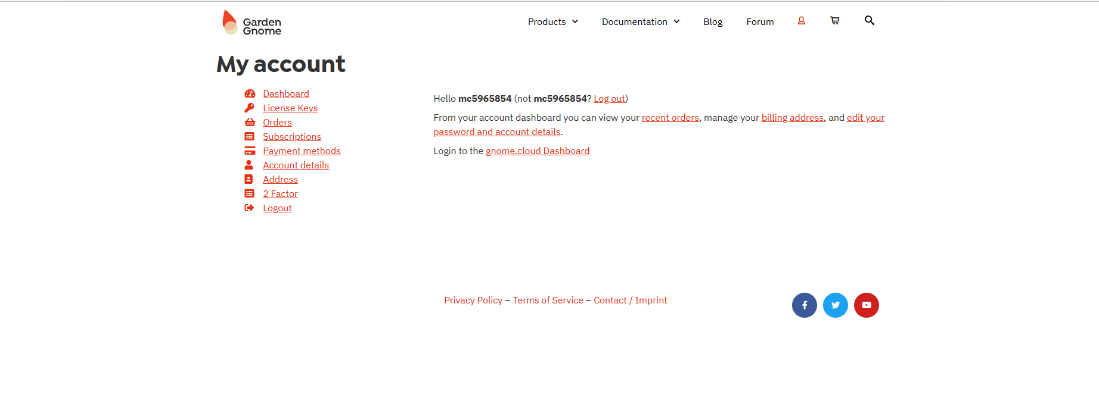
Create an account by filling in the required details. This screen will appear:
-
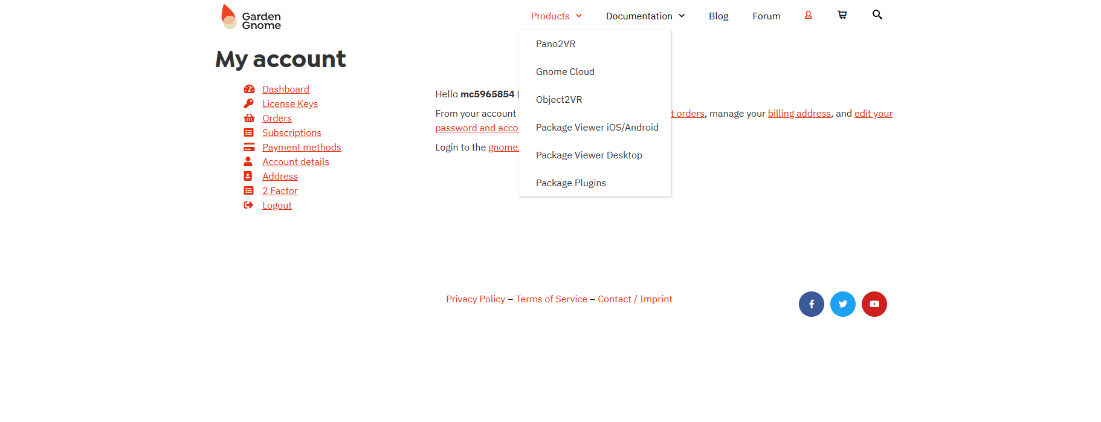
Select Products from the menu, and a dropdown will appear as shown below:
-
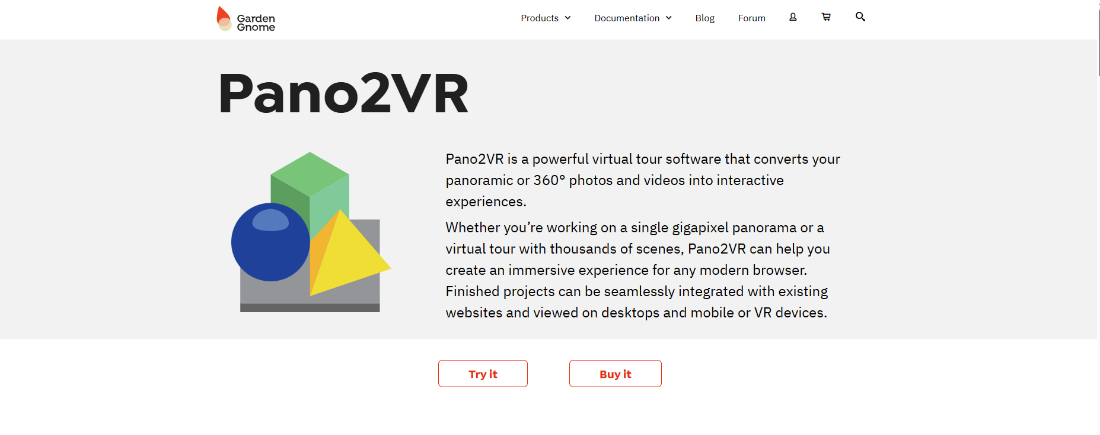
Choose Pano2VR from the list, and the following screen will appear:
-
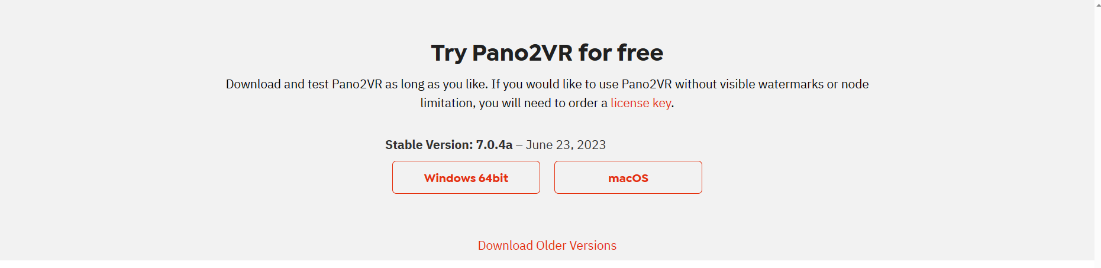
Click on Try it to proceed to the download page:
-
Select the appropriate version for your desktop usage, and the download will begin.
For Licensing
-
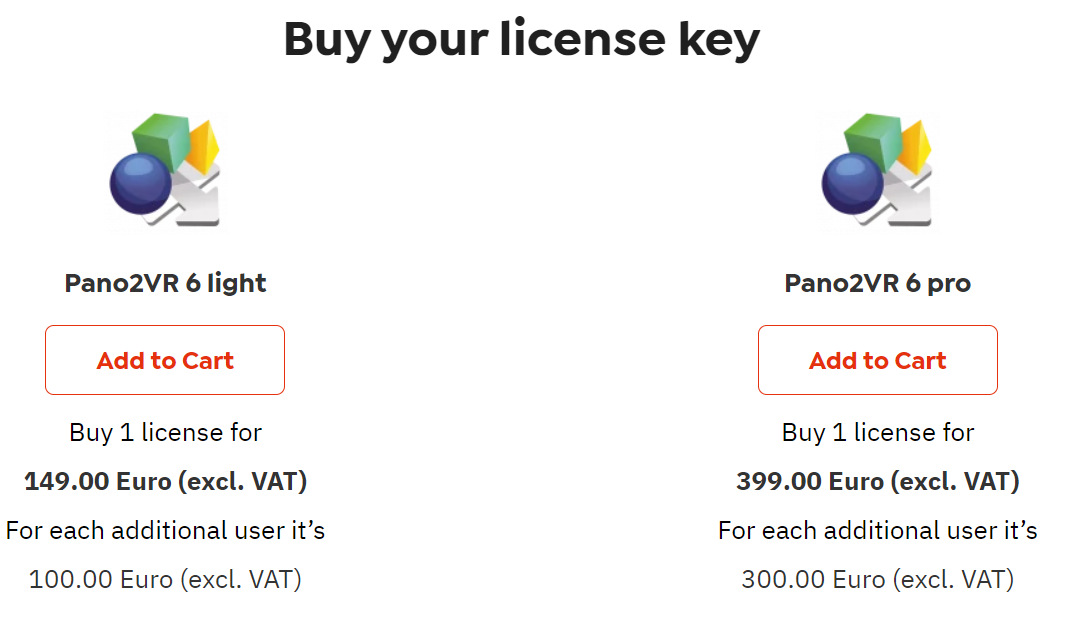
To purchase a license, click on Buy it.
-
This will redirect you to the payment page:

-
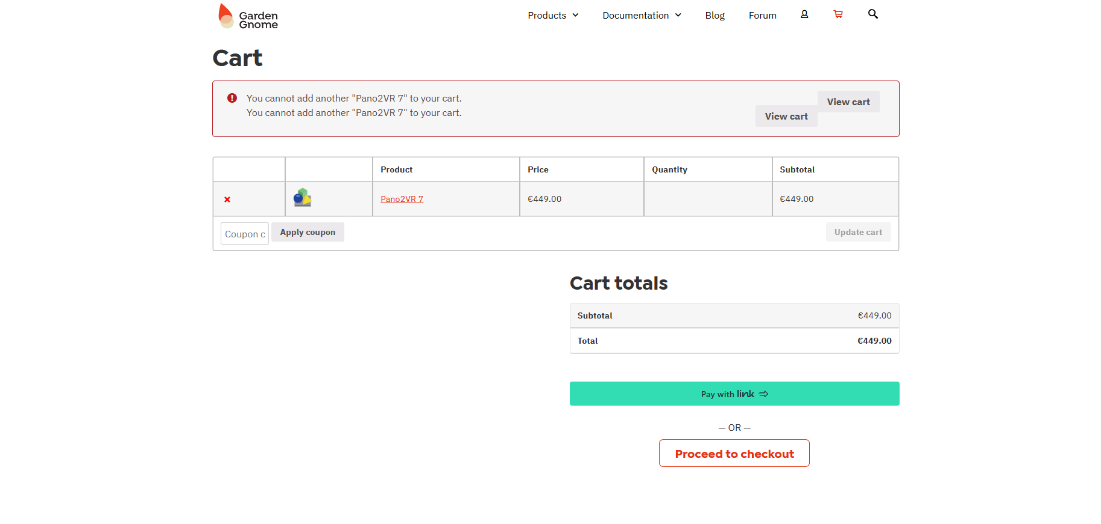
Click on Add to Cart, and the following screen will appear:
Activating the Free Trial
-
To activate the free trial, you will need to obtain a license key.
-
Register on the official website to get your key: My Account - Garden Gnome.
-
The license key will be sent to the email address you provided during registration.
-
To activate the license, click on the link provided in the email and log in using your registered email.
-
A confirmation email will be sent to finalize the activation.
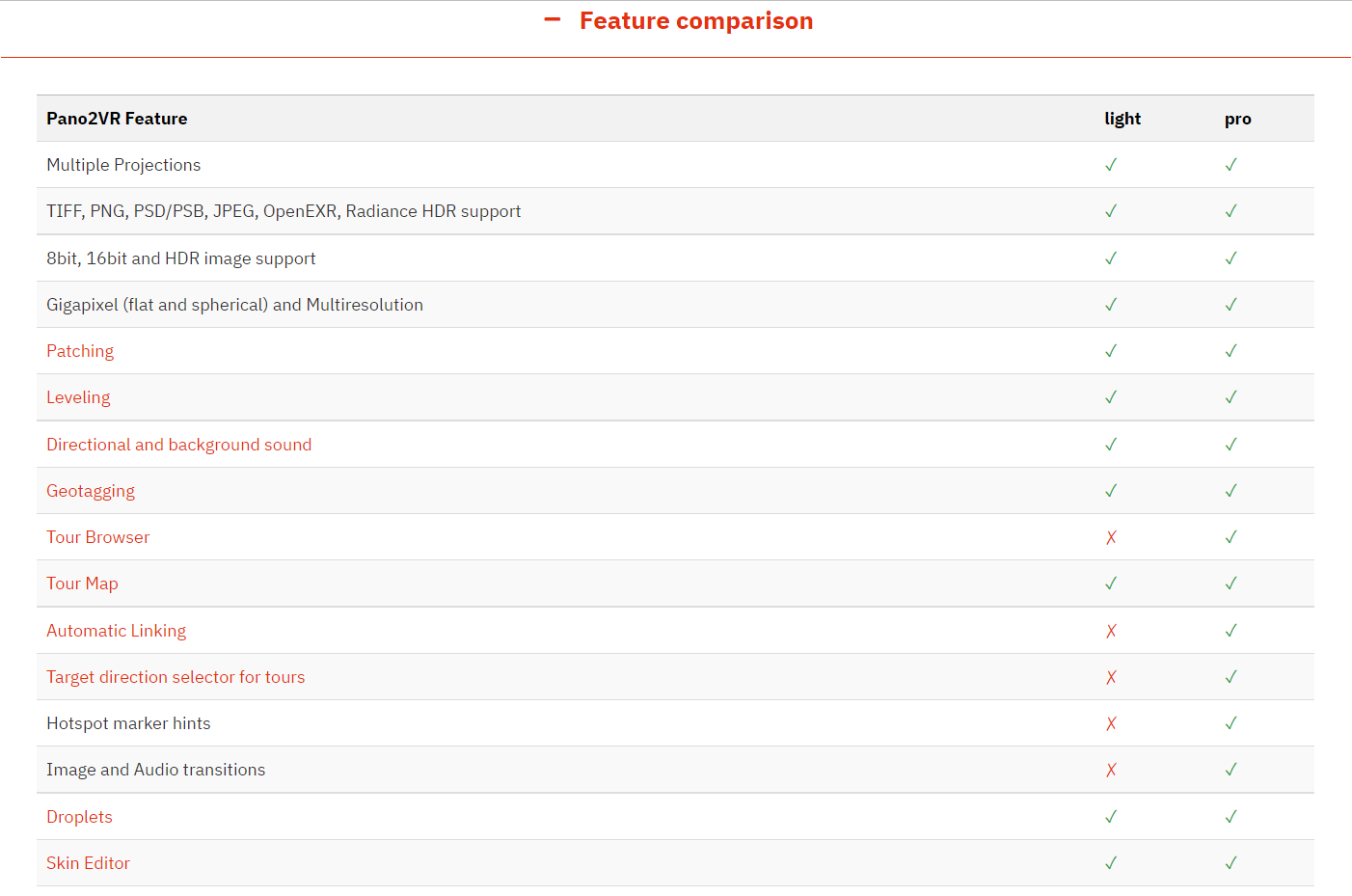
Differences Between Light and Pro Versions
The following image outlines the key differences between the Light and Pro versions of Pano2VR: