Installation
Specifications
Pano2VR can be installed on both Windows and macOS.
- macOS: 10.14 or higher
- Windows: 10 (1809 or later), or Windows 11 21H2
Installation Process
-
Visit the official Pano2VR website: Pano2VR - Virtual Tour Software.
-
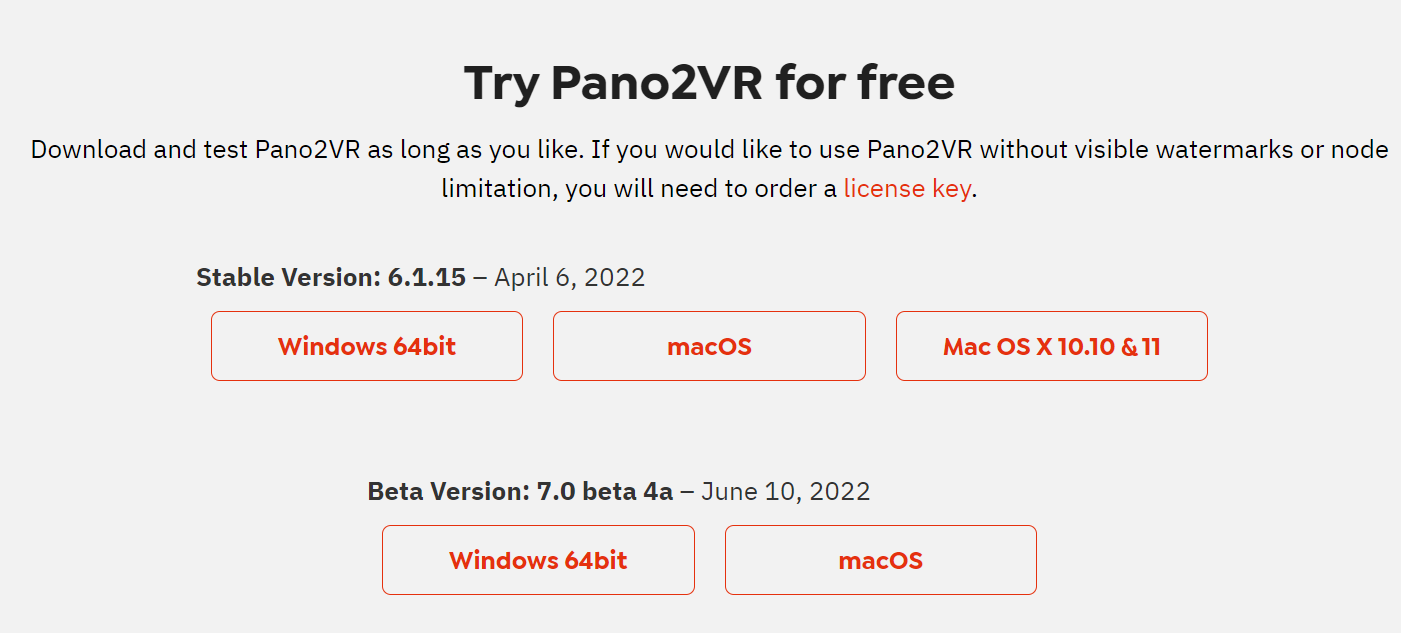
Download the stable version based on your operating system.
-
Once downloaded, select the file to begin the installation. It will start downloading automatically.
-
Choose Run as Administrator. A confirmation prompt will appear. Click Yes to proceed.
-
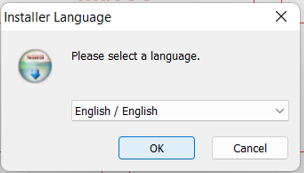
Select the desired language and click OK.
-
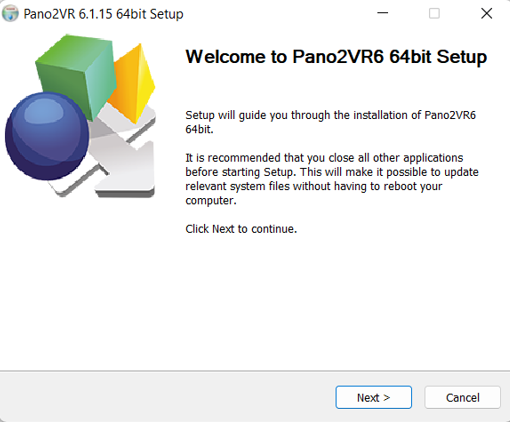
Click Next to continue.
-
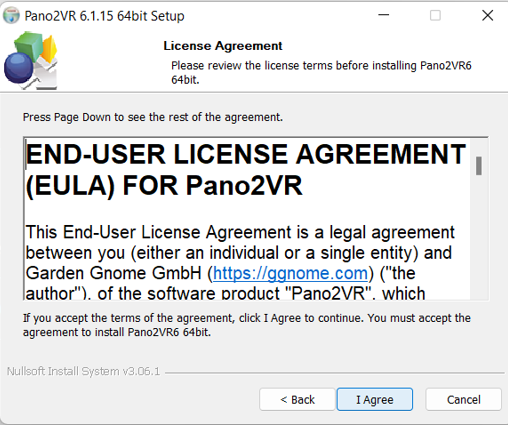
Agree to the End User License Agreement (EULA) by selecting I Agree.
-
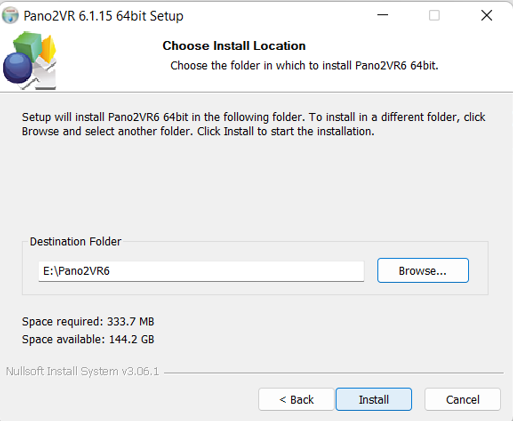
Choose the location where you want to install the software.
-
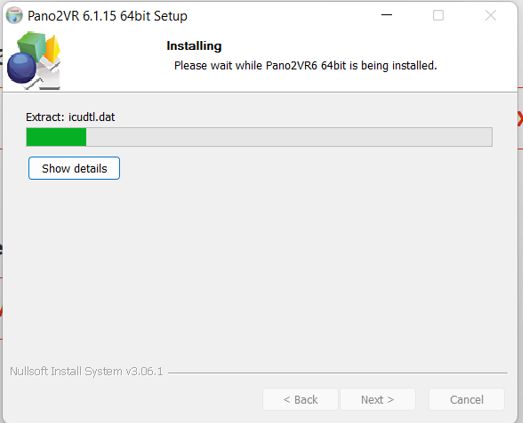
Click Browse to select the installation path. Afterward, click Install. The installation will take some time.
-
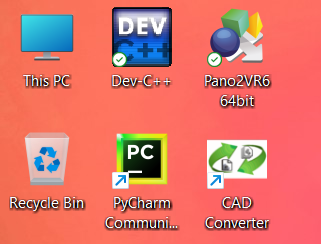
Once installation is complete, click Finish. The software is now ready to use and can be accessed from your desktop.
-
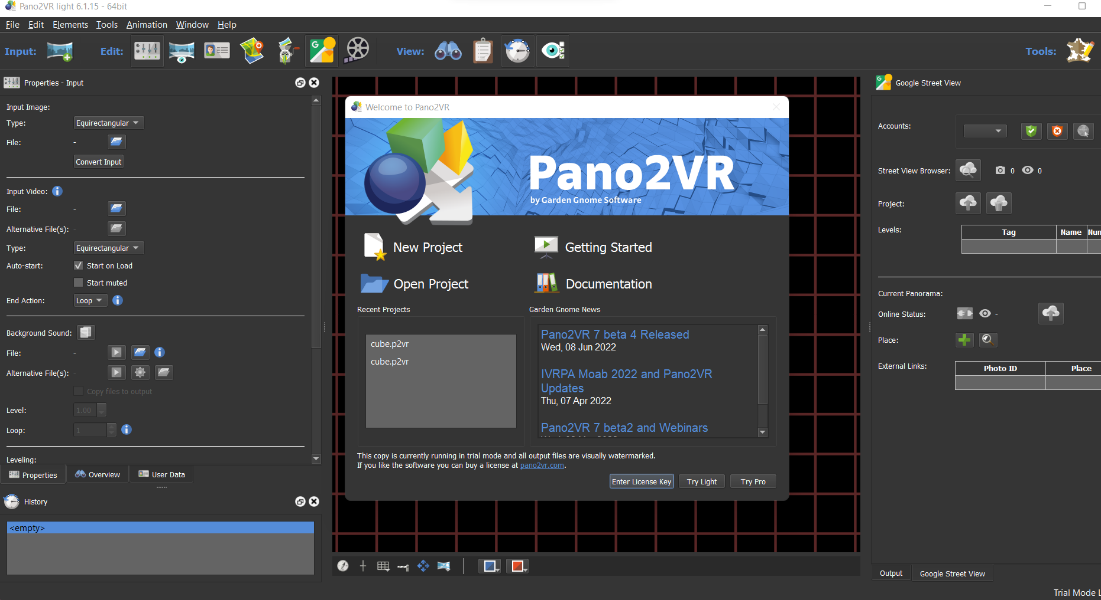
Upon launching, Pano2VR will open as shown below.