Configuration
-
Open Pixyz Studio
Launch Pixyz Studio.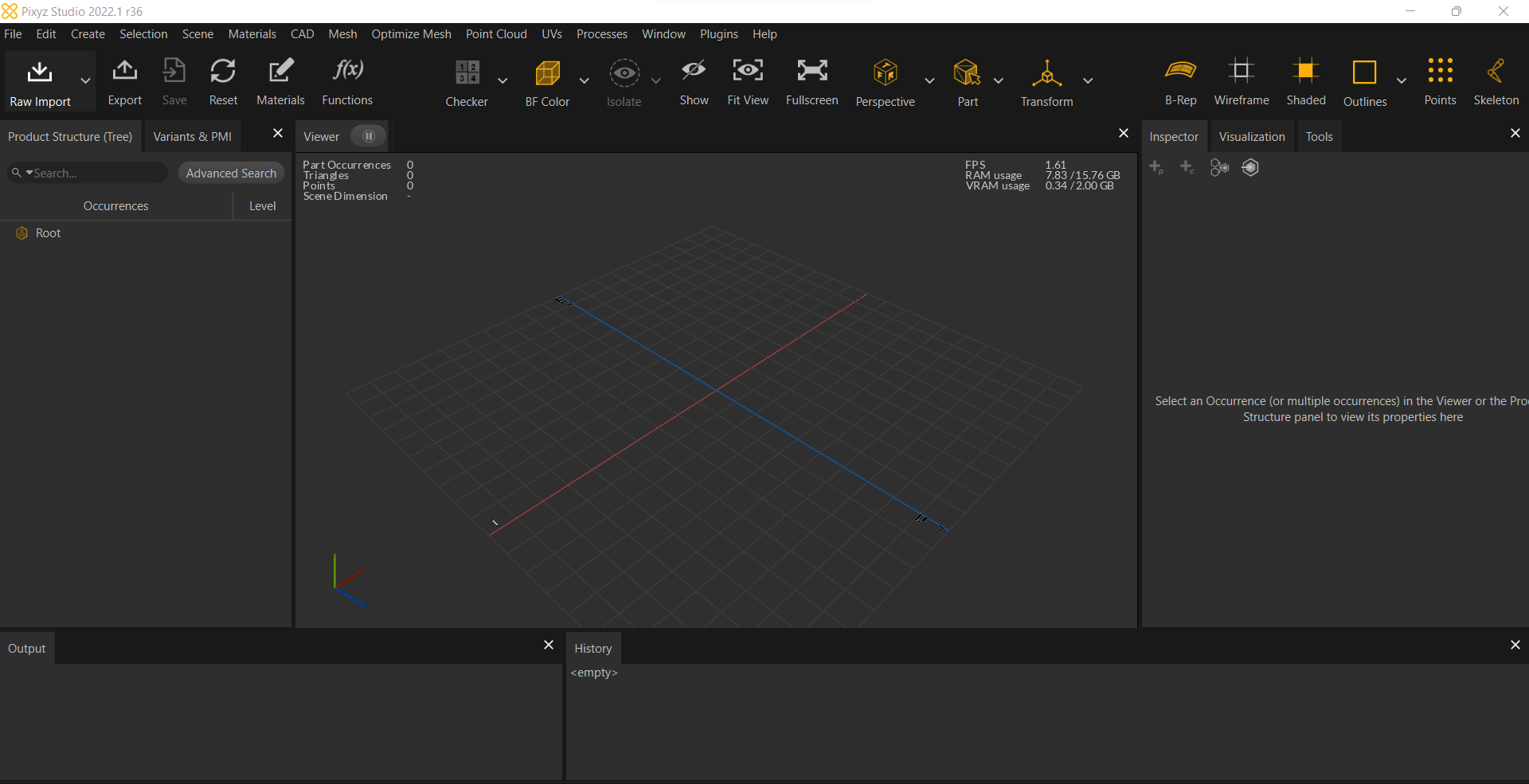
-
Access Preferences
Click on Edit, and a pop-up window will appear.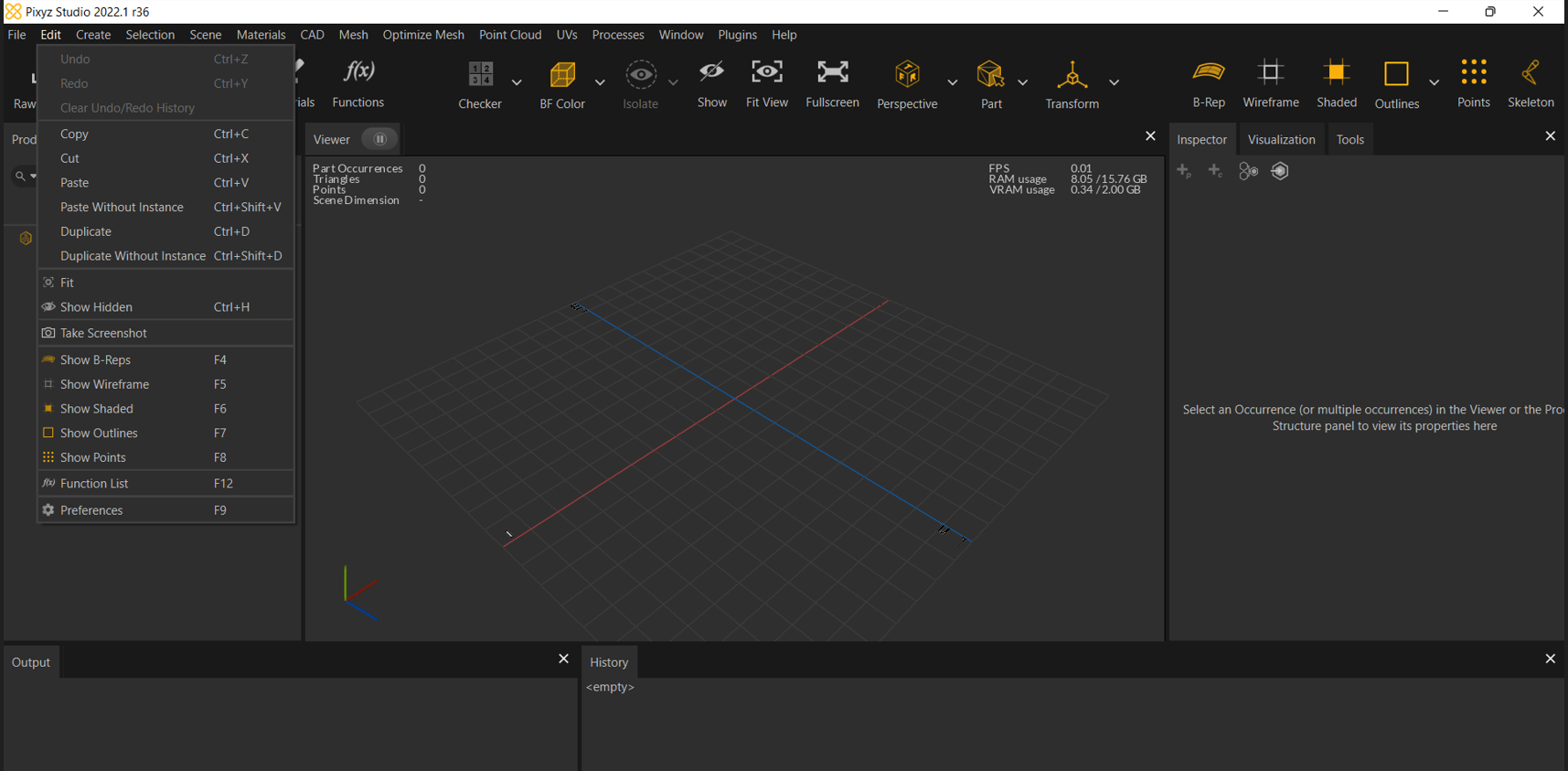
-
Navigate to Preferences
Click on Preferences.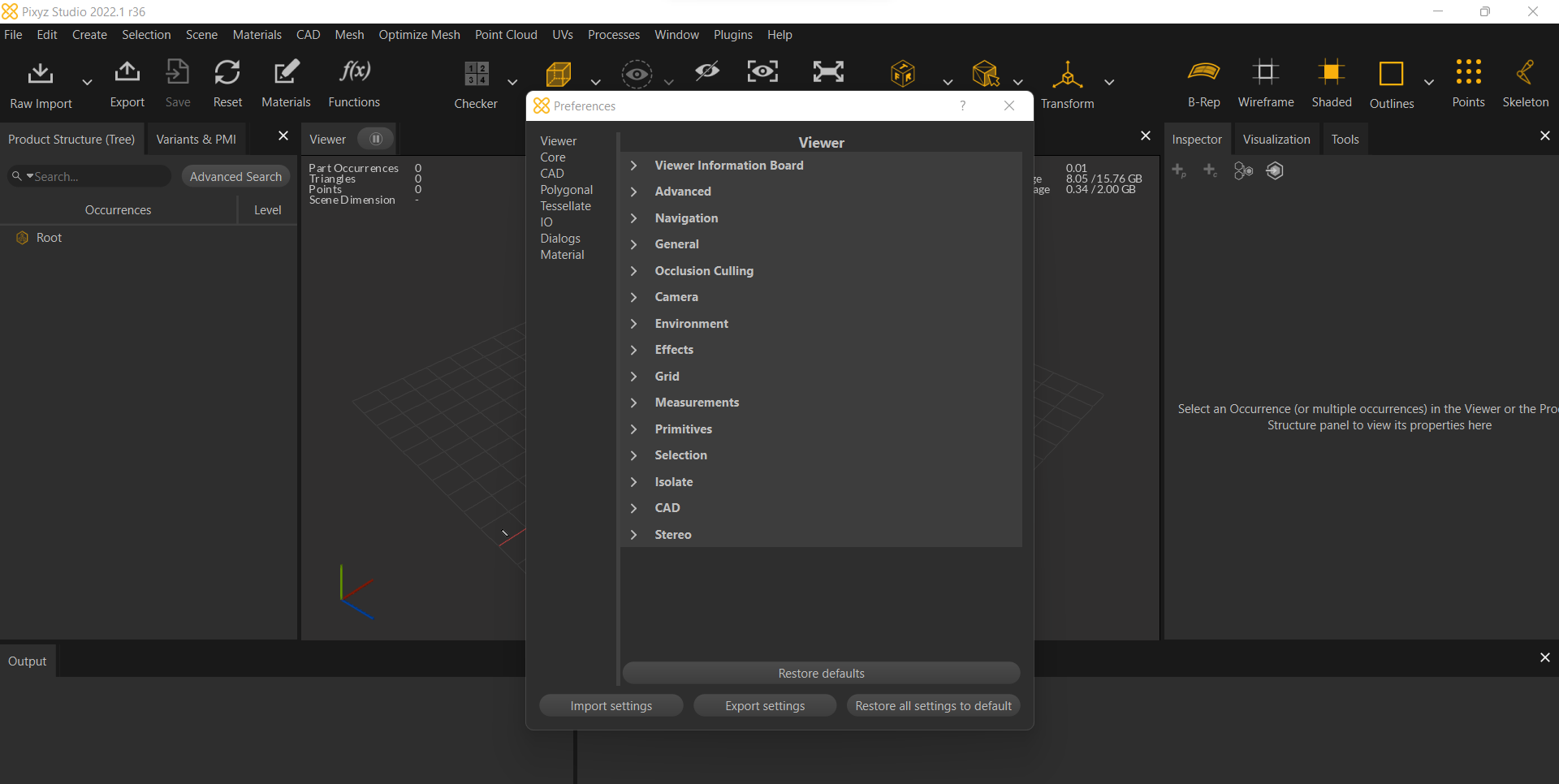
-
Customize Viewer Settings
Under the Viewer section, you can customize the information board options.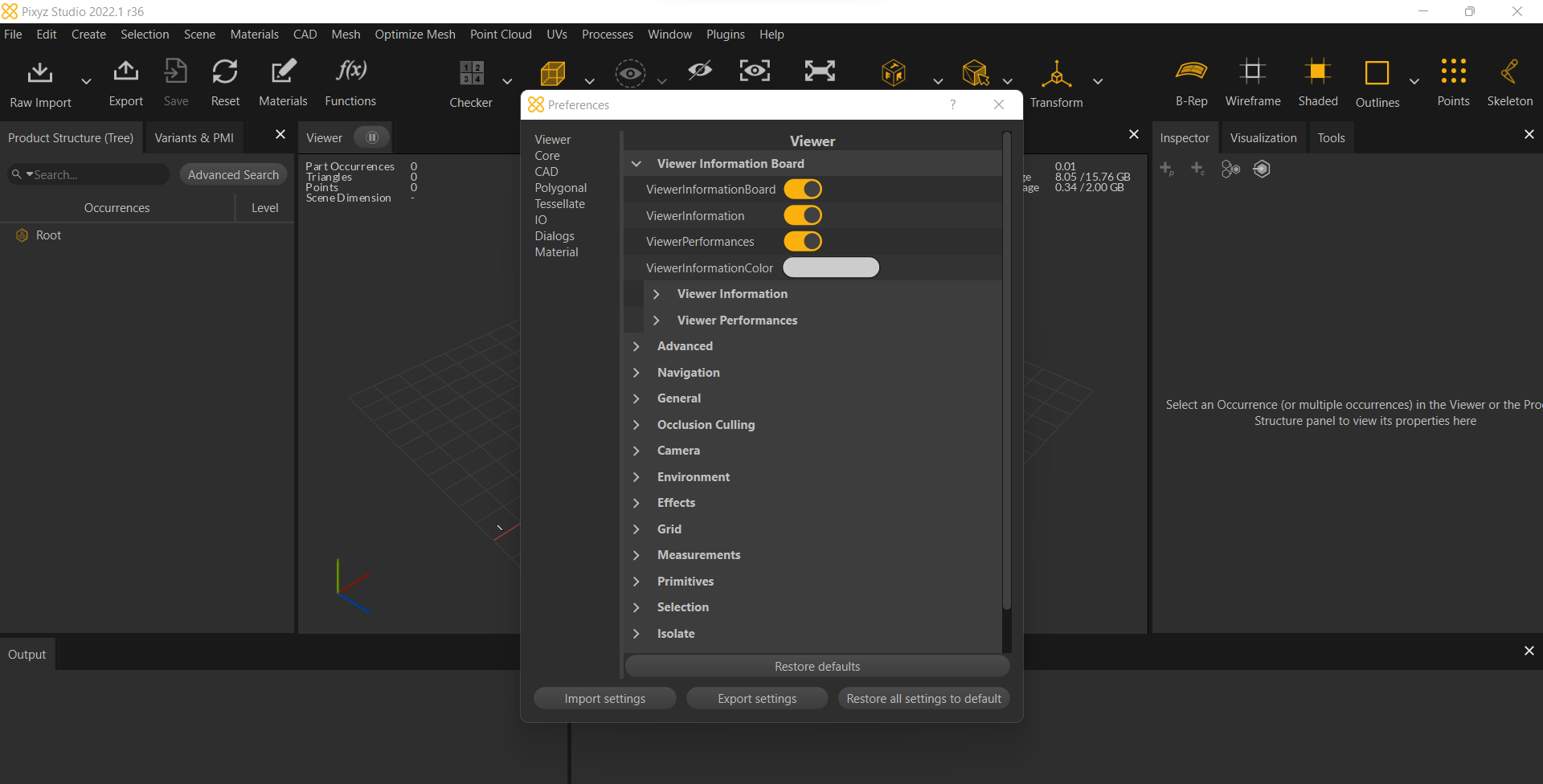
-
Viewer Information
Customize the viewer information options.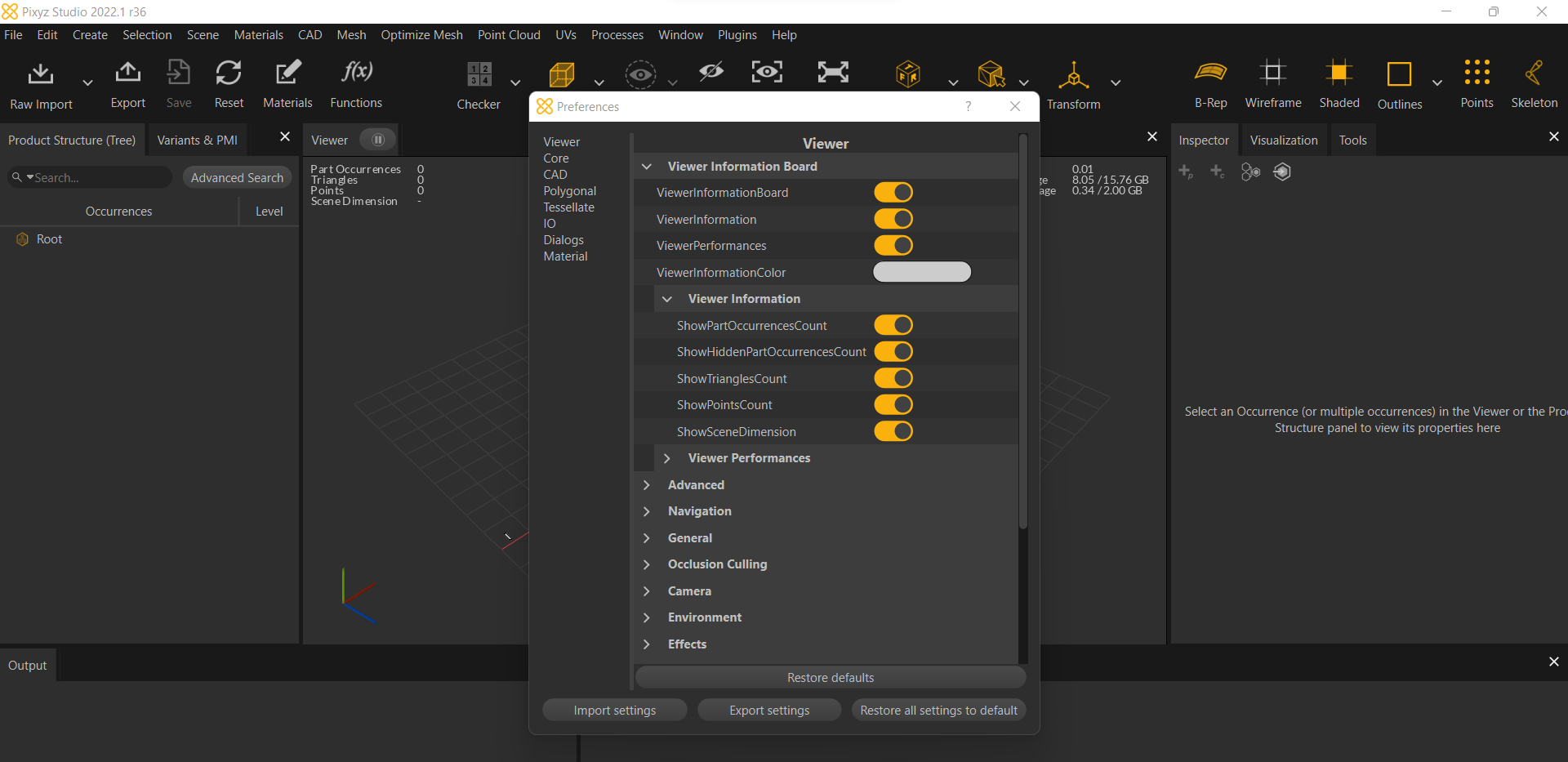
-
Viewer Performance
Customize performance settings for the viewer.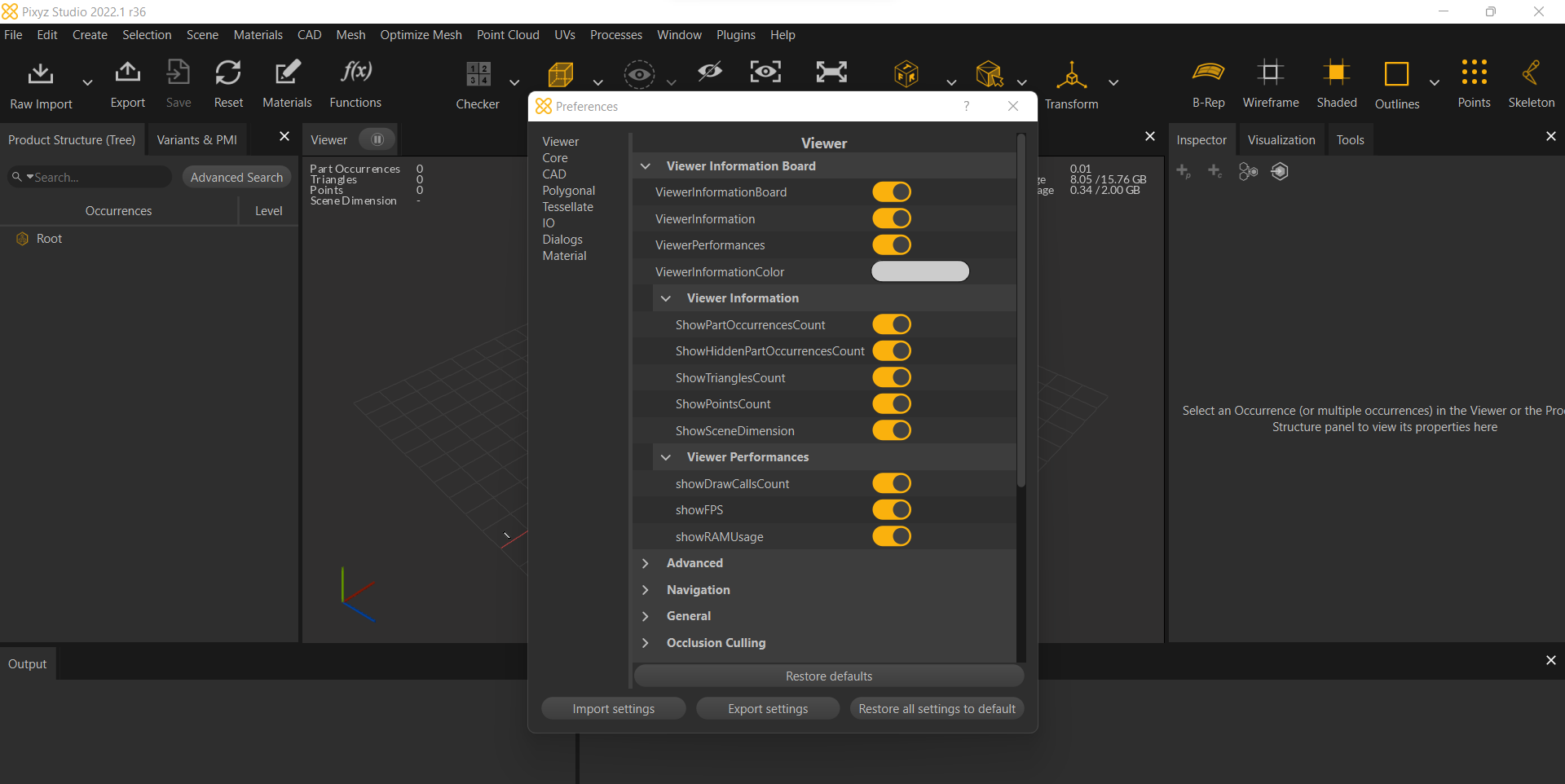
-
Advanced Settings
Adjust advanced options to suit your needs.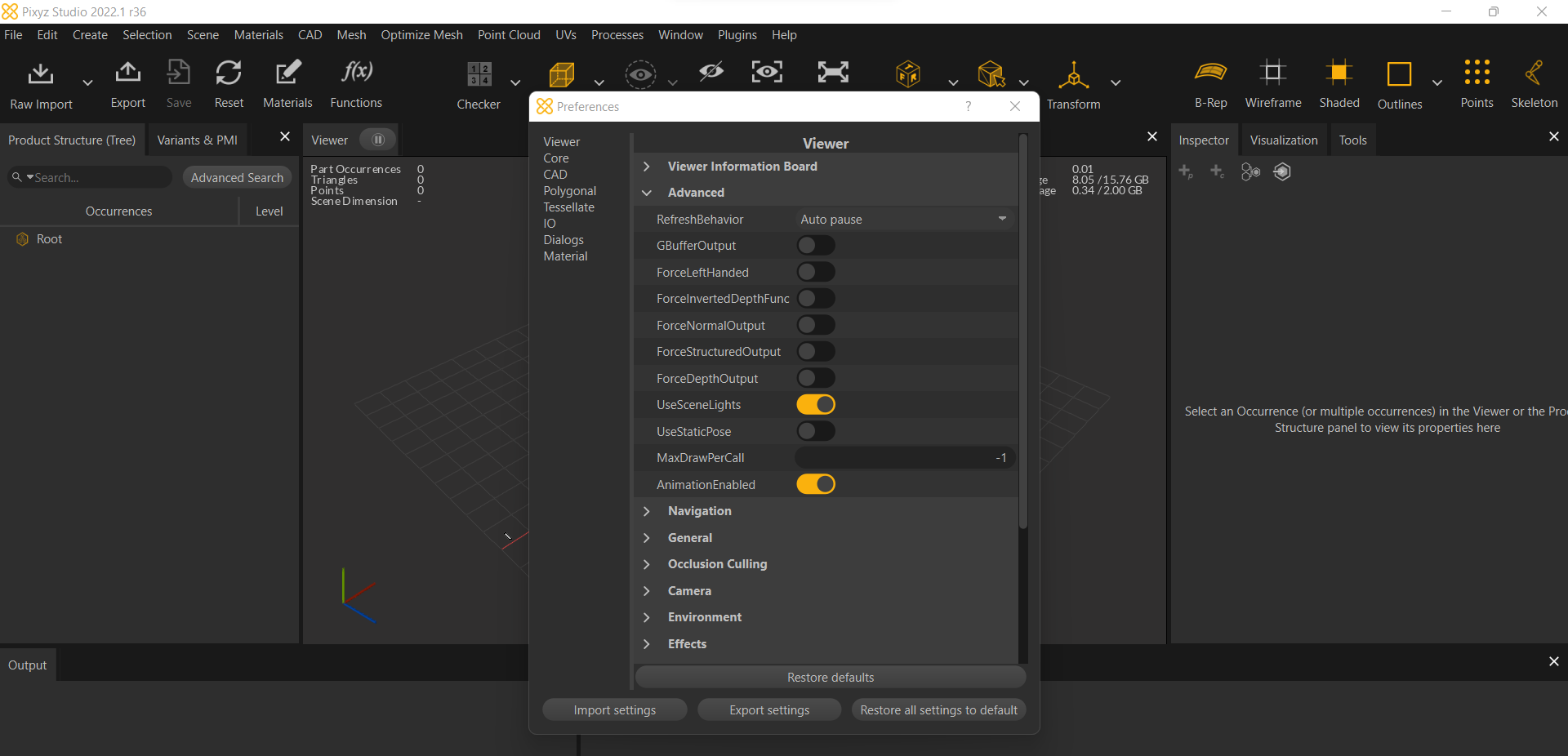
-
Navigation Settings
Customize the navigation options for a better user experience.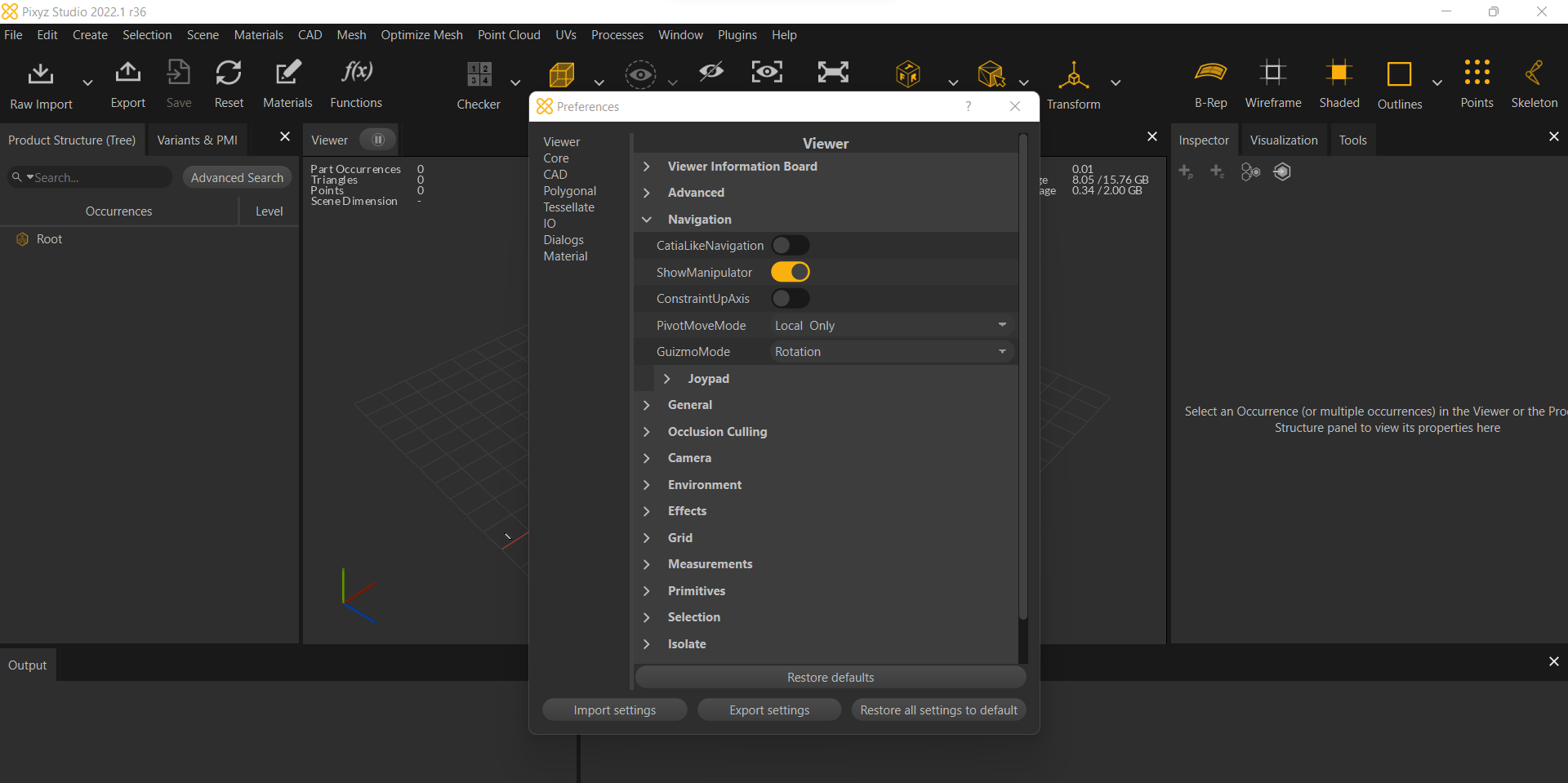
-
Joypad Settings
Adjust the joypad options to configure controls.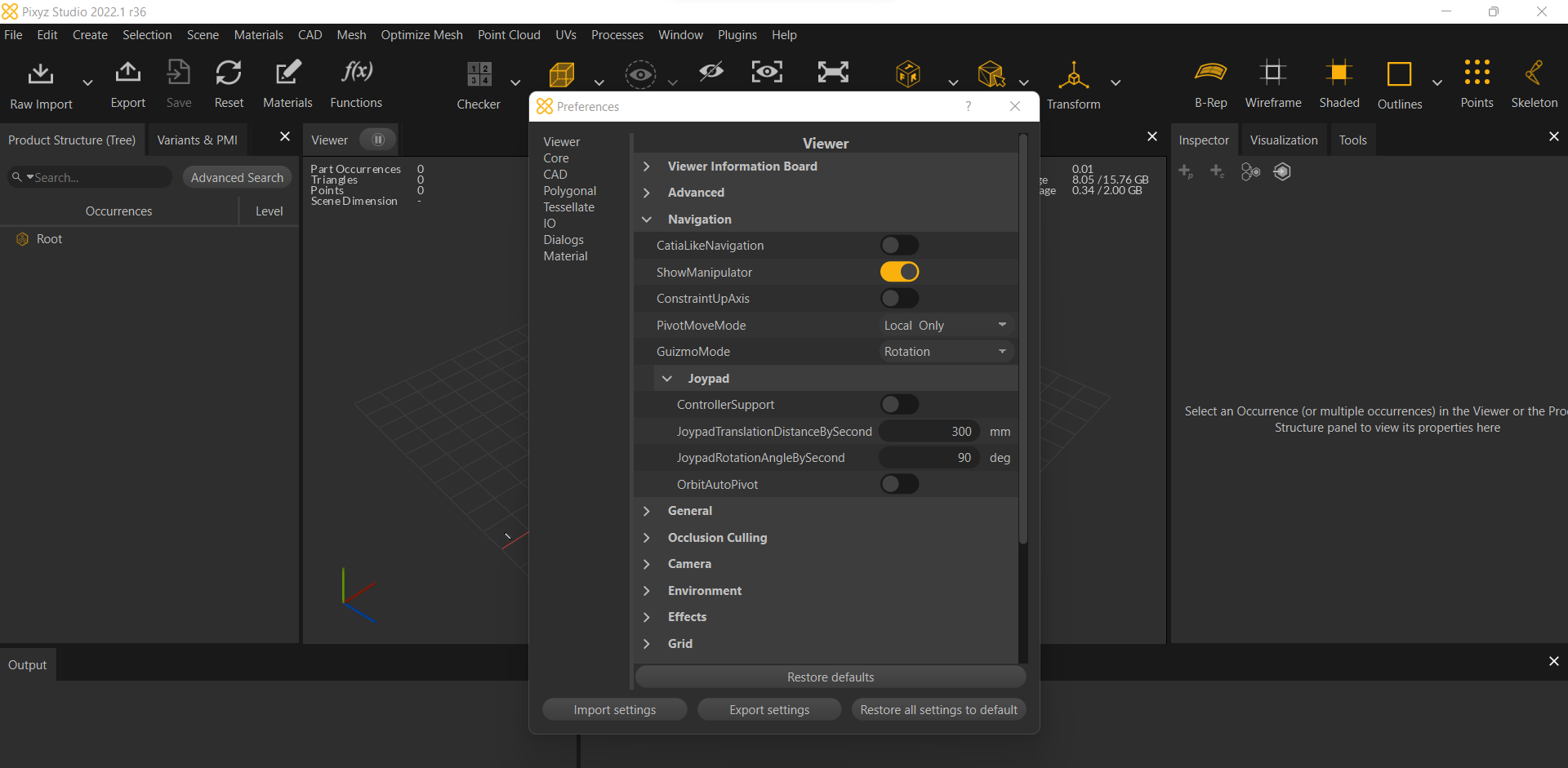
-
General Settings
Customize the general settings for the application.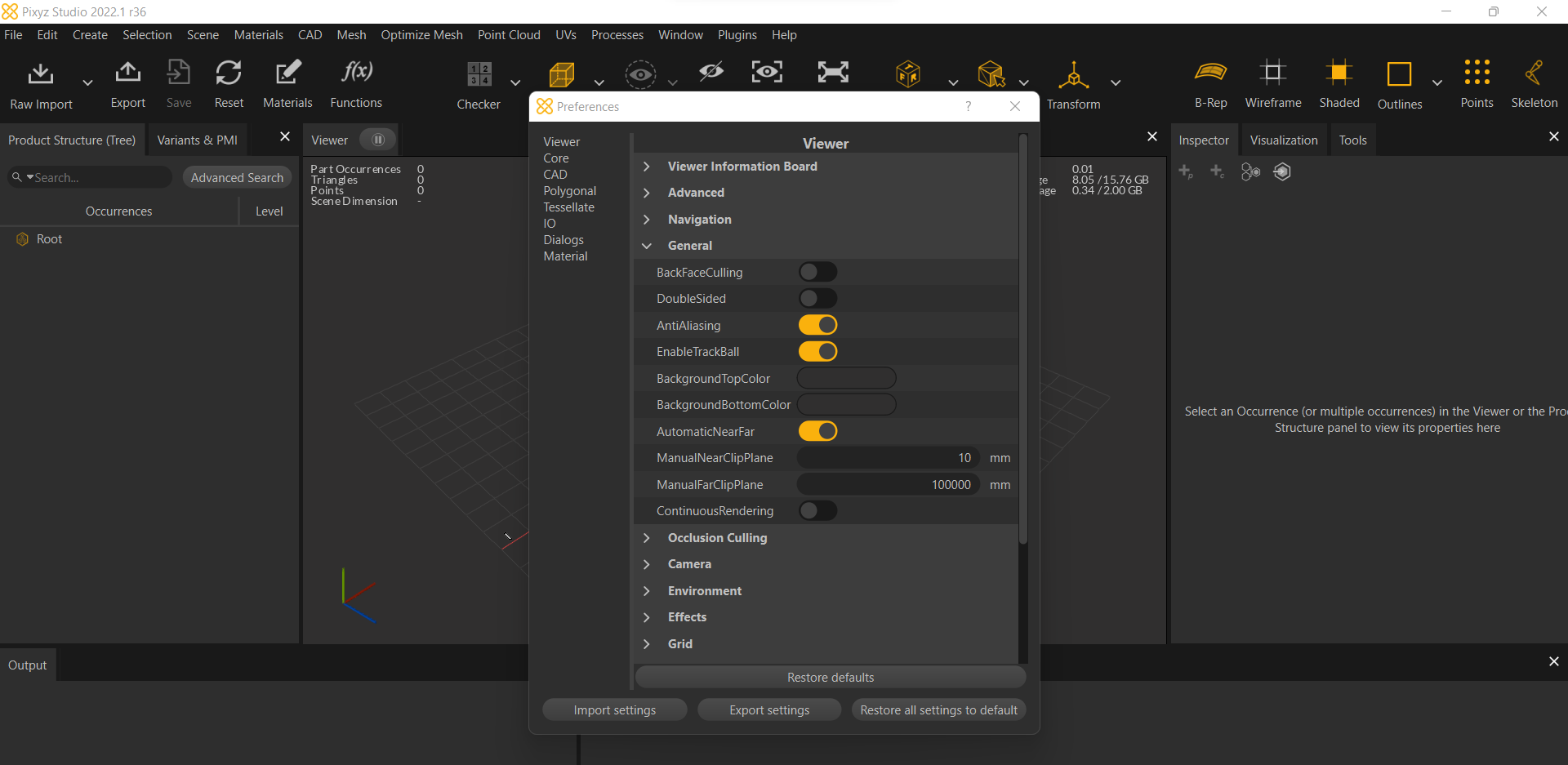
-
Occlusion Culling
Set the occlusion culling options for optimized performance.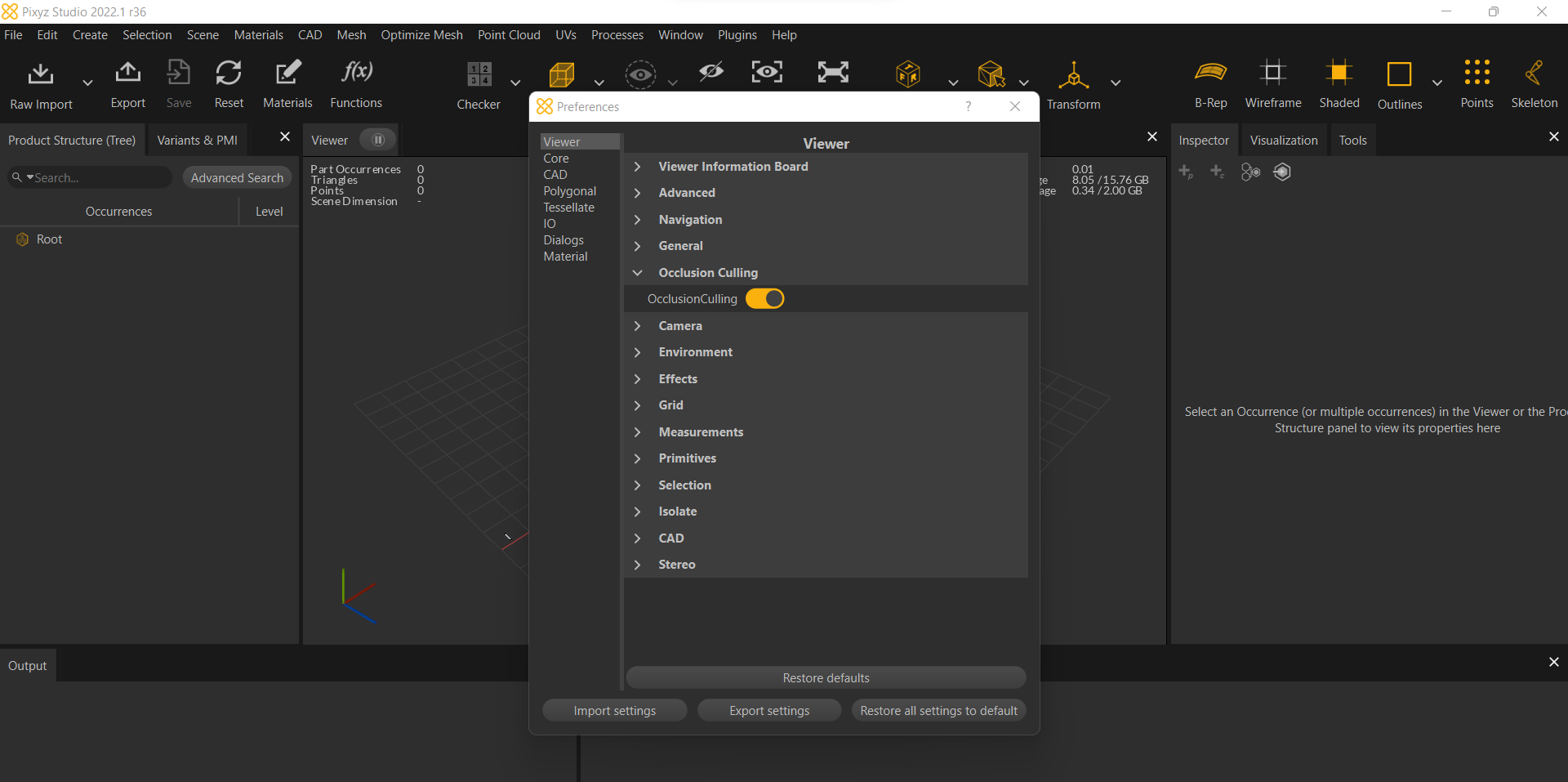
-
Camera Settings
Customize camera options and sensitivity.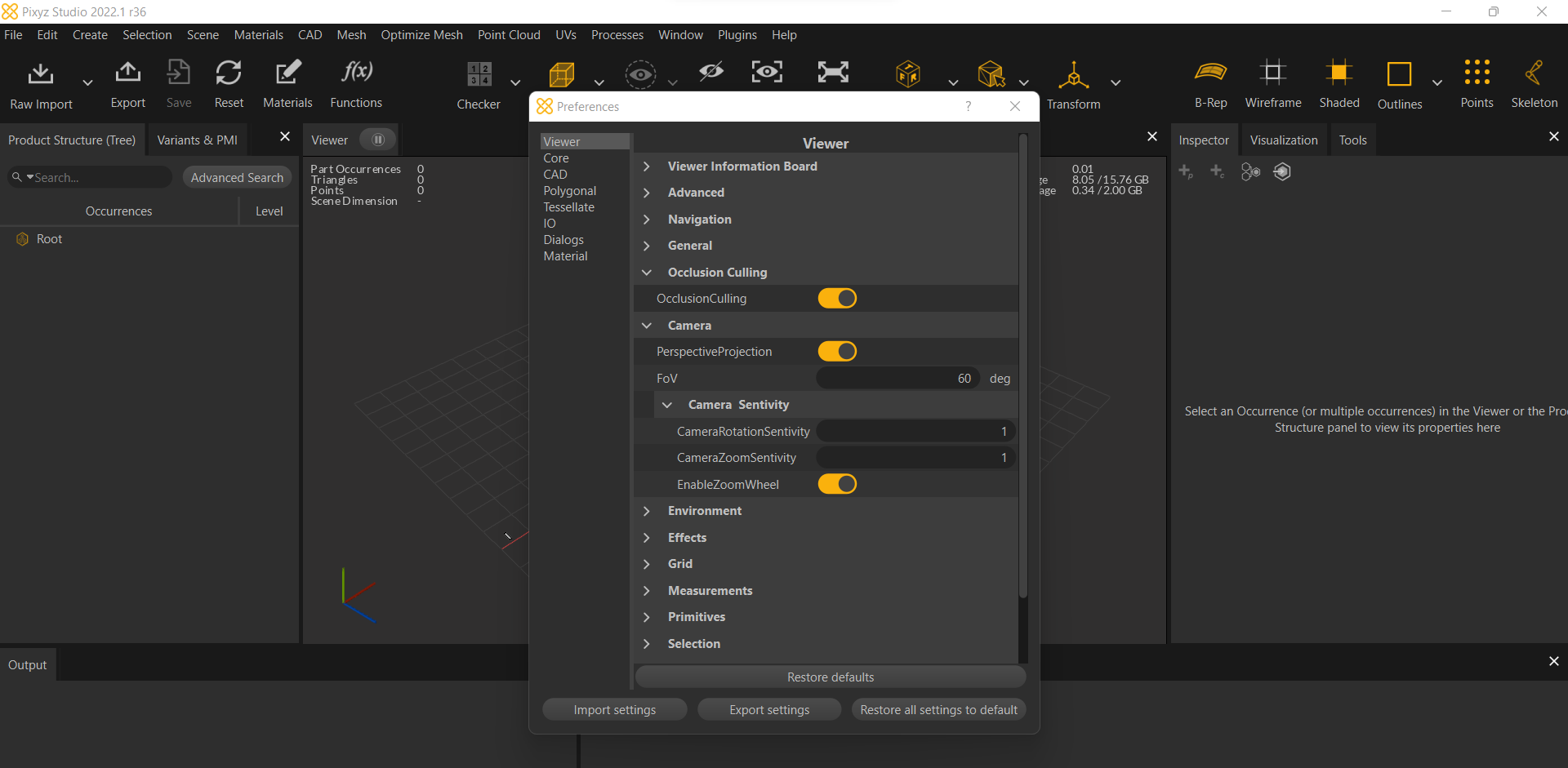
-
Environment Settings
Adjust the environment settings for the viewer.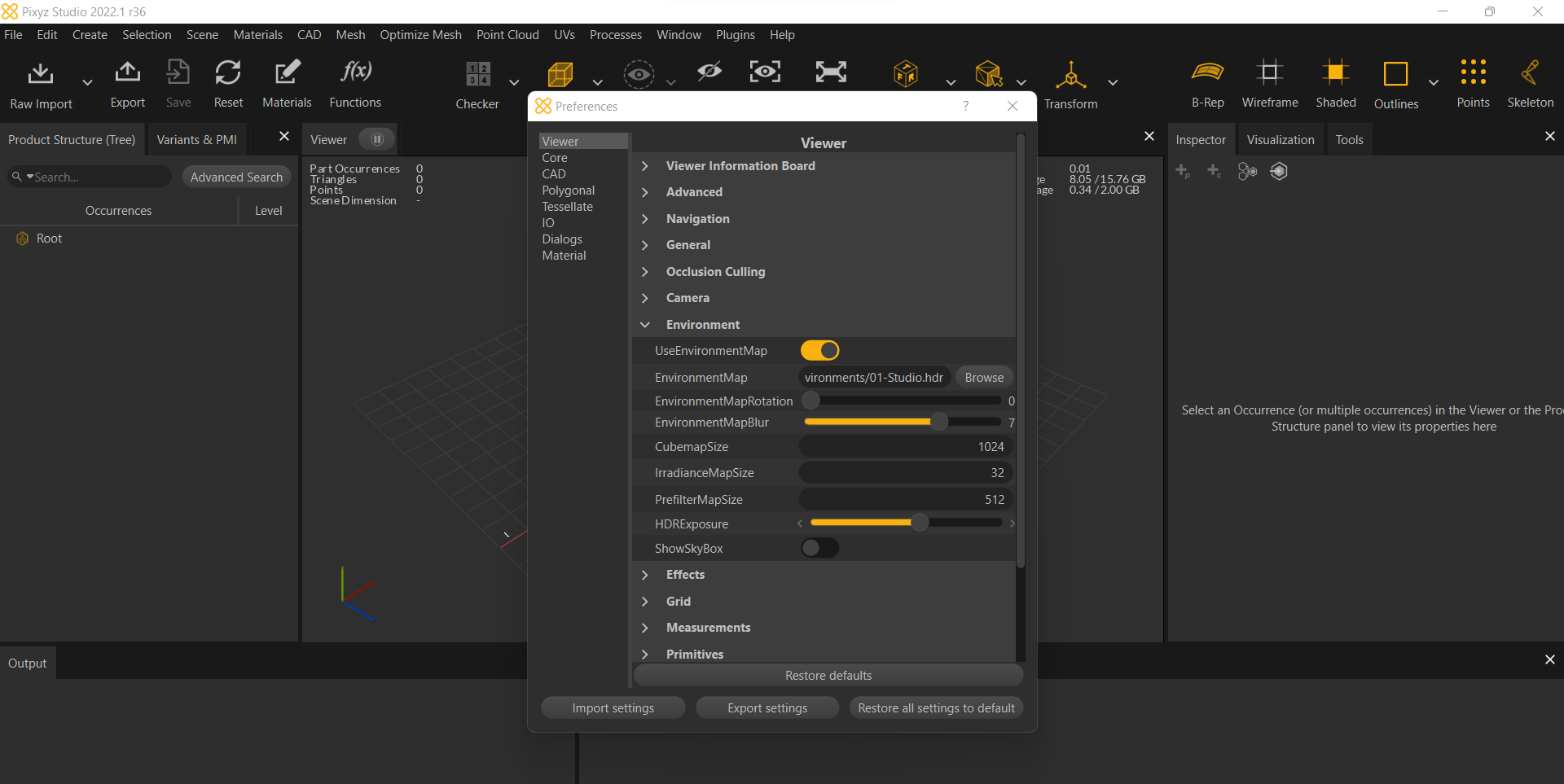
-
Effects Settings
Customize visual effects, including SSAO and X-Ray options.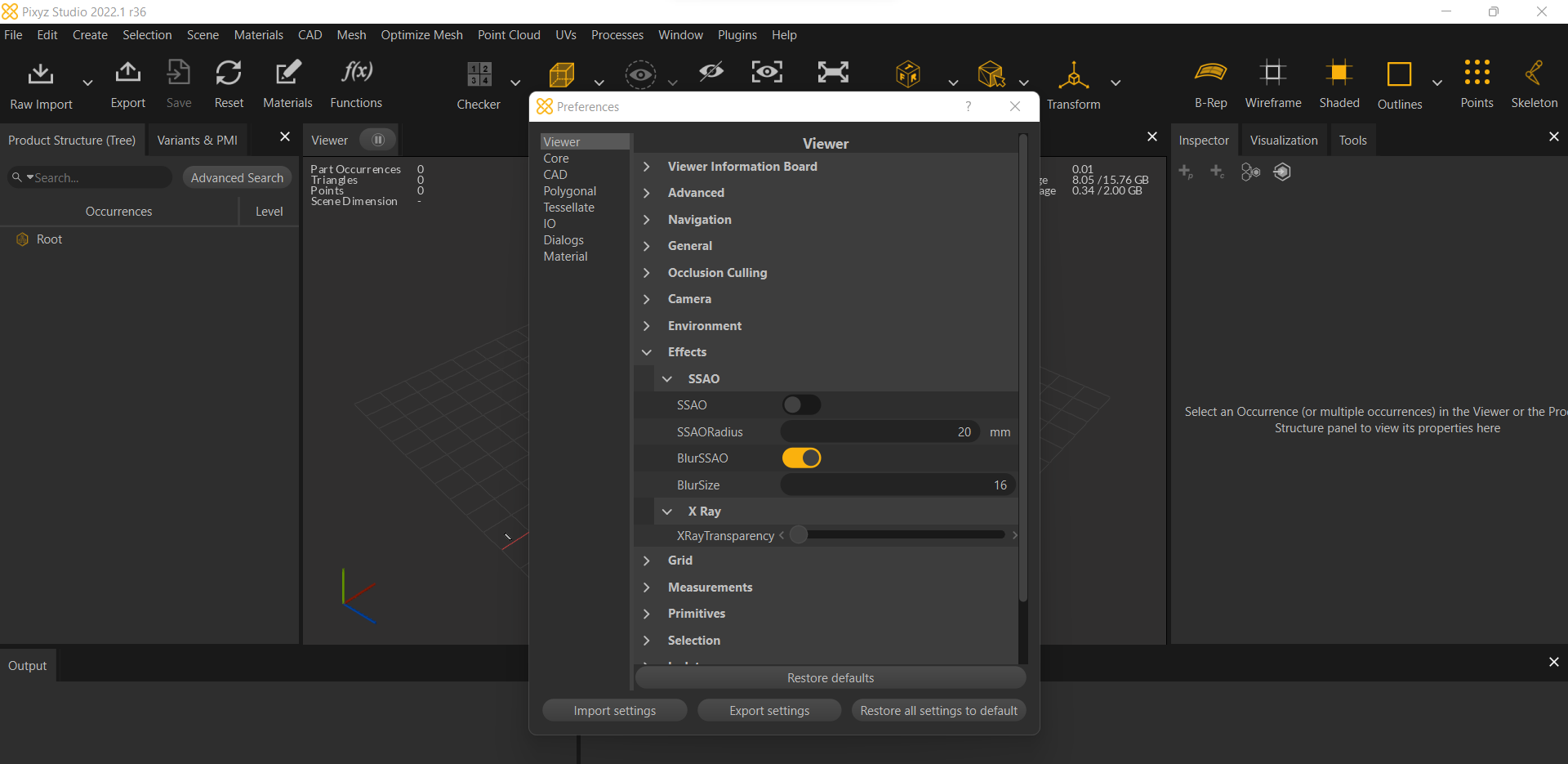
-
Grid Settings
Adjust the grid options for the 3D view.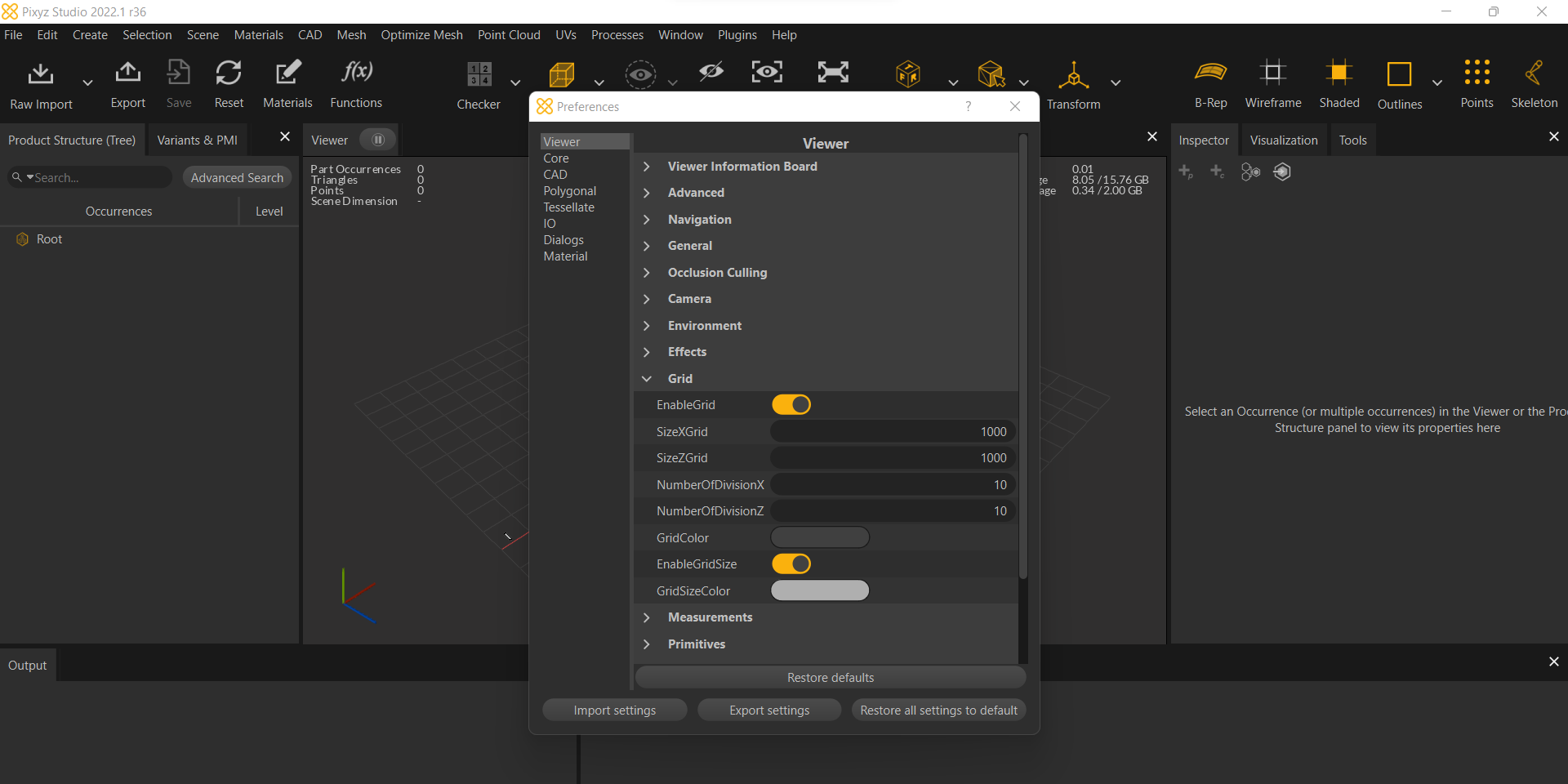
-
Measurement Settings
Customize the measurement options for accurate data display.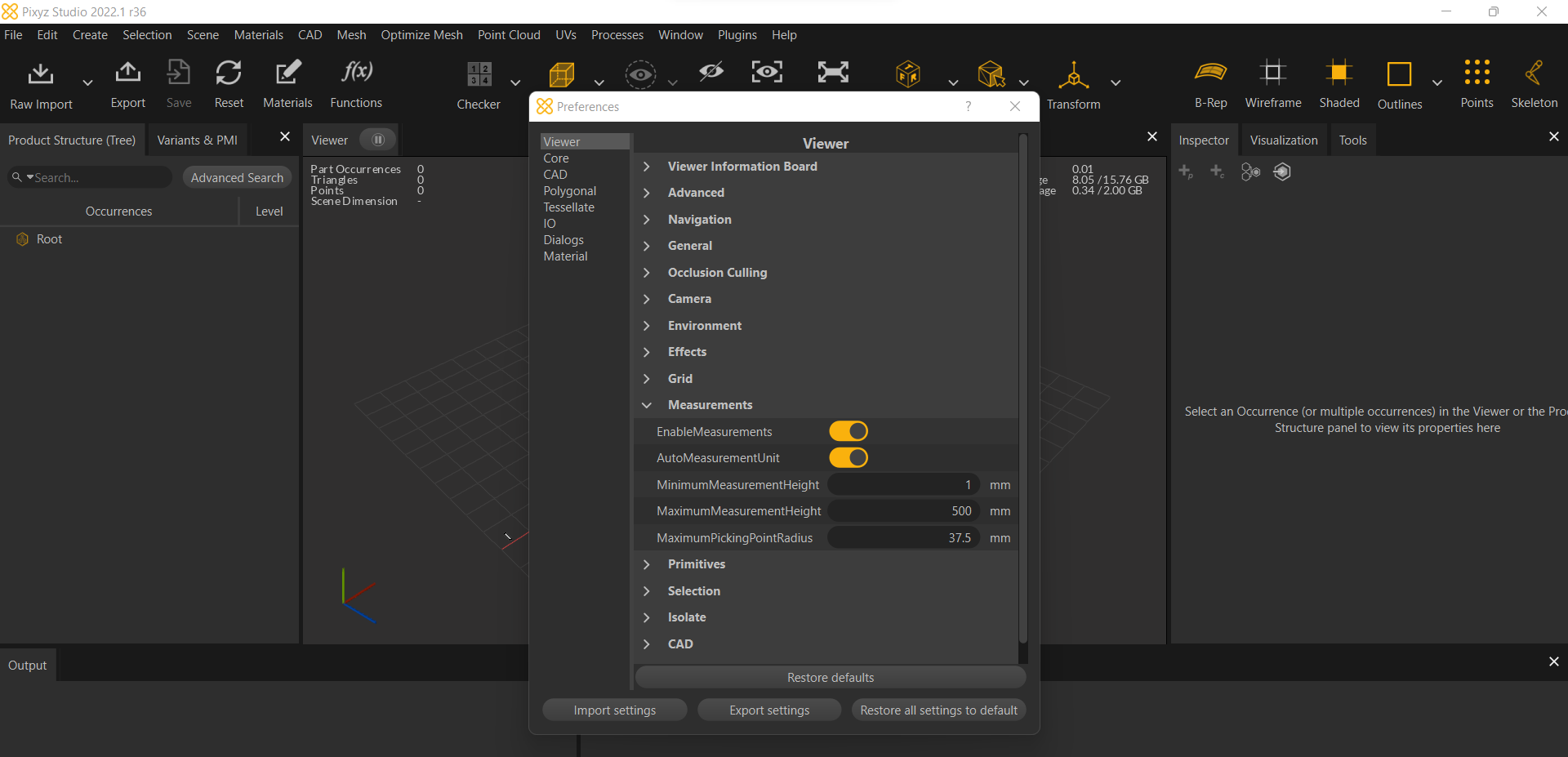
-
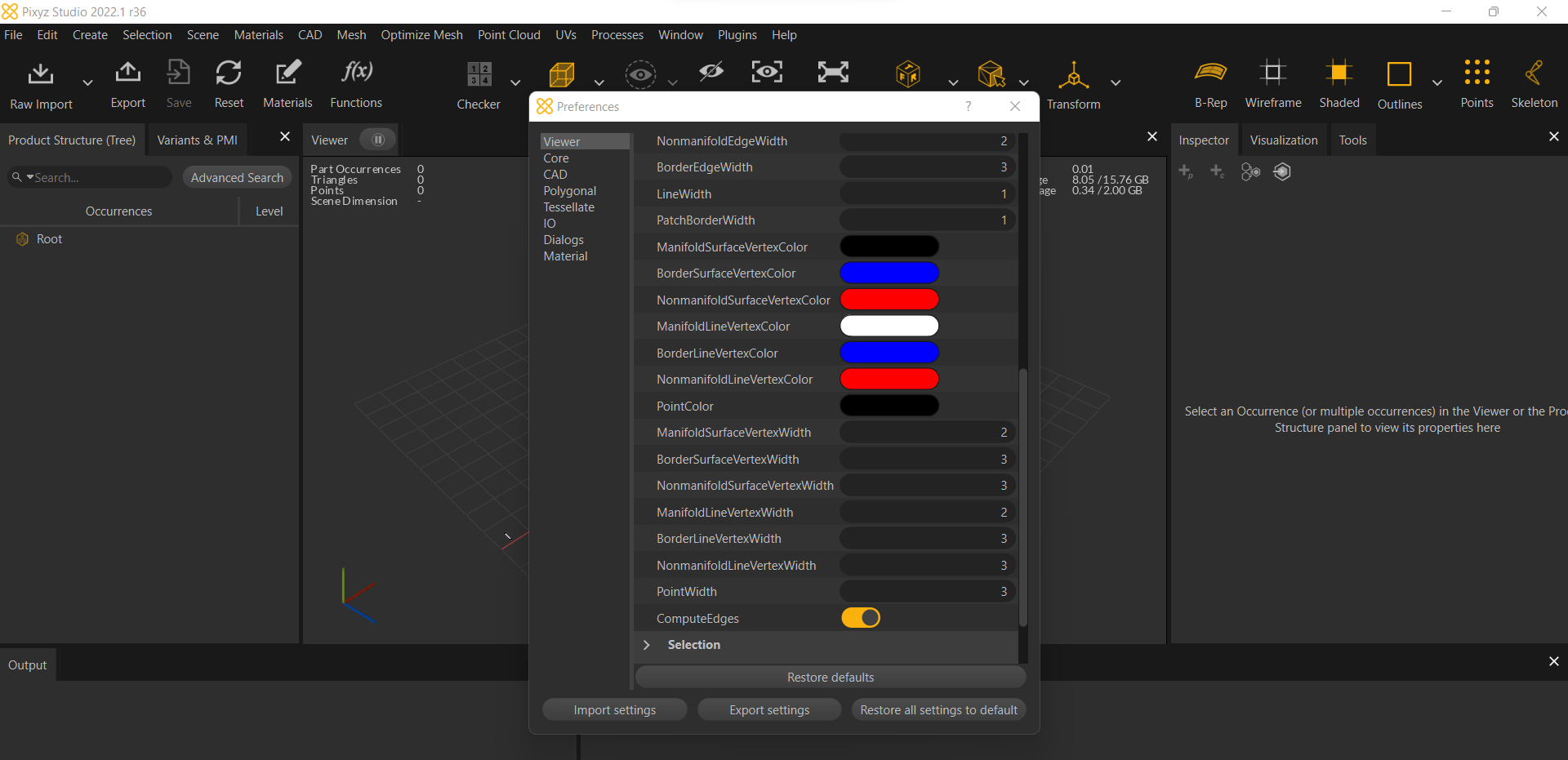
Primitive Settings
Adjust settings for primitives used in your models.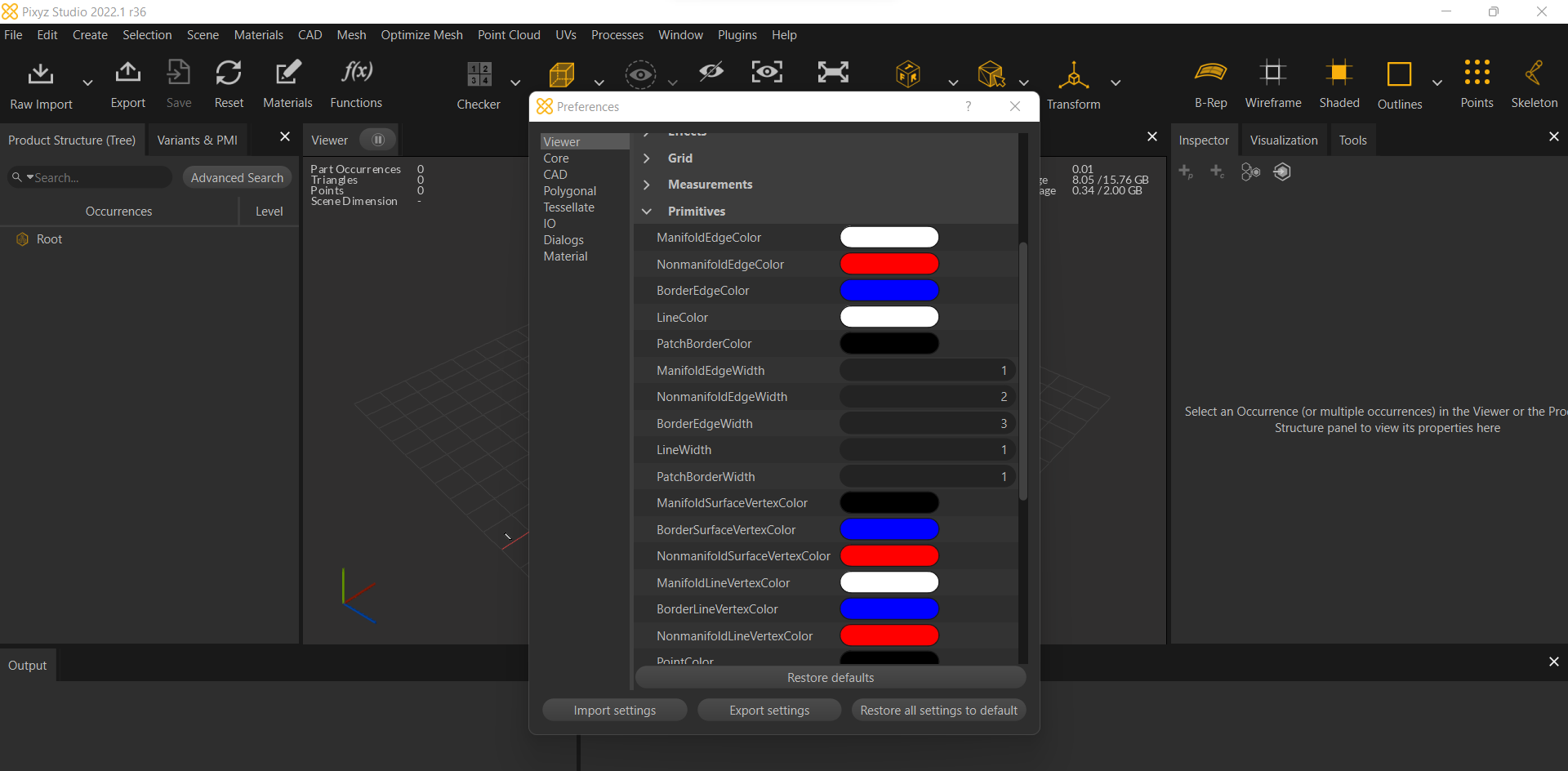
-
Selection Settings
Customize the selection options for objects in the 3D view.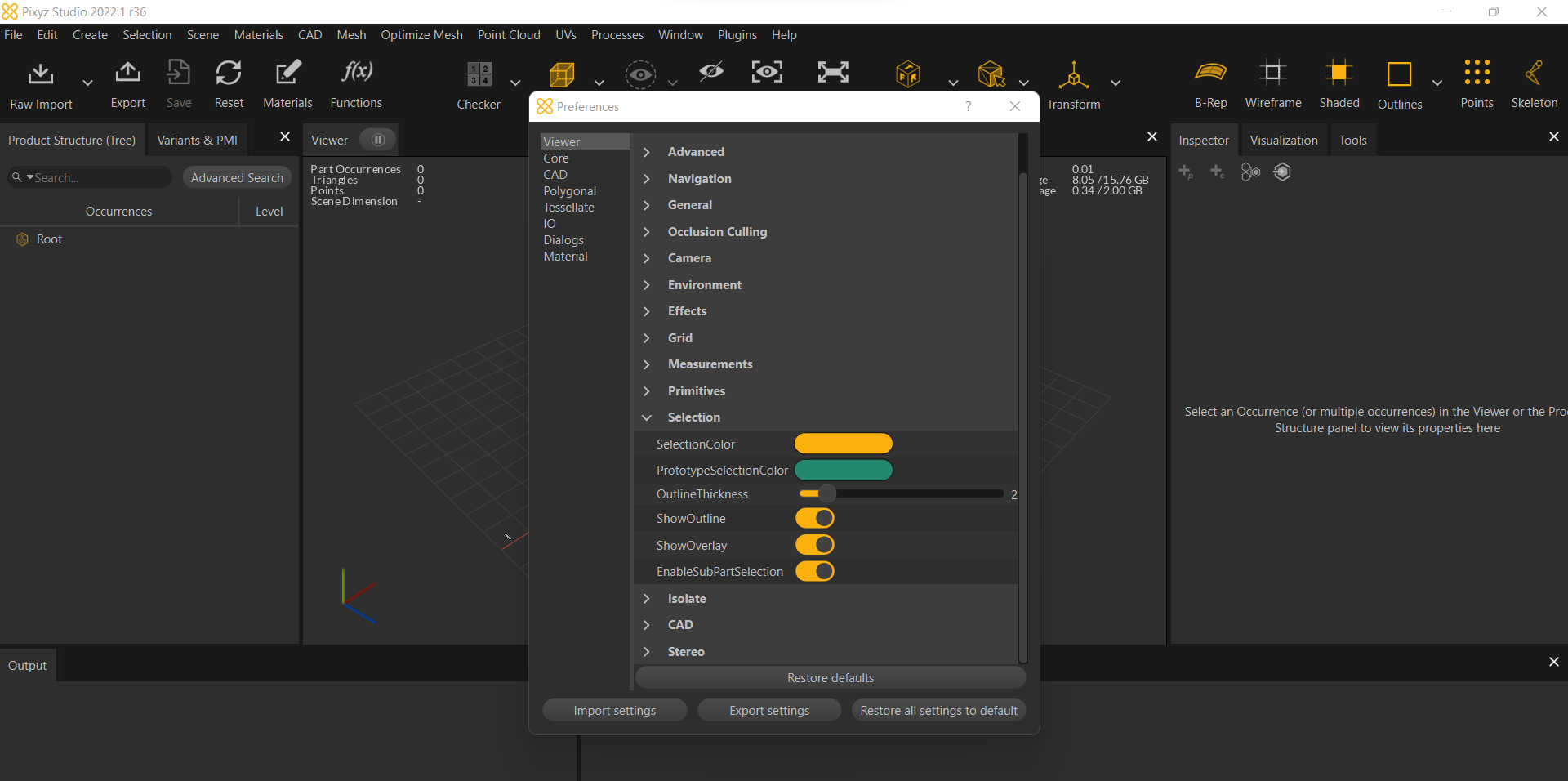
-
Isolate Options
Customize the isolation settings for better workflow control.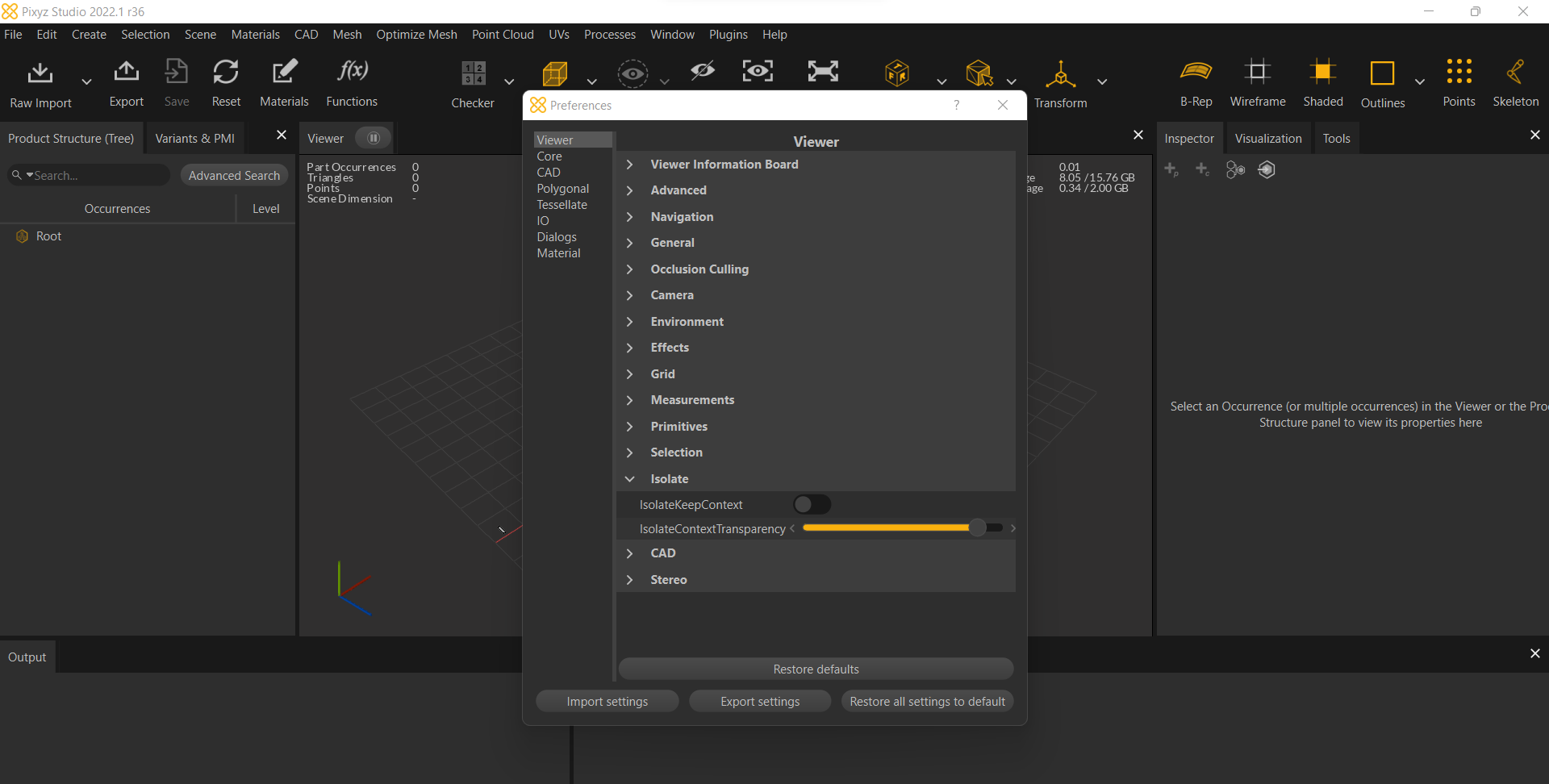
-
CAD Settings
Customize CAD options for file import/export.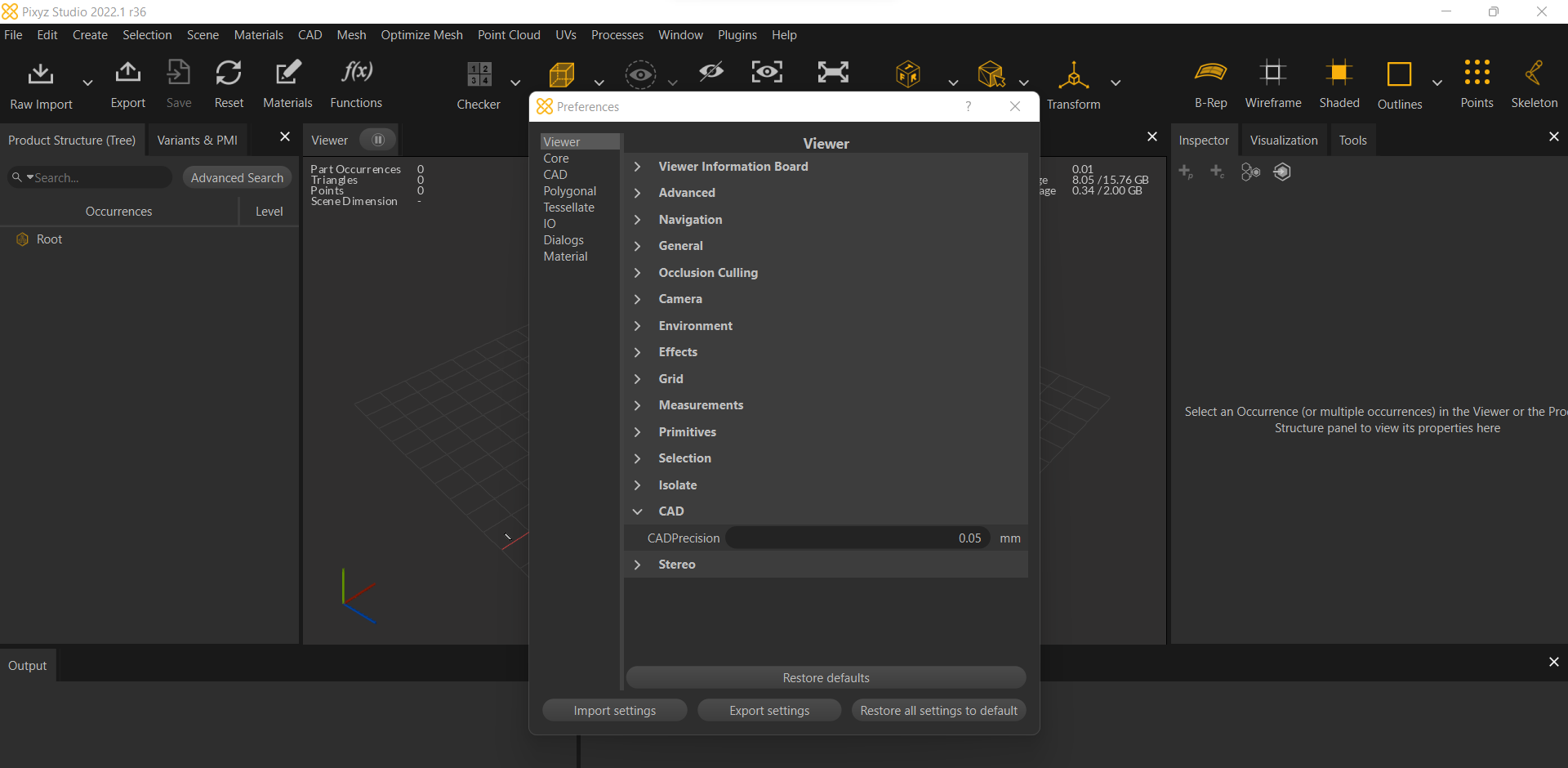
-
Stereo Settings
Adjust stereo viewing options for 3D visualization.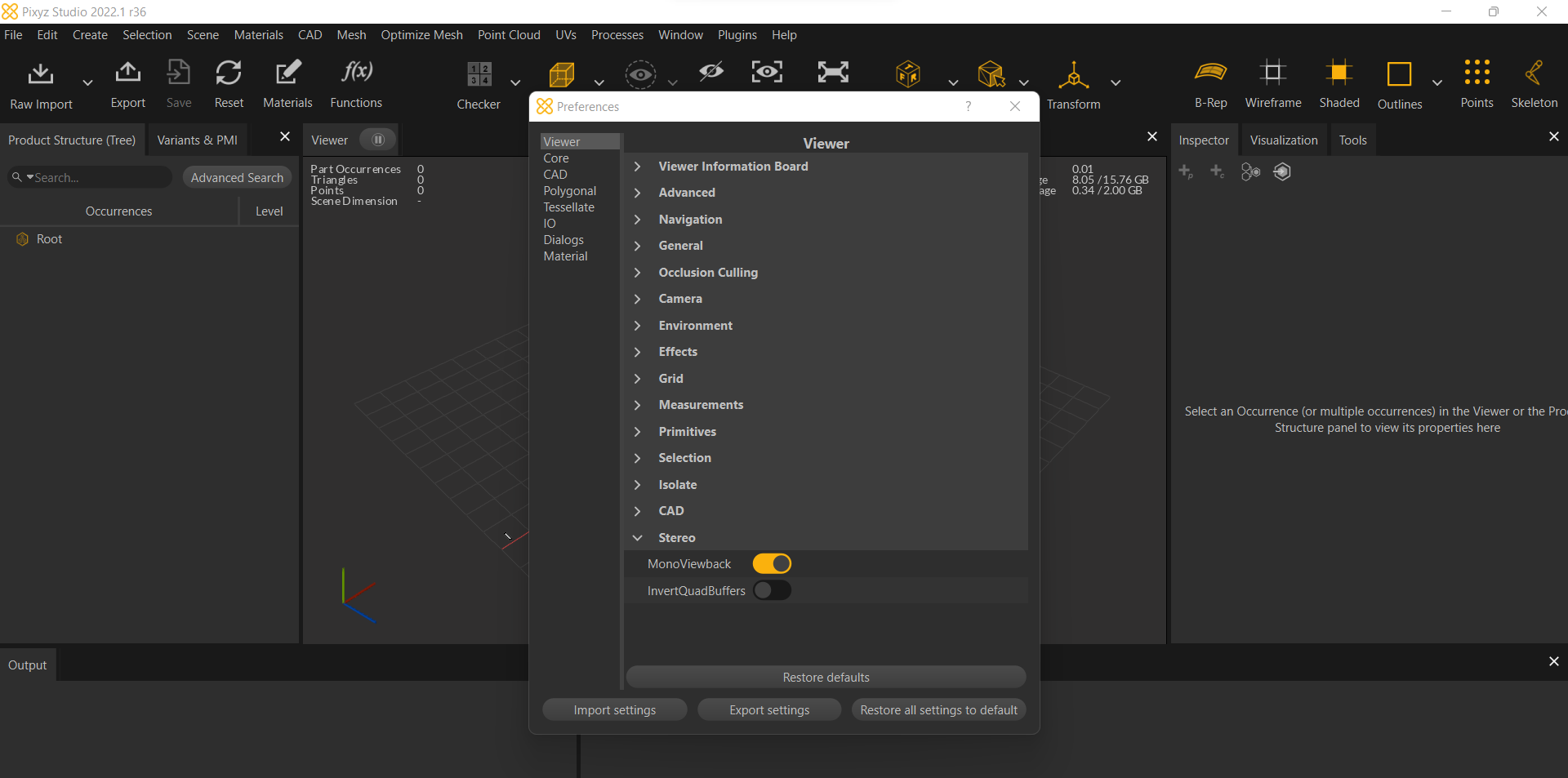
-
Core Settings
Modify core application settings for performance optimization.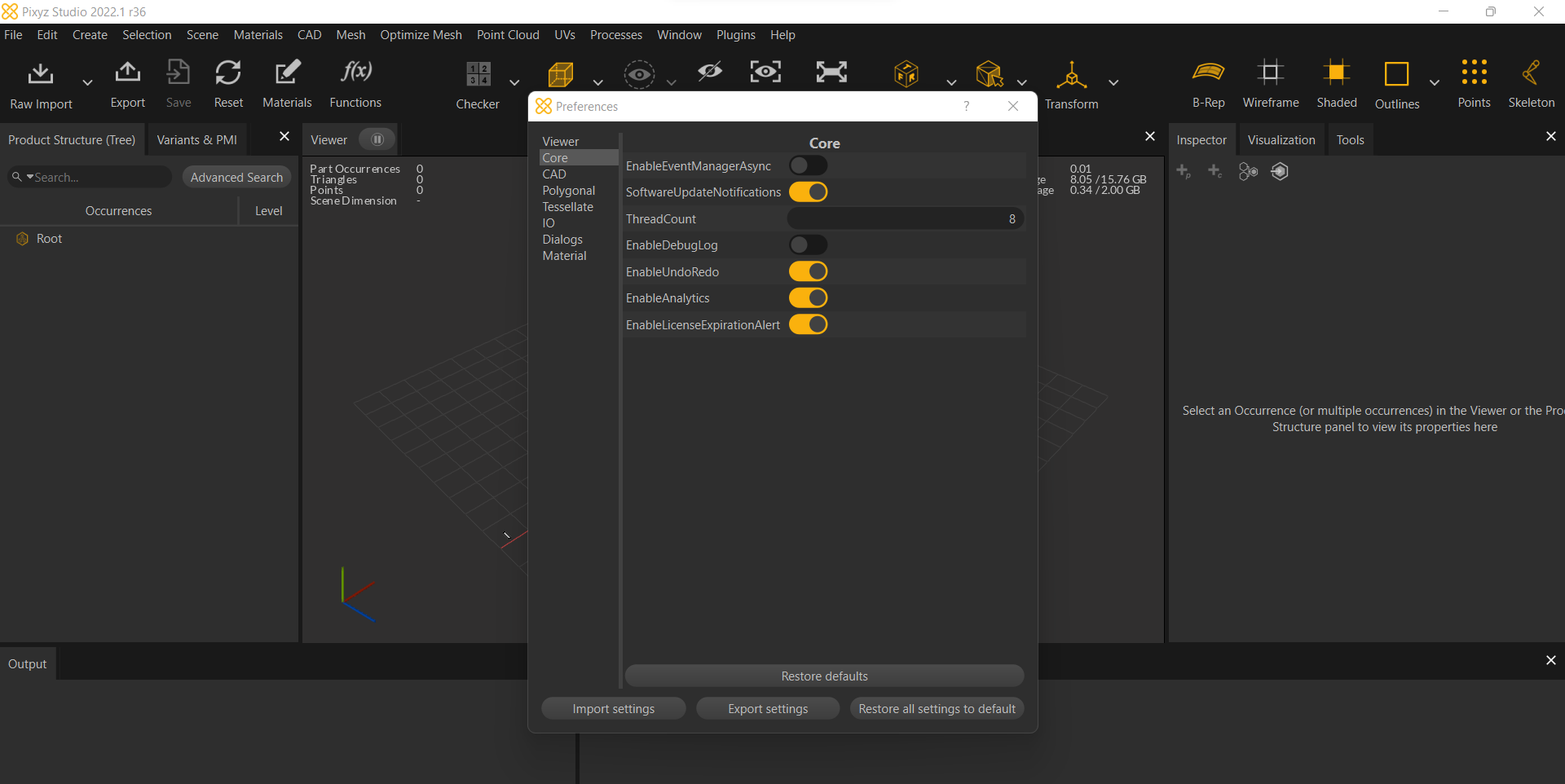
-
CAD Settings (Advanced)
Customize advanced CAD options for file handling.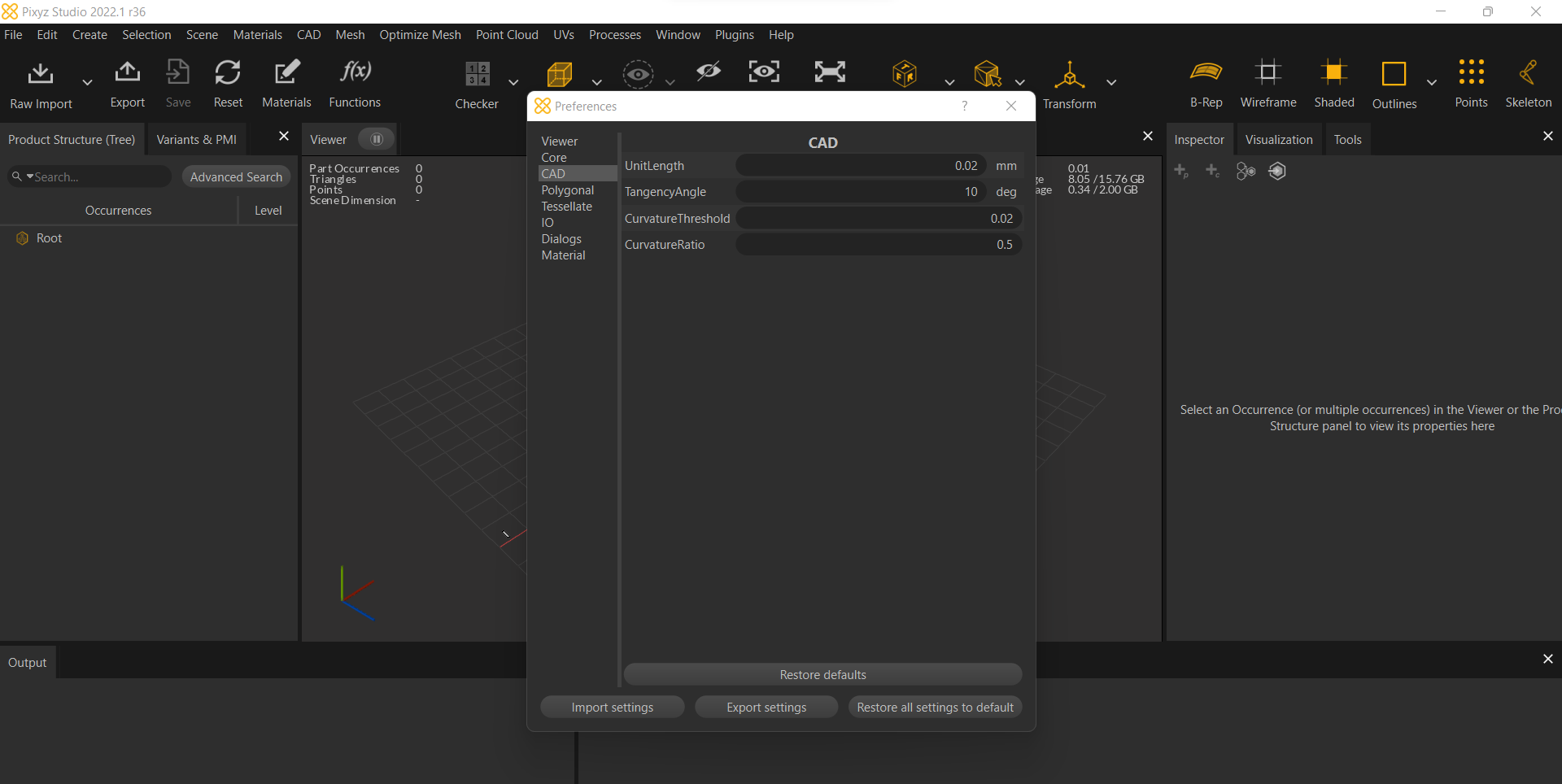
-
Polygonal Settings
Adjust settings for polygonal mesh operations.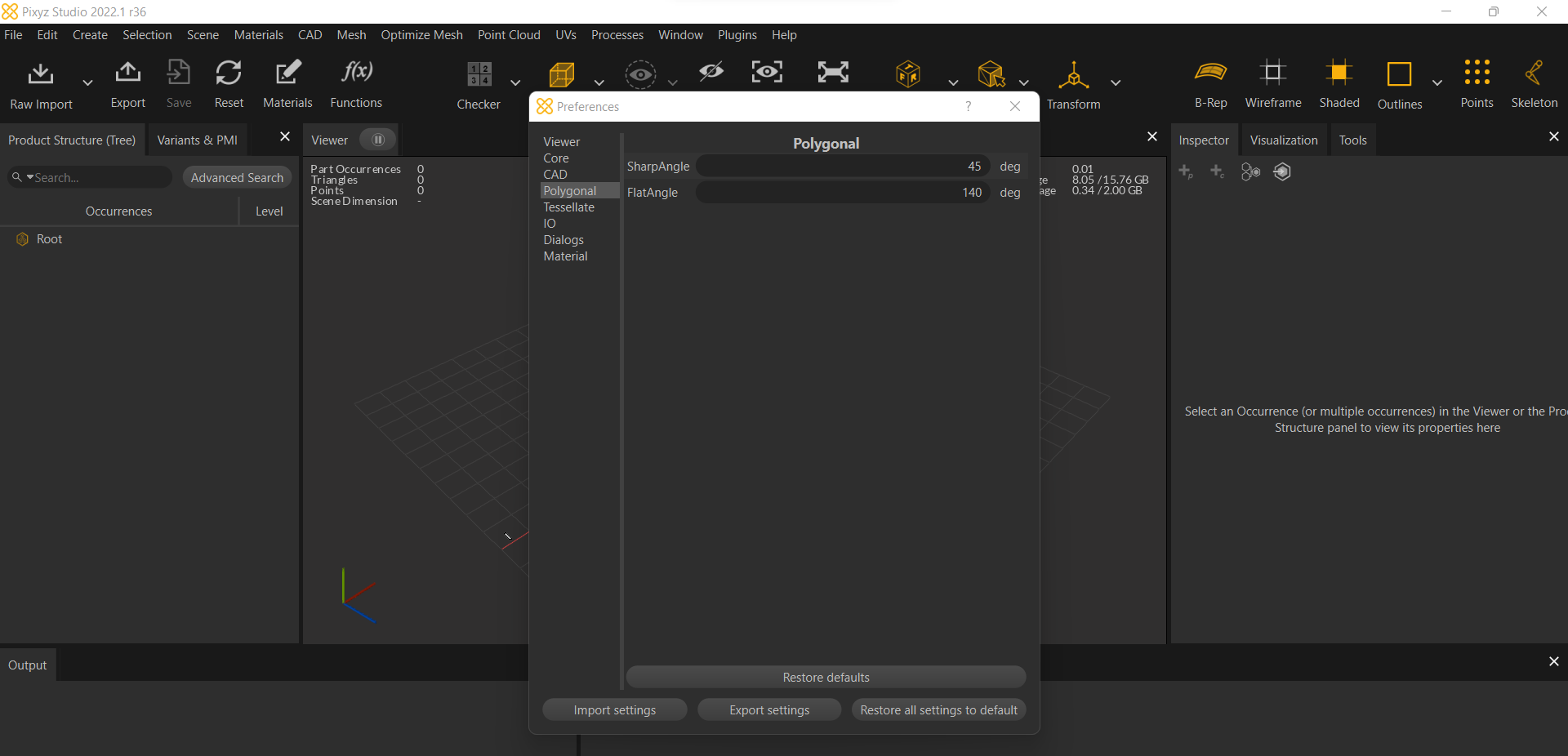
-
Tessellation Settings
Configure tessellation options for mesh refinement.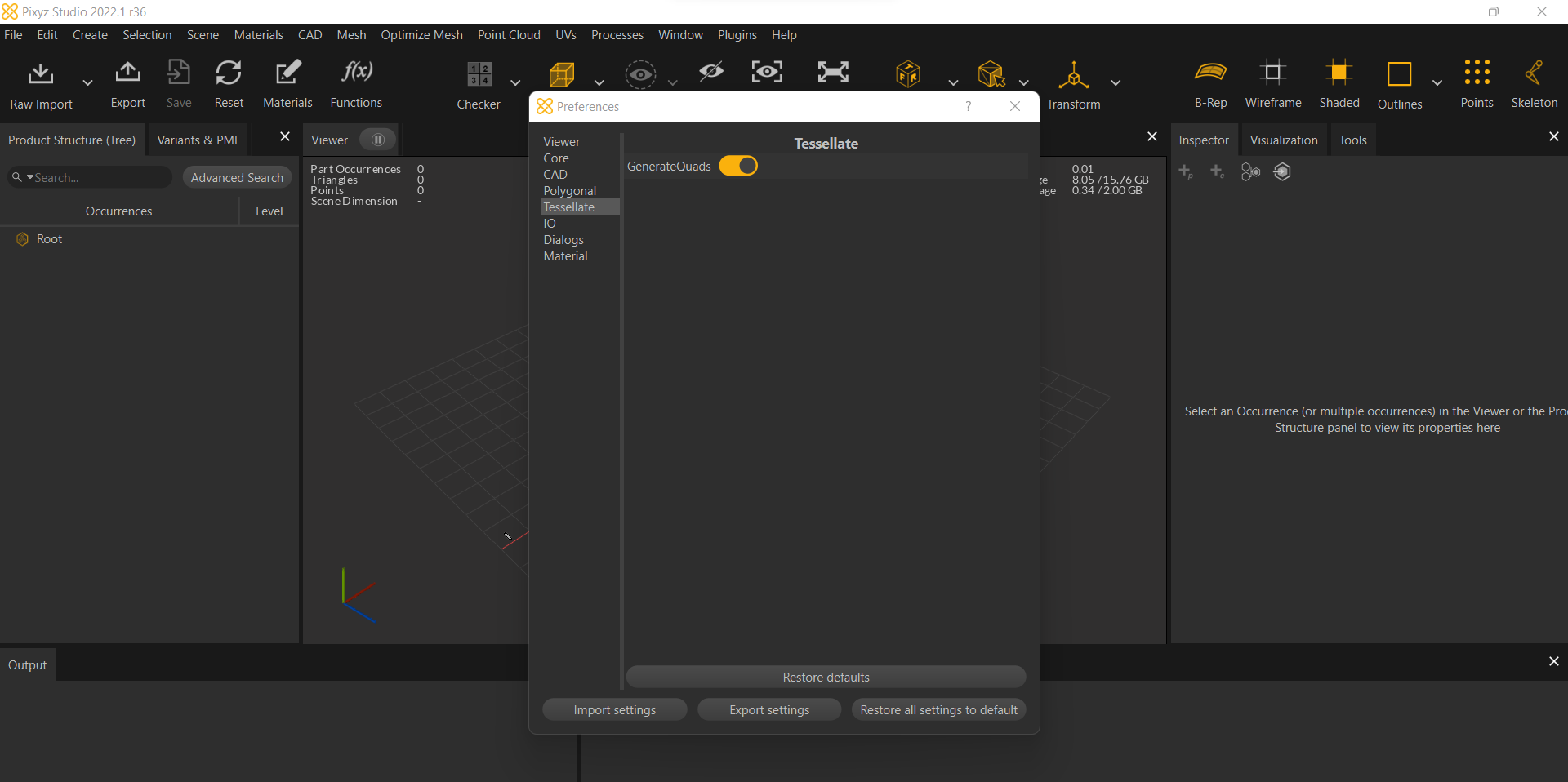
-
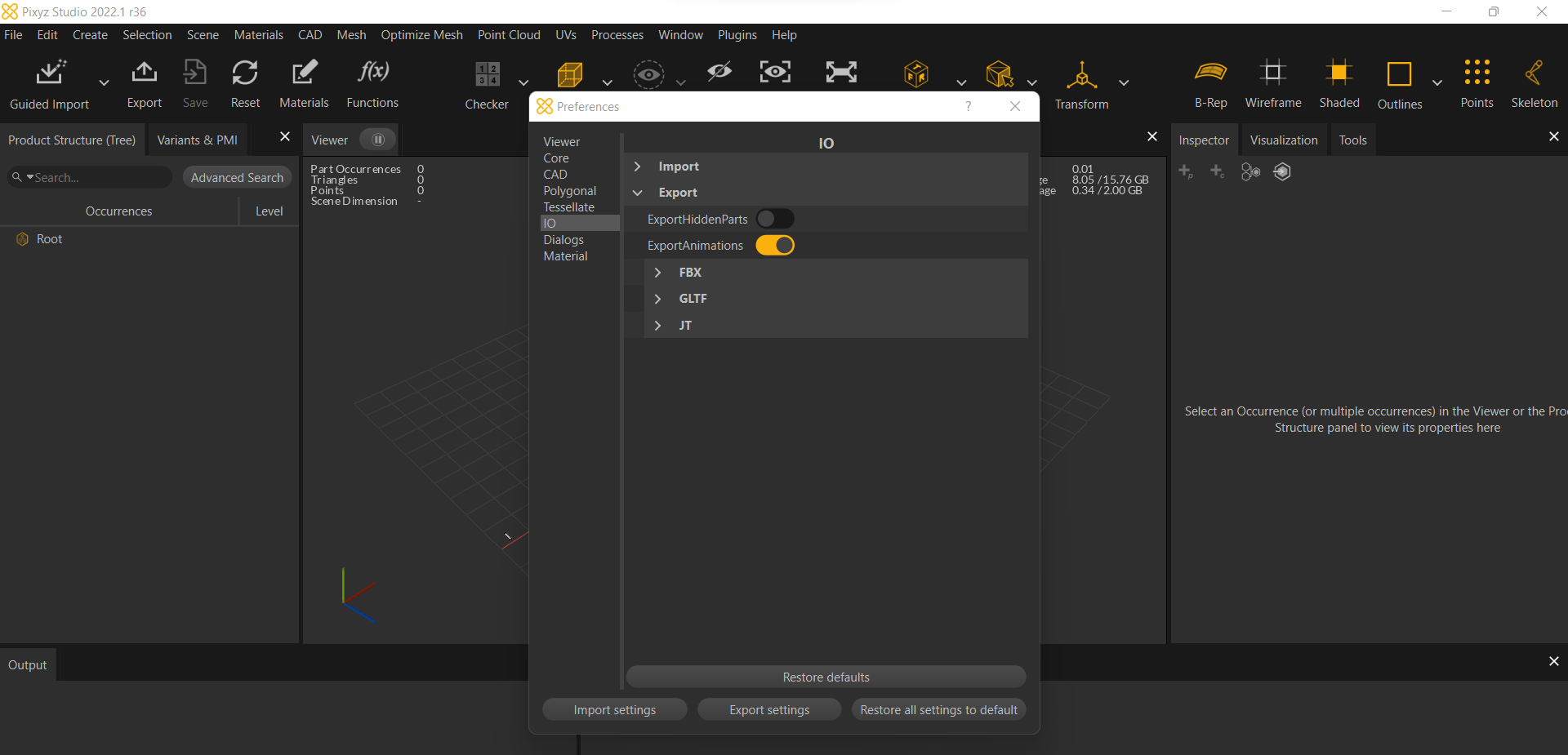
Import/Export Settings
Set up import and export options for file compatibility.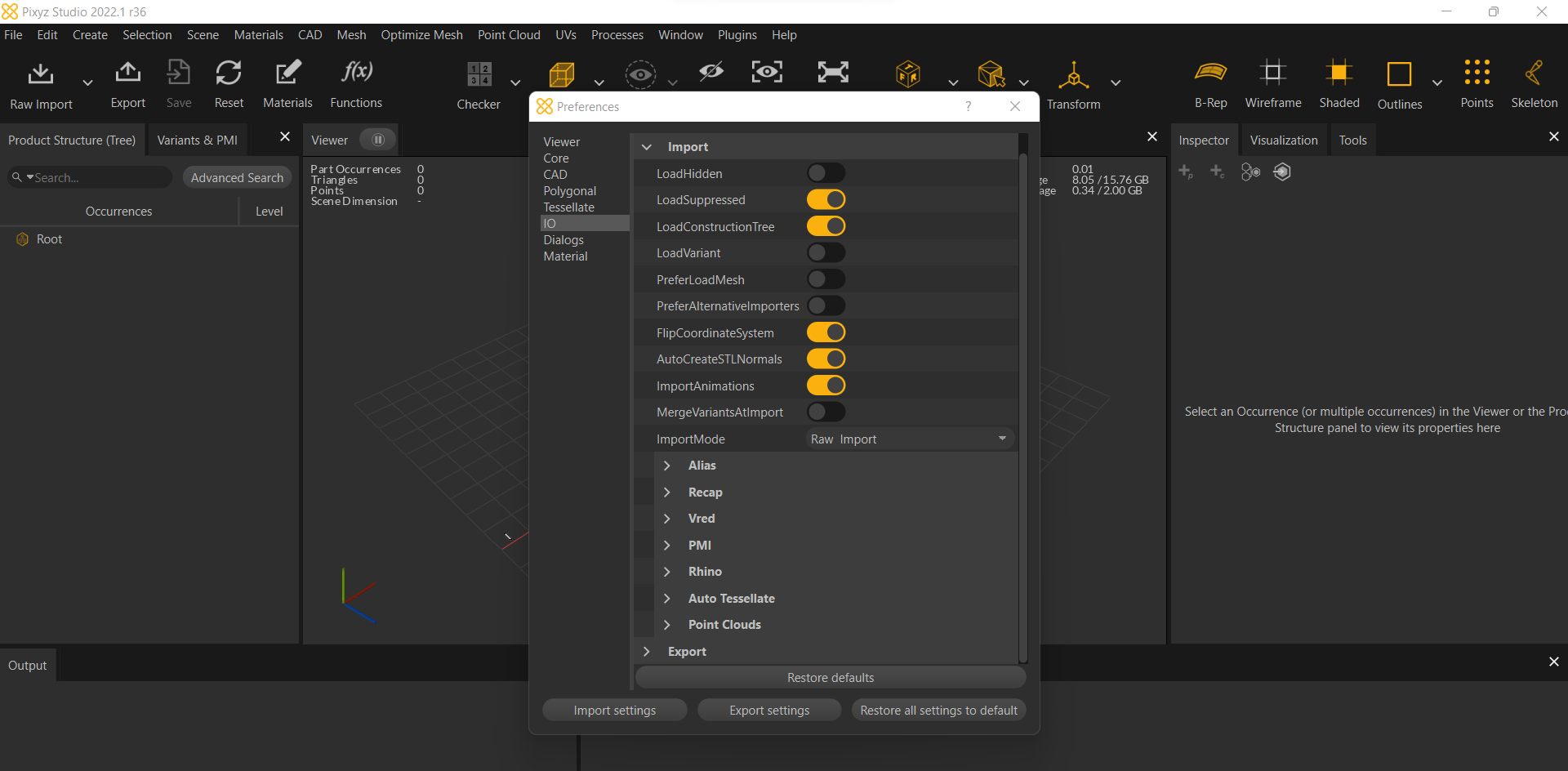
-
Dialog Settings
Customize dialog window options for user interface control.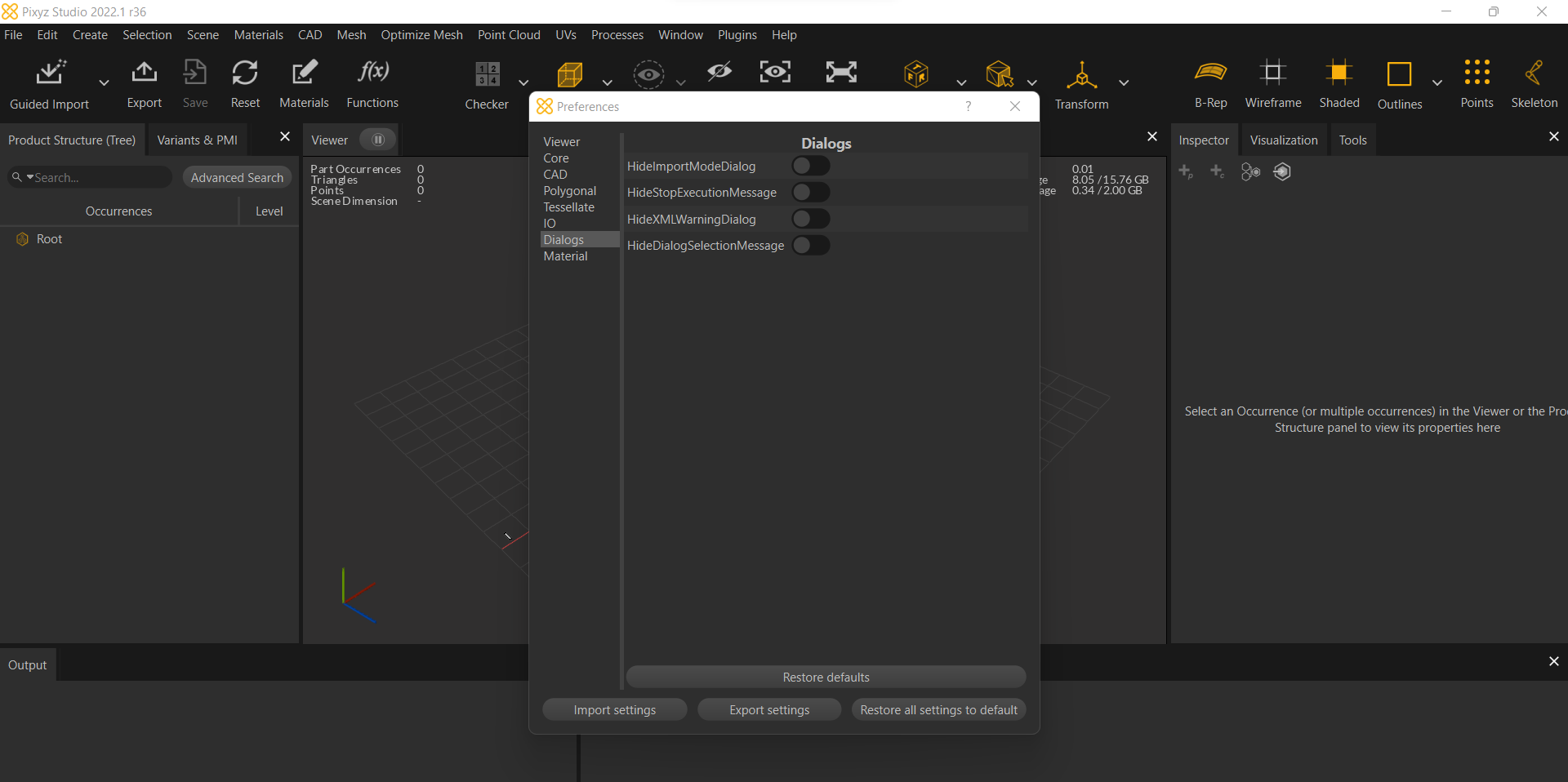
-
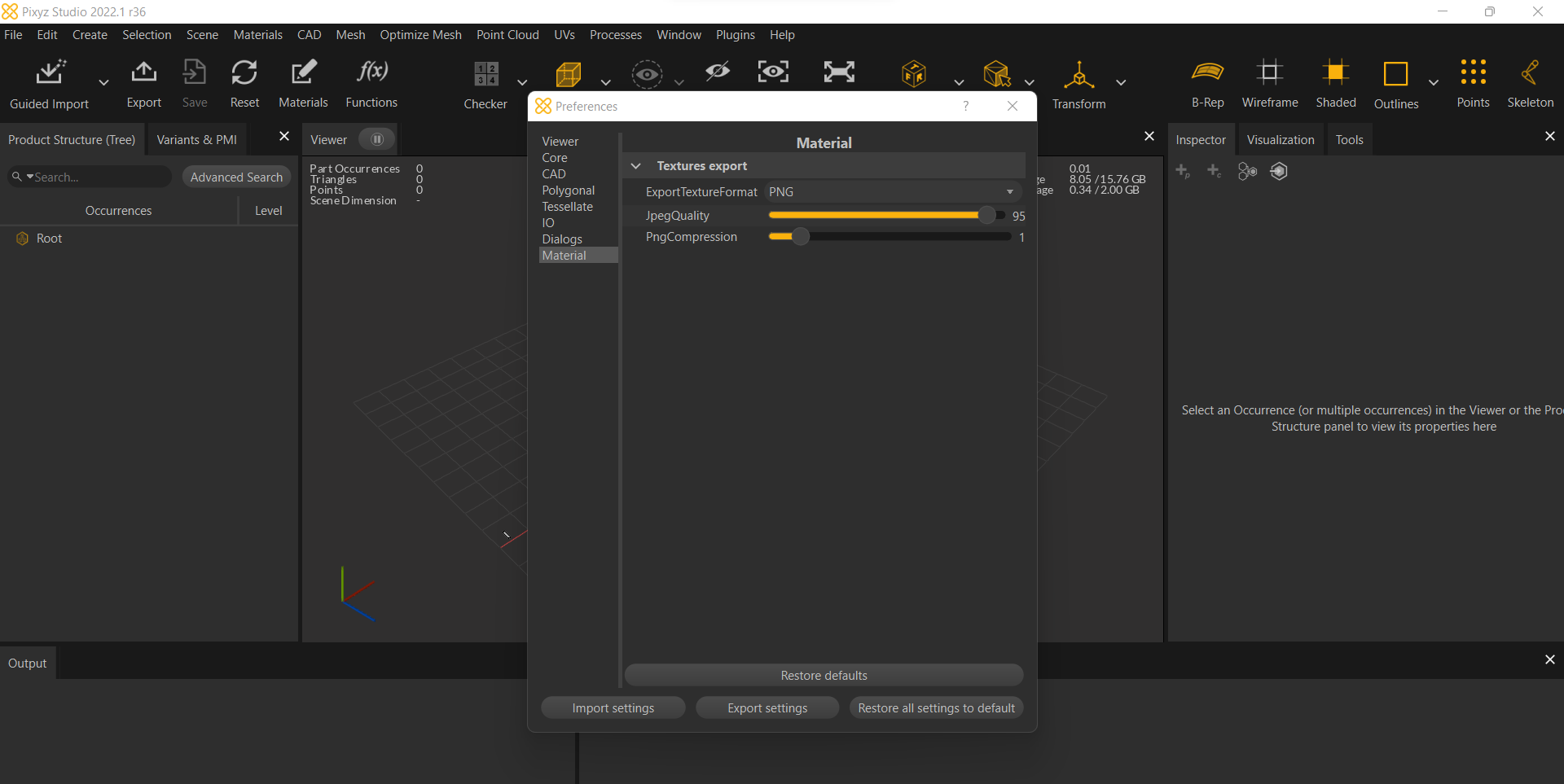
Material Settings
Customize texture export options for better material handling.