XR VR Space Flow

Login to the site

  • Login to the site

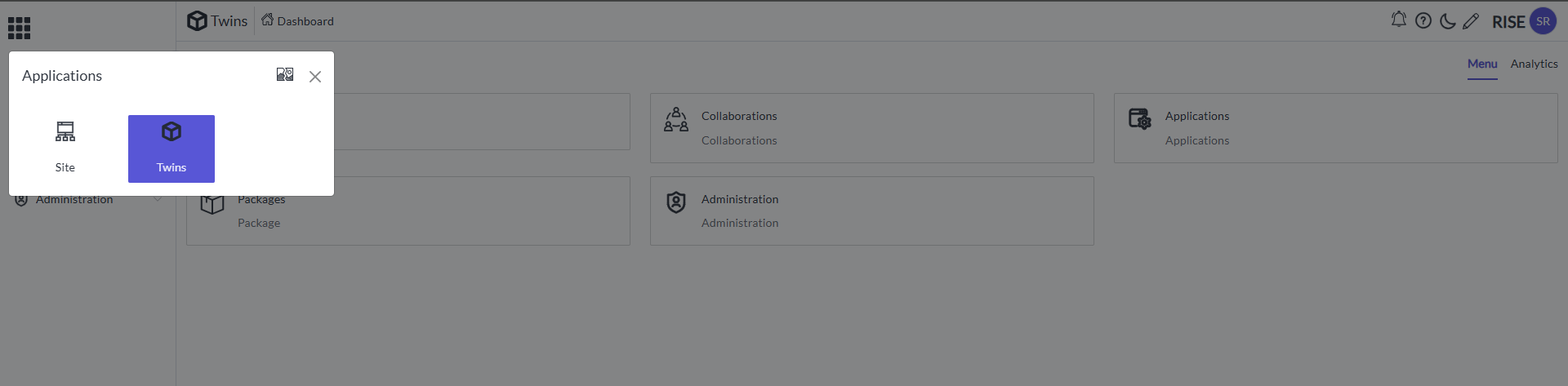
  • Open Applications menuA screenshot of a computer AI-generated
content may be
incorrect.

  • Select on Twins so It will appear like this A screenshot of a
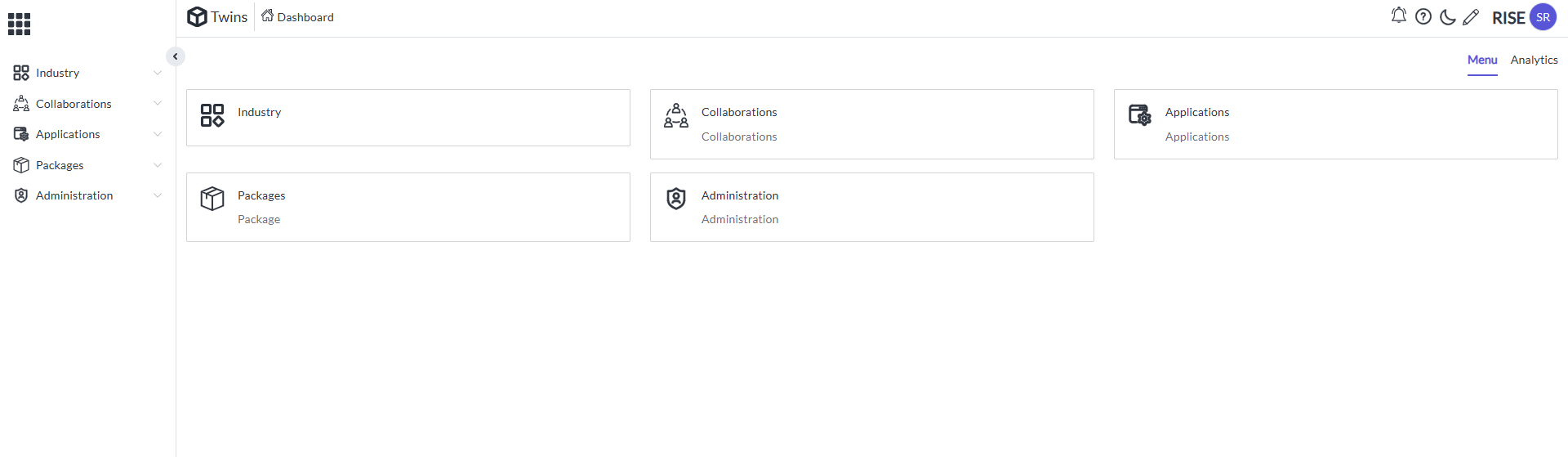
computer AI-generated content may be
incorrect.

Creation of Content package

  • Select Twins in the application menu A screenshot of a computer
AI-generated content may be
incorrect.

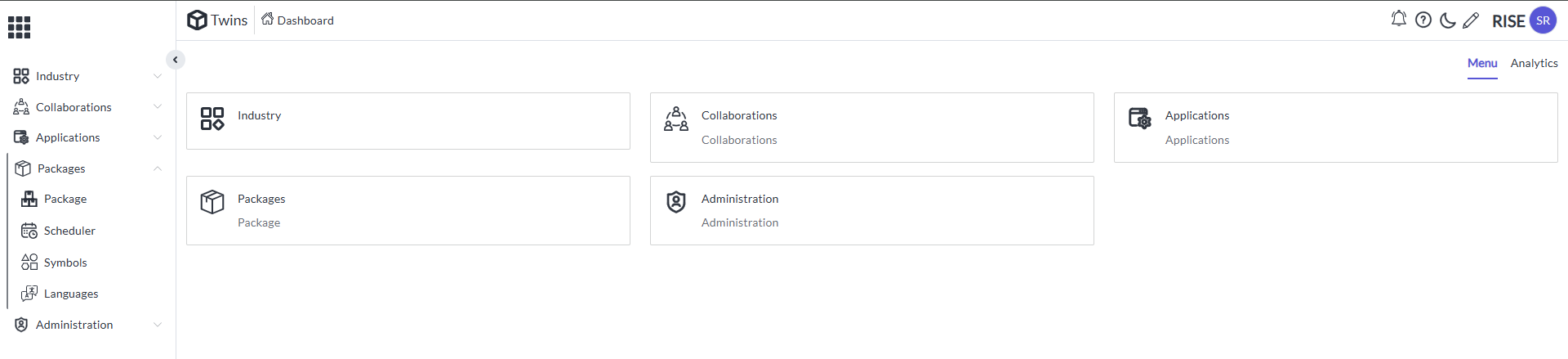
  • It will Appear like thisA screenshot of a computer AI-generated
content may be
incorrect.

  • Open the Packages drop down in the side menu barA screenshot of a
computer AI-generated content may be
incorrect.

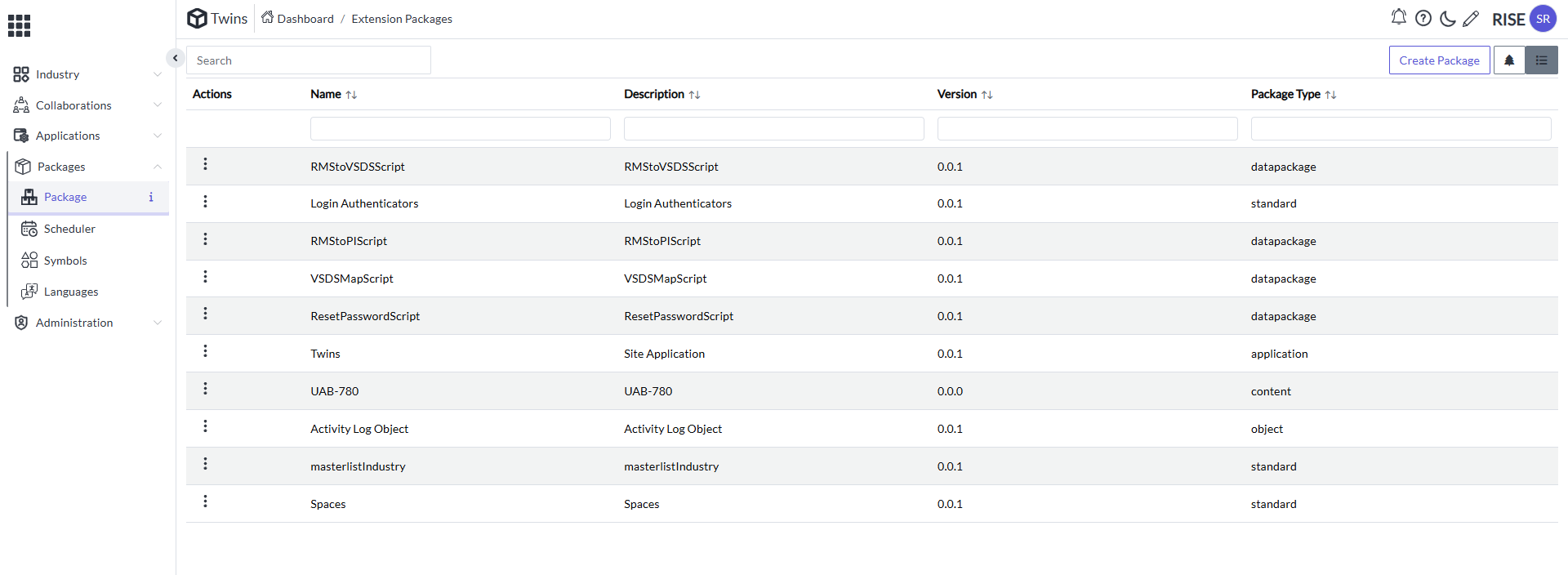
  • There select Packages in the sub menu of the Packages drop down. It will appear like thisA screenshot of a computer AI-generated content
may be
incorrect.

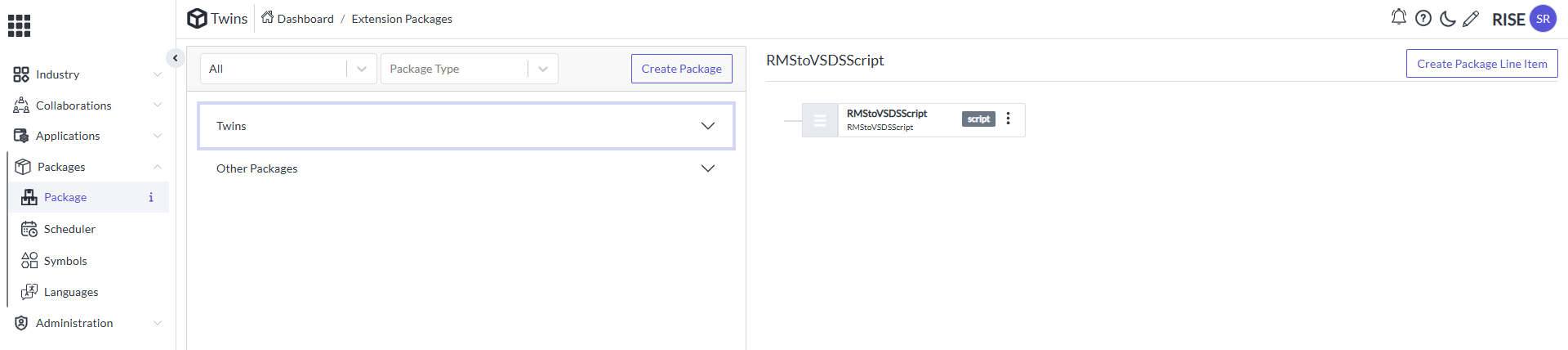
  • Now change it into the Tree chart flow So it will appear like thisA
screenshot of a computer AI-generated content may be
incorrect.

  • Now select on the Create package it will Appear like thisA
screenshot of a computer AI-generated content may be
incorrect.

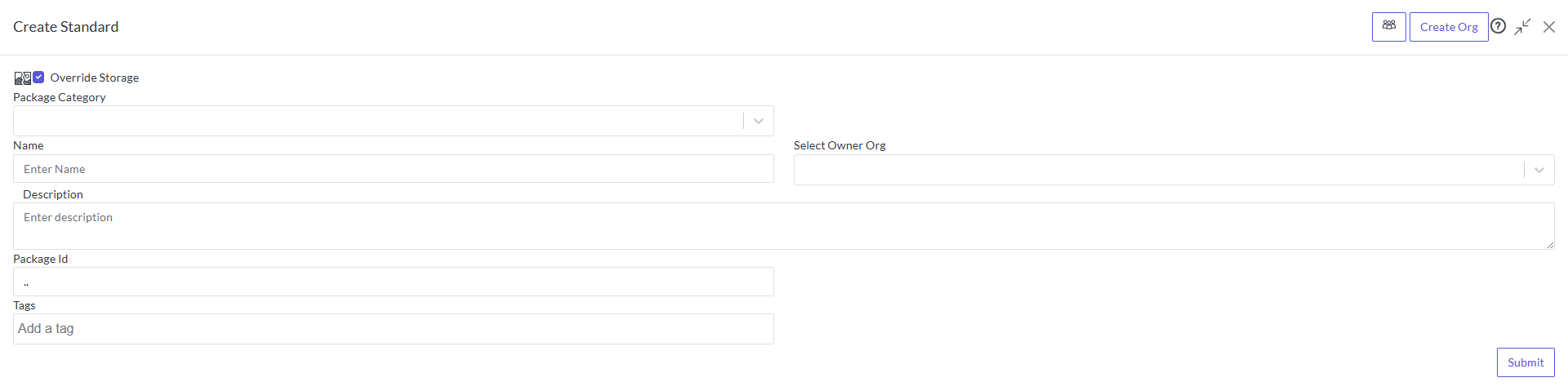
  • Provide the Package category as Content, Name, Description, Owner and submit. A screenshot of a computer AI-generated content may be
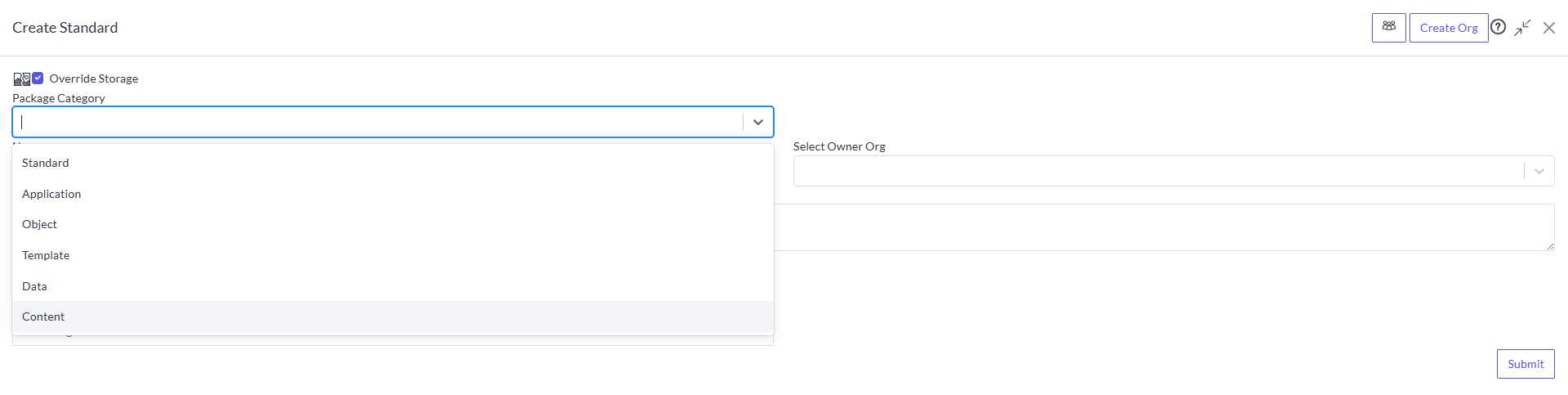
incorrect.

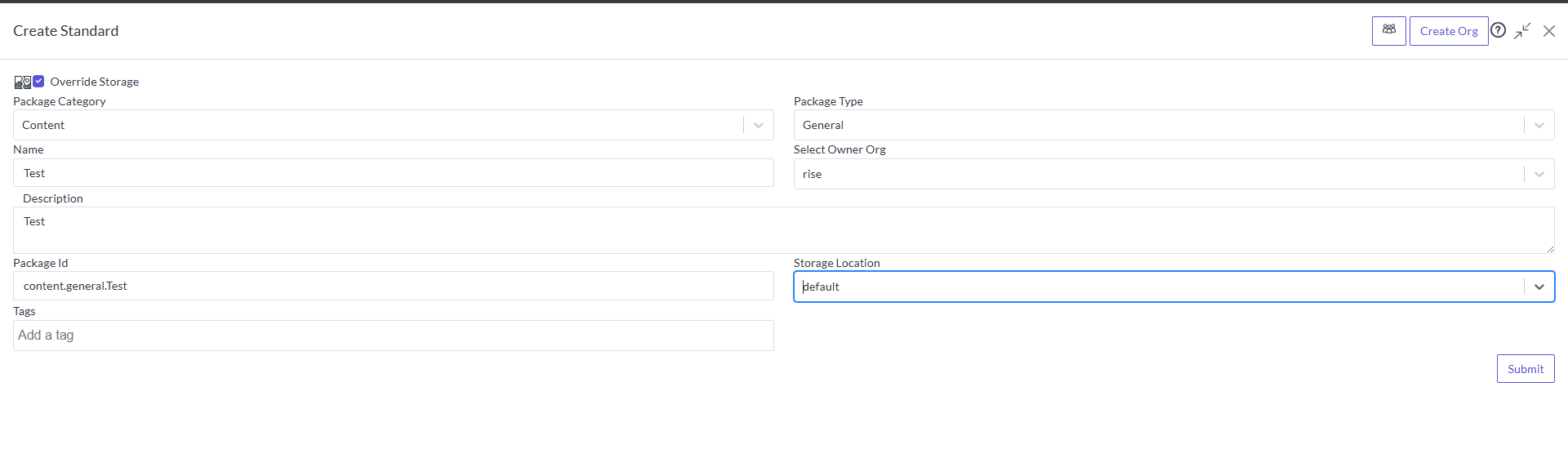
  • After providing the package as content some of things appear like package type and Storage location

  • Package Type as General

  • Storage location as Default

  • Provde the Package Category as Content and after keeping all it will appear like thisA screenshot of a computer AI-generated content may
be incorrect.

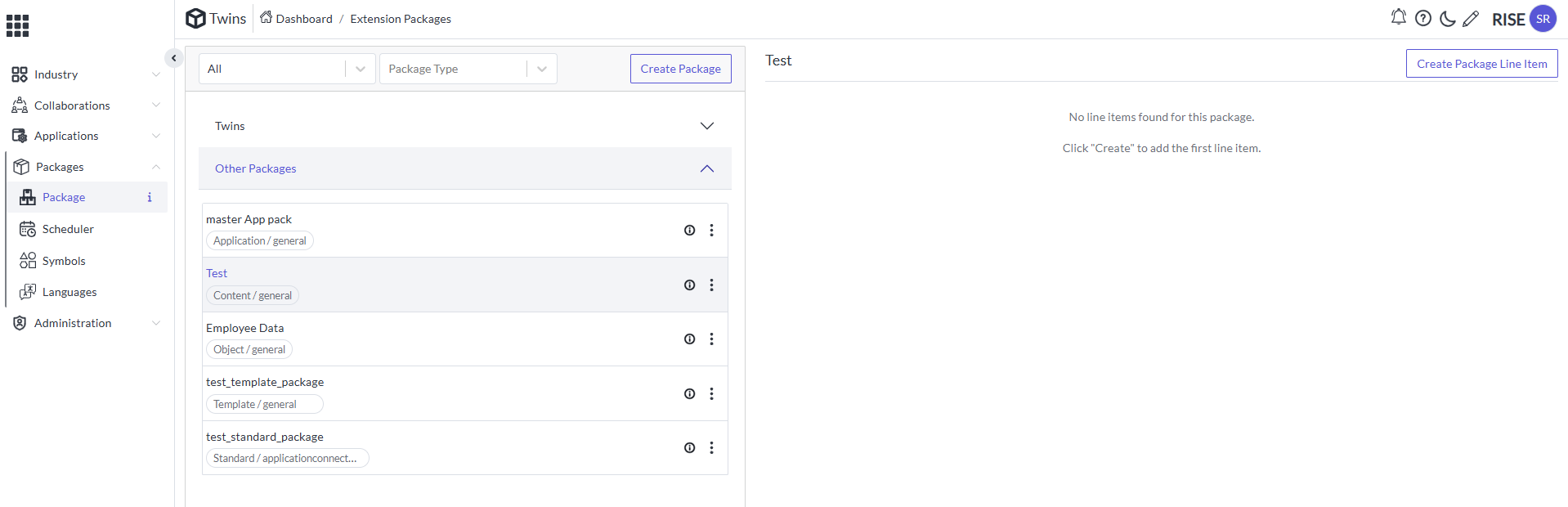
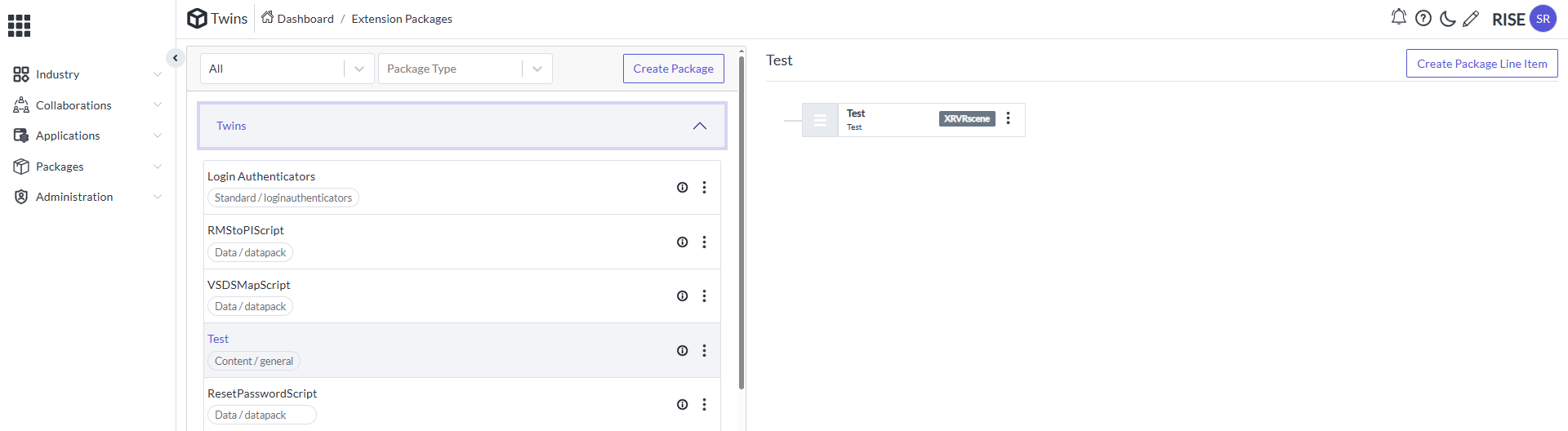
  • Submit it. So the Content Package got Created it will appear like thisA screenshot of a computer AI-generated content may be
incorrect.

Creation of Line Item

  • Select the content package and click on the Create Package Line Item. It will appear like this A screenshot of a computer AI-generated
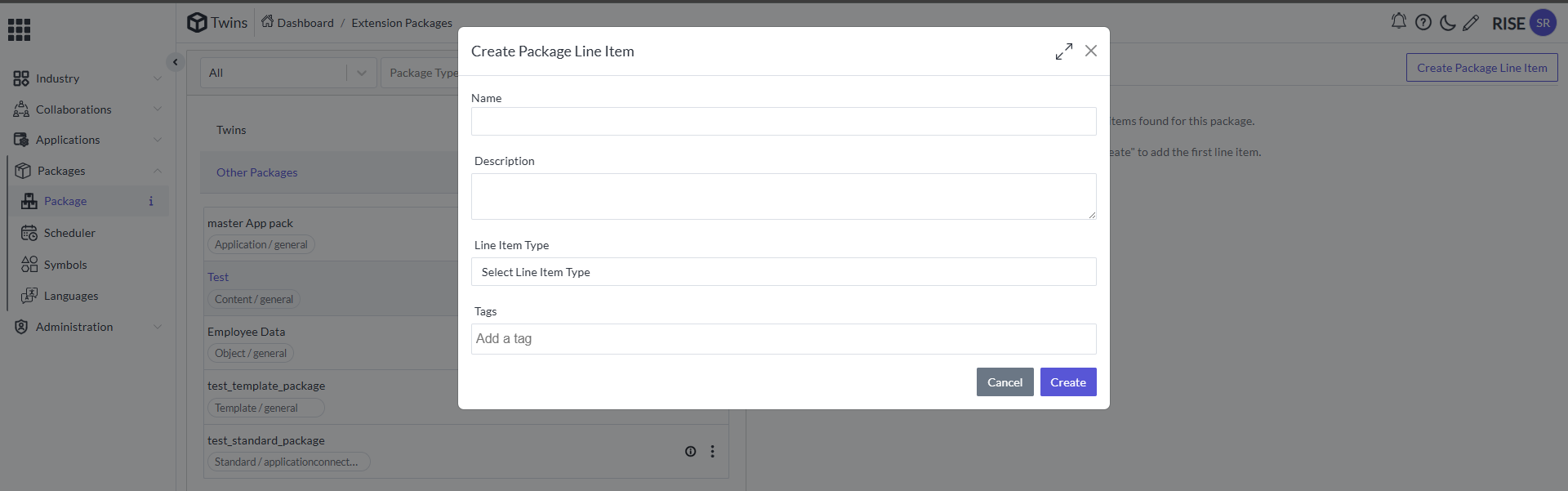
content may be
incorrect.

  • Now provide the Name and Description and click on the createA
screenshot of a computer AI-generated content may be
incorrect.

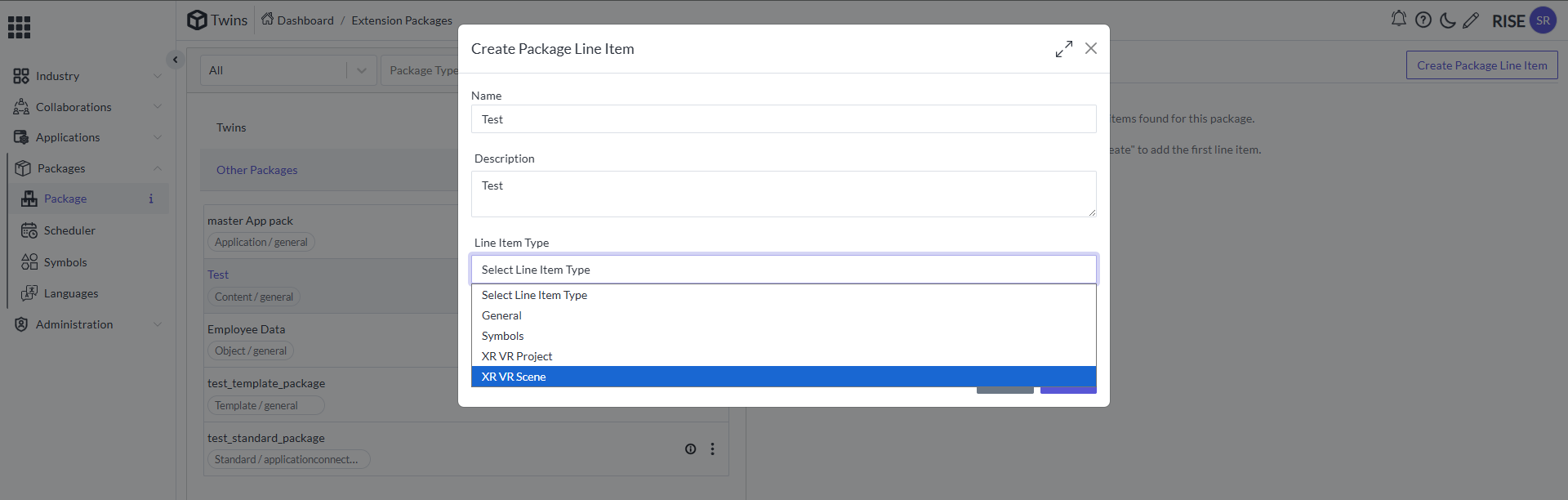
  • At the Line-Item type drop down select on XR VR Scene and click on Create A screenshot of a computer AI-generated content may be
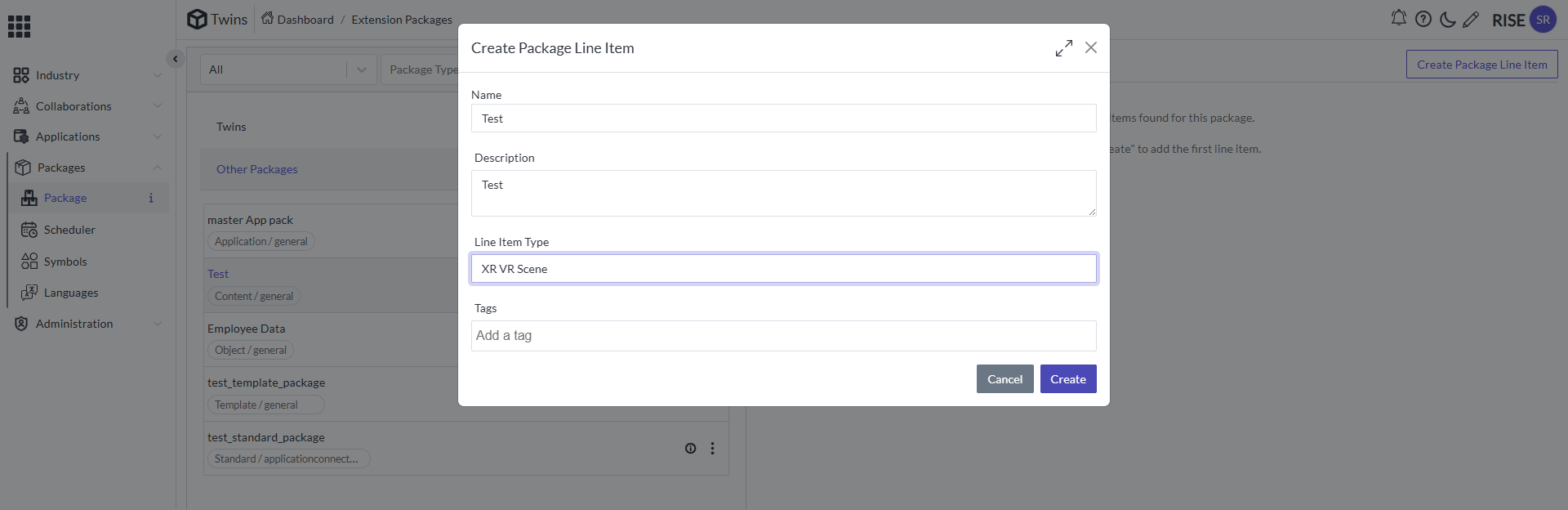
incorrect.

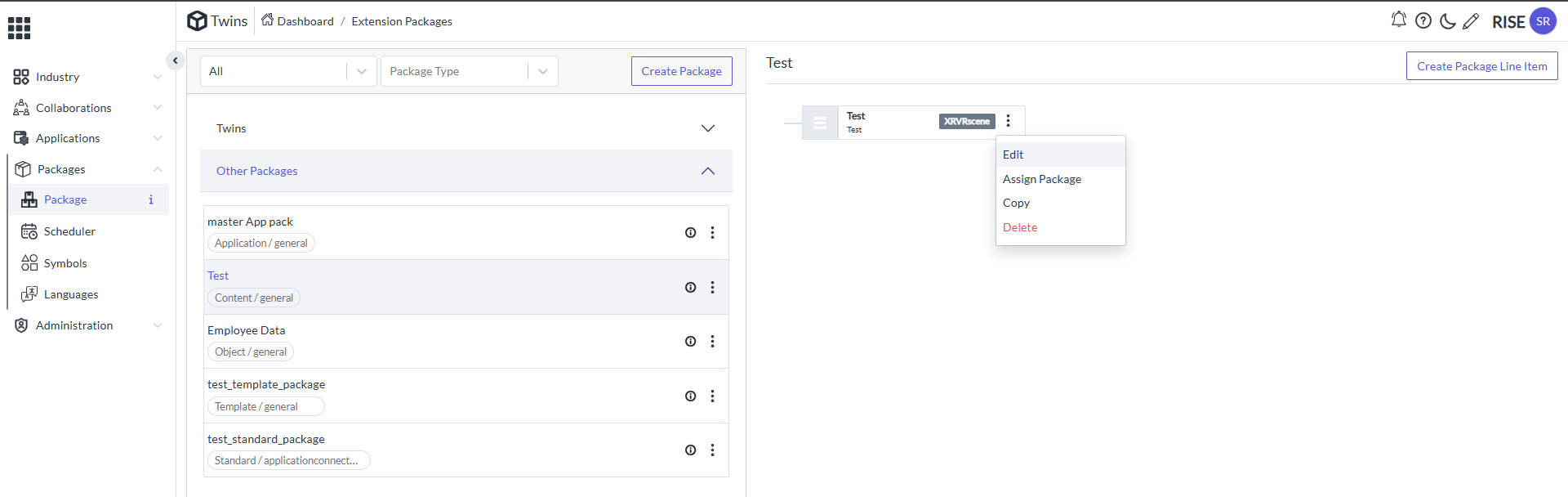
  • So he line item got created and now click on the action button it will appear like thisA screenshot of a computer AI-generated content may
be incorrect.

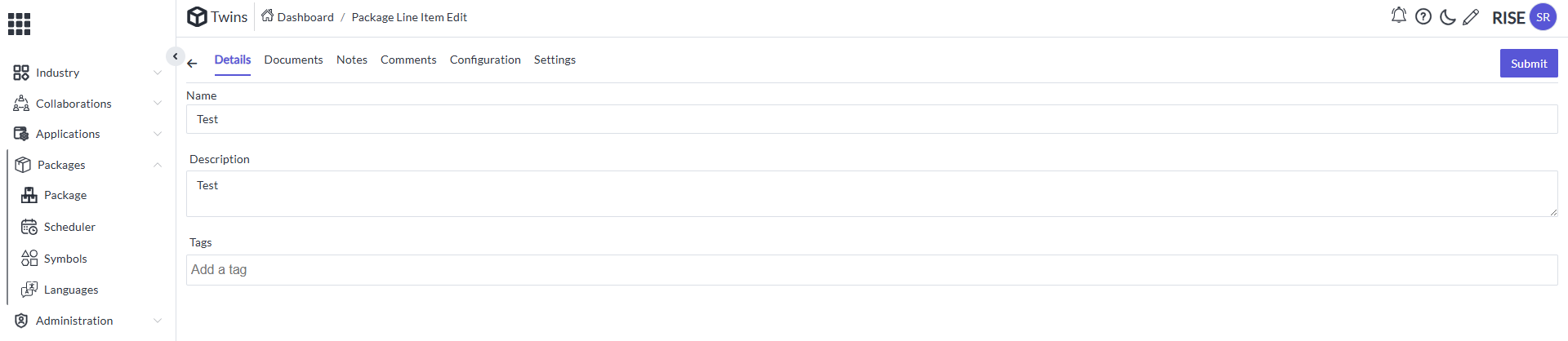
  • Select Edit and it will appear like thisA close-up of a white
rectangular object AI-generated content may be
incorrect.

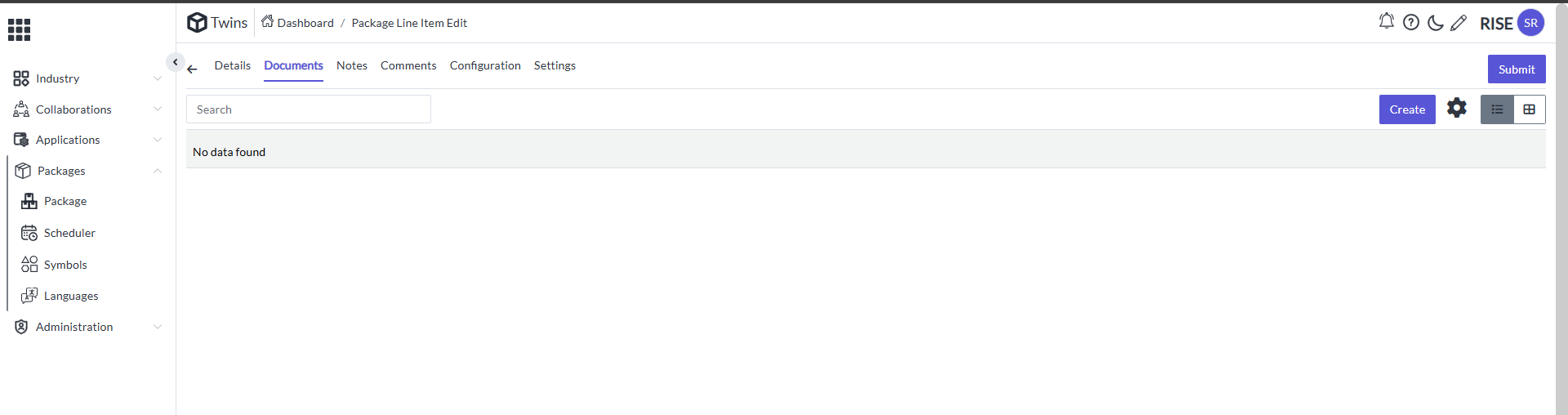
  • Go to the Documents the page will appear like thisA screenshot of a
computer AI-generated content may be
incorrect.

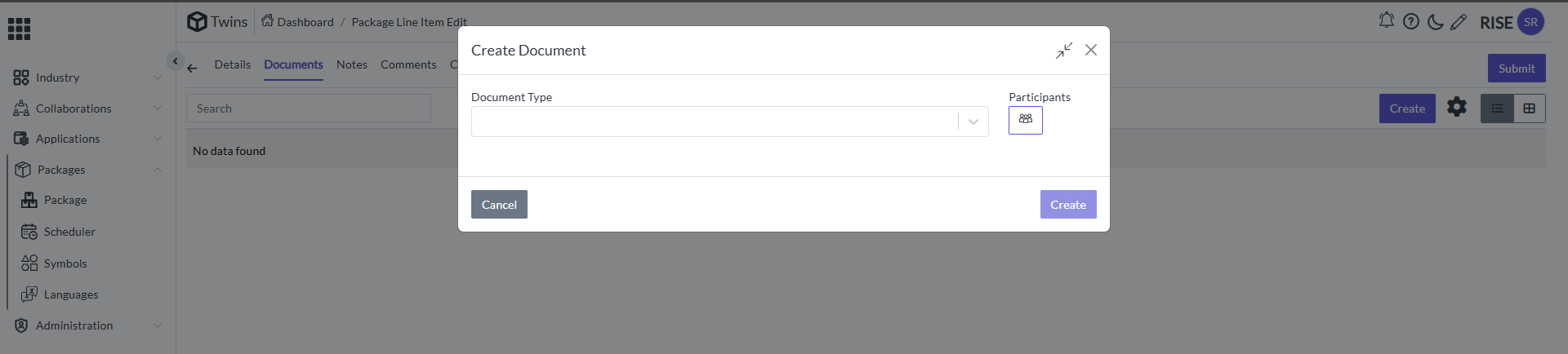
  • Select Create so it will appear like thisA white rectangular object
with a white background AI-generated content may be
incorrect.

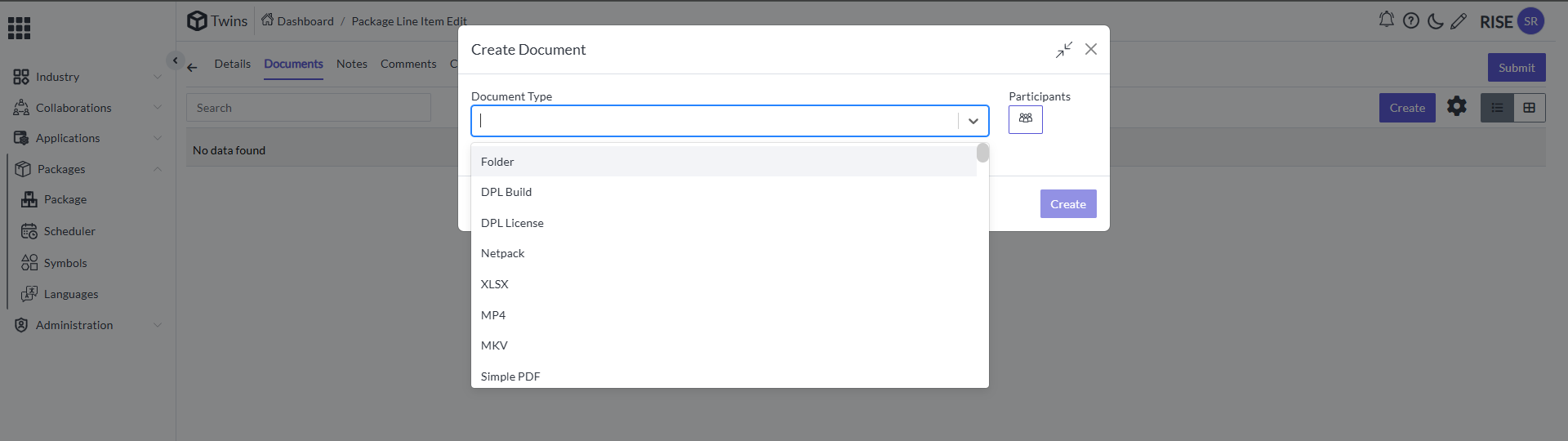
  • Select the Document type as folderA screenshot of a computer
AI-generated content may be
incorrect.

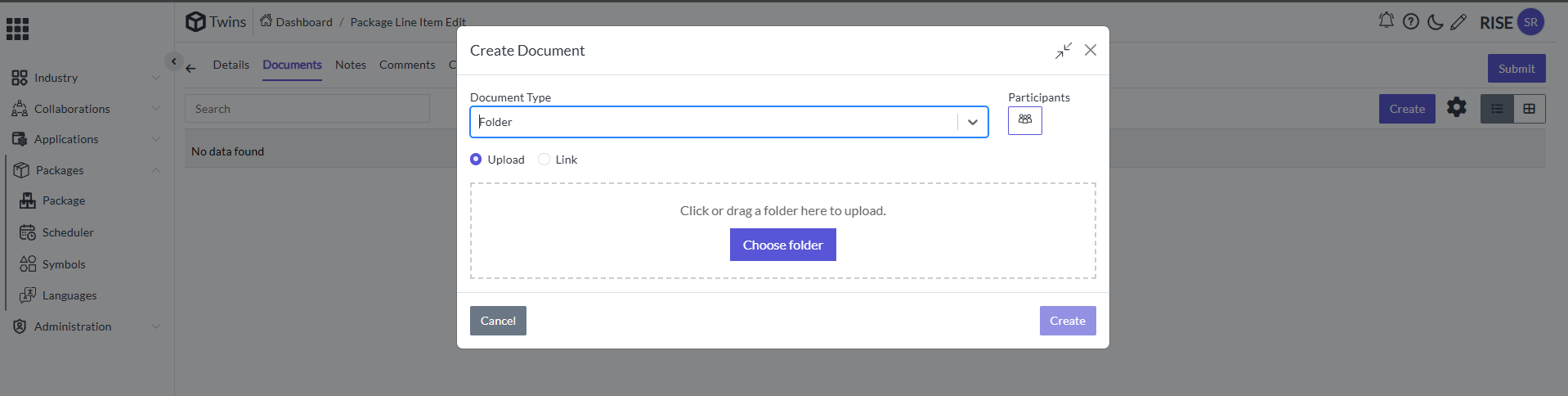
  • After selecting the Document type as folder it will appear like thisA screenshot of a computer AI-generated content may be
incorrect.

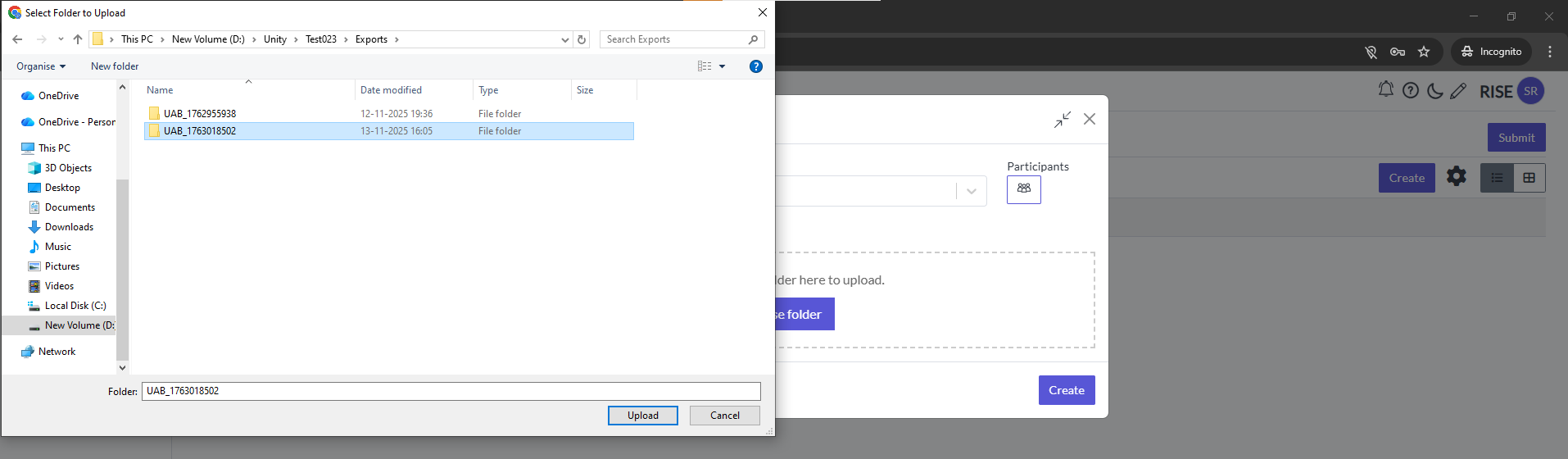
  • Click on Choose Folder it will connect to the File explorer. It will appear like thisA screenshot of a computer AI-generated content may
be incorrect.

  • Select the folder and click on upload in the file explorer

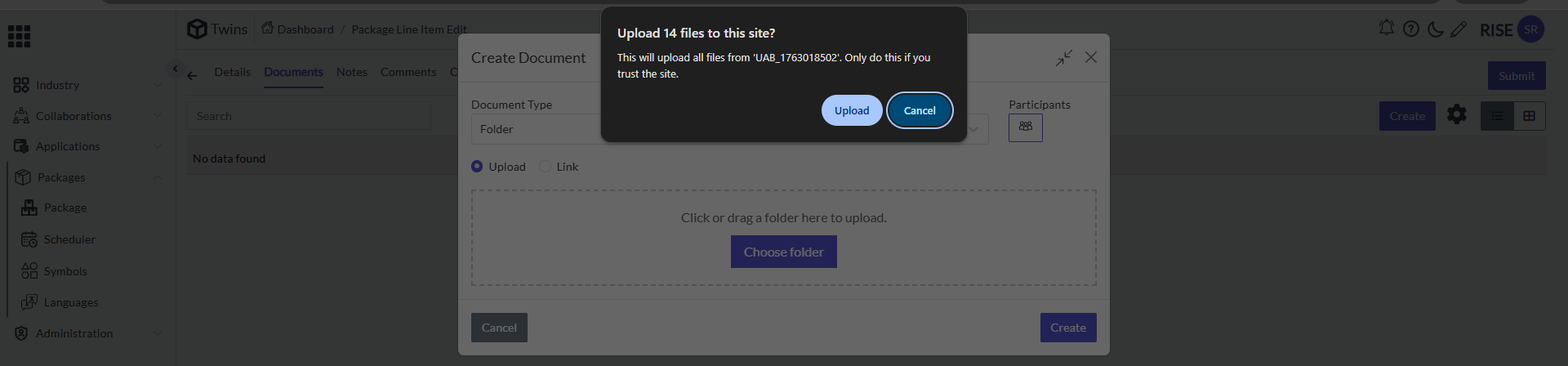
  • It will ask for confirmation like this A screenshot of a computer
AI-generated content may be
incorrect.

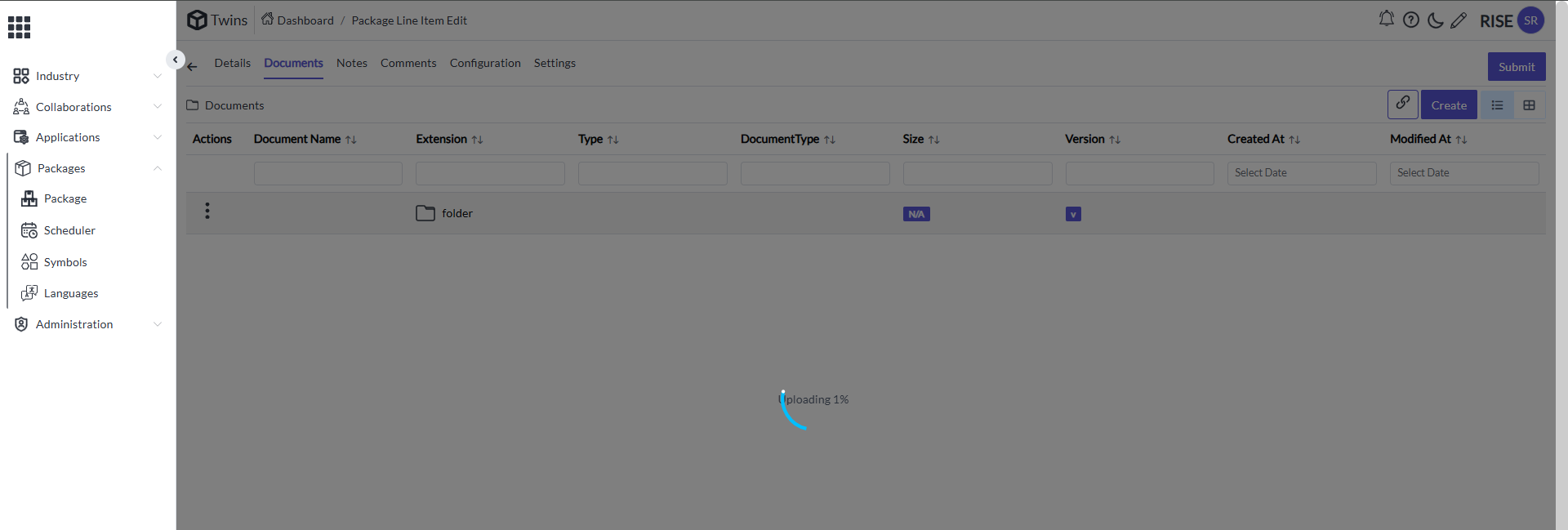
  • Click on upload in that pop up A screenshot of a computer
AI-generated content may be
incorrect.

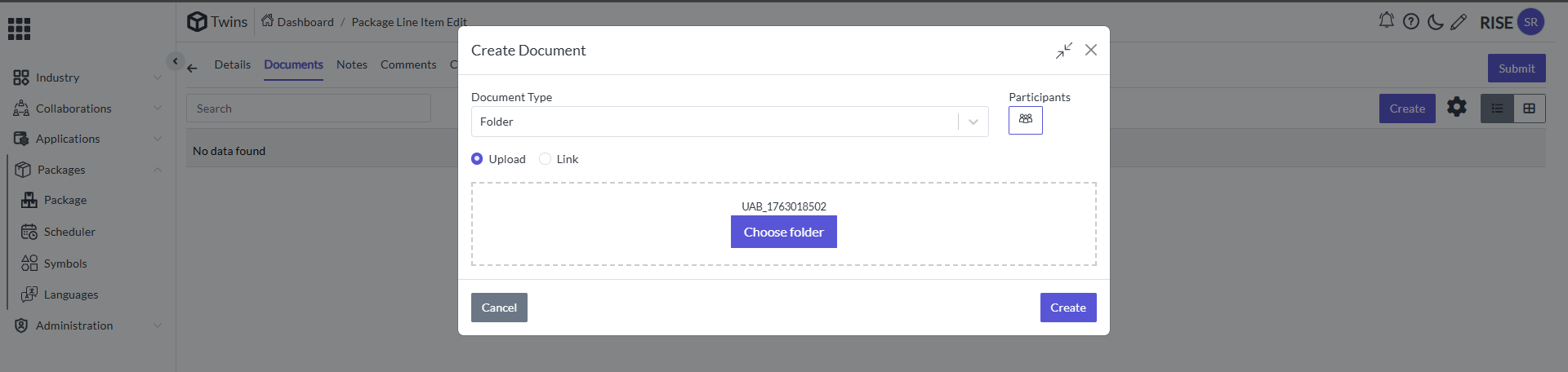
  • Click on Create so it will appear like thisA screenshot of a
computer AI-generated content may be
incorrect.

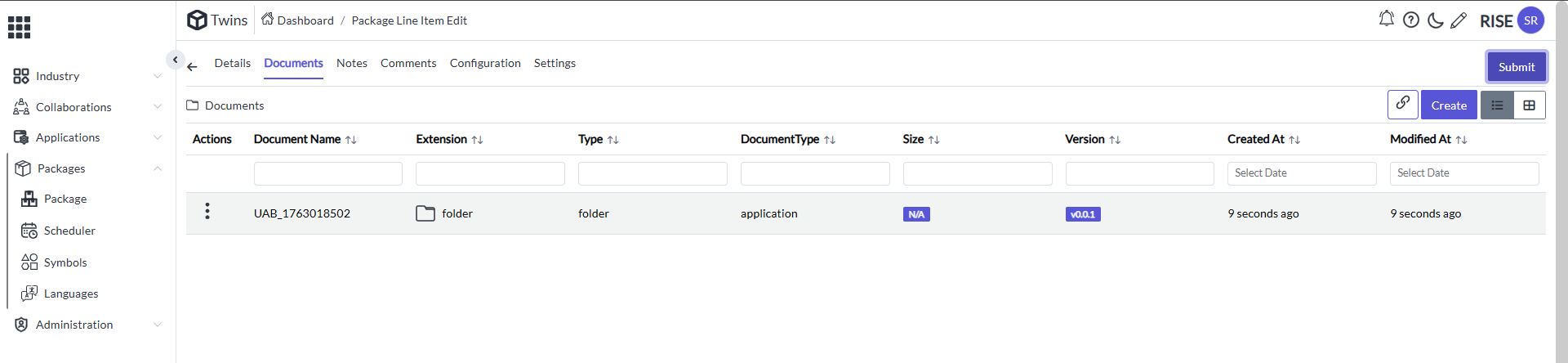
  • After completing of the uploading click on submit in the top left cornerA screenshot of a computer AI-generated content may be
incorrect.

  • So it will appear like thisA screenshot of a computer AI-generated
content may be
incorrect.

Exporting of the Content Package

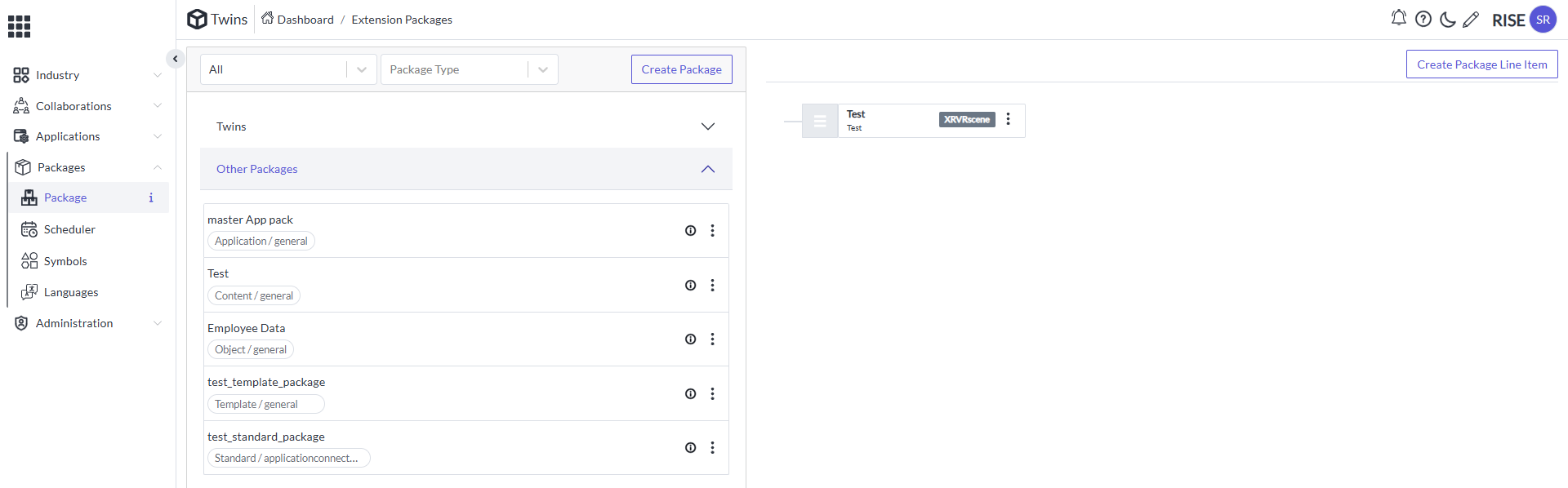
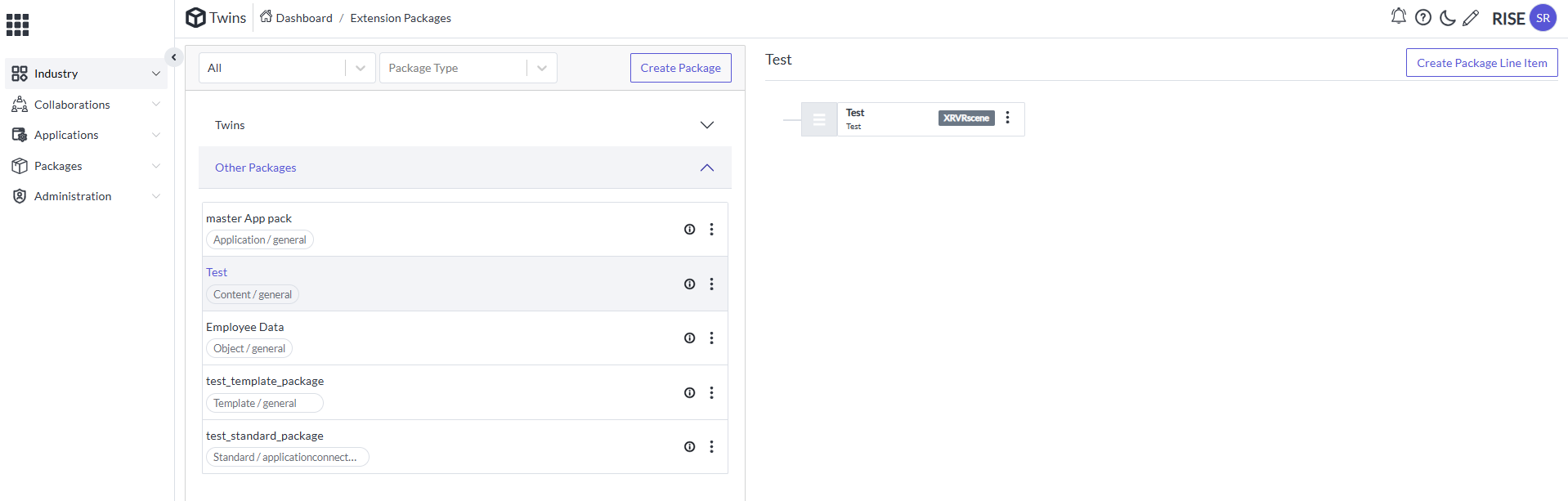
  • Select the Package in the right-side split viewA screenshot of a
computer AI-generated content may be
incorrect.

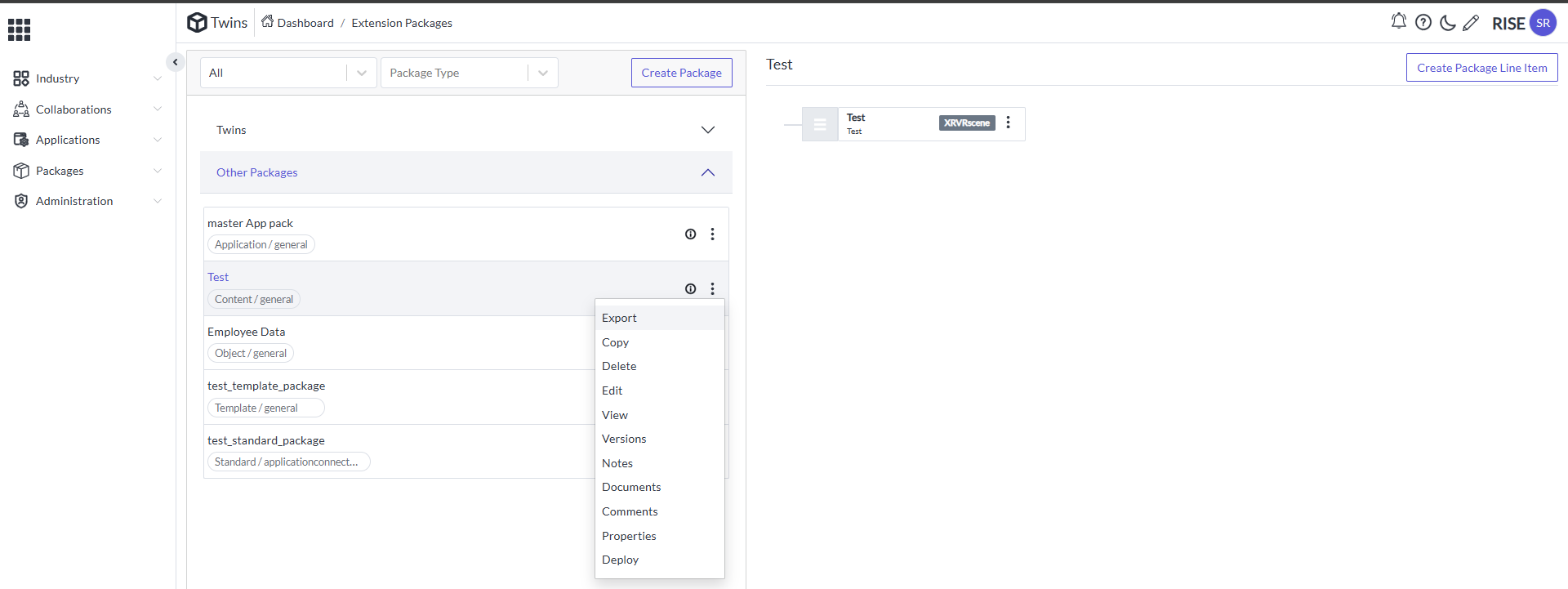
  • Select the action button to get some optionsA screenshot of a
computer AI-generated content may be
incorrect.

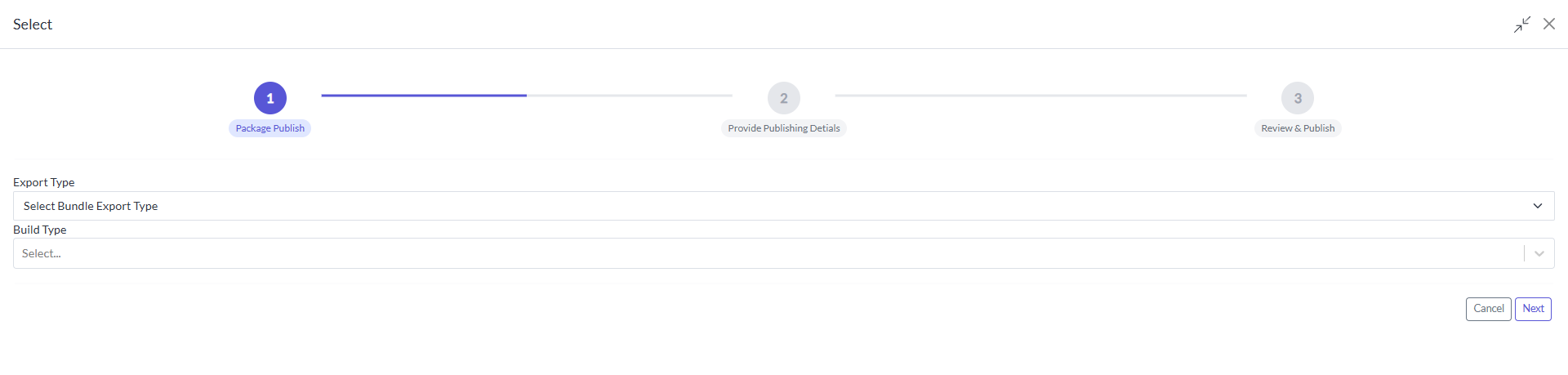
  • Click on export it will take to the next page like thisA close-up of
a computer screen AI-generated content may be
incorrect.

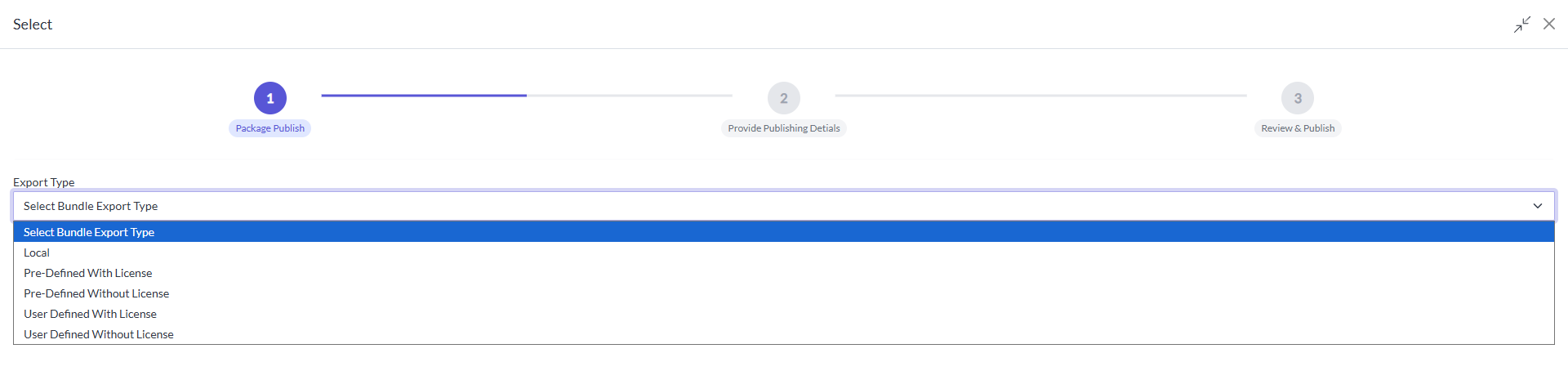
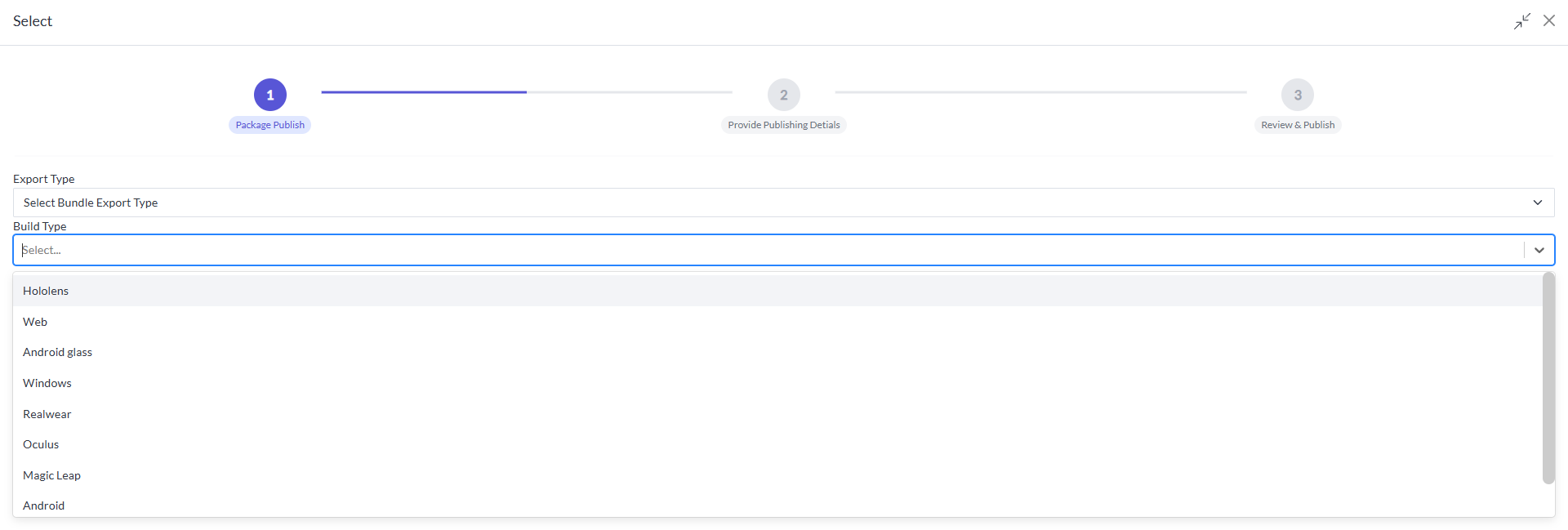
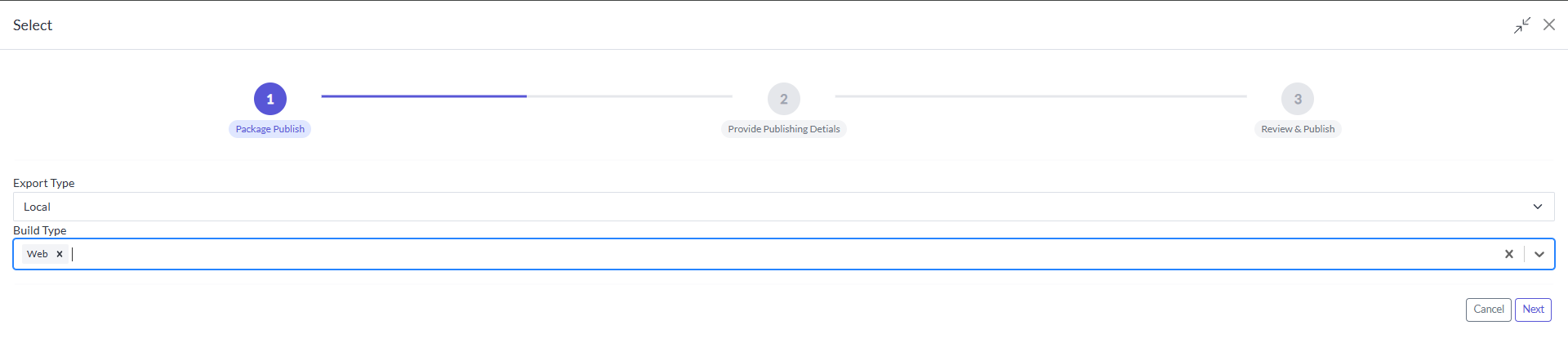
  • Provide the Export type by using drop down and build type tooA
screenshot of a computer AI-generated content may be
incorrect. A screenshot of a computer
AI-generated content may be
incorrect.

  • In Export Type as local and Build Type as WebA close up of a screen
AI-generated content may be
incorrect.

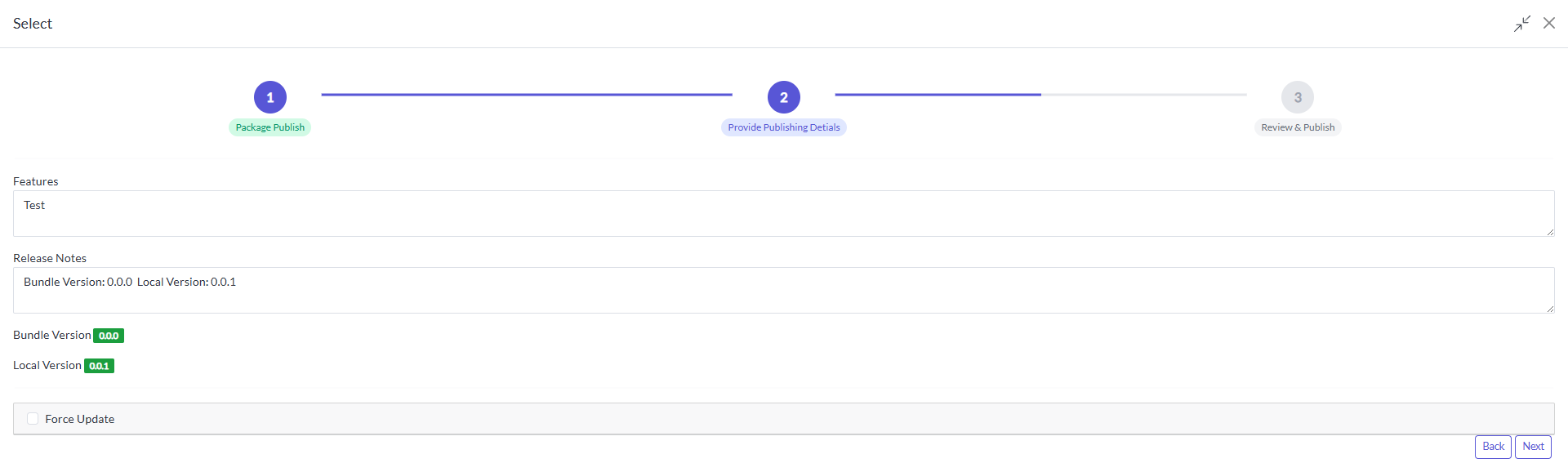
  • Now click on next it will take to the step 2. And it will appear like thisA screenshot of a computer AI-generated content may be
incorrect.

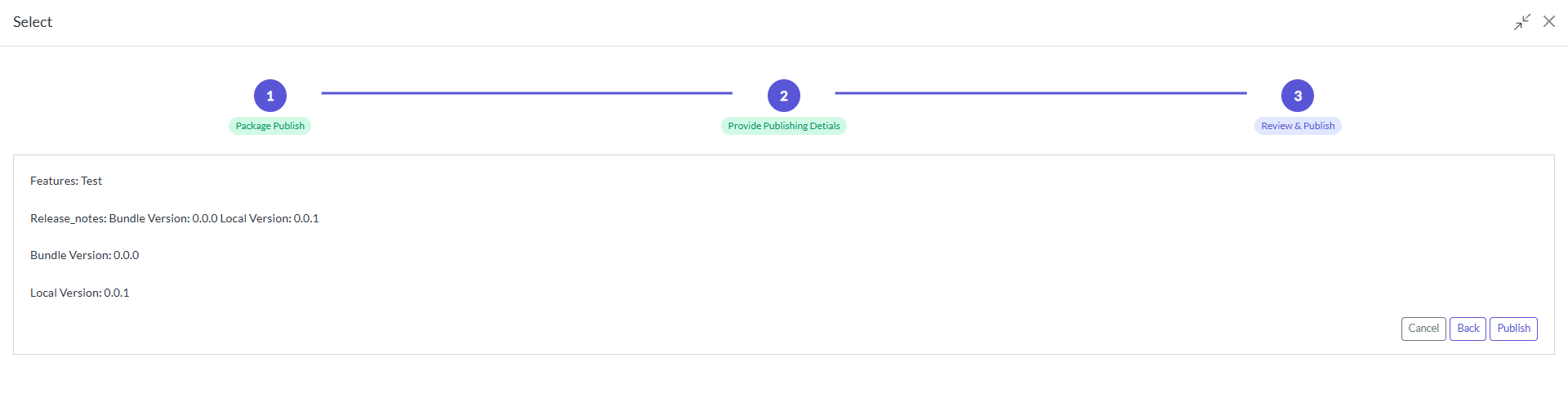
  • Simply click on next to move to the step3 A screenshot of a video
game AI-generated content may be
incorrect.

  • Check the build versions and click on publishA screenshot of a
computer AI-generated content may be
incorrect.

Creation of Locations

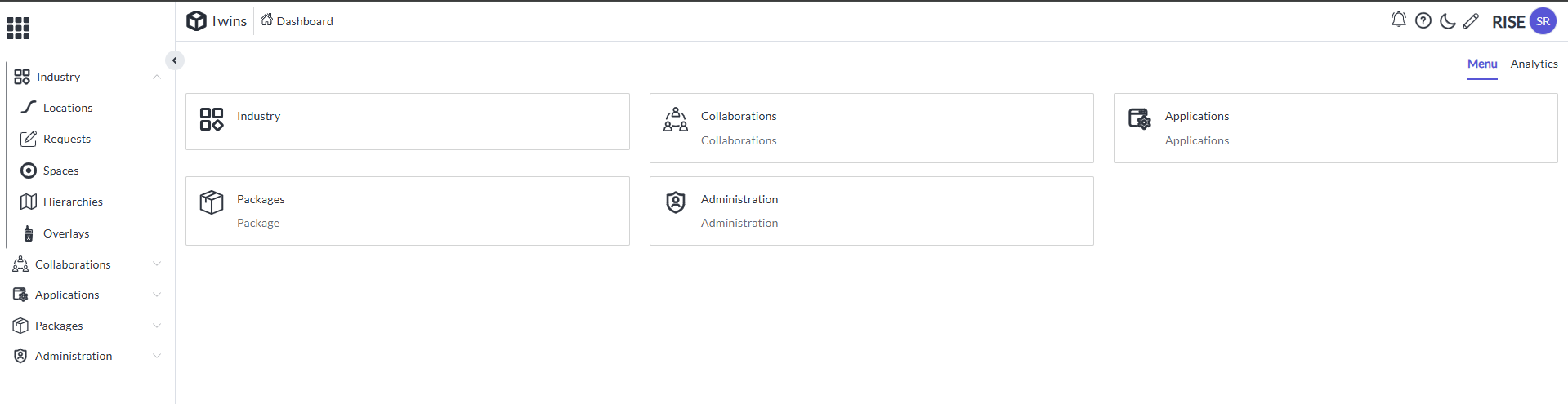
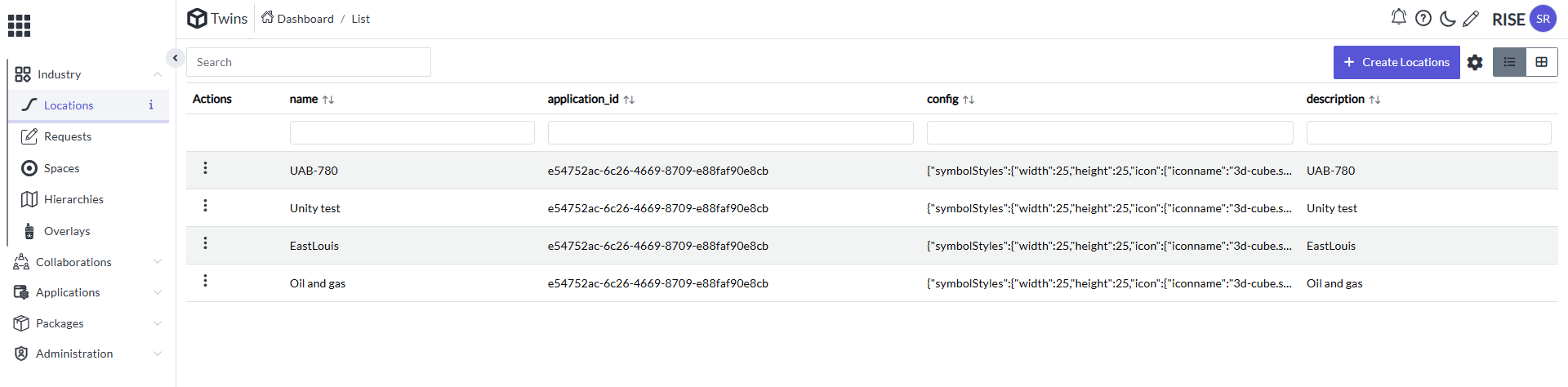
  • Select the Industry Drop down it will appear like thisA screenshot
of a computer AI-generated content may be
incorrect.

  • Select on the Locations in the drop down of the industry in the side menu bar. It will appear like thisA white box with black text
AI-generated content may be
incorrect.

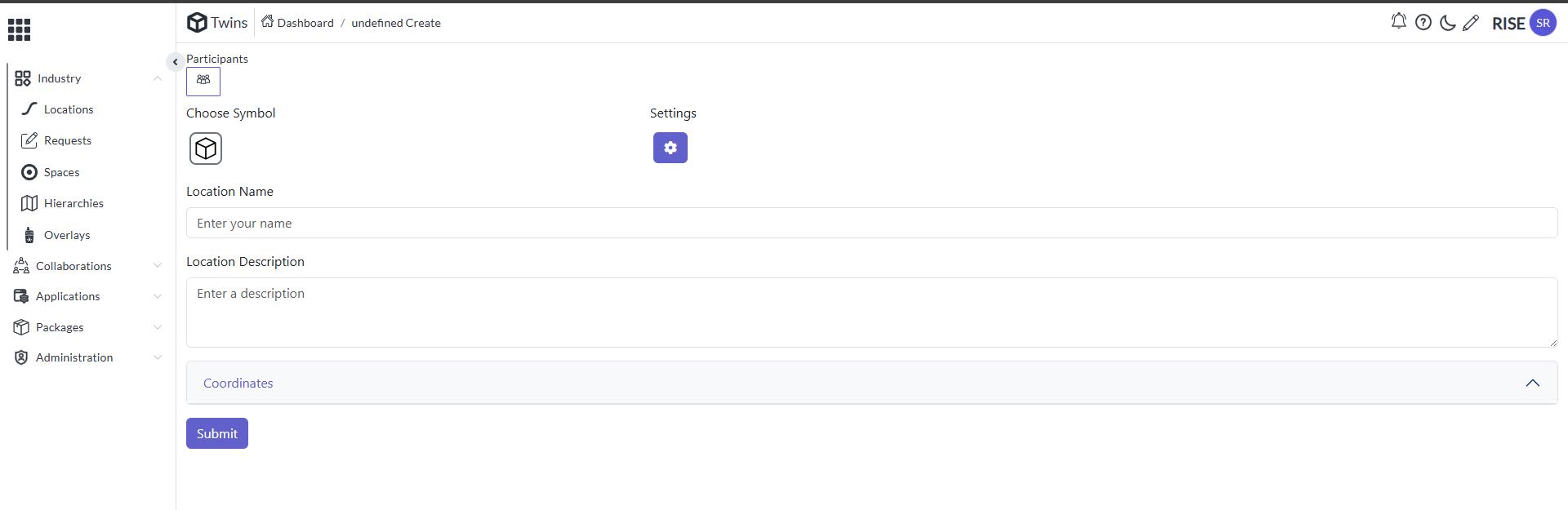
  • Select the Create location it will appear like thisA screenshot of a
computer AI-generated content may be
incorrect.

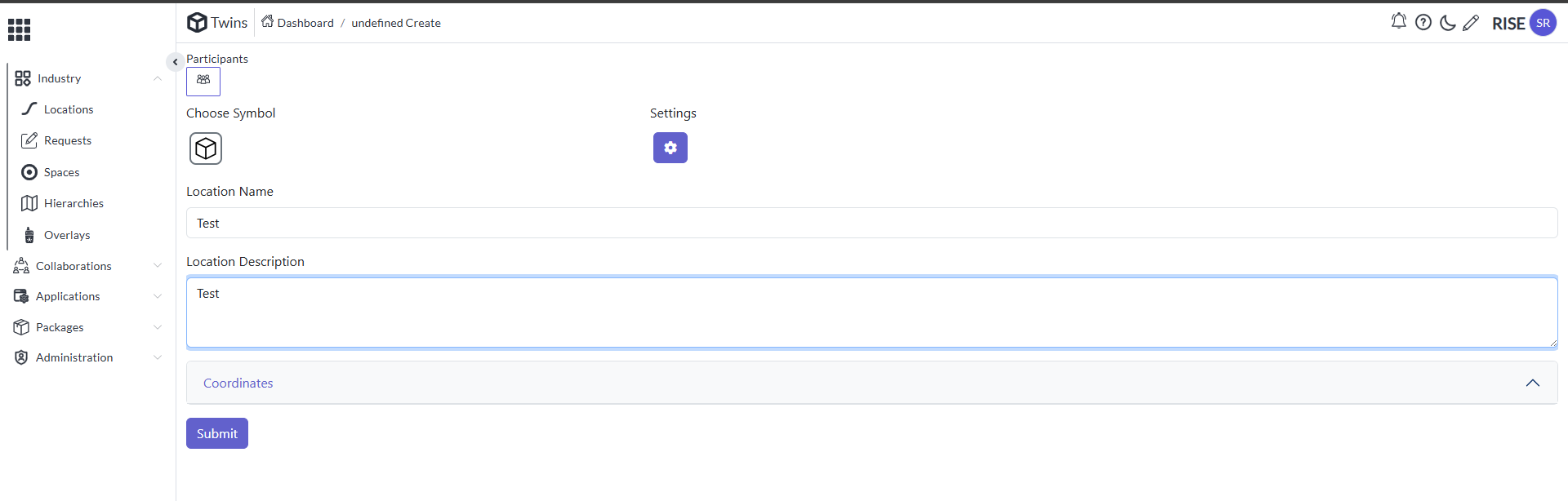
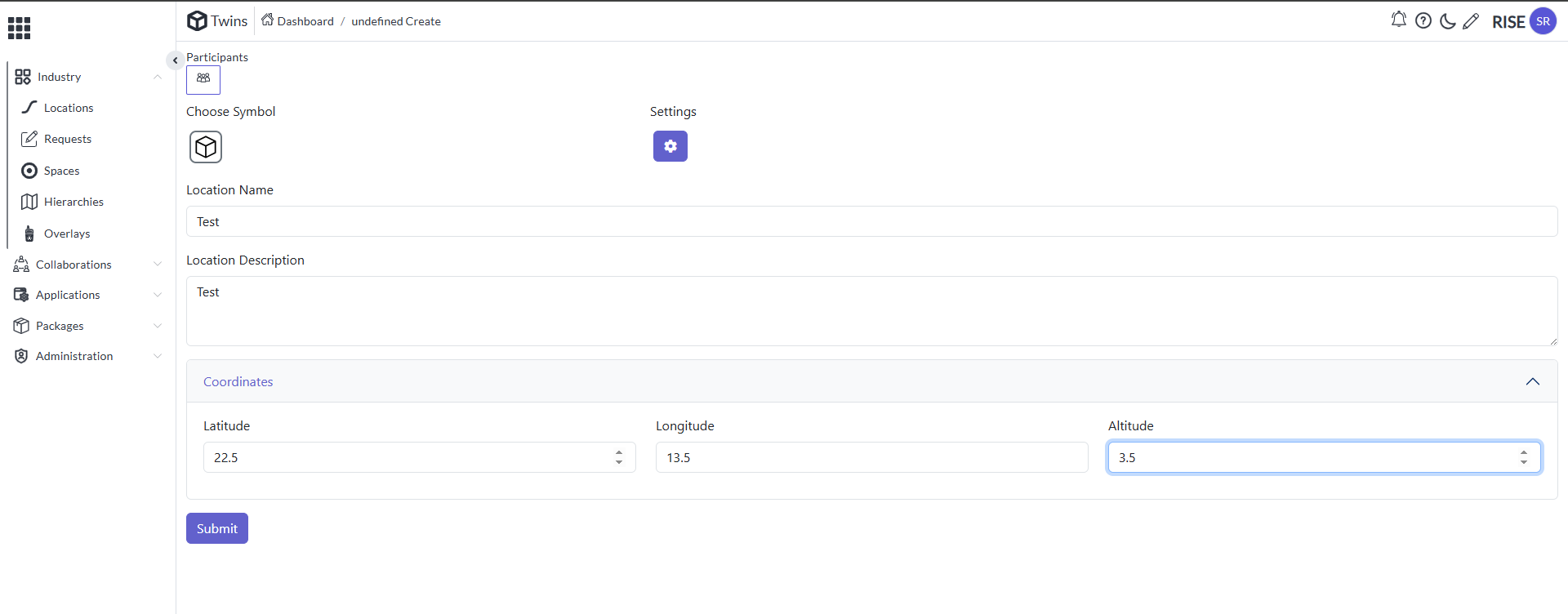
  • Provide the Location Name and Location DescriptionA screenshot of a
computer AI-generated content may be
incorrect.

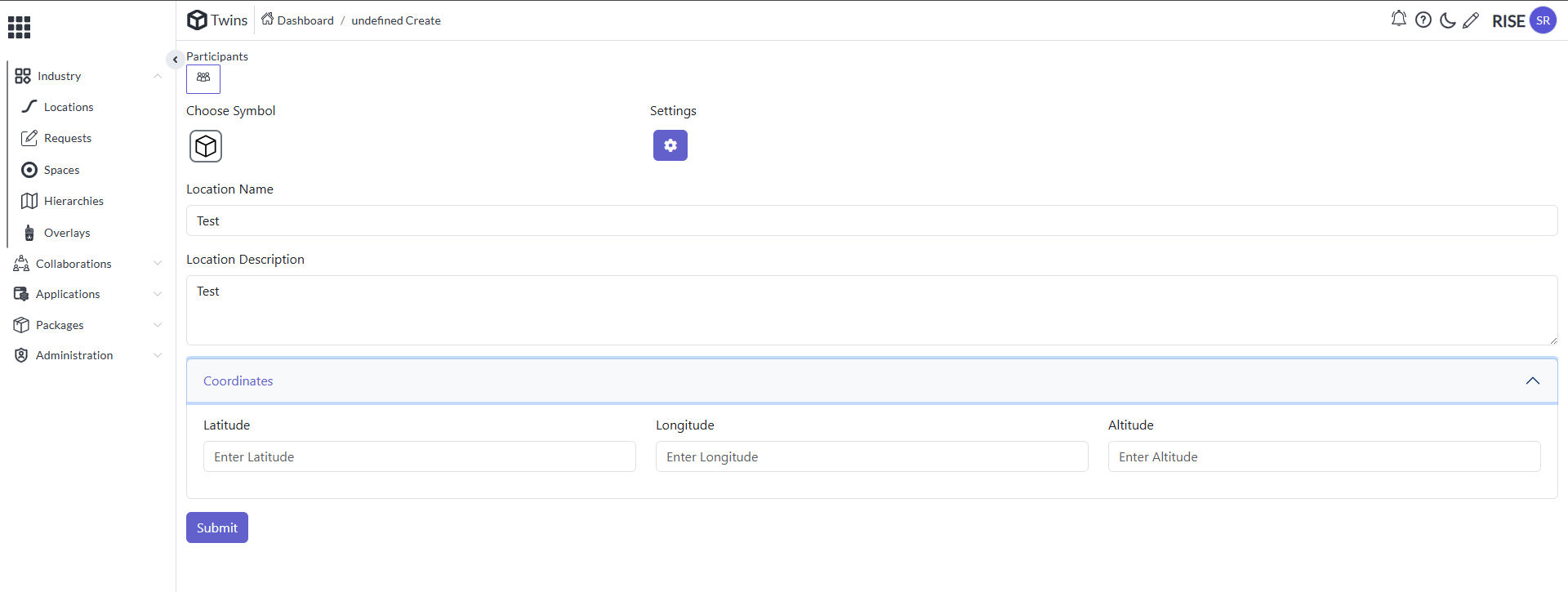
  • Now open the Co Ordinates drop down it will appear like thisA
screenshot of a computer AI-generated content may be
incorrect.

  • Provide the Latitude, Longitude and Altitude valvesA screenshot of a
computer AI-generated content may be
incorrect.

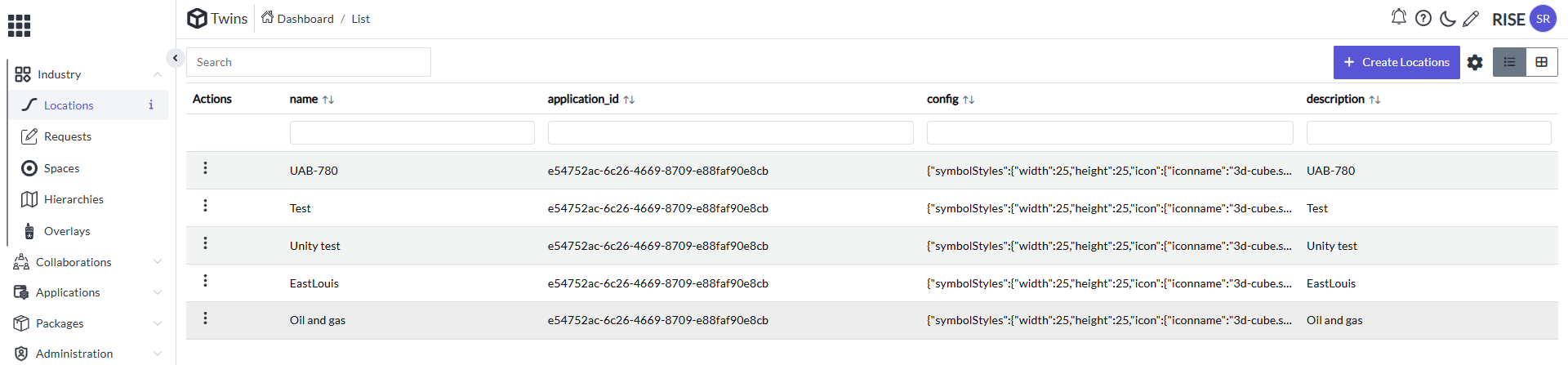
  • Click on Submit so it will appear like thisA white background with
text AI-generated content may be
incorrect.

Creation of Space

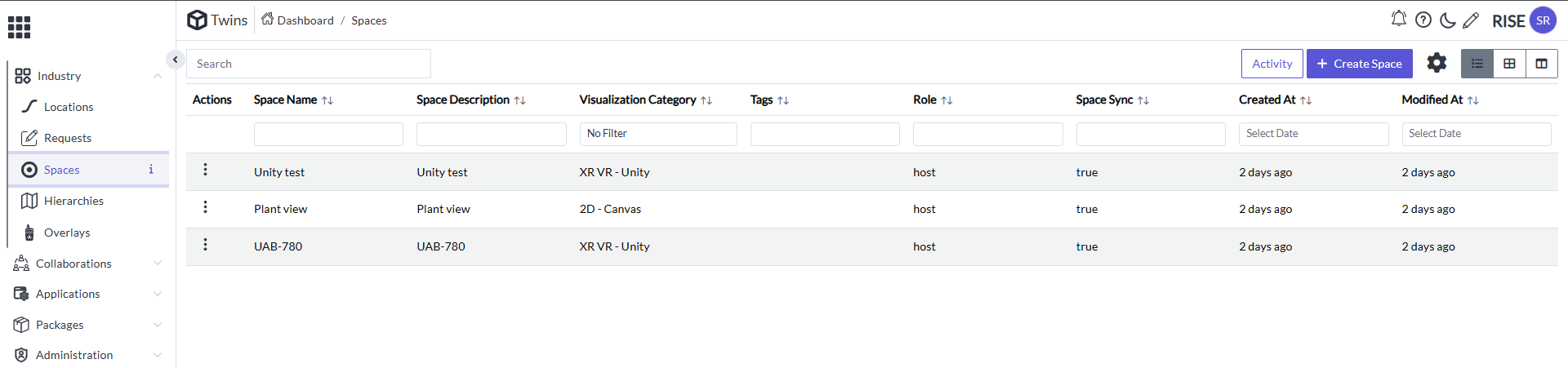
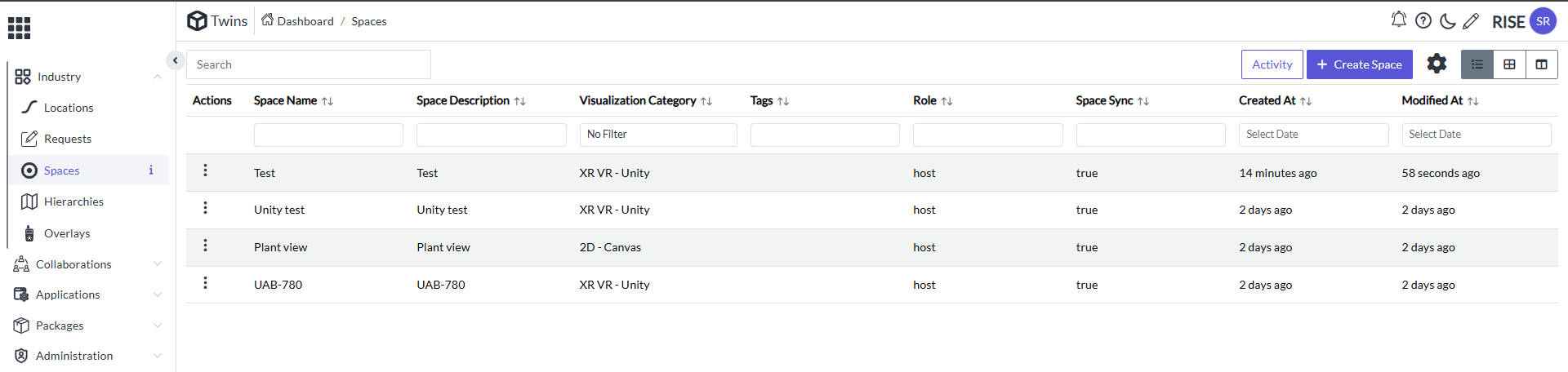
  • Select the Spaces in the right-side menu bar it will appear like thisA screenshot of a computer AI-generated content may be
incorrect.

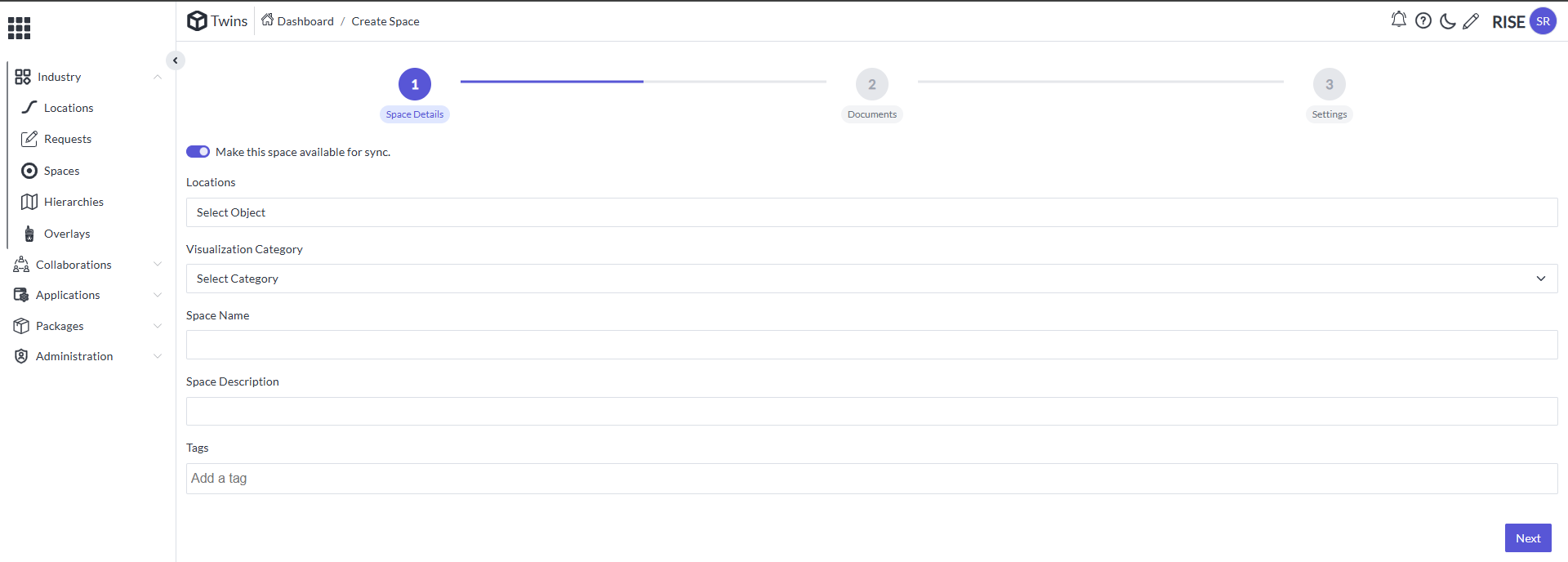
  • Click on Create Space it will appear like thisA screenshot of a
computer AI-generated content may be
incorrect.

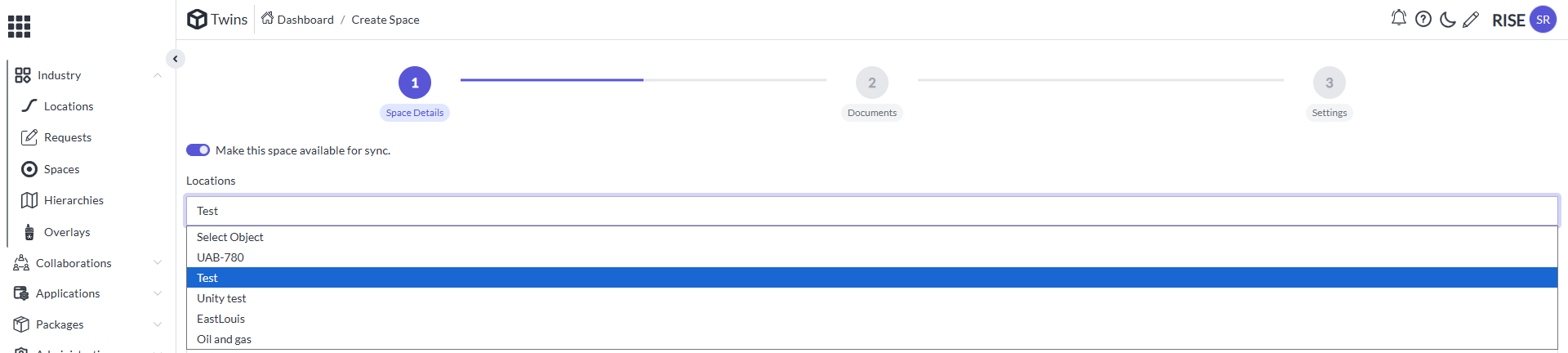
  • Select the Locations simply drop down it and select the location createdA screenshot of a computer AI-generated content may be
incorrect.

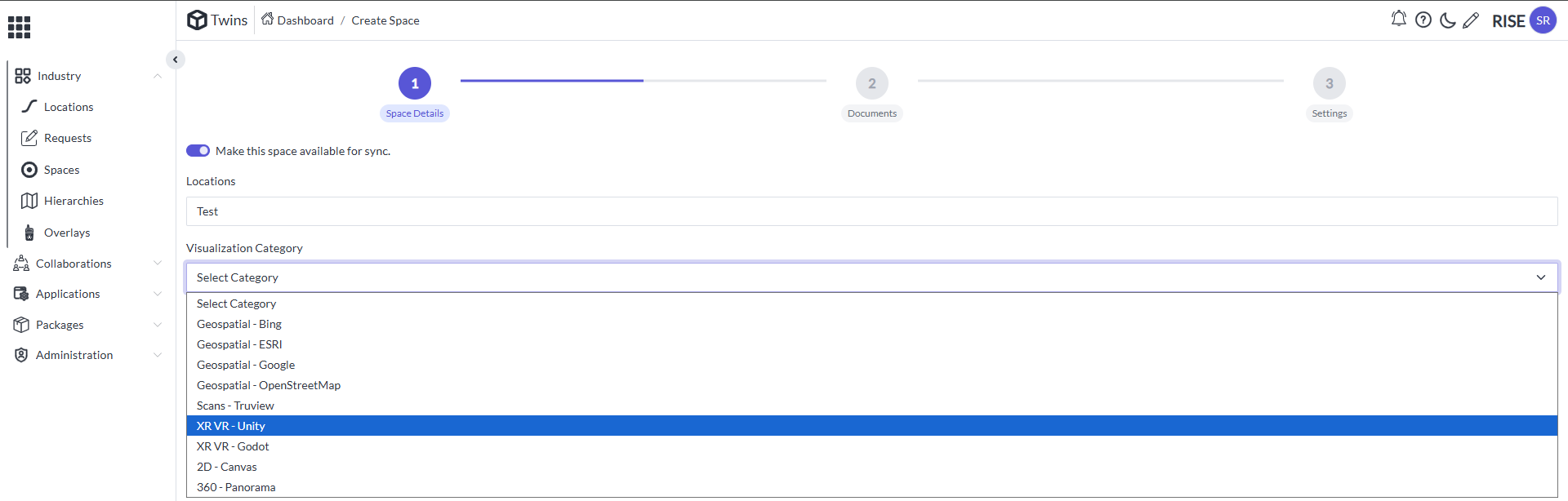
  • Similarly for the Visualization Category drop down also select for the XR VR UnityA screenshot of a computer AI-generated content may be
incorrect.

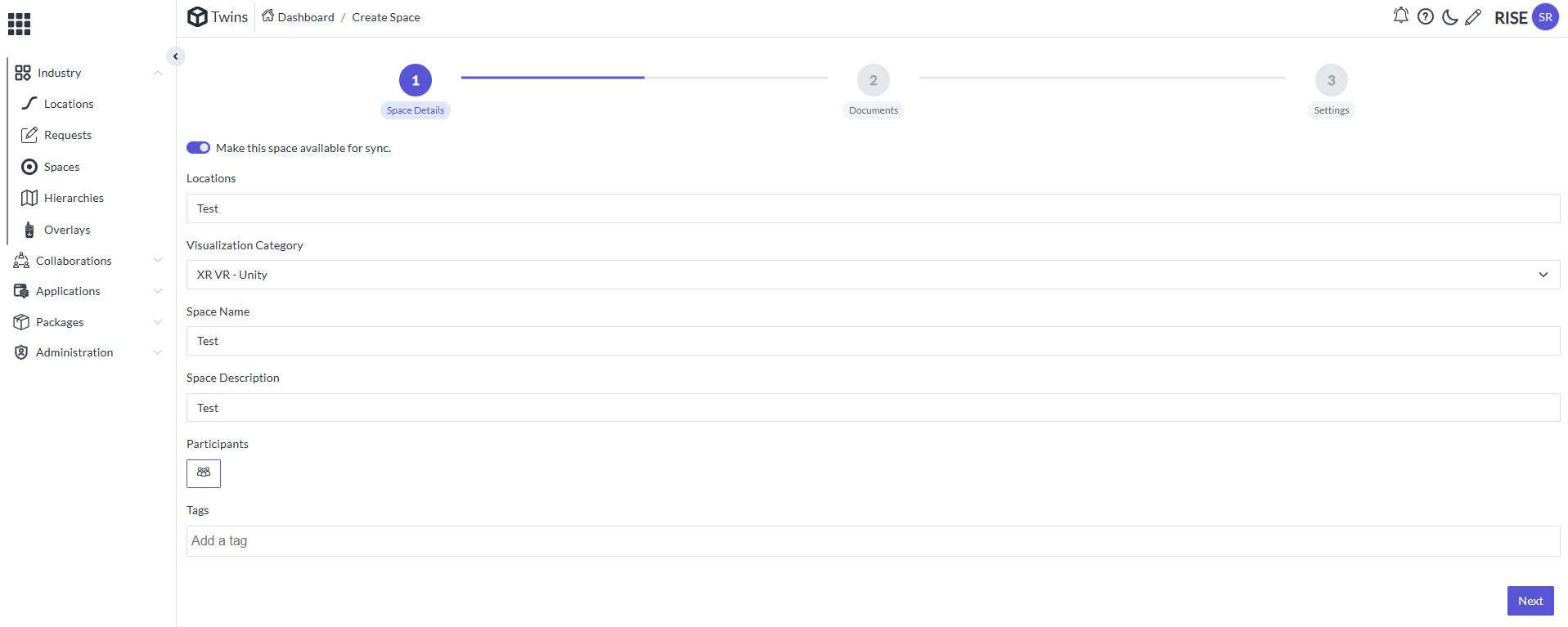
  • Provide the Space name and Space categoryA screenshot of a computer
AI-generated content may be
incorrect.

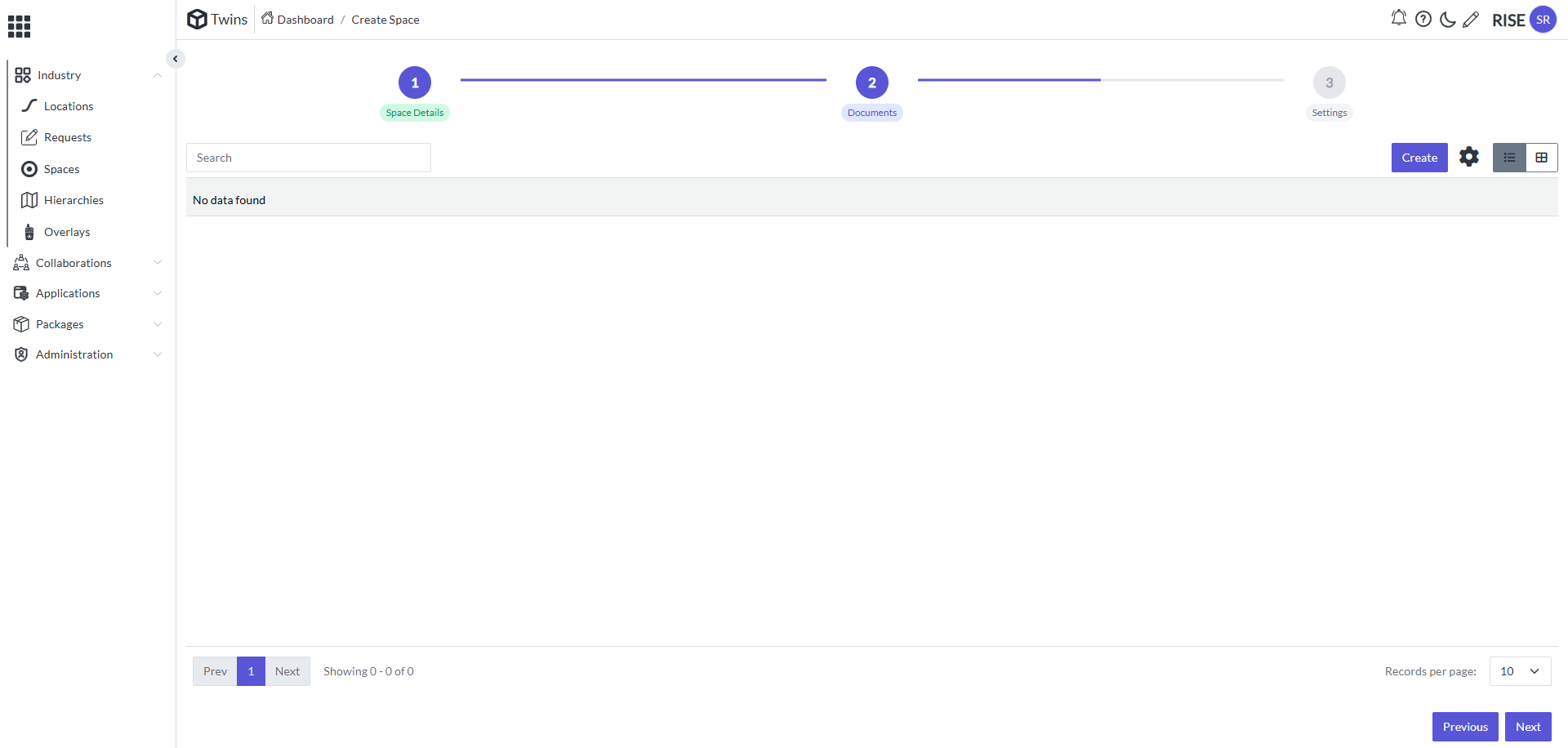
  • Click on NextA screenshot of a computer AI-generated content may be
incorrect.

  • And Click on Next A screenshot of a computer AI-generated content
may be
incorrect.

  • Now close it or select the Hierarchies

Assigning Hierarchy

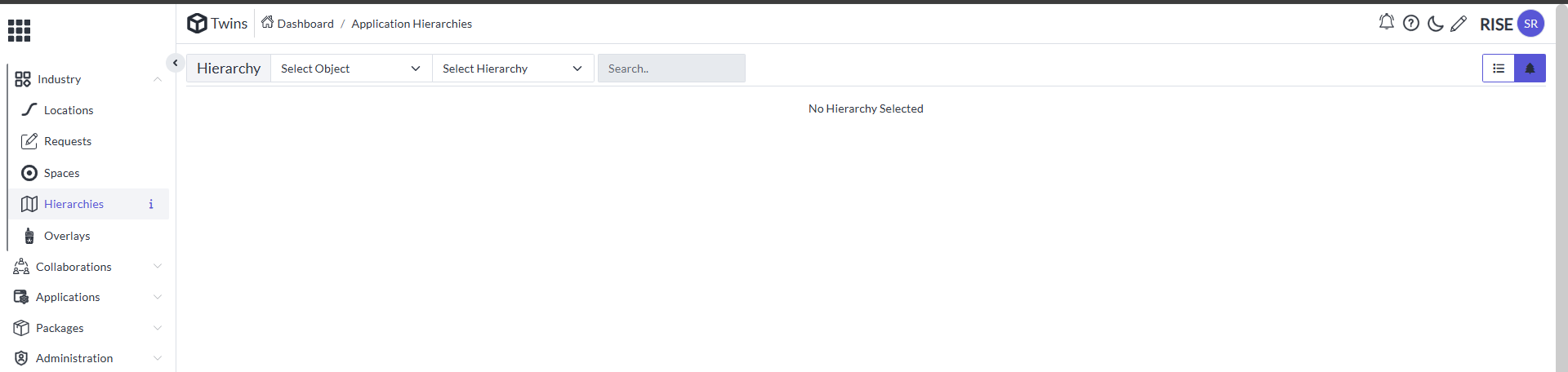
  • Select Hierarchies in the side menu bar it will appear like thisA
close-up of a computer screen AI-generated content may be
incorrect.

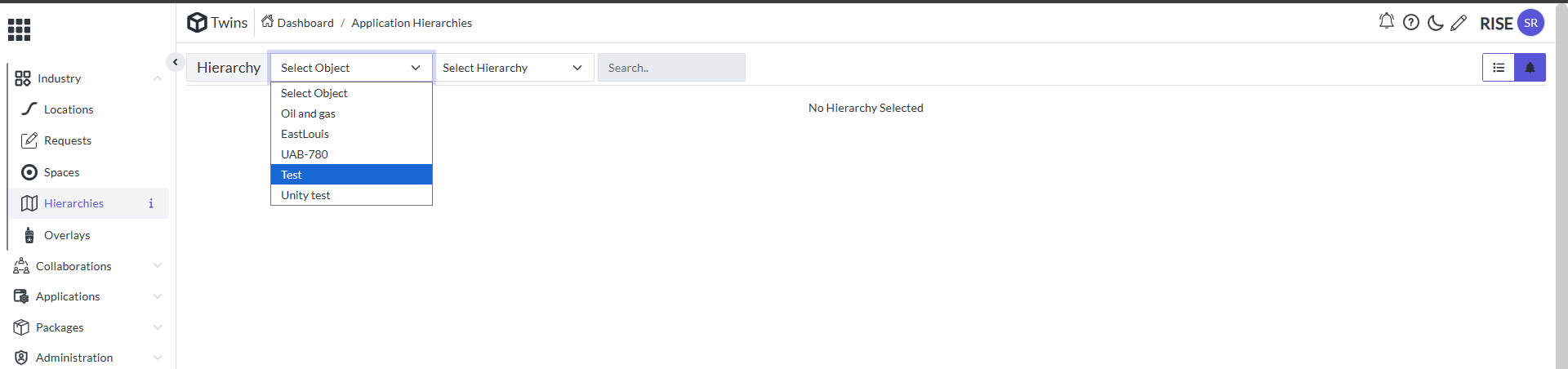
  • In the Select object drop down it will appear like thisA screenshot
of a computer AI-generated content may be
incorrect.

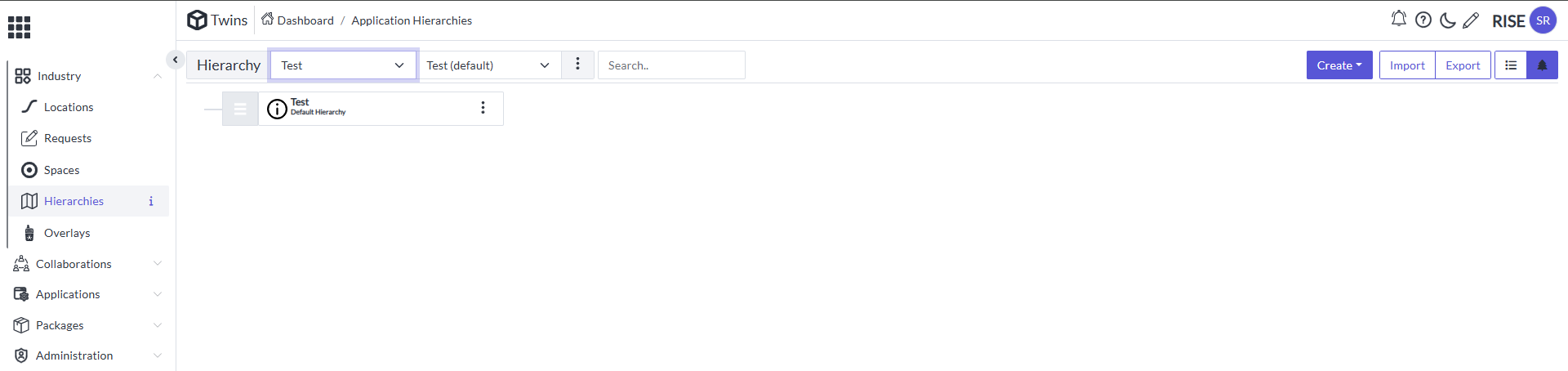
  • Make sure that we are getting the same name as we created as the Location. Select it and It will appear like thisA screenshot of a
computer AI-generated content may be
incorrect.

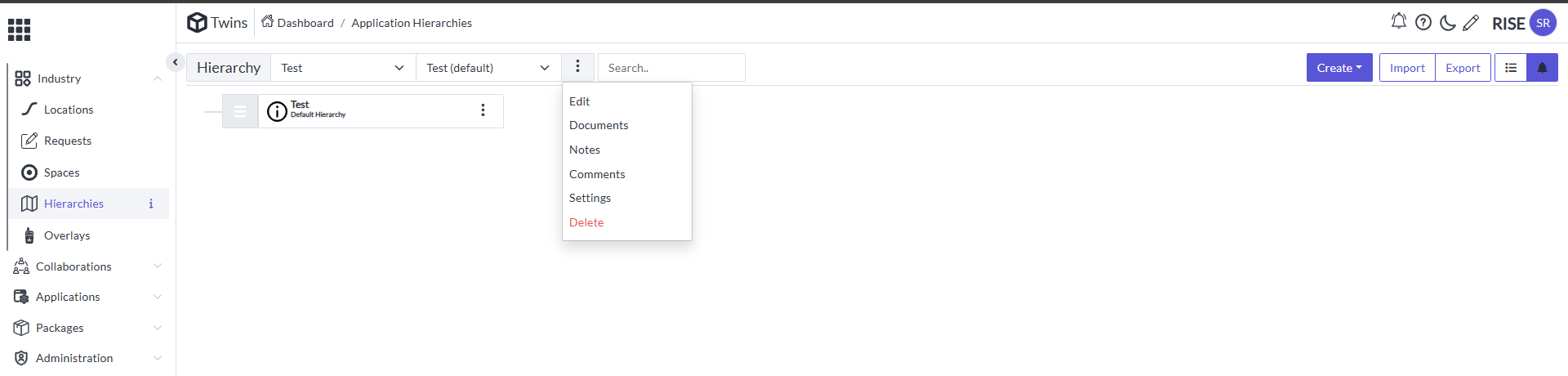
  • Now go to Test (Default) action menu it will appear like thisA
screenshot of a computer AI-generated content may be
incorrect.

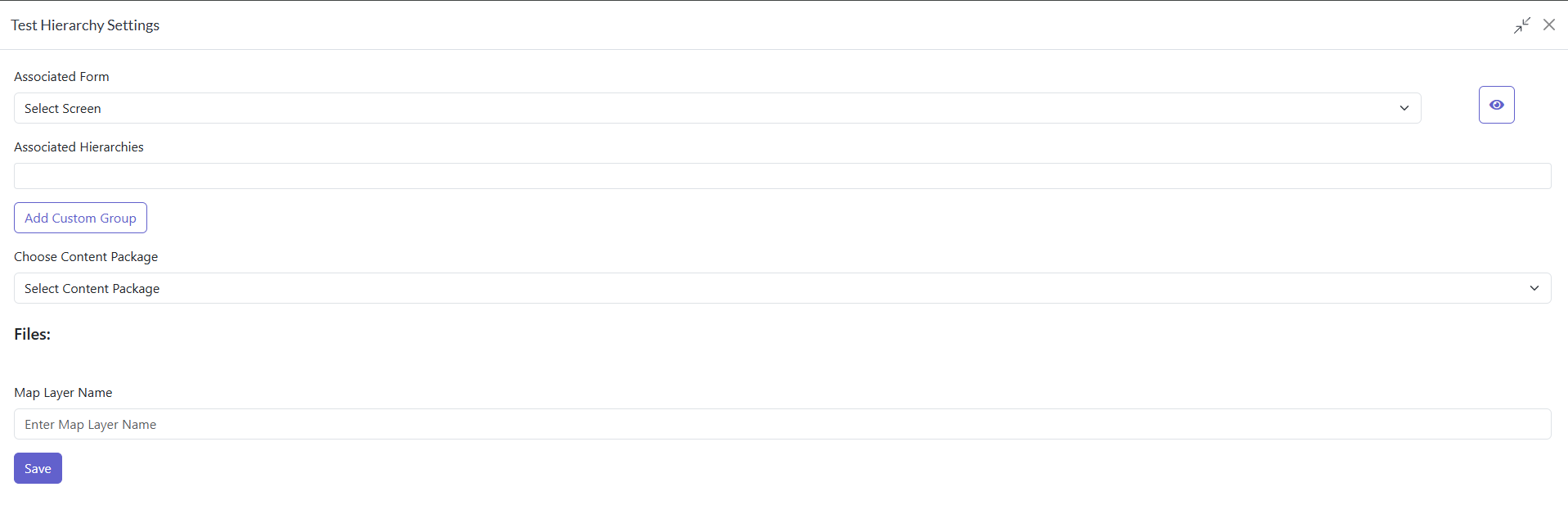
  • Go to settings it will appear like thisA white paper with blue lines
AI-generated content may be
incorrect.

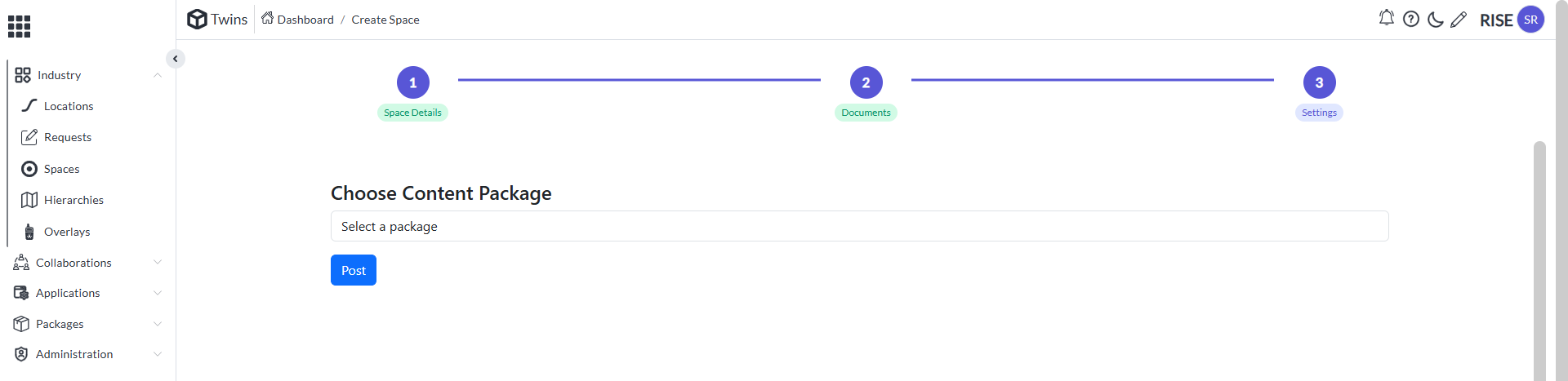
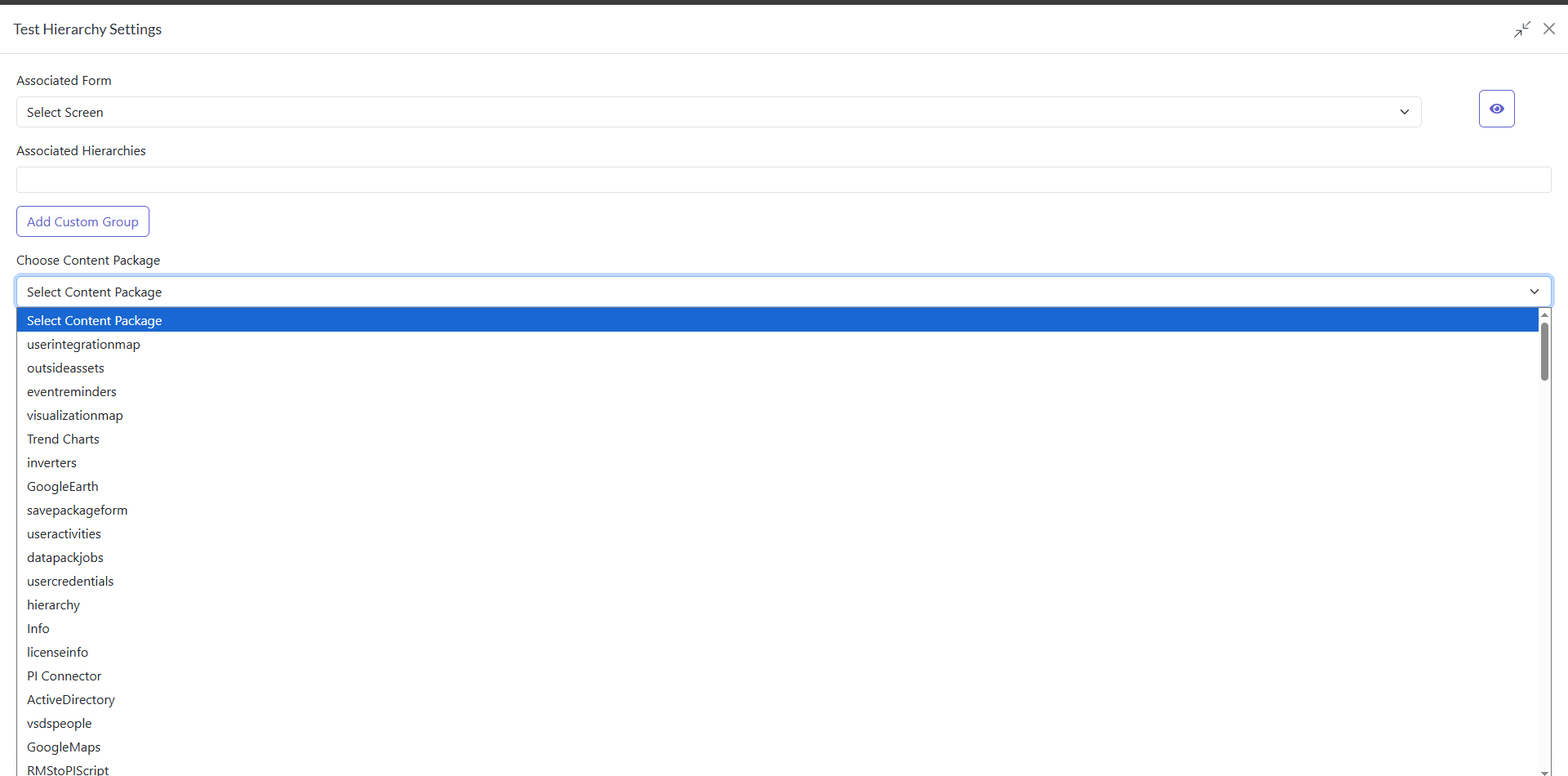
  • Open Choose Content Package drop down it will appear like this A
screenshot of a computer AI-generated content may be
incorrect.

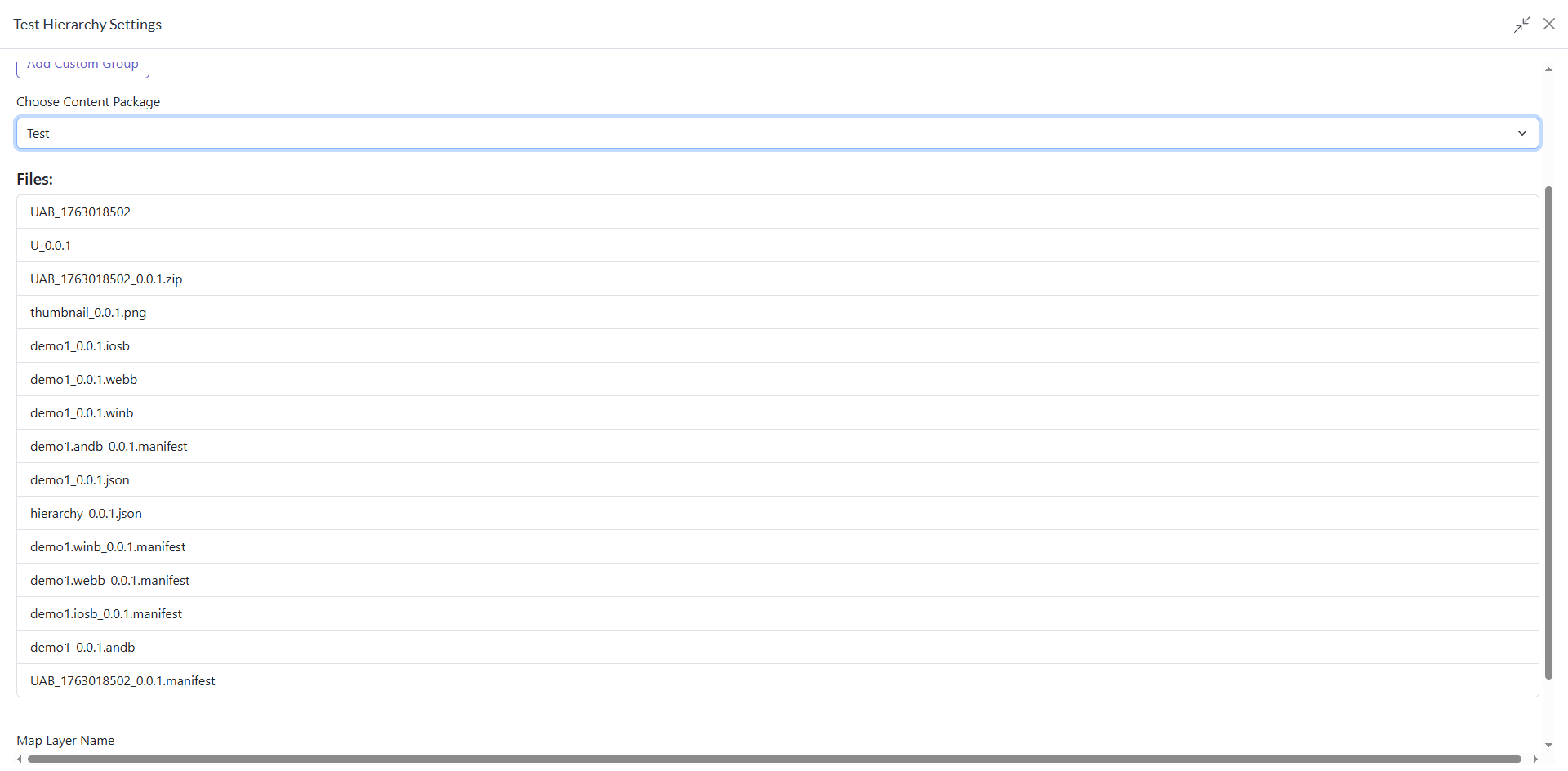
  • In that select the name of the Content package CreatedA screenshot
of a notebook AI-generated content may be
incorrect.

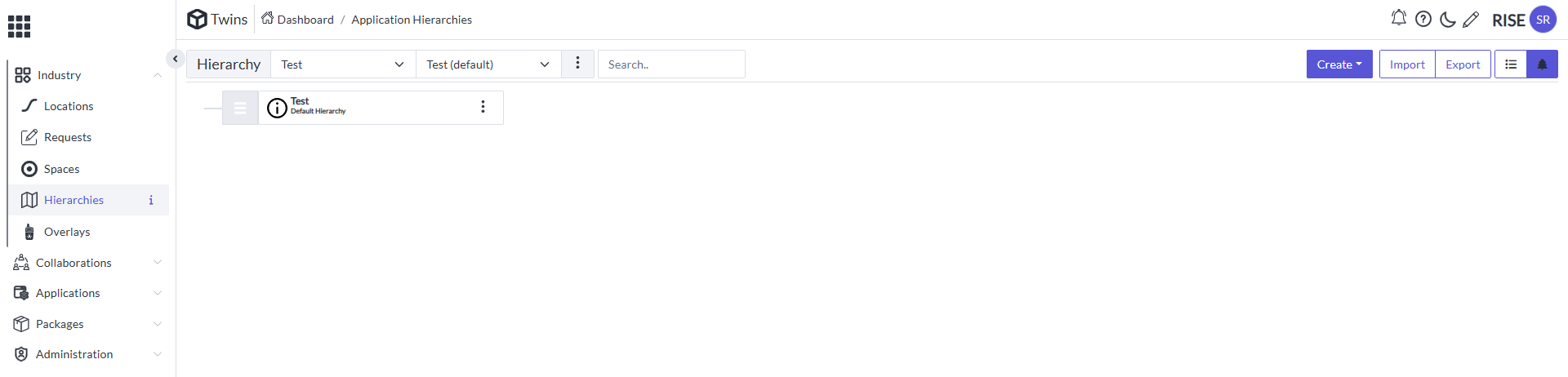
  • These are the files which we already explored in the content package scroll down and click on save it will appear like this A white
background with blue and white text AI-generated content may be
incorrect.

Assigning Space

  • Now select the Test in the below open the action A computer screen
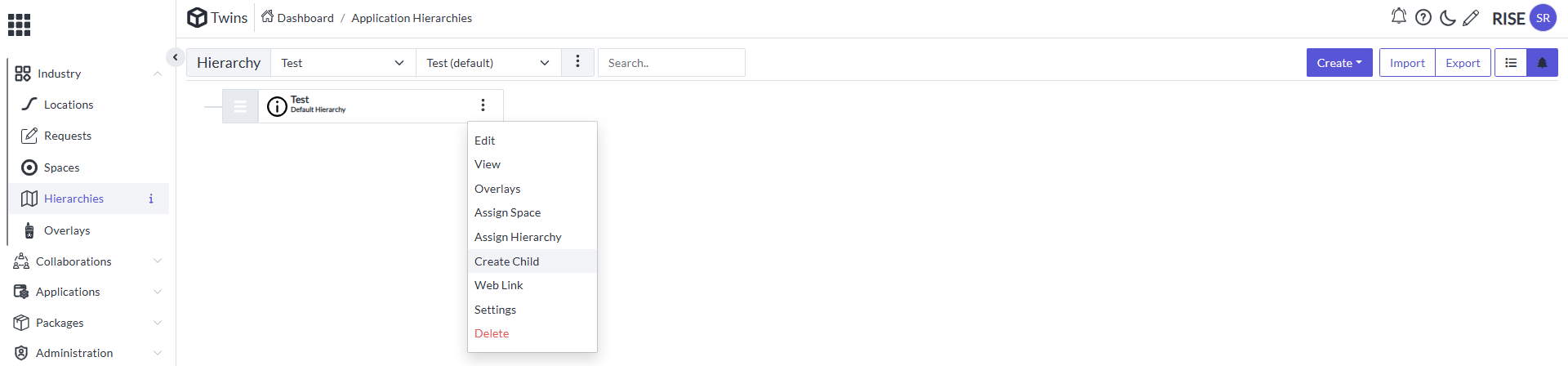
with a white background AI-generated content may be
incorrect.

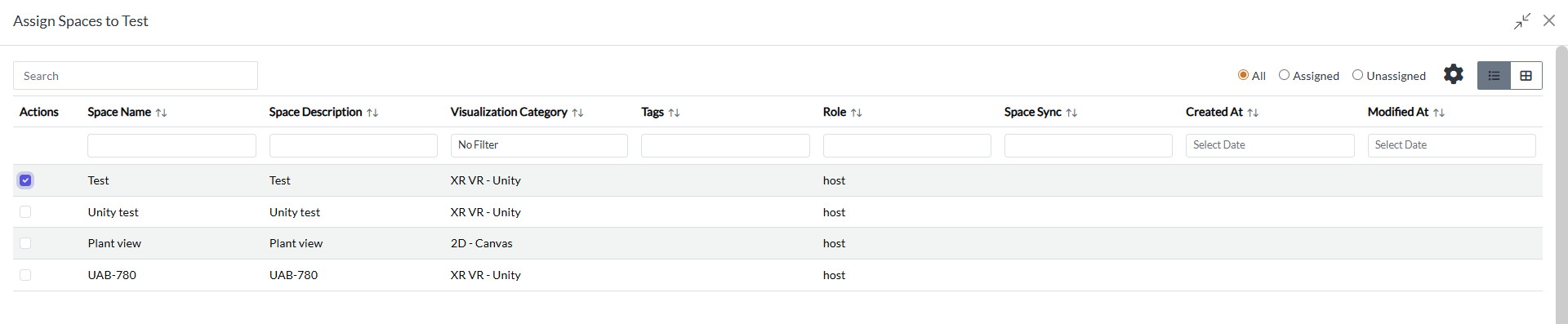
  • Select the Assign Space it will appear like thisA close-up of a
computer screen AI-generated content may be
incorrect.

  • Go to All and it will appear like thisA screenshot of a computer
AI-generated content may be
incorrect.

  • Now check the space name create and make a markA screenshot of a
computer AI-generated content may be
incorrect.

View Space

  • Go to space and it will appear like thisA screenshot of a computer
AI-generated content may be
incorrect.

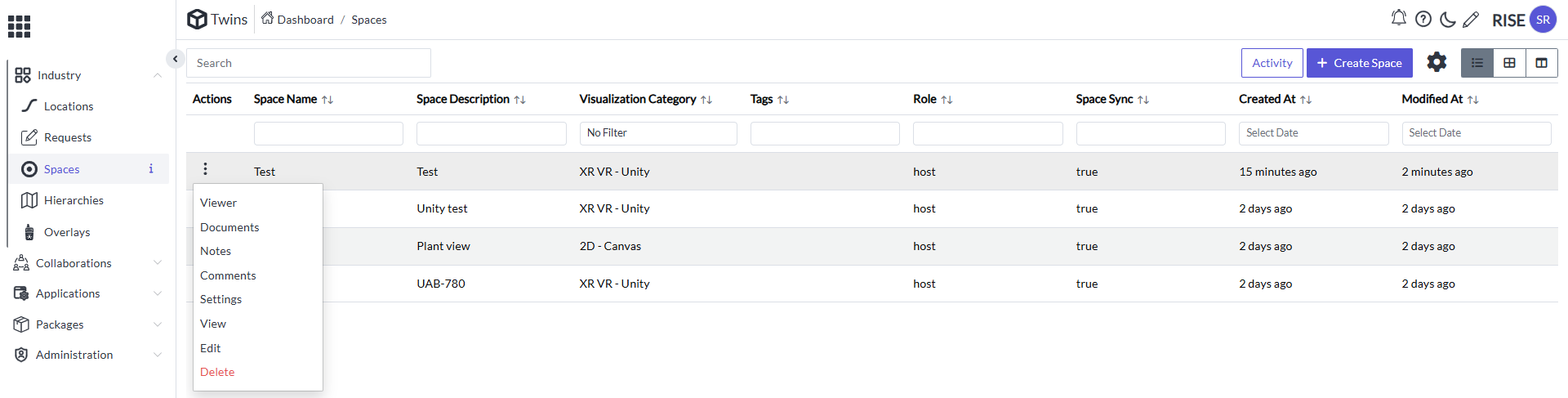
  • Now select the space action button it will appear like thisA
screenshot of a computer AI-generated content may be
incorrect.

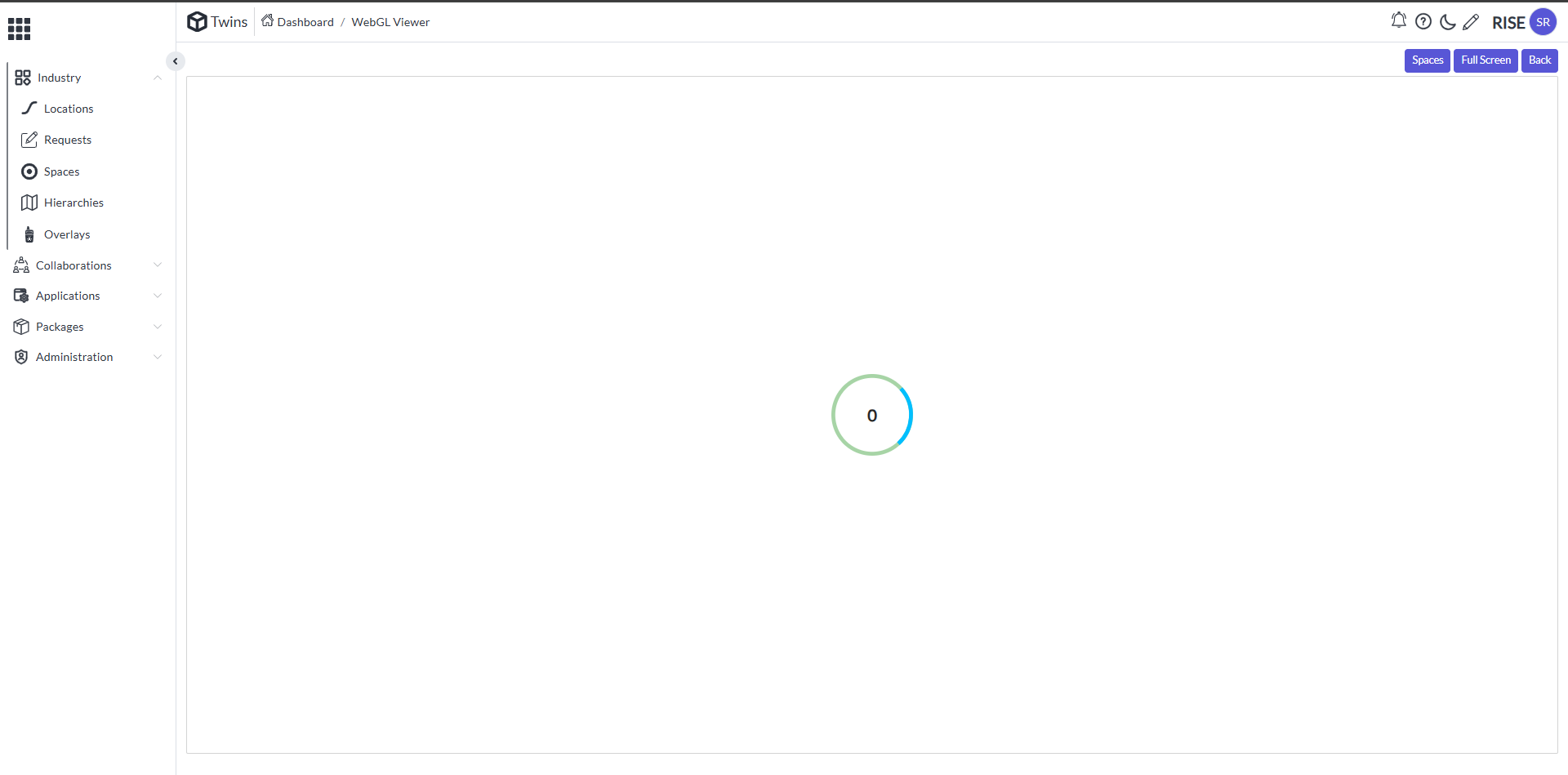
  • Select the Viewer so the XR VR Unity space will launchA blue and
white rectangular object AI-generated content may be
incorrect.

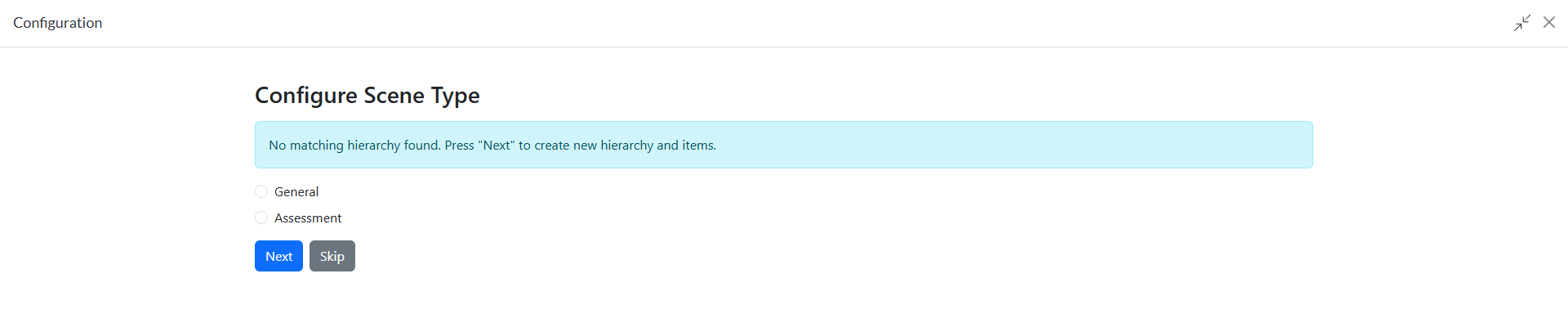
  • Click on Skip so it will appear like thisA screenshot of a computer
AI-generated content may be
incorrect.