Installation
System Requirements
Minimum Requirements
- Operating System: Windows 10, 64-bit (PC or Mac via Boot Camp)
Windows 11 is not yet supported - CPU: Intel i5/i7 or AMD Ryzen 7
- GPU: Compatible with OpenGL 3.2 (Intel HD 4000 or above)
- RAM & Disk Space:
- Small projects (less than 100 images at 14 MP): 4 GB RAM, 10 GB HDD free
- Medium projects (100–500 images at 14 MP): 8 GB RAM, 20 GB HDD free
- Large projects (500–1000 images at 14 MP): 16 GB RAM, 40 GB HDD free
- Very large projects (1000–2000 images at 14 MP): 32 GB RAM, 80 GB HDD free
Recommended Requirements
- Operating System: Windows 10, 64-bit (Windows 11 unsupported)
- CPU: Quad-core or hexa-core Intel i9 / Threadripper / Ryzen 9
- GPU: GeForce GTX (OpenGL 3.2 compatible) with ≥2 GB RAM
- Storage: SSD
- RAM & Disk Space:
- Small projects (100 images at 14 MP): 8 GB RAM, 15 GB SSD free
- Medium projects (100–500 images at 14 MP): 16 GB RAM, 30 GB SSD free
- Large projects (500–1000 images at 14 MP): 32 GB RAM, 60 GB SSD free
- Very large projects (1000–2000 images at 14 MP): 64 GB RAM, 120 GB SSD free
Installation Steps
-
Visit Pix4D Official Website
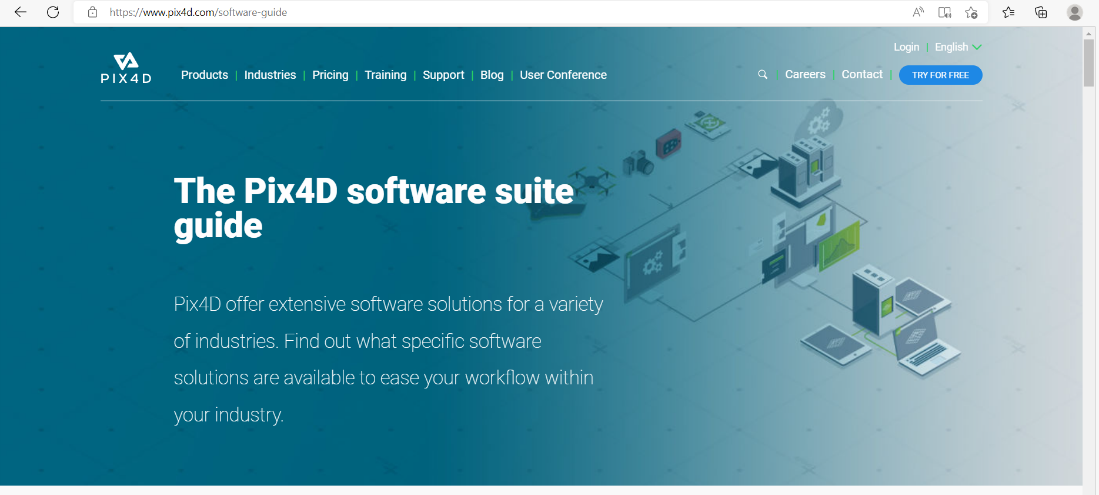
Go to Pix4D and click Login at the top right.
-
Sign In / Registration
- Enter your account credentials or create a free account.
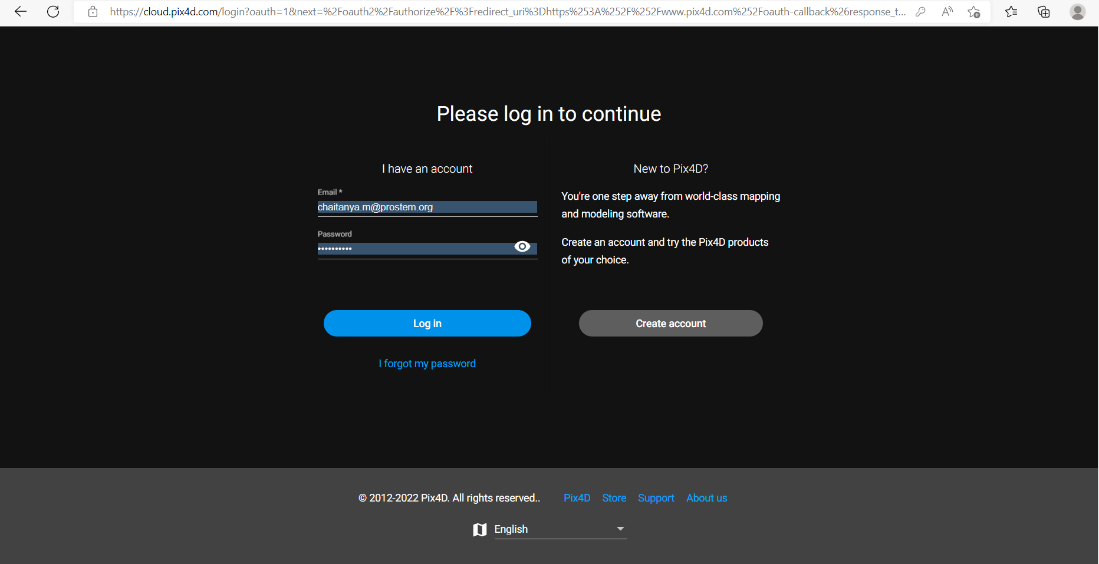
- Enter your account credentials or create a free account.
-
Select Product
- Choose Pix4Dmapper from the Products menu.
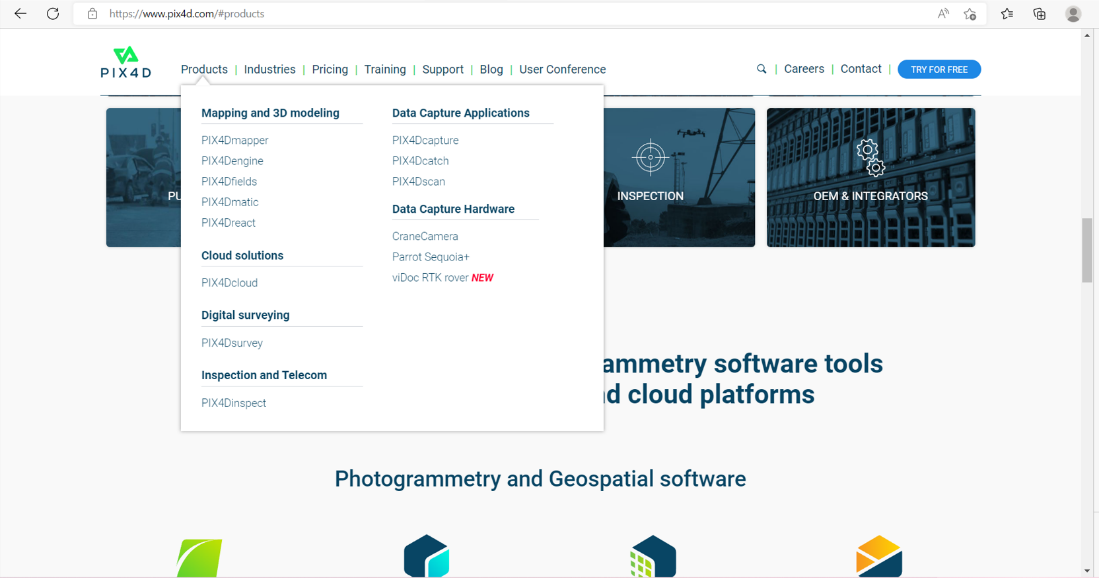
- Choose Pix4Dmapper from the Products menu.
-
Registration & Download
- Complete registration to enable the download of the installer.
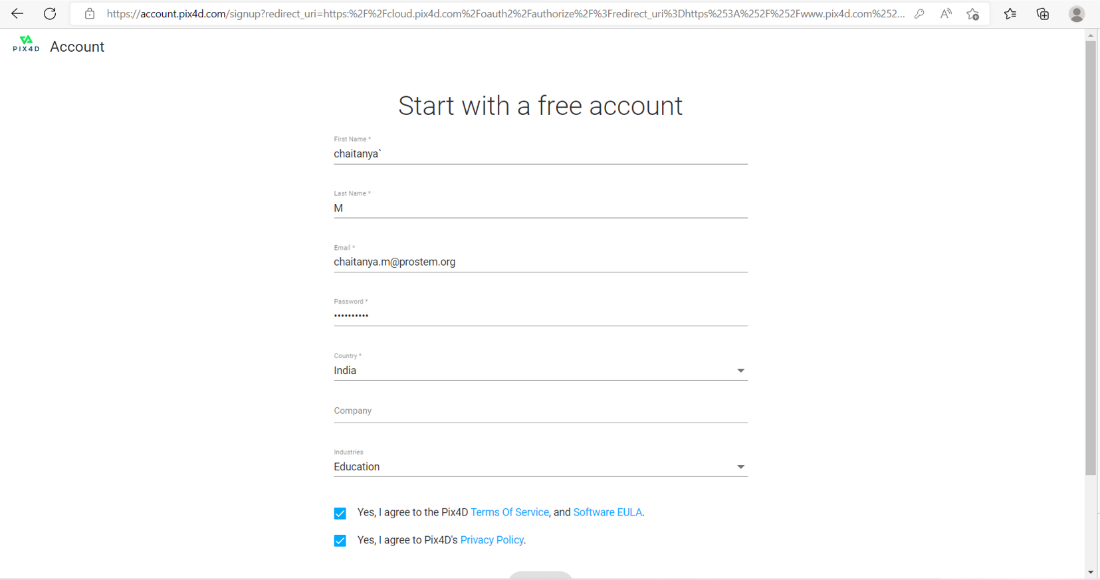
- Agree to Terms & Conditions, EULA, and Privacy Policy to enable Continue.
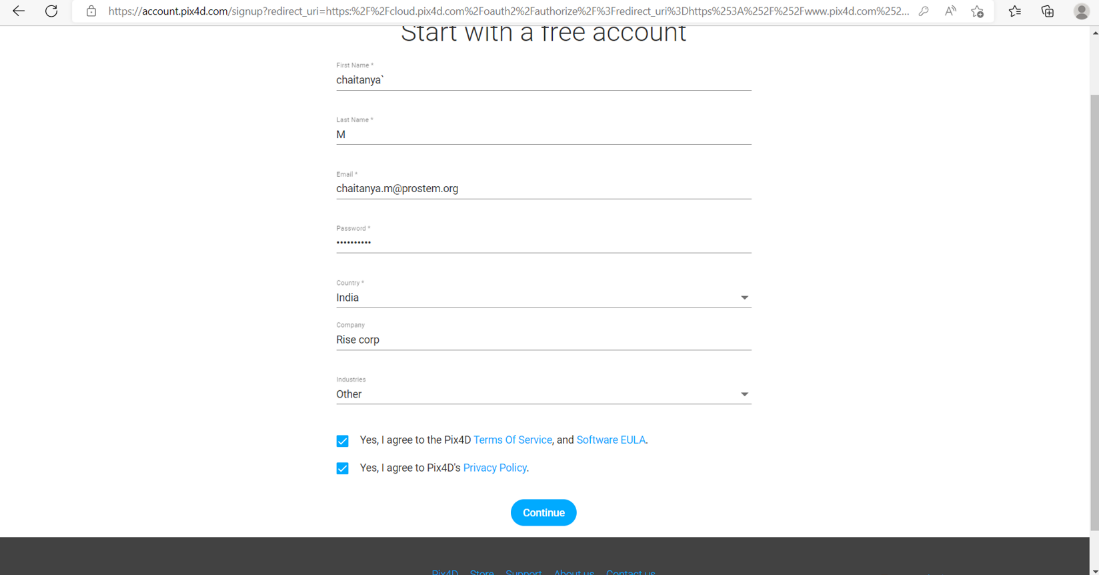
- Complete registration to enable the download of the installer.
-
Set Communication & Data Privacy Preferences
- Click Save to proceed.
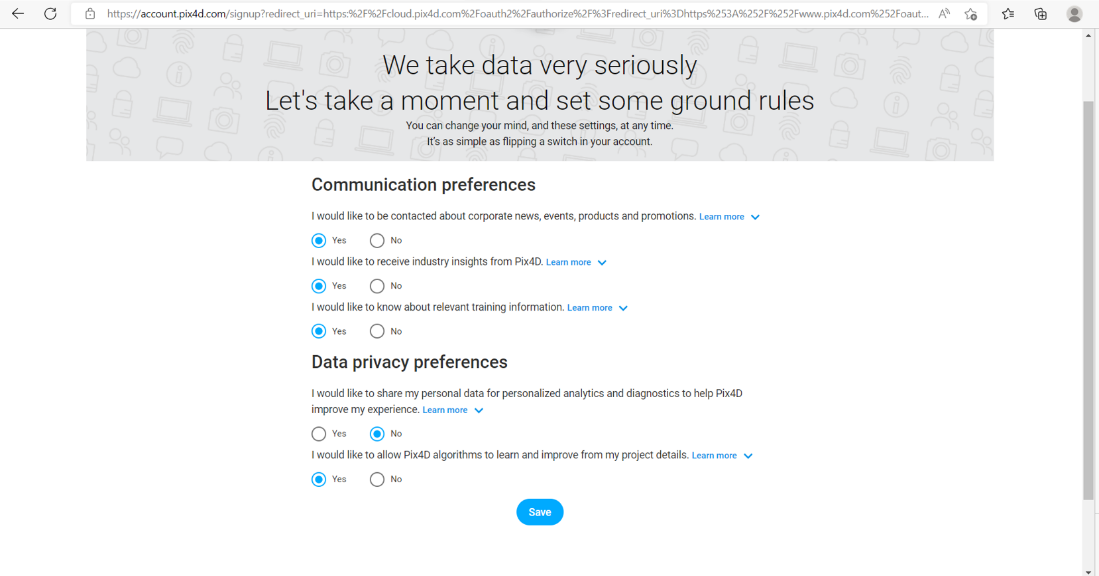
- Click Save to proceed.
-
Run Installer
- Open the downloaded
.exefile and select Run as Administrator.
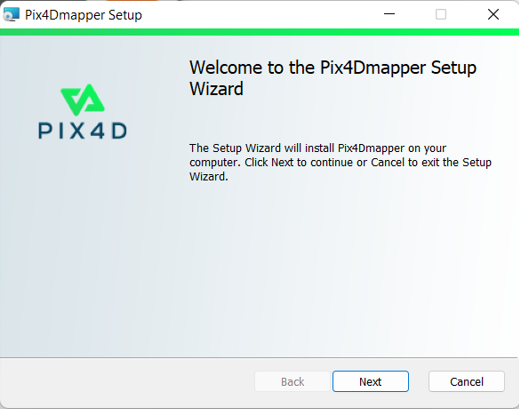
- Open the downloaded
-
Installation Wizard
- Click Next to proceed through setup steps.
- Click Next to proceed through setup steps.
-
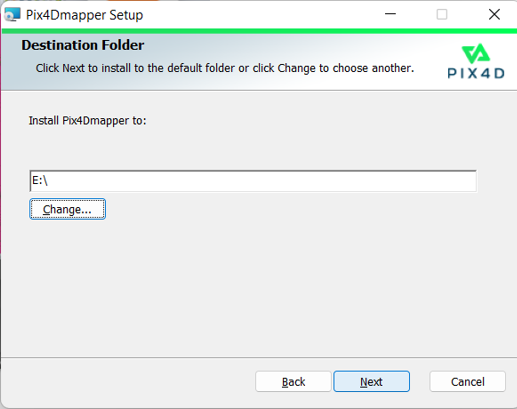
Select Installation Folder
- Important: Install in C drive only for proper licensing and user data access.
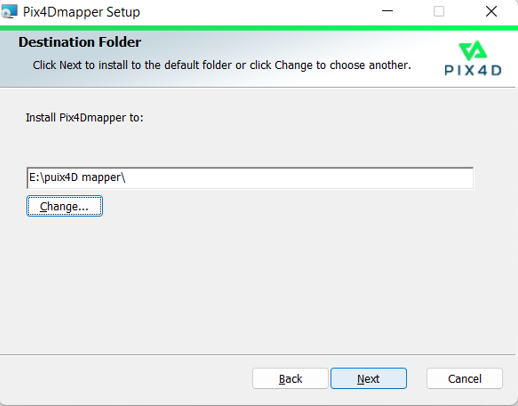
- Important: Install in C drive only for proper licensing and user data access.
-
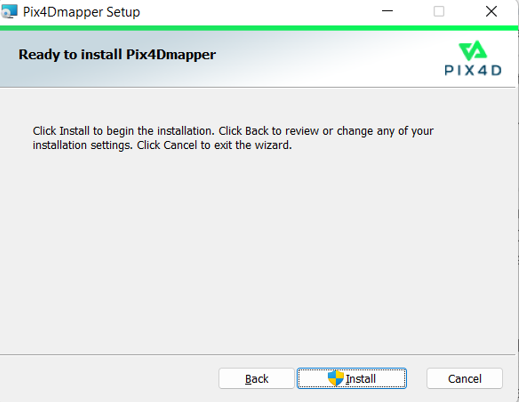
Start Installation
- Click Install to begin installation (may take several minutes).
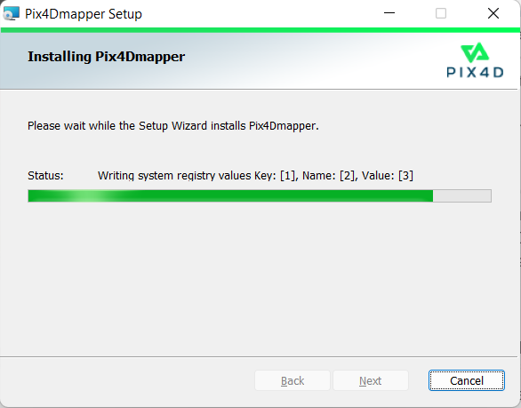
- Progress screen during installation:
- Click Install to begin installation (may take several minutes).
-
Finish & Launch
- After installation completes, select Finish or Launch Pix4Dmapper to open the application.

- After installation completes, select Finish or Launch Pix4Dmapper to open the application.