Pix4D React V1.4.3 Workflow
Objective: Convert JPEG/TIFF files into GeoTIFF files with name tags and measurements.
Steps:
1. Launch and Login
- Open the Pix4D React application.
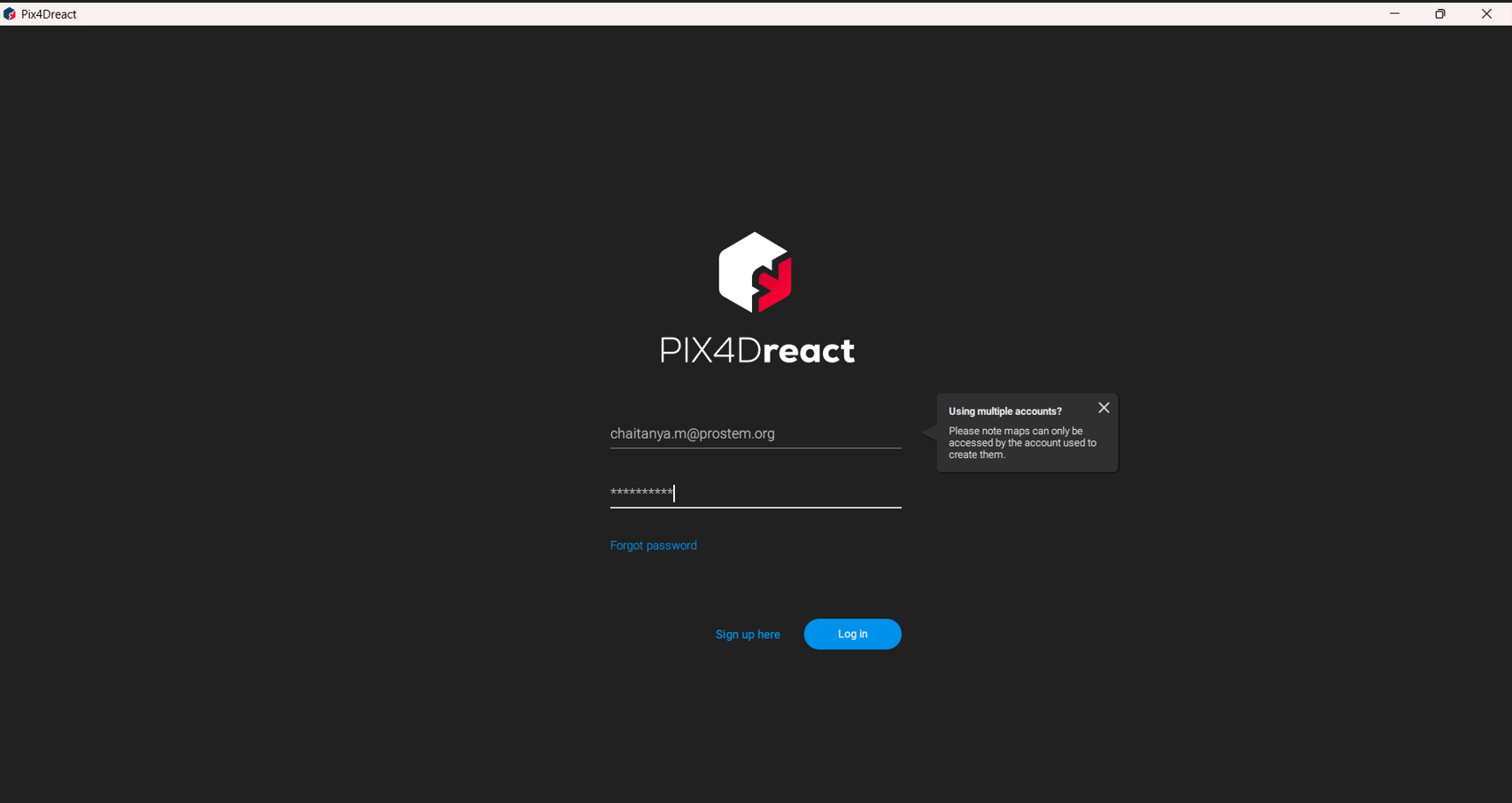
- Log in with the credentials created on the Pix4D official website.
- Activate the 15-day trial pack by ticking the option and clicking Next.
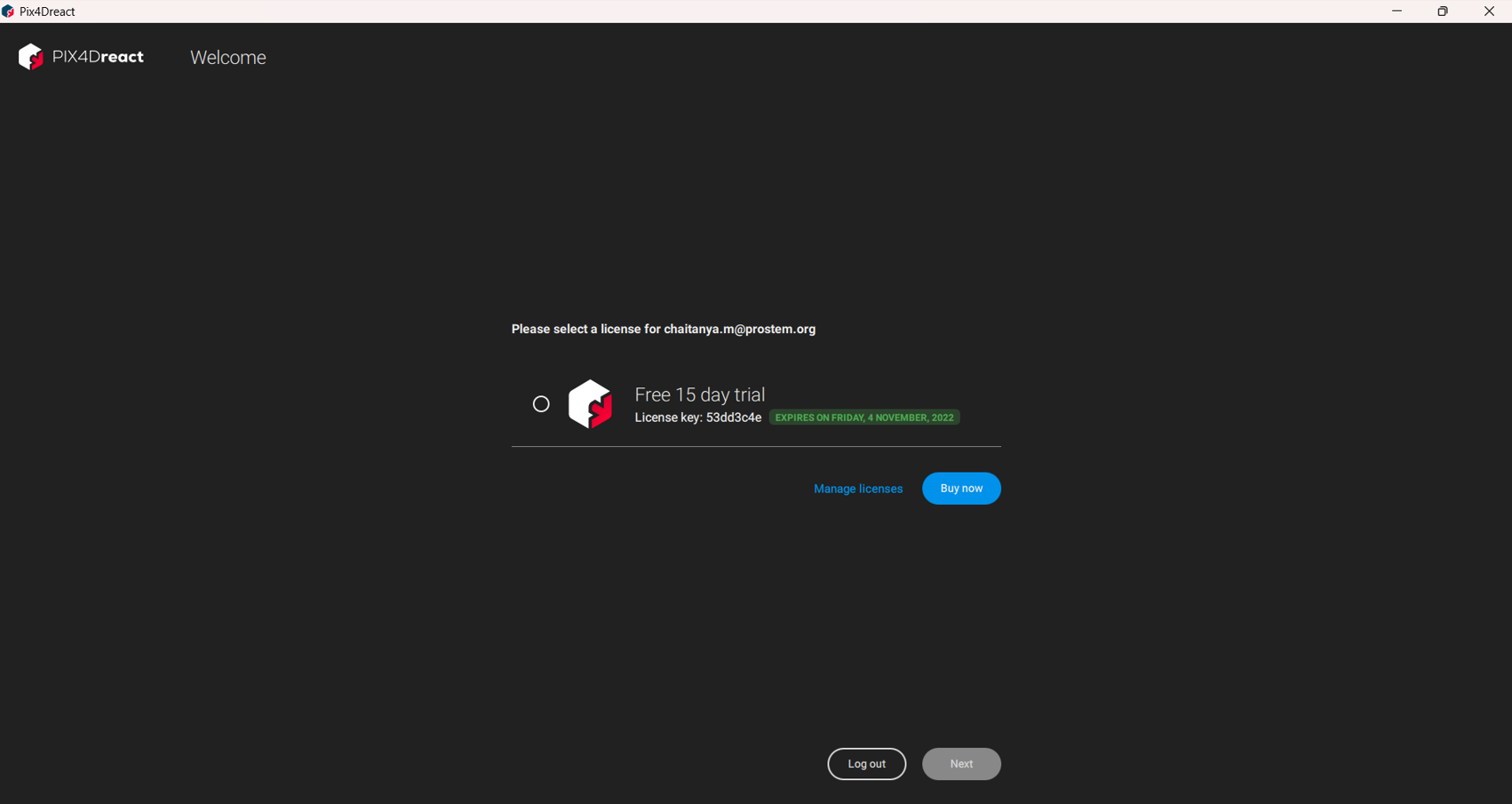
- Confirm the version features and click Ok to launch the application.
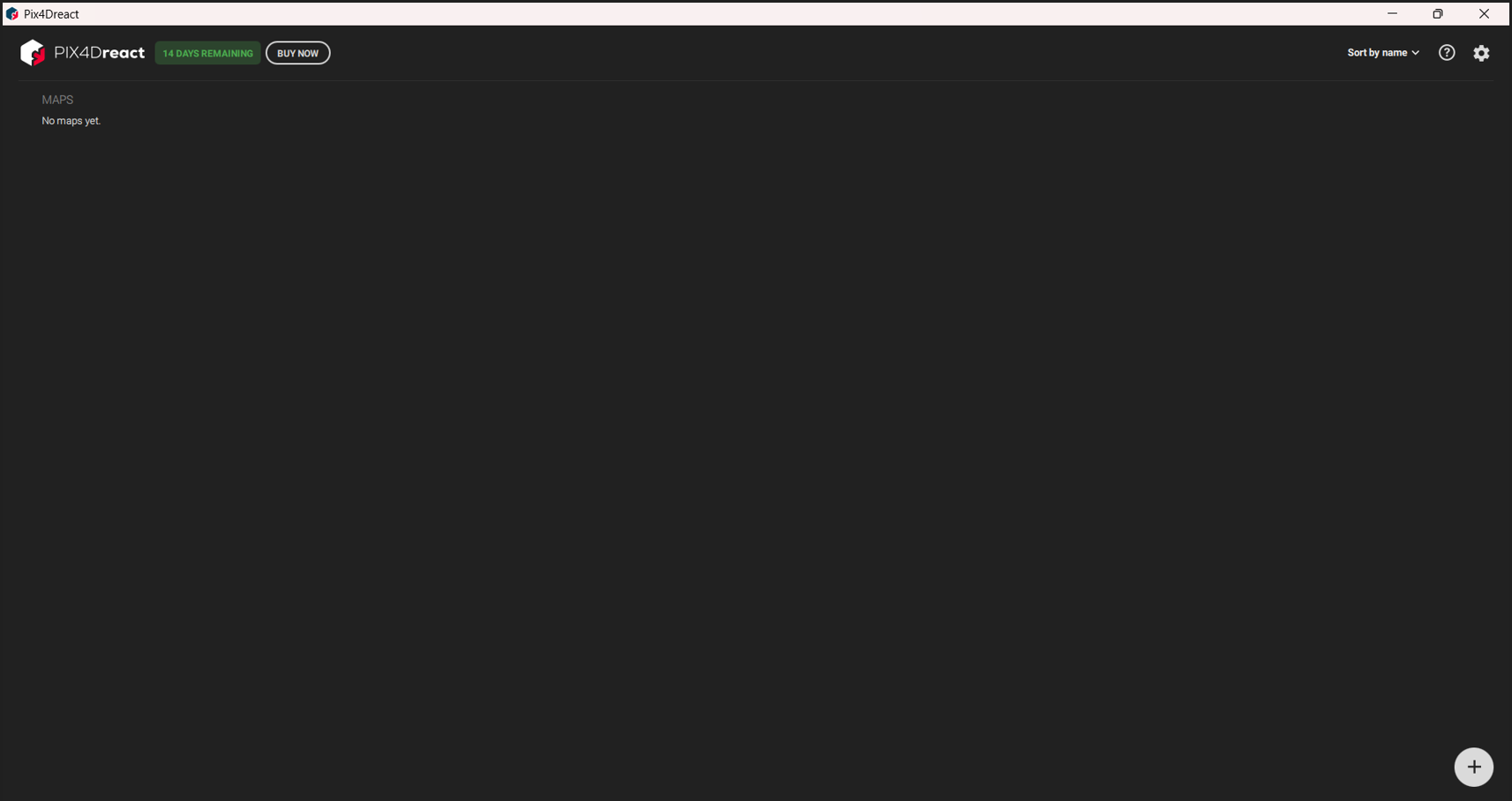
2. Import Images
- Click the Add/Plus symbol to import images or entire folders.
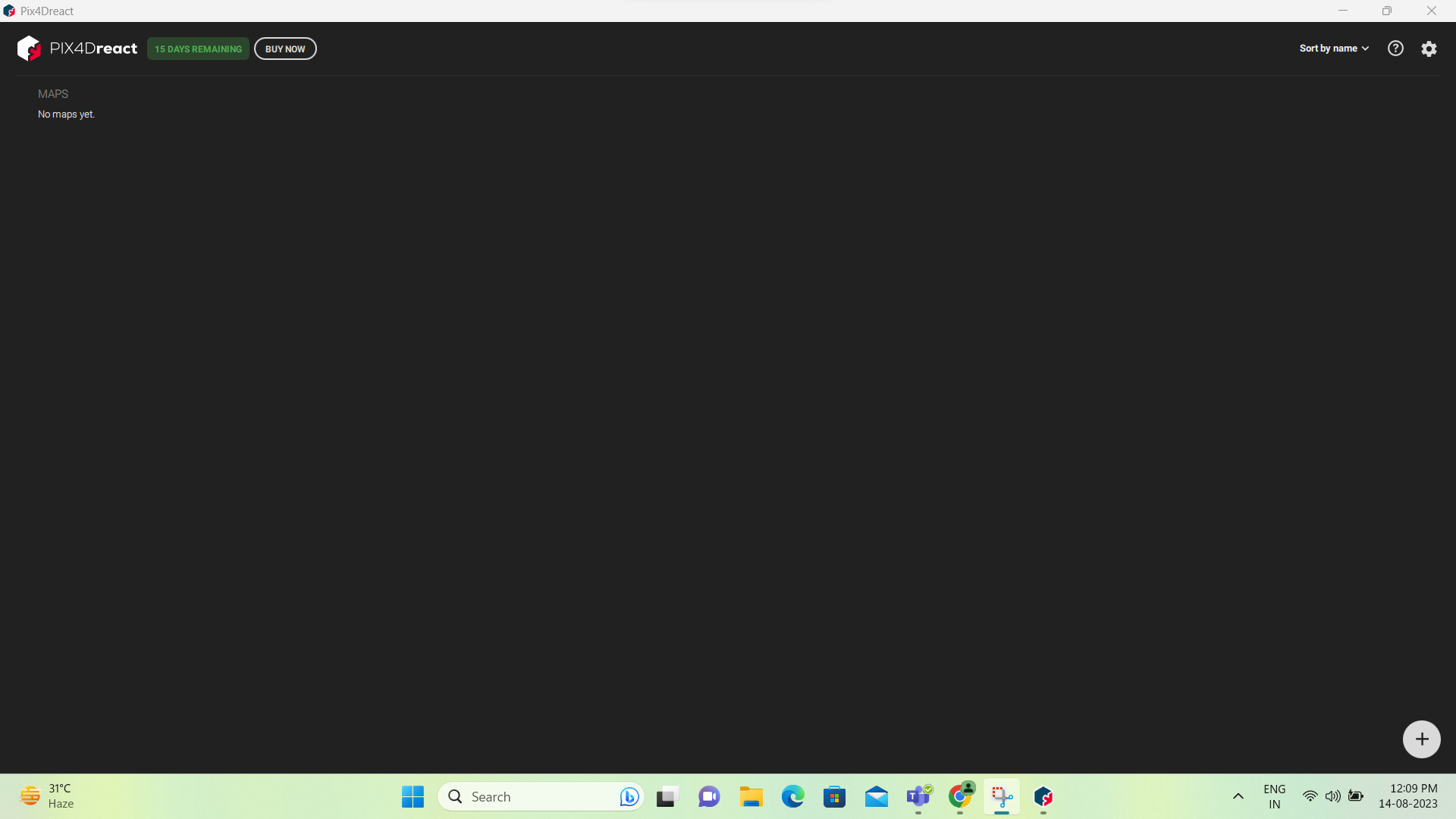
- For Pix4D Matic exports, use Import Ortho mosaic.
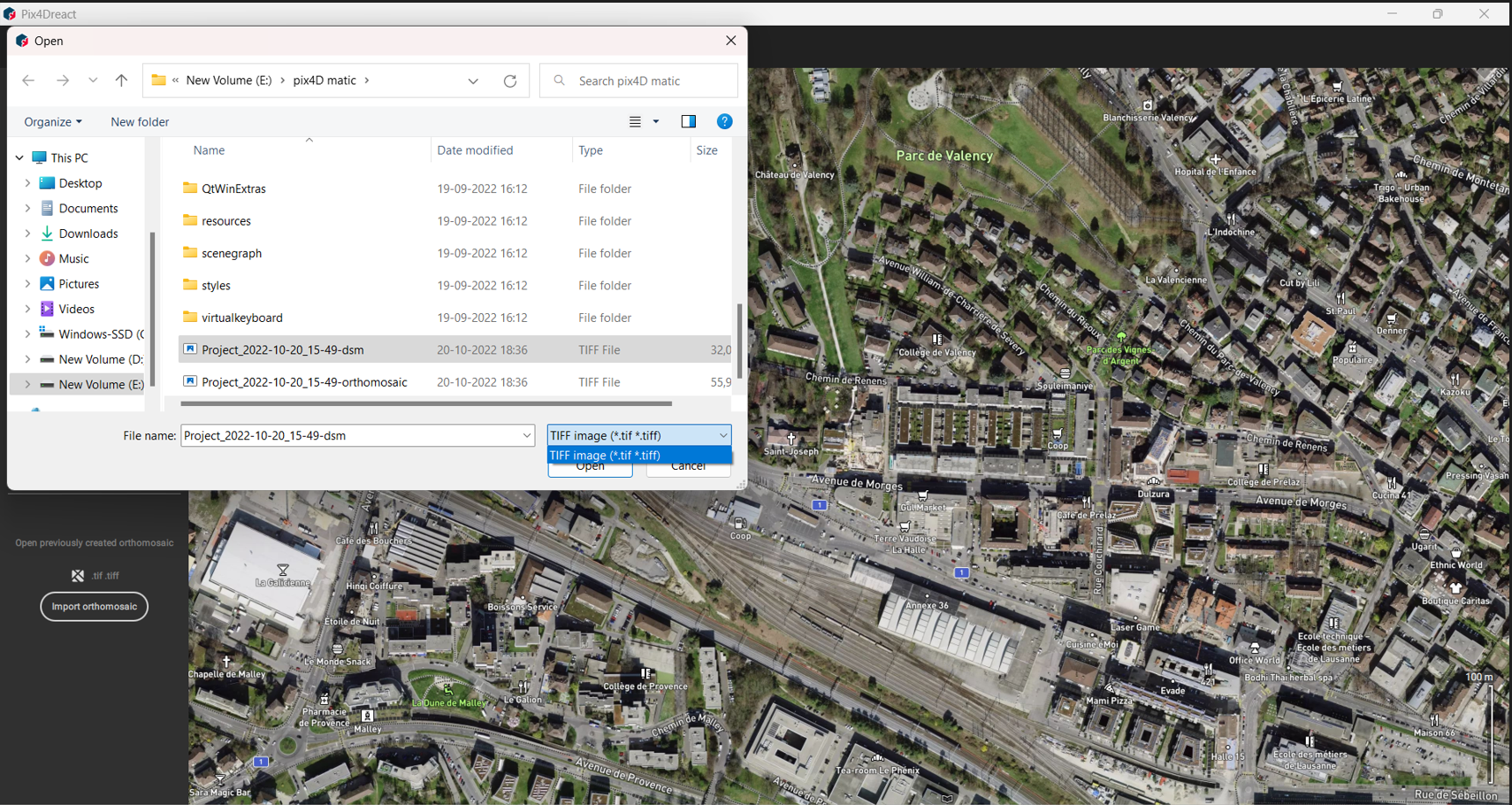
- Select images and click Open, then Start Processing.
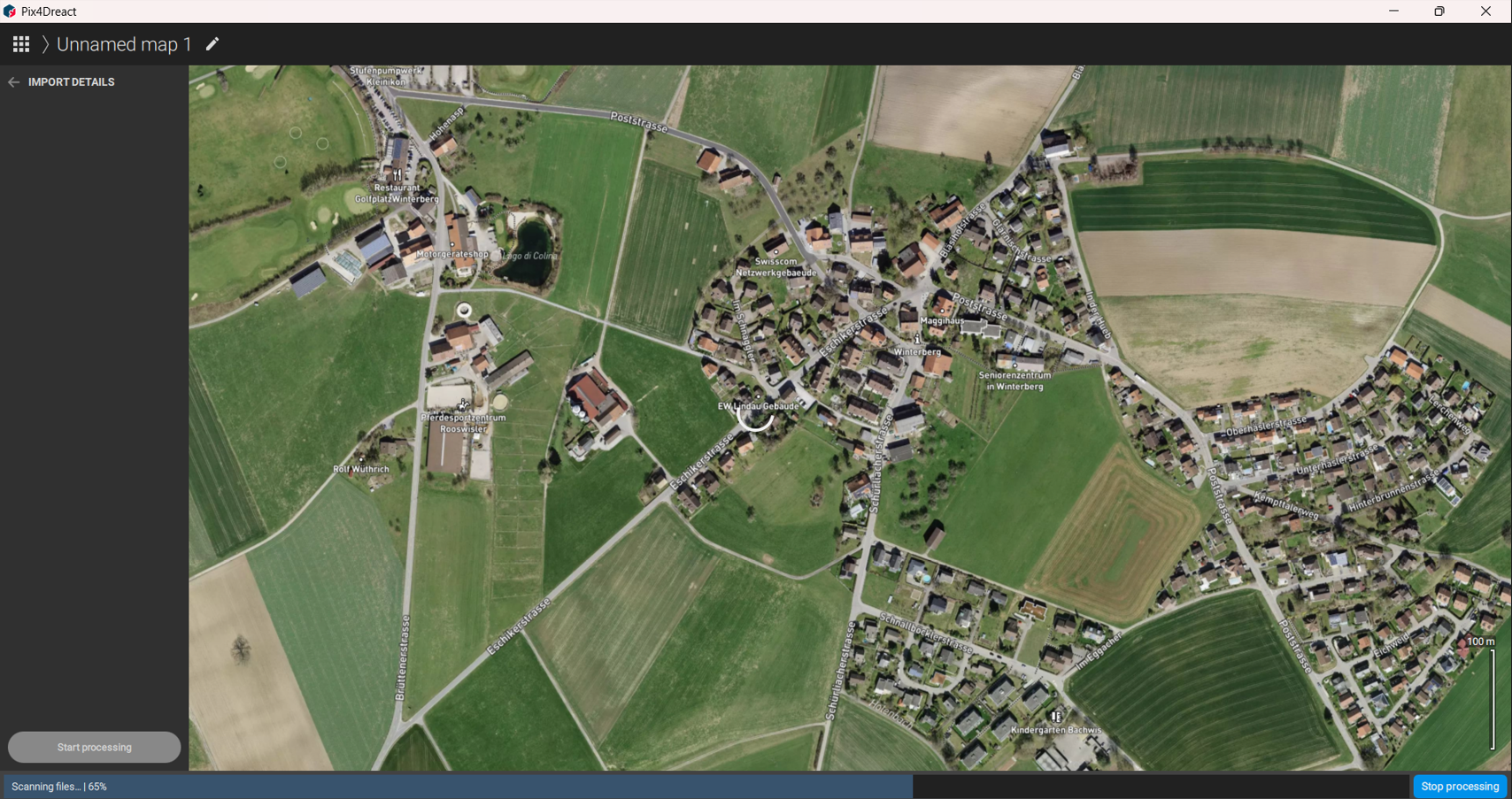
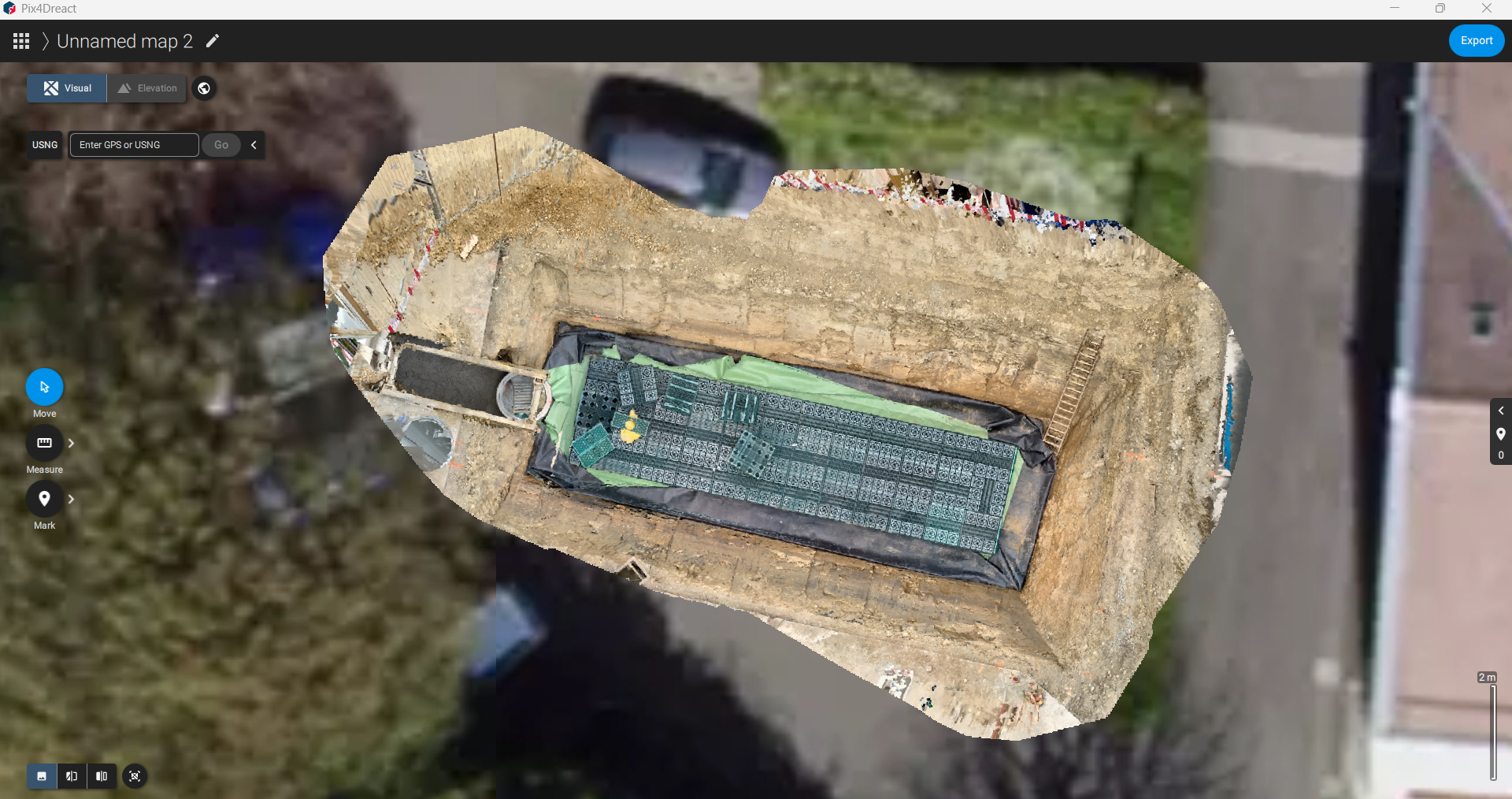
3. View Options
- Normal View
- Double View
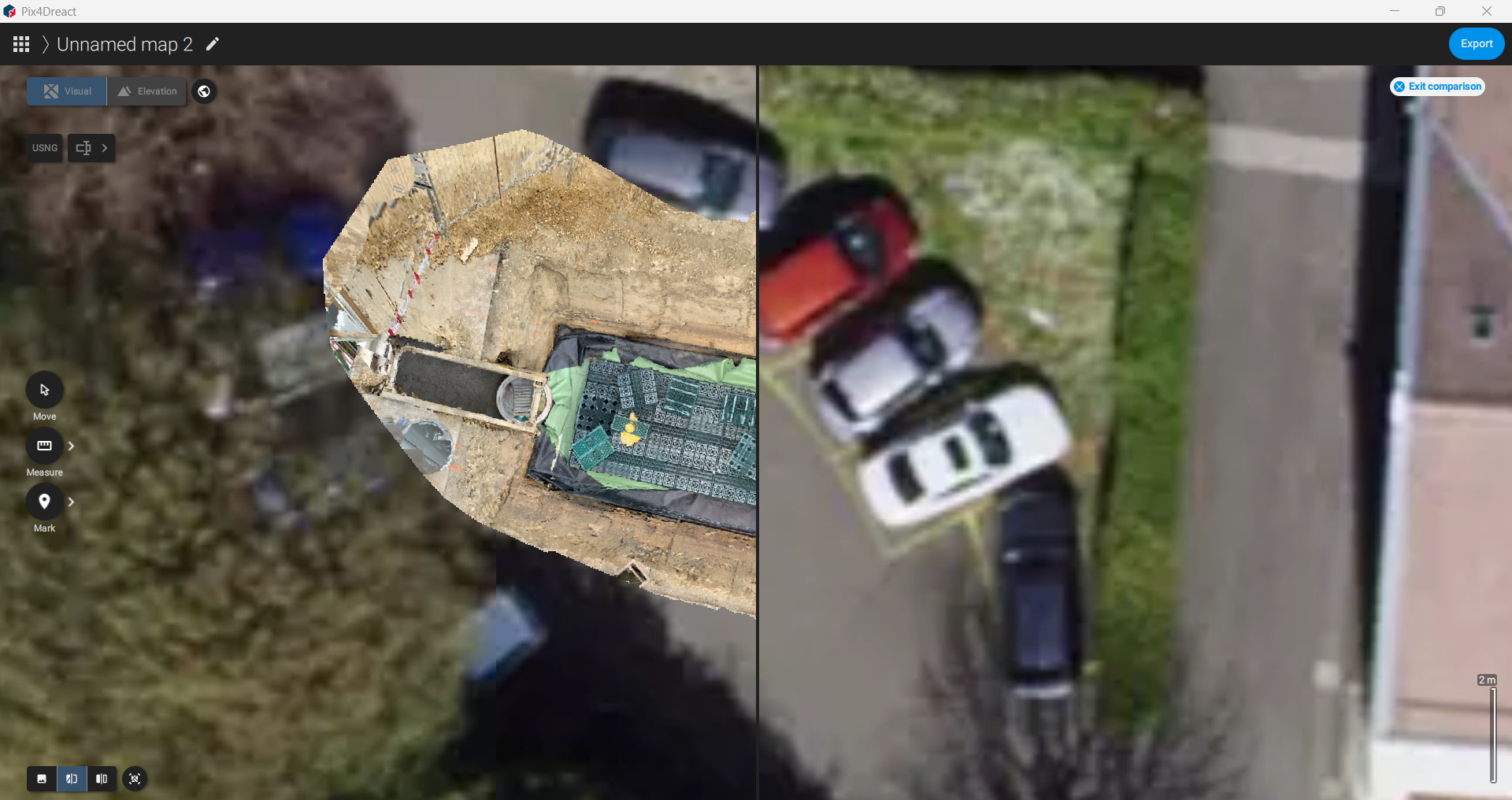
- Split View
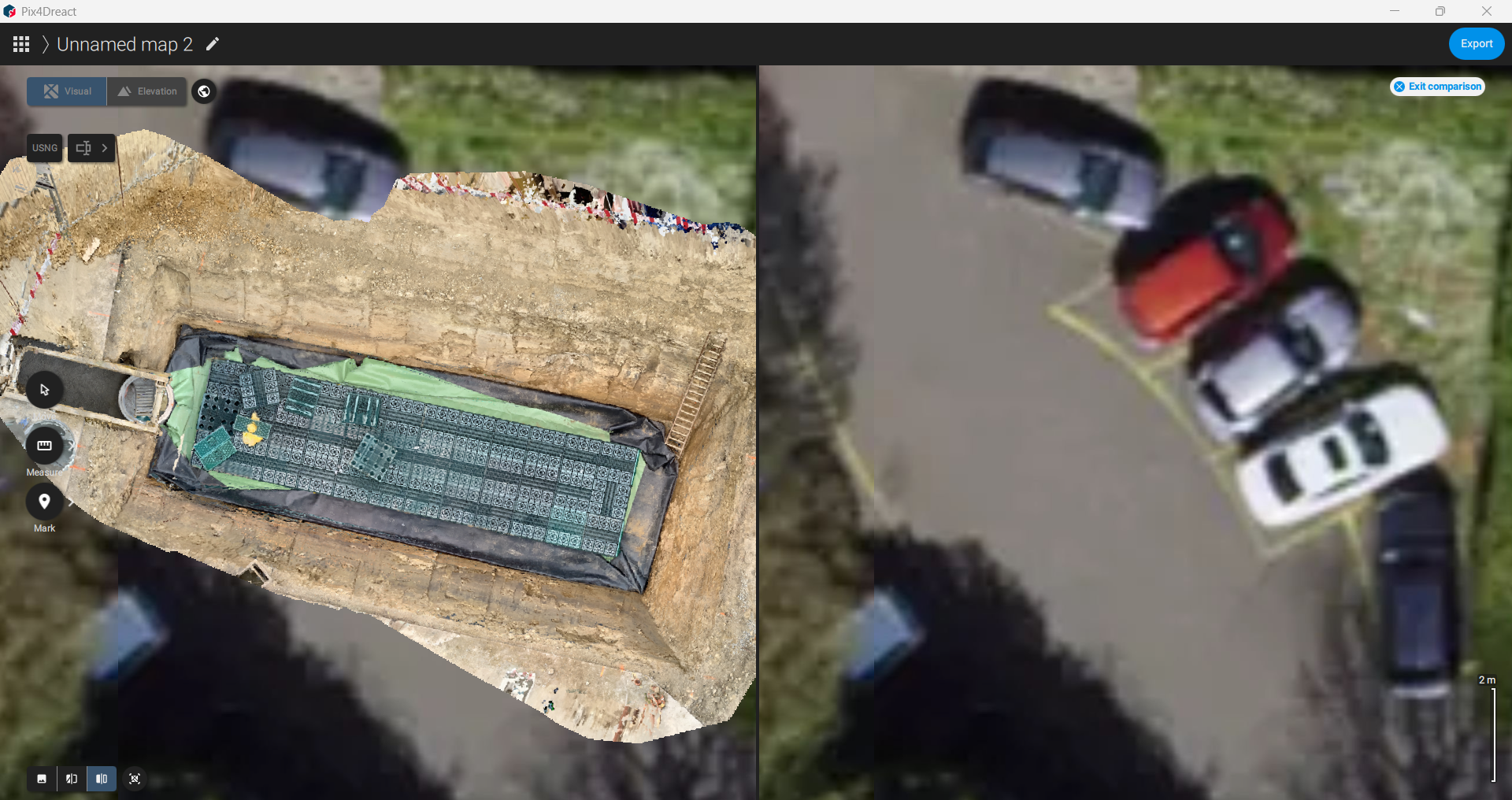
- Zoom to Map
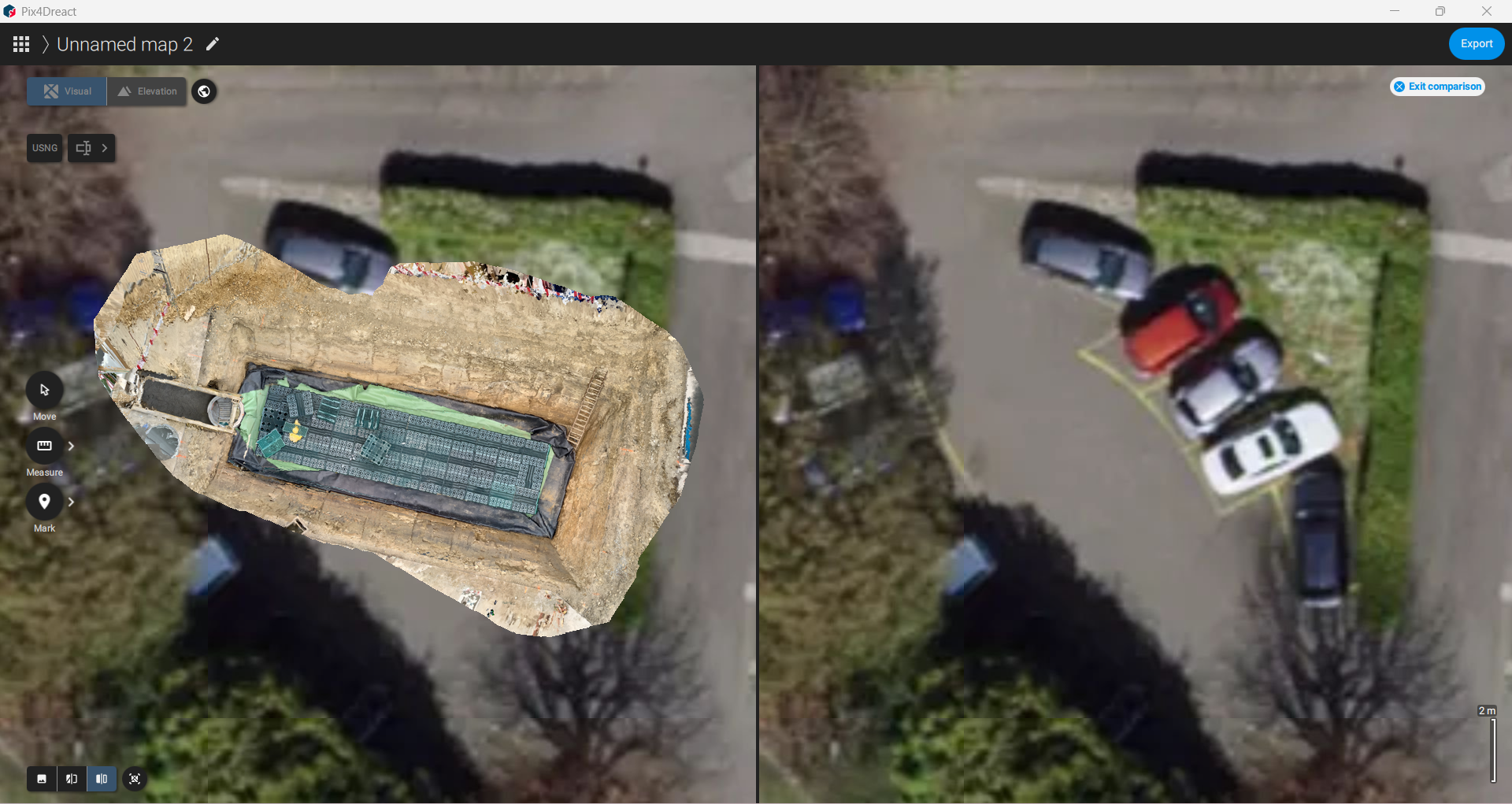
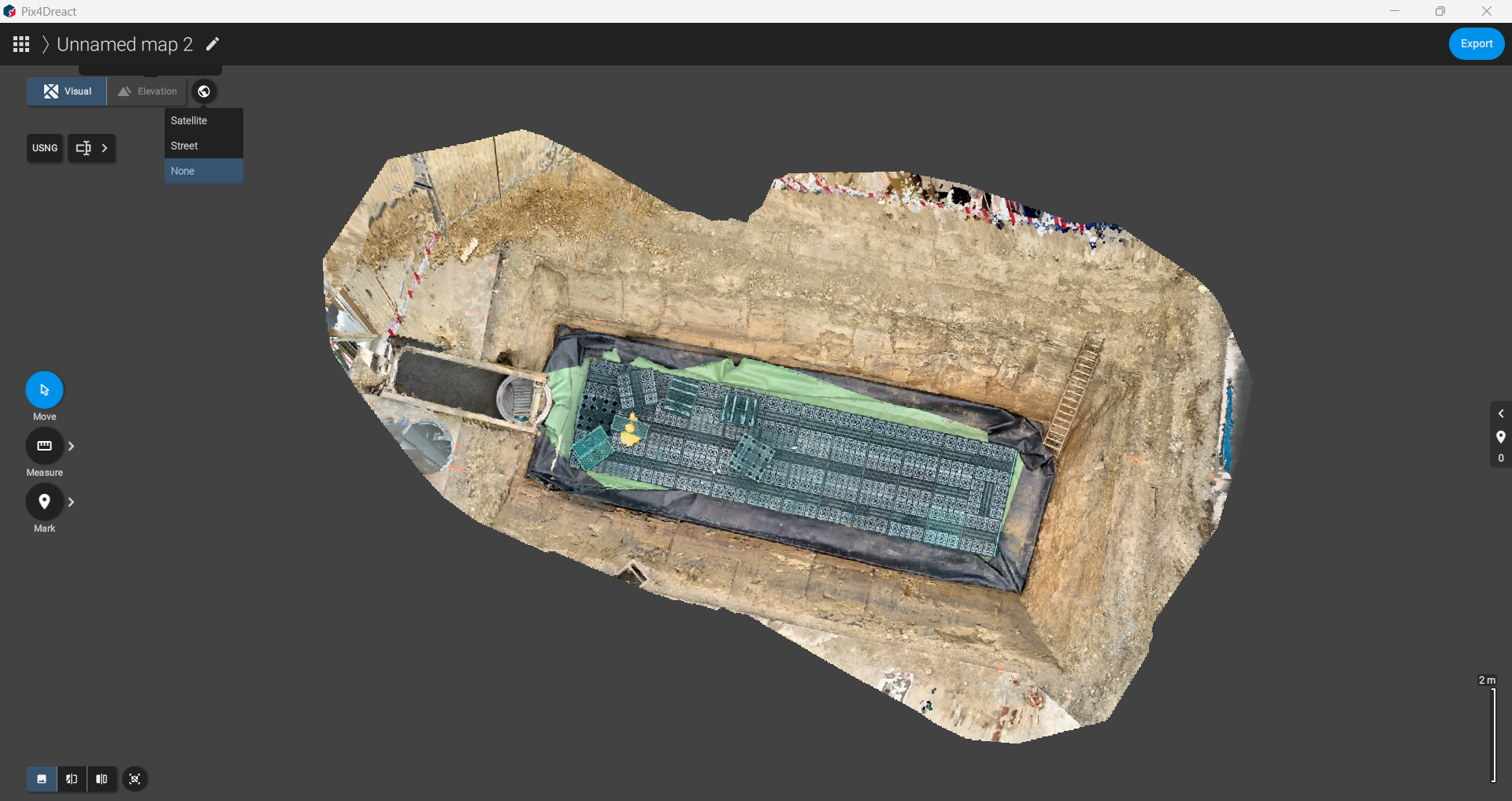
4. Base Map Options
- Globe symbol provides:
- Satellite view
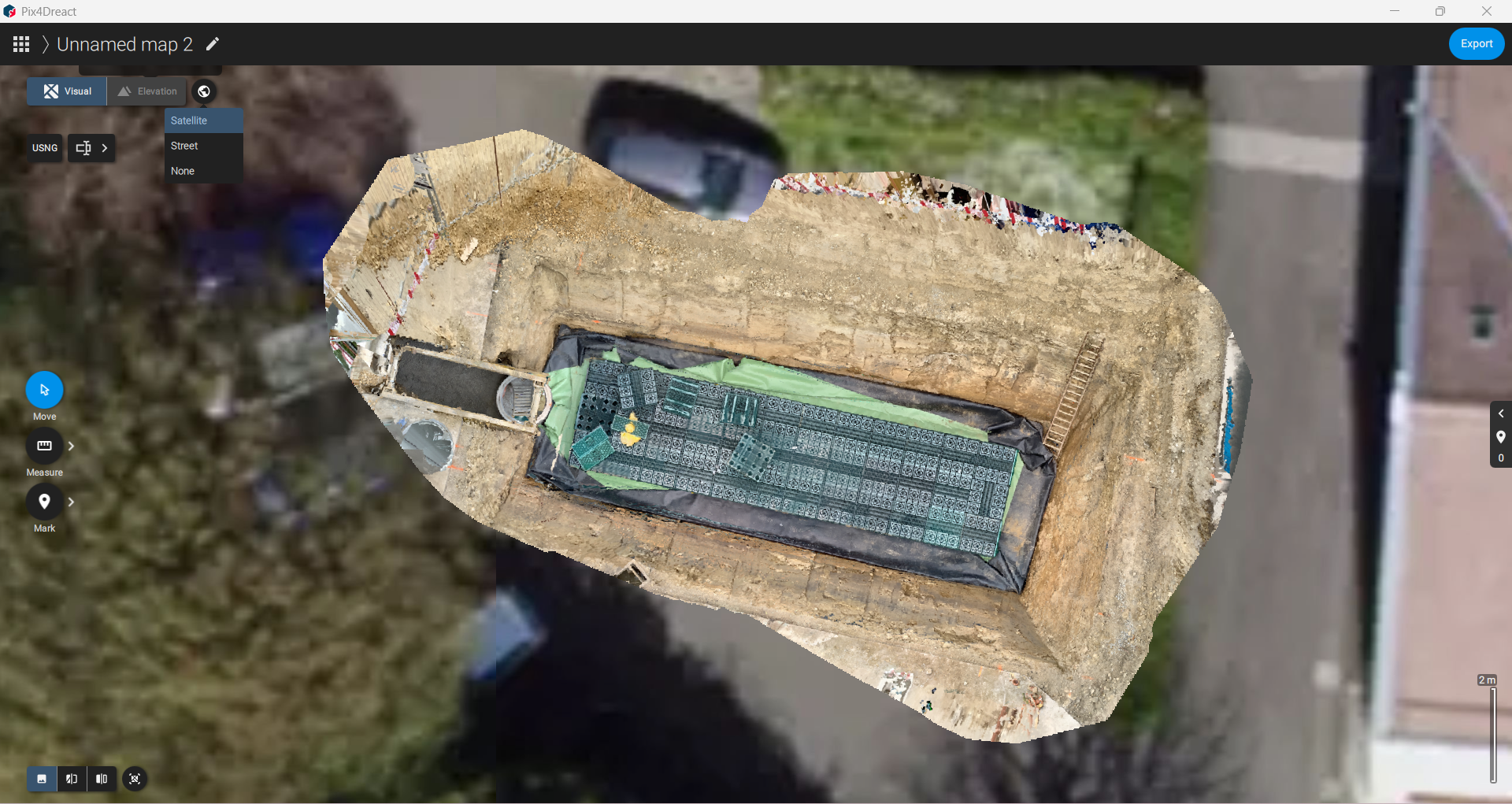
- Street view
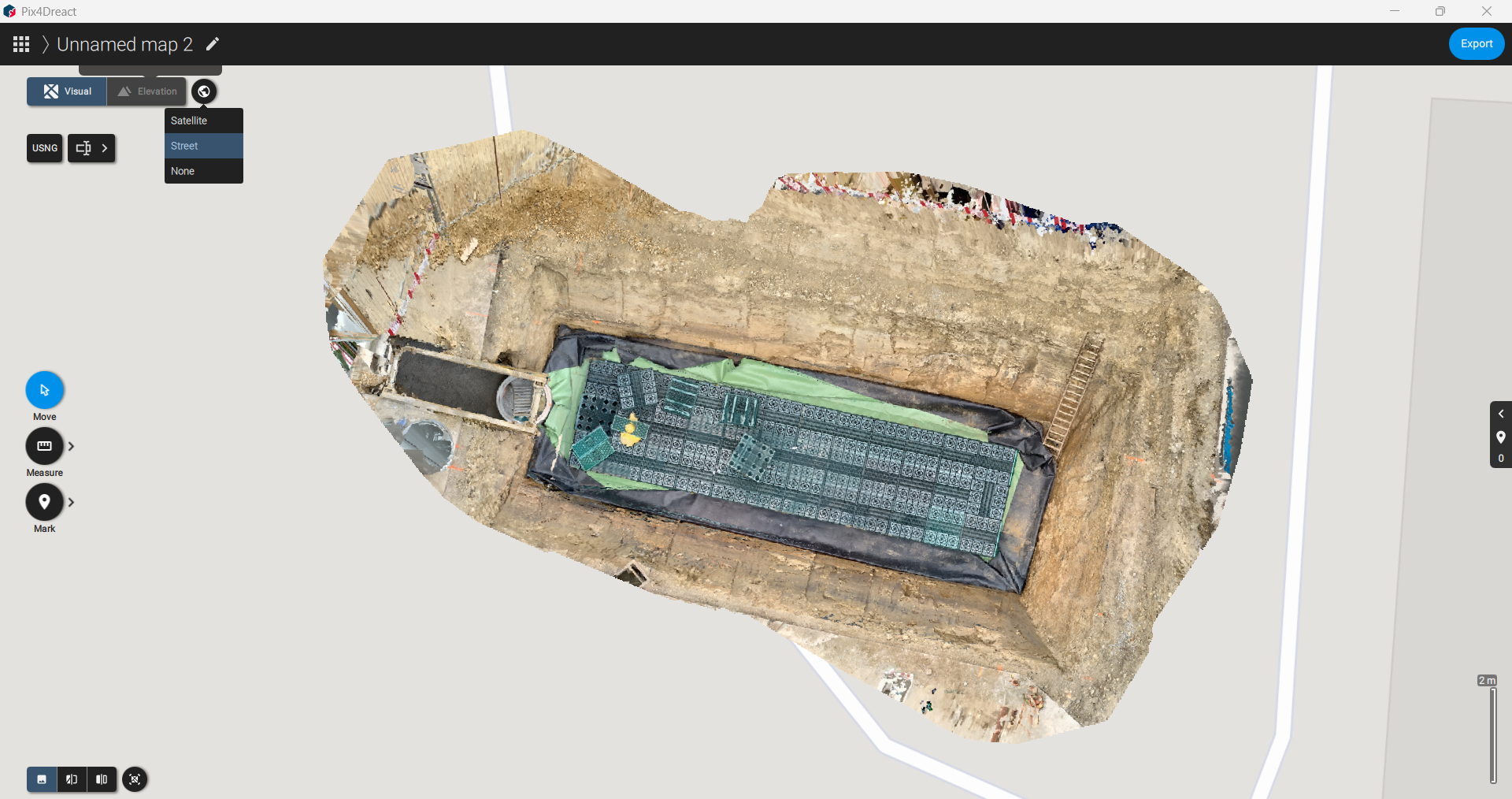
- None
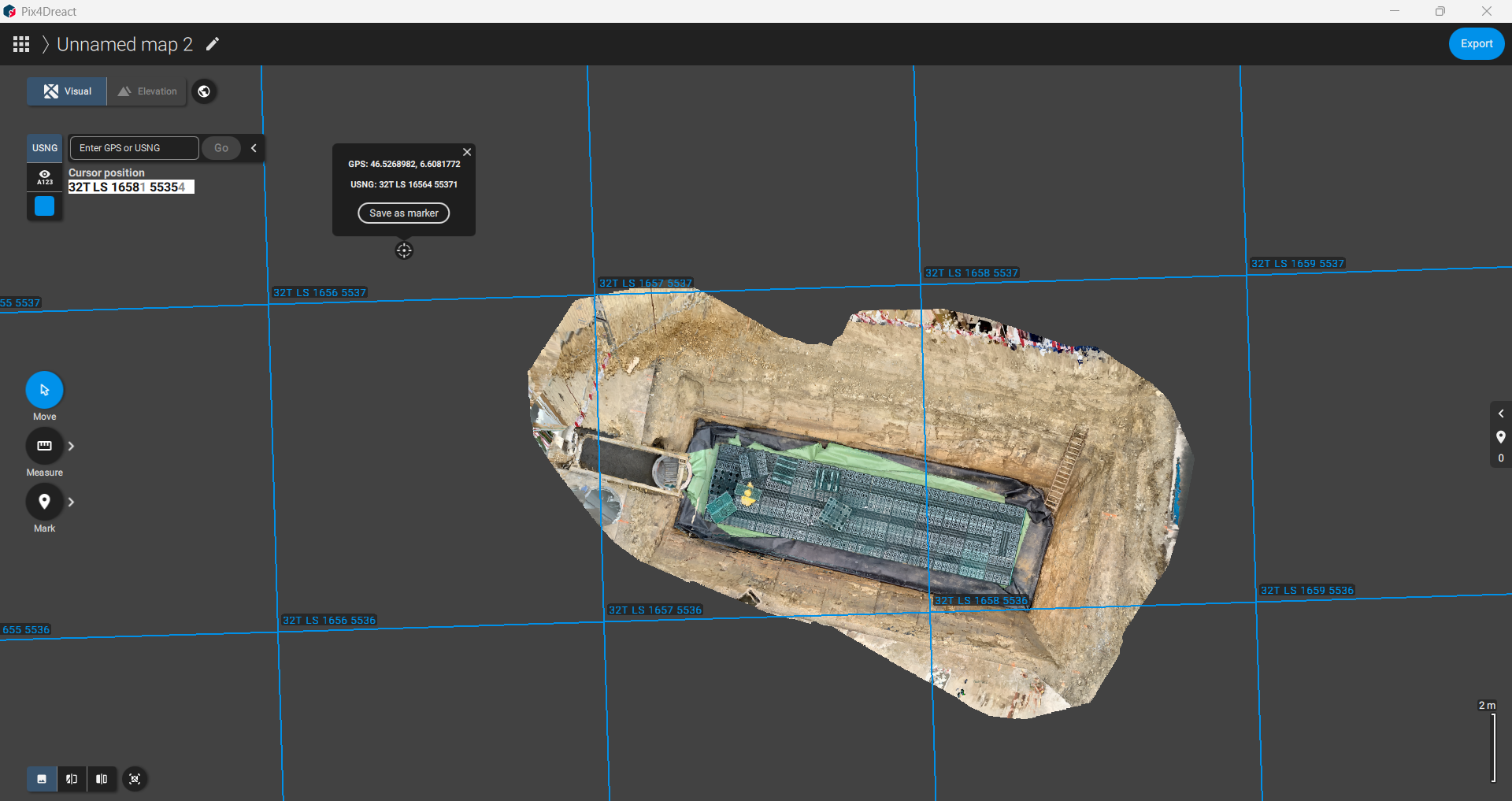
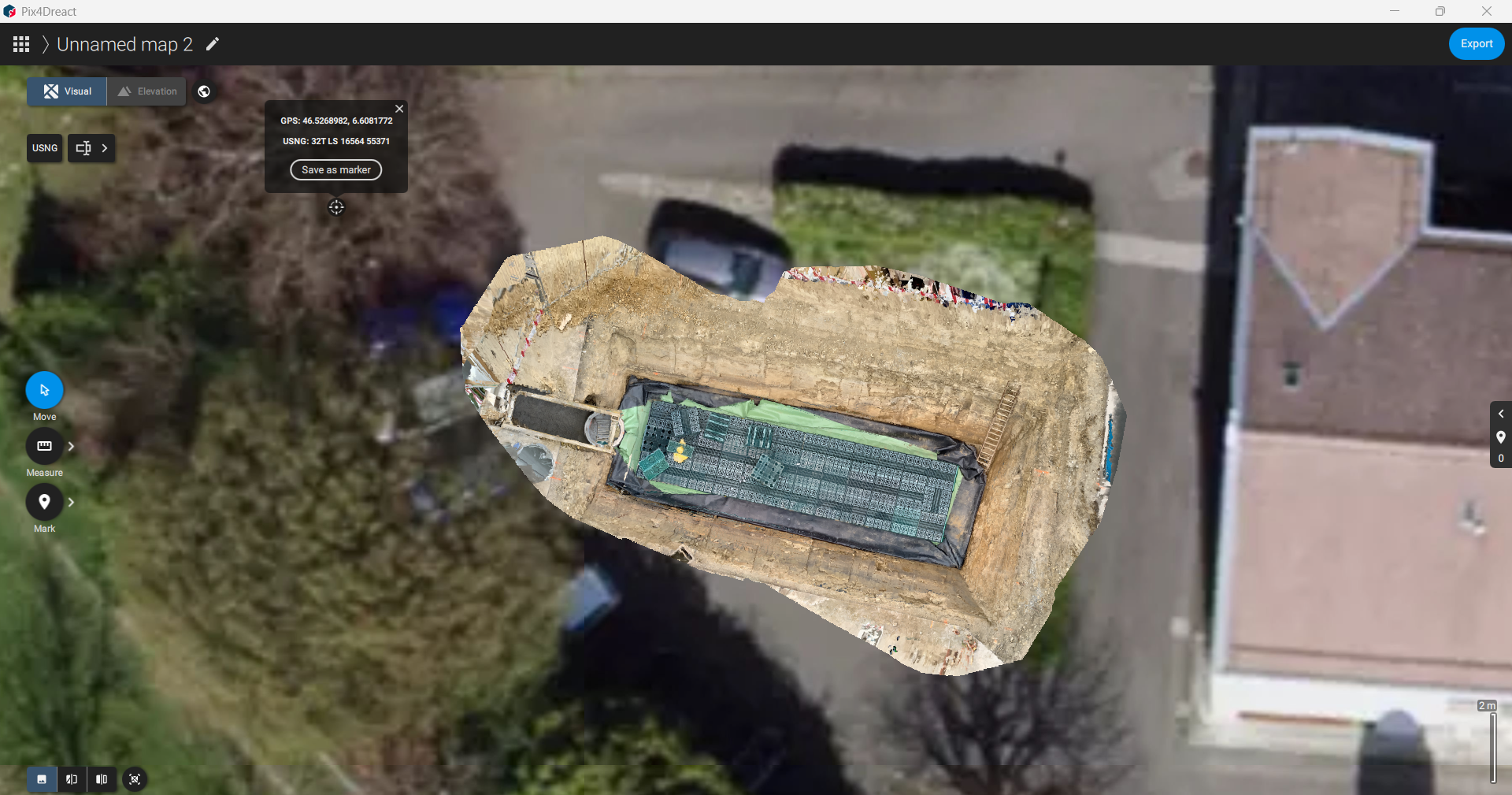
- Satellite view
- USNG scales visible in Visual & Elevation panel
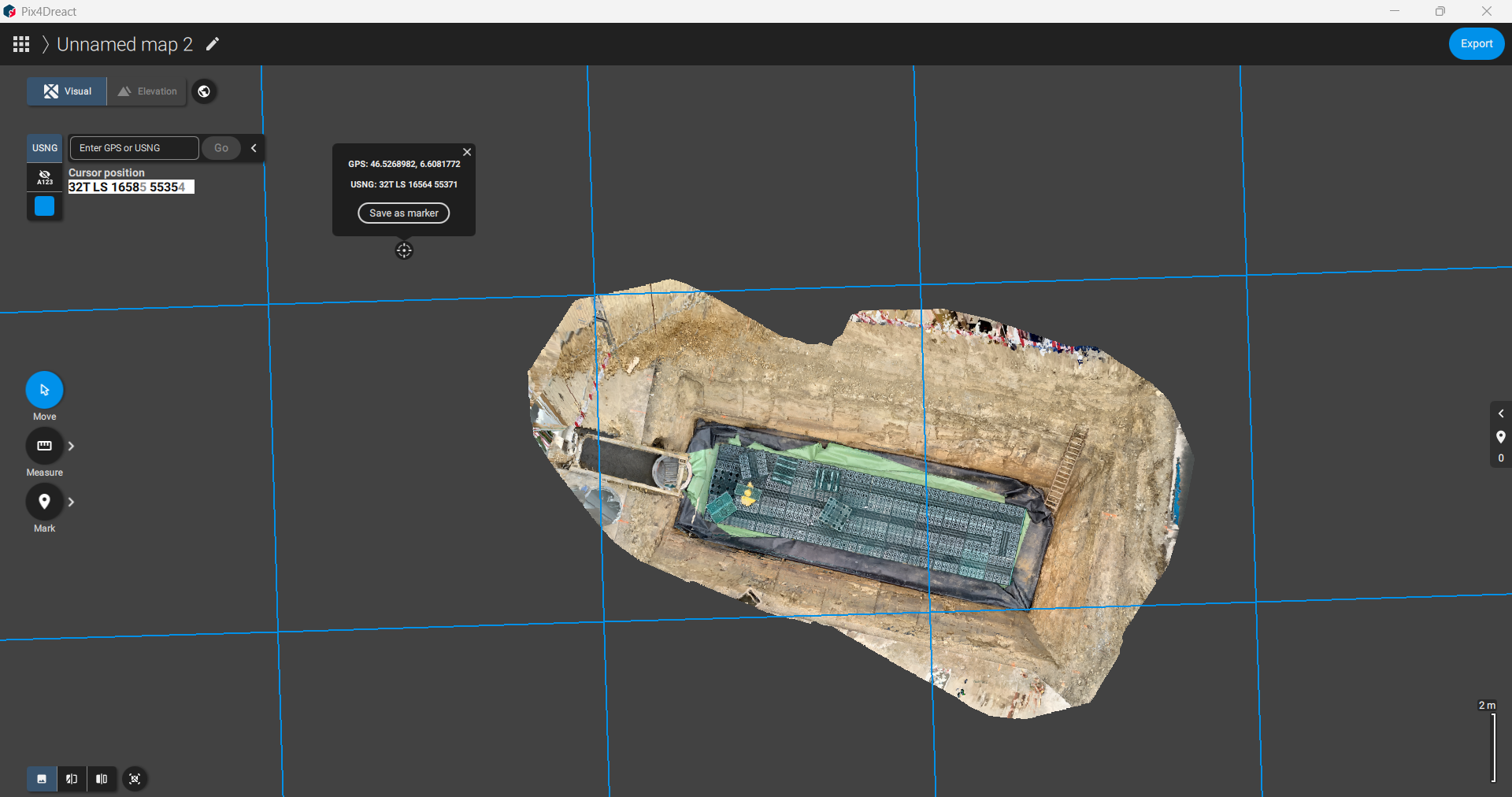
- Eye icon toggles scale numbers on/off
5. Tools & Measurements
- Move: Pan or rotate the processed file.
- Measure: Distance and area measurements (line & polygon).
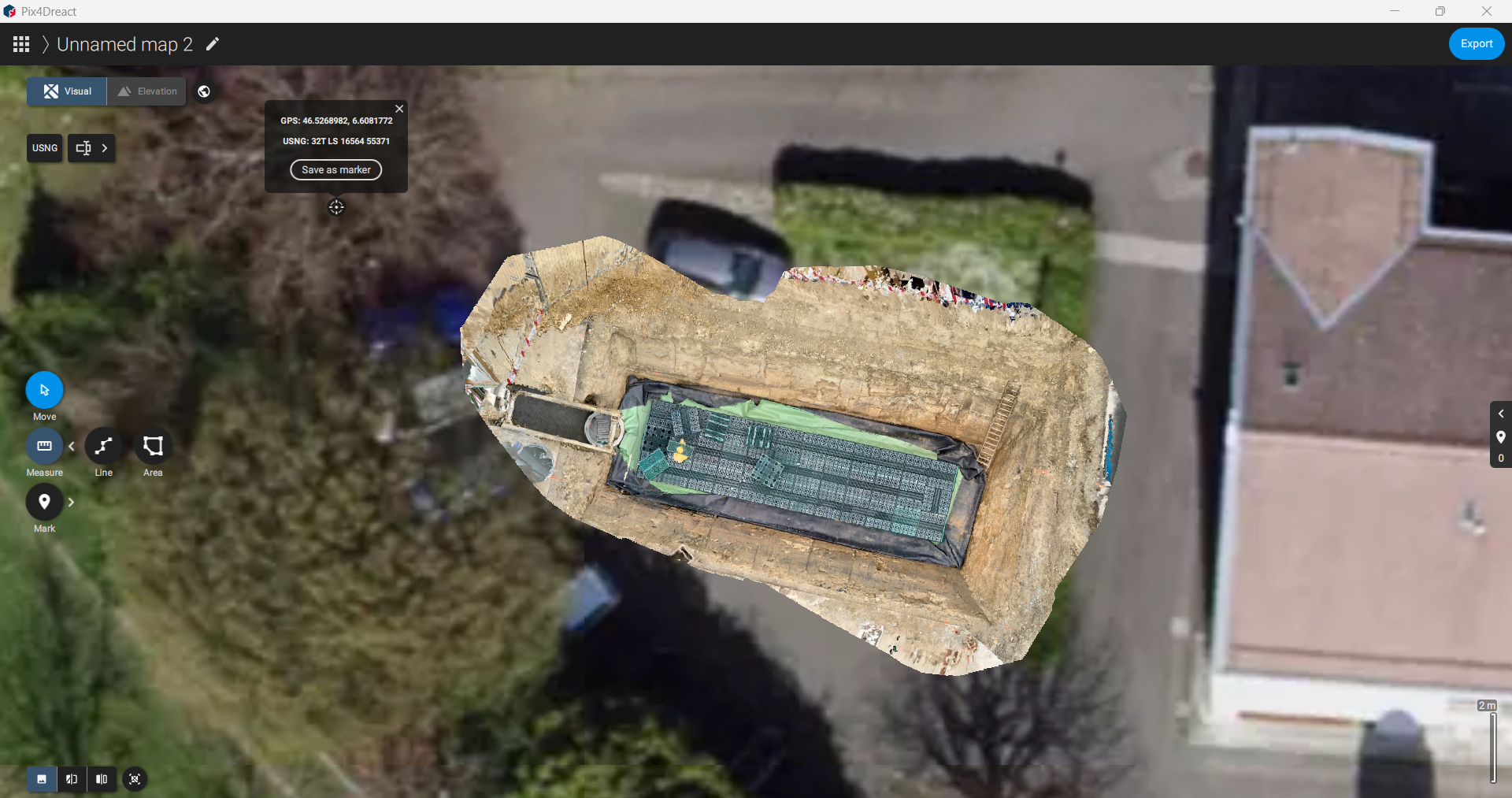
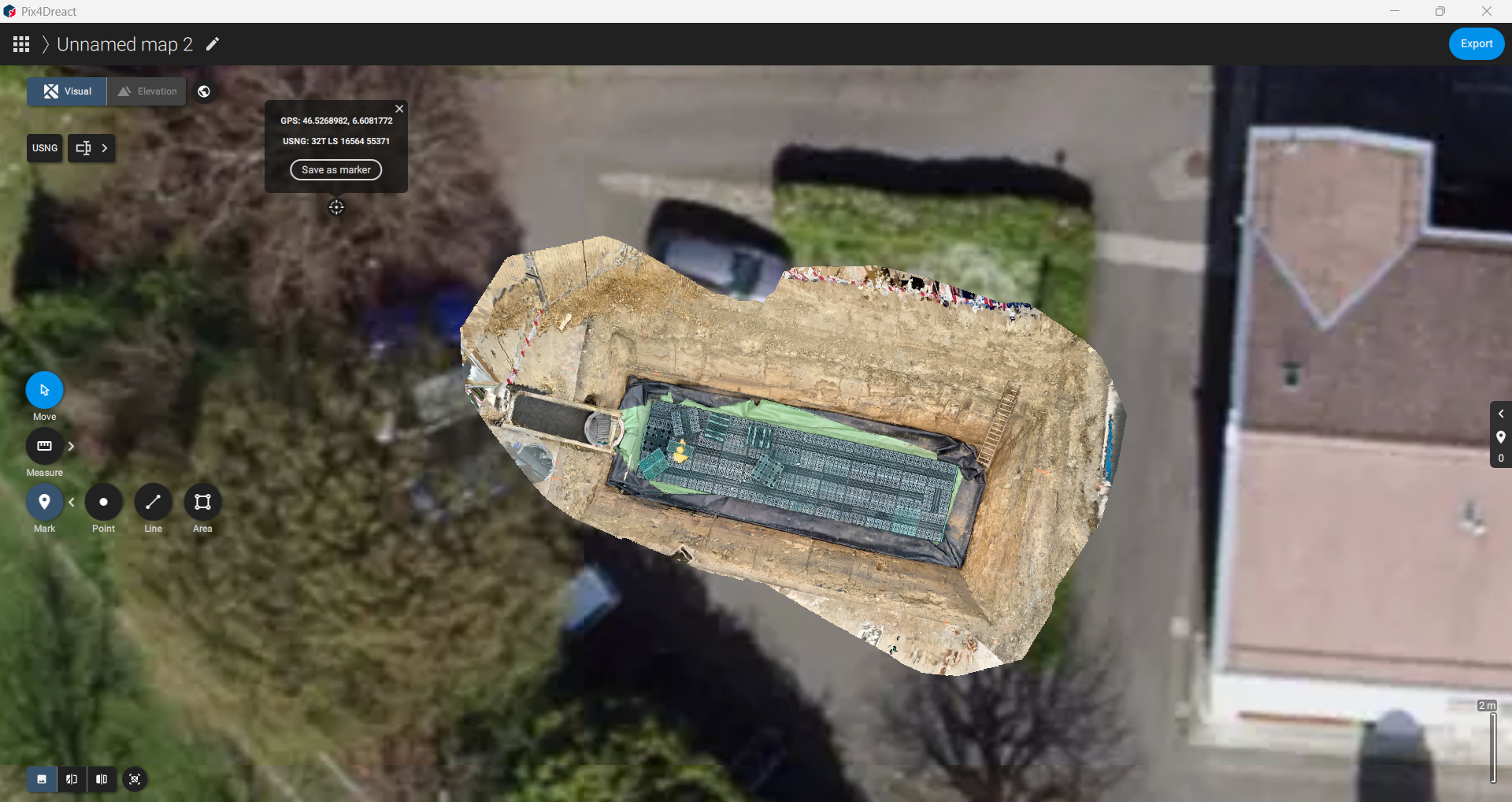
- Mark: Place points and add names.
- Line: Draw and name boundaries.
- Area: Define areas and assign names.
6. Export Options
- Click Export on the top-right.
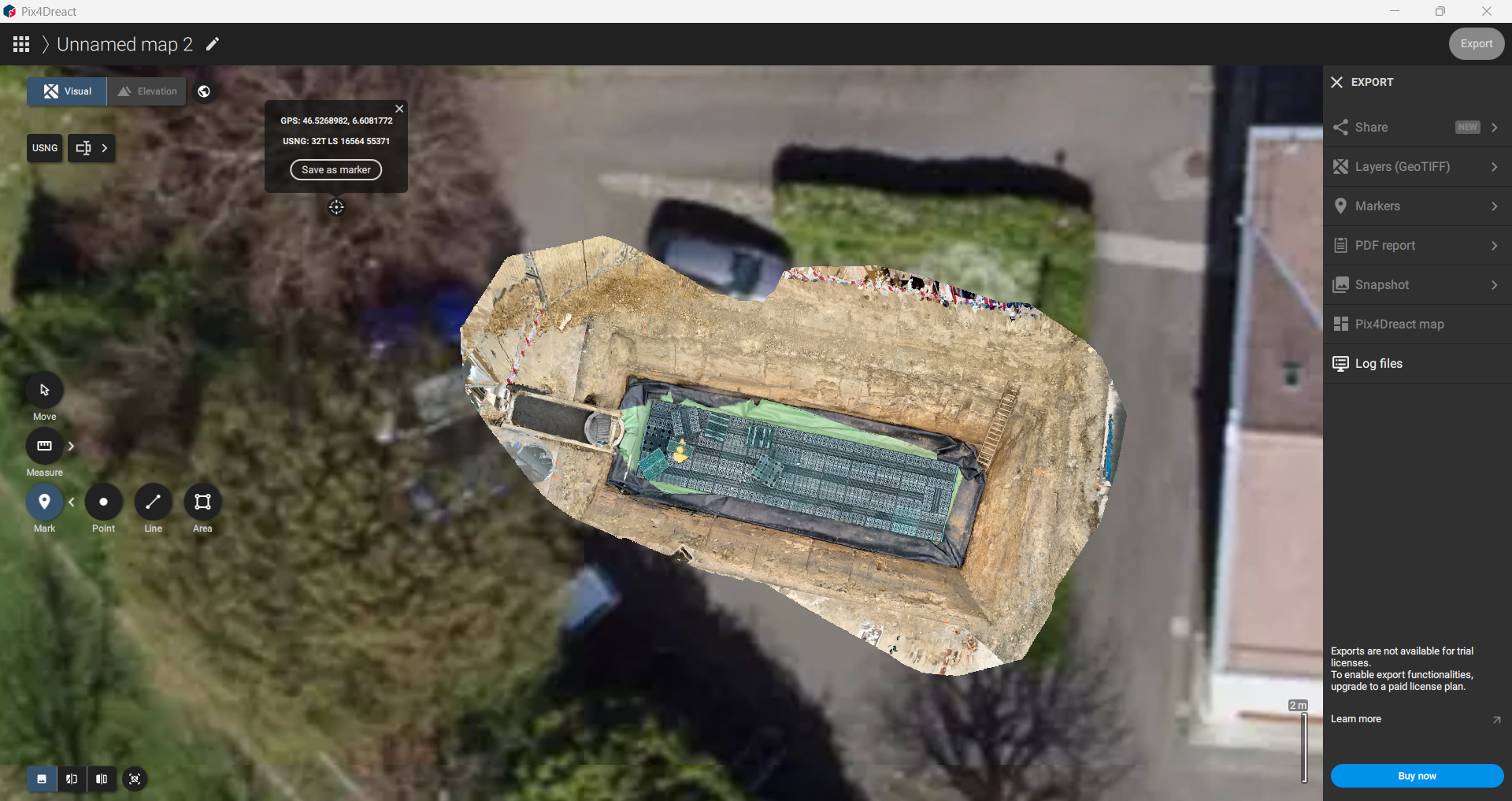
- Trial version supports only Log File Export. Full export options require a licensed version.