Steps to Create Action
Actions
Steps to Create an Action
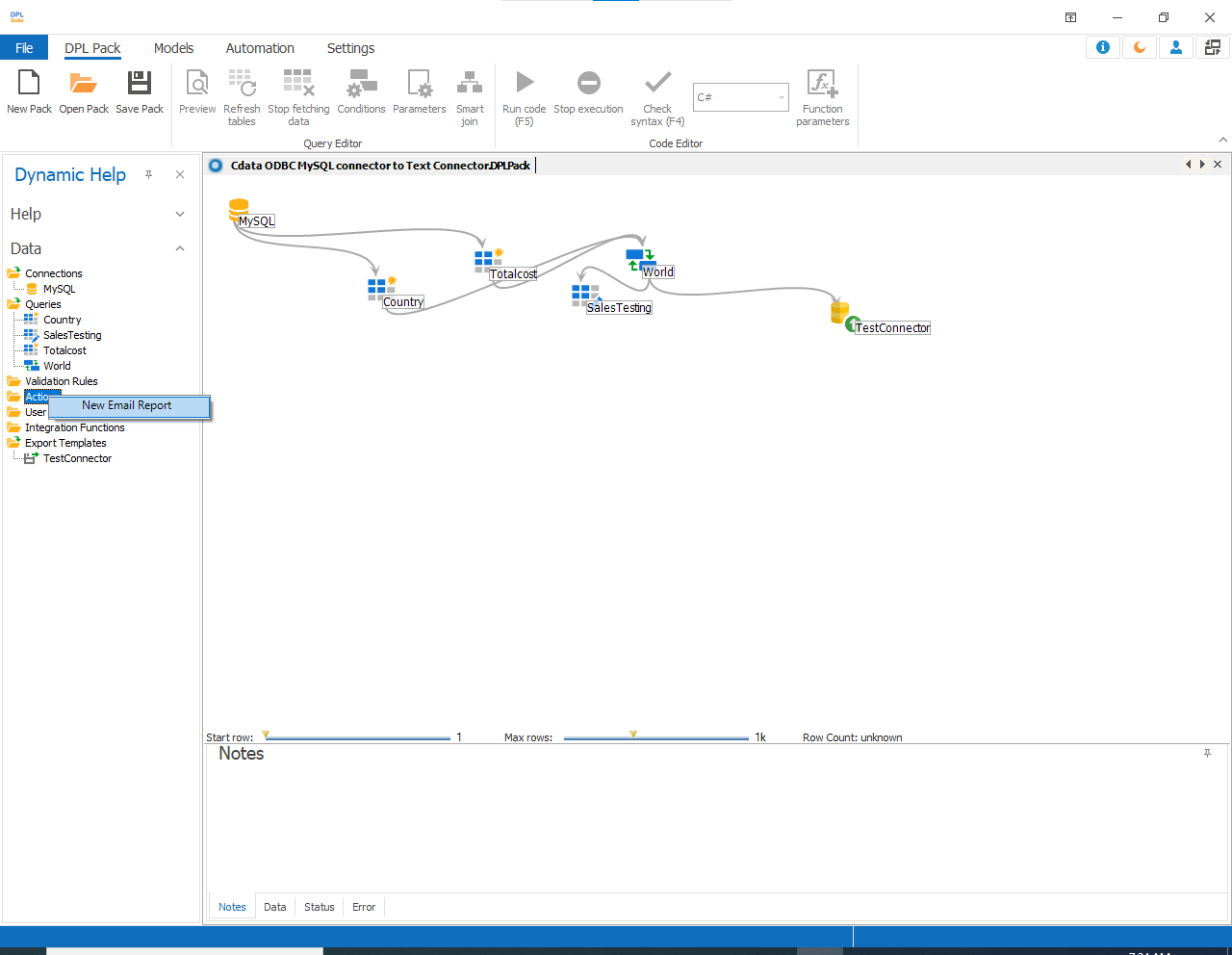
- Create one or more queries such as: Standard Query, Advanced Query, Aggregate Query, Transform Query
-
In the Data pane, right-click Actions and select New Email Report.
-
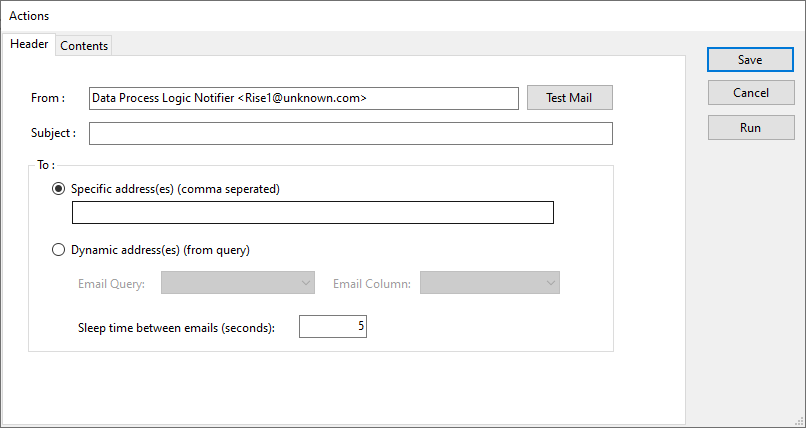
In the Action window, under the Header tab:
-
Enter the sender email address in the From field.
-
Enter the email Subject.
-
Click Test Mail to verify the email configuration.
-
To manually specify email recipients:
a. Select Specific Address(es) {Comma separated}
b. Enter one or more email addresses separated by commas.
-
To retrieve email addresses dynamically from a query:
a. Select Dynamic Address(es) {from query}
b. Select the required: Email Query, Email Column
c. Specify the Sleep Time between emails.
-
To configure the condition, open the Content tab.
-
Provide the following details: Condition Query, Message, Table to Include, Maximum Rows
-
Click Save to save the Action.
-
Click Run to execute the Action.
-
The email will be sent only when:
a. The specified condition evaluates to True, and
b. The result exceeds the configured Maximum Rows count.

All these configurations can be created and managed within DPL Studio.