Creating Standard Queries
DPL Studio ›› Data Selection: Queries>>Standard Queries>>
Creating Standard Queries
Creating a Standard Query
- To Create a New Standard Query should have minimum one existing pack or create the new pack,
- Navigate to the Models à New Standard Query or Right click choose New Standard Query
Add a Table
- Available tables from the connected data source will be displayed in the right panel.
- Drag and drop the required table into the workflow.
Select Fields
- Select the required columns using the checkboxes.
- To select all fields, click Select All or which fields need select that.
Preview Data
- Navigate to DPL Pack → Preview.
- Verify that the required data is displayed correctly.
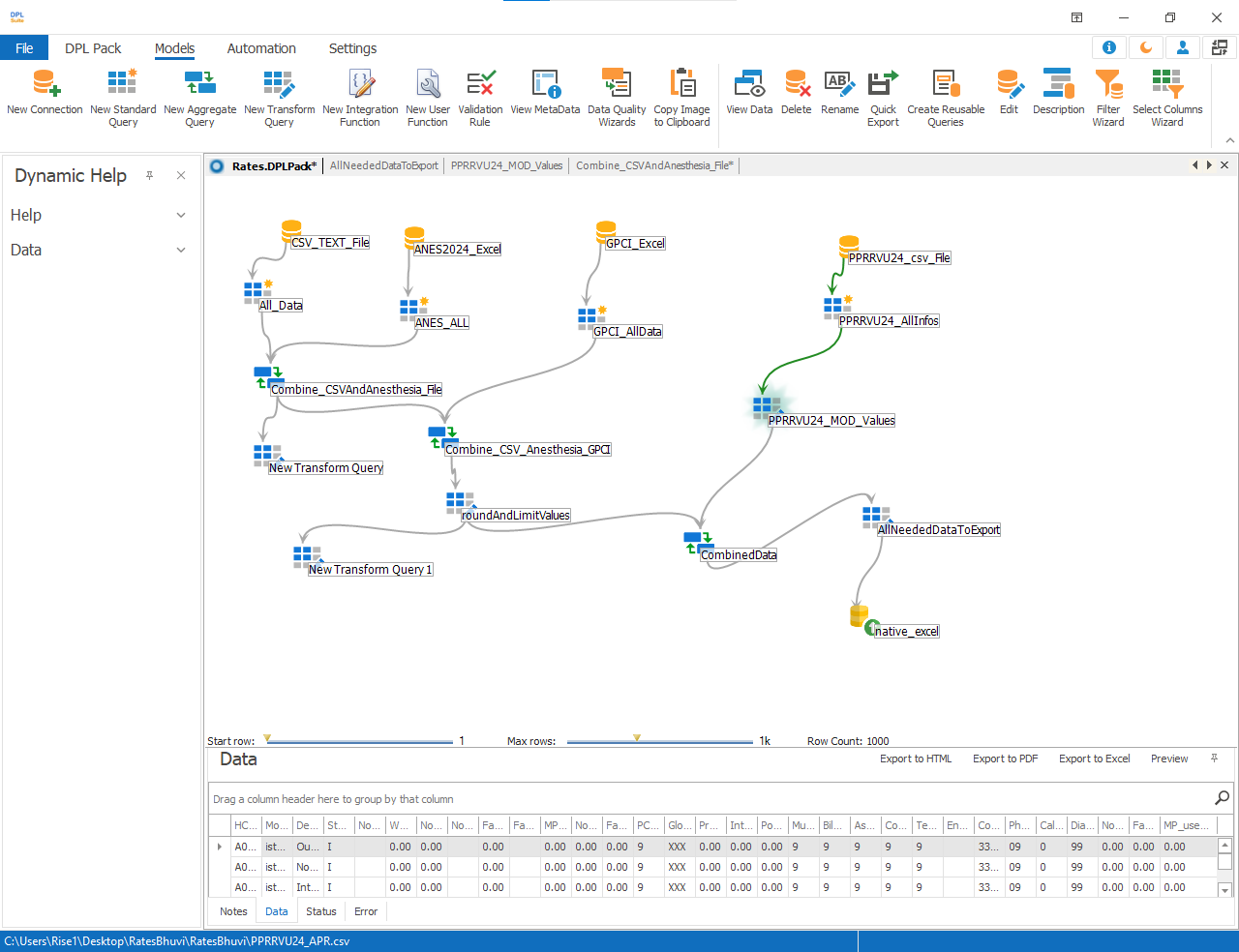
Understanding the Standard Query Menus
The Standard Query Editor contains multiple sections that assist in query creation and management.

Toolbar Options
The toolbar provides quick access to commonly used actions:
- View Data – Displays the selected table data
- Delete – Removes the selected item
- Rename – Renames the selected query or field
- Quick Export – Exports query results directly
- Create Reusable Queries – Creates reusable query components
- Edit – Modifies query settings
- Description – Adds query descriptions or notes
- Filter Wizard – Opens the filter configuration window
- Select Columns Wizard – Allows column selection management
Filtering and Customizing Data
To customize the query output:
- Select a field within the table.
- Right-click on the field.
- A context menu will appear with multiple configuration options.
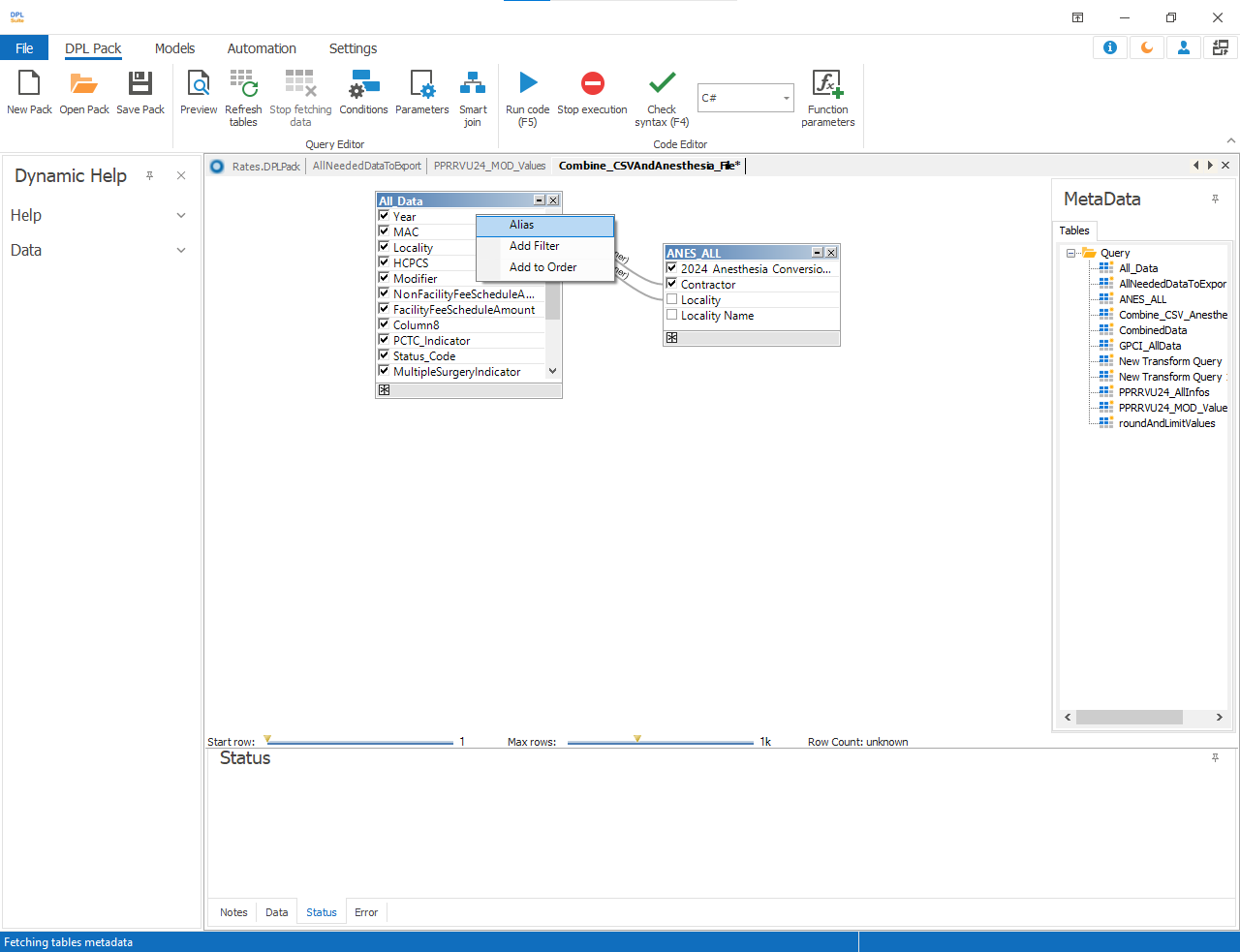
Available Options
- Alias
- Add filter
- Add to group
- Add to order
Alias : Allows the selected field name to be renamed in the query output.
Add Filter : Applies conditions to filter specific records from the dataset.
Add to Group : Groups records based on the selected field. If multiple grouping conditions are added, they will appear under the Group Conditions section.
Add to Order : Sorts data in - Ascending order, Descending order. The sorting configuration will appear under the Order Conditions section.
Finalizing the Standard Query
- Click DPL Pack → Preview to validate the output.
- Save the query after verification.