Creating Transform Queries
DPL Studio ›› Data Selection: Queries>>Transform Queries>>
Creating Transform Queries
New Transform Query
The Transform Query functionality in DPL Studio enables advanced data transformation through a combination of reusable queries and a rich set of built-in and custom functions. The intuitive drag-and-drop interface simplifies the process of applying complex logic, ensuring efficient and accurate data processing.
How to create the Transform Query
-
To create the Transform Query should have minimum one existing pack or create the new pack, with one or more standard or aggregate queries
-
Right-click the Queries folder in the Data pane (bottom left pane) and select New Transformation from the shortcut menu. -or- Right-click a blank space in the background of the document area and select Create Transform Query.
-
The upper right side of the query editor displays a list of the queries in the current DPL package as well as a categorized list of the available DPL functions.
-
Drag and drop the desired tables, fields, and functions to the text box at the bottom of the editor to construct the desired expression. Type in the appropriate DPL expression syntax to connect the drag-and-dropped elements.
-
You can also type all expression elements, values, and syntax directly into the work area.
-
In case that the desired query contains parameter(s), the parameter(s) must be passed to the query by using '({Parameter})' syntax. For example, if the parameter is of text type, the syntax should look like "[[New Standard Query('{Parameter}')]]"
Applying Functions in a Transform Query
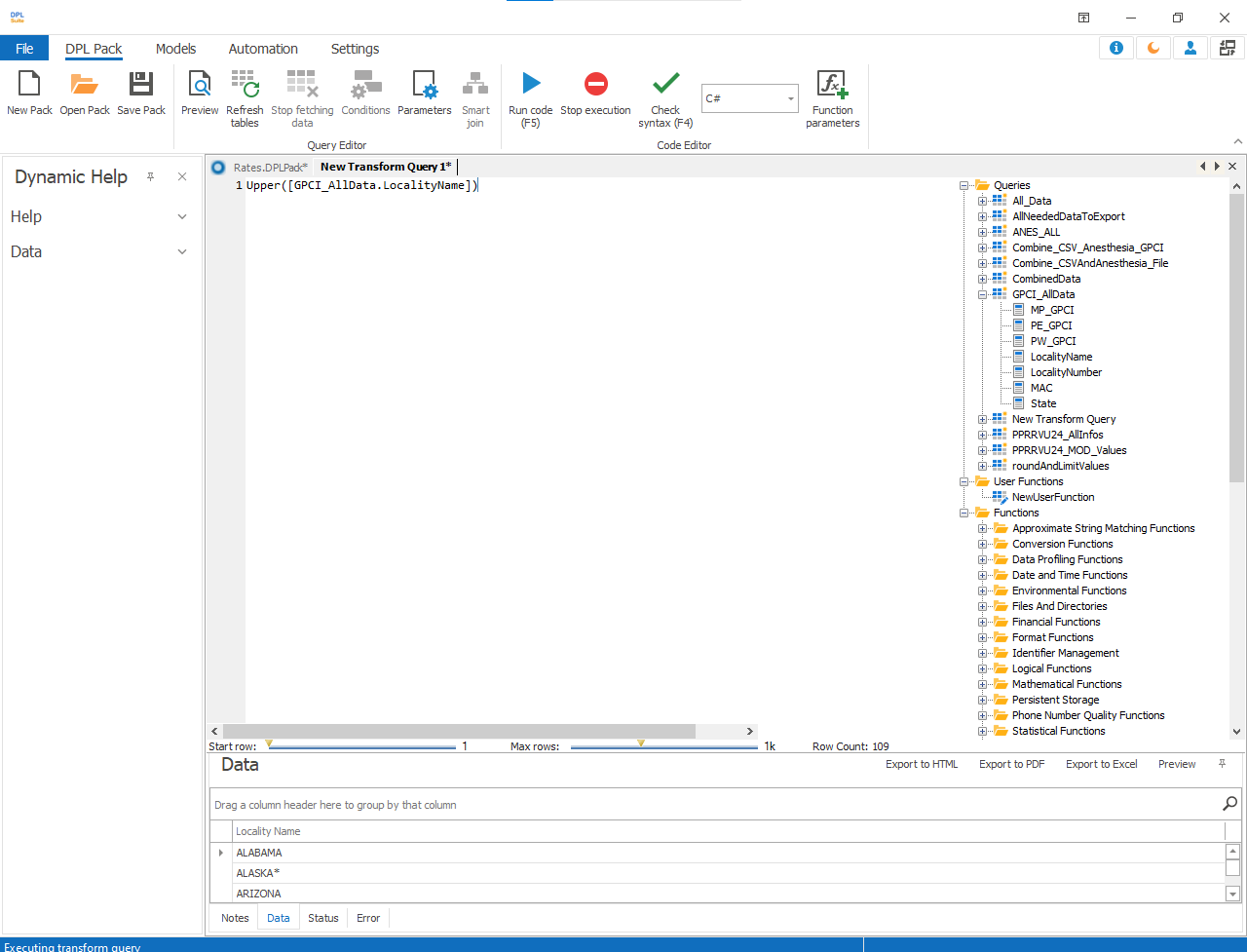
Functions are applied within the Transform Query Editor using a drag-and-drop interface, allowing for efficient and intuitive data transformation.
Example: Converting Text to Uppercase
The following steps demonstrate how to apply a string function:
- Navigate to the Functions section in the left panel.
- Expand the String Functions category.
- Select the UPPER function.
- Drag and drop the function into the workflow canvas.
- From the Queries section, drag the required field (column) and place it into the function input.
- Execute Preview to validate the transformation.
The selected column values will be converted to uppercase in the output.
Common String Functions
DPL Studio includes a wide range of string functions for text manipulation, including but not limited to:
-
UPPER – Converts all characters in a string to uppercase
-
LOWER – Converts all characters in a string to lowercase
-
PROPER – Converts text to proper case (capitalizing the first letter of each word)
-
CONCAT – Concatenates multiple strings into a single value
-
CHAR – Returns the character corresponding to a specified ASCII value
-
REPLACE – Substitutes part of a string with another value
-
SPLIT – Divides a string into multiple components based on a delimiter
-
To preview the results of your query, click the preview icon on the toolbar. The data returned by your query appears in the preview pane. To adjust the amount of data returned in the preview, use the Start row and Max row sliders above the preview pane.
-
When you are satisfied with the query, go to the File menu and select Save [query name] where [query name] is the actual name of your query.
Left Panel Components
The left panel is organized into the following sections:
Queries
Displays all previously created queries, including Standard, Aggregate, and Transform Queries.
These queries can be reused as input sources for further transformation.
User Functions
: Enables users to define and manage custom functions tailored to specific business requirements.
Functions
Provides access to a comprehensive library of 140+ built-in DPL functions, categorized for ease of use. These functions support various operations such as string manipulation, mathematical calculations, and logical processing.