Editor
Using the Integration Function Editor
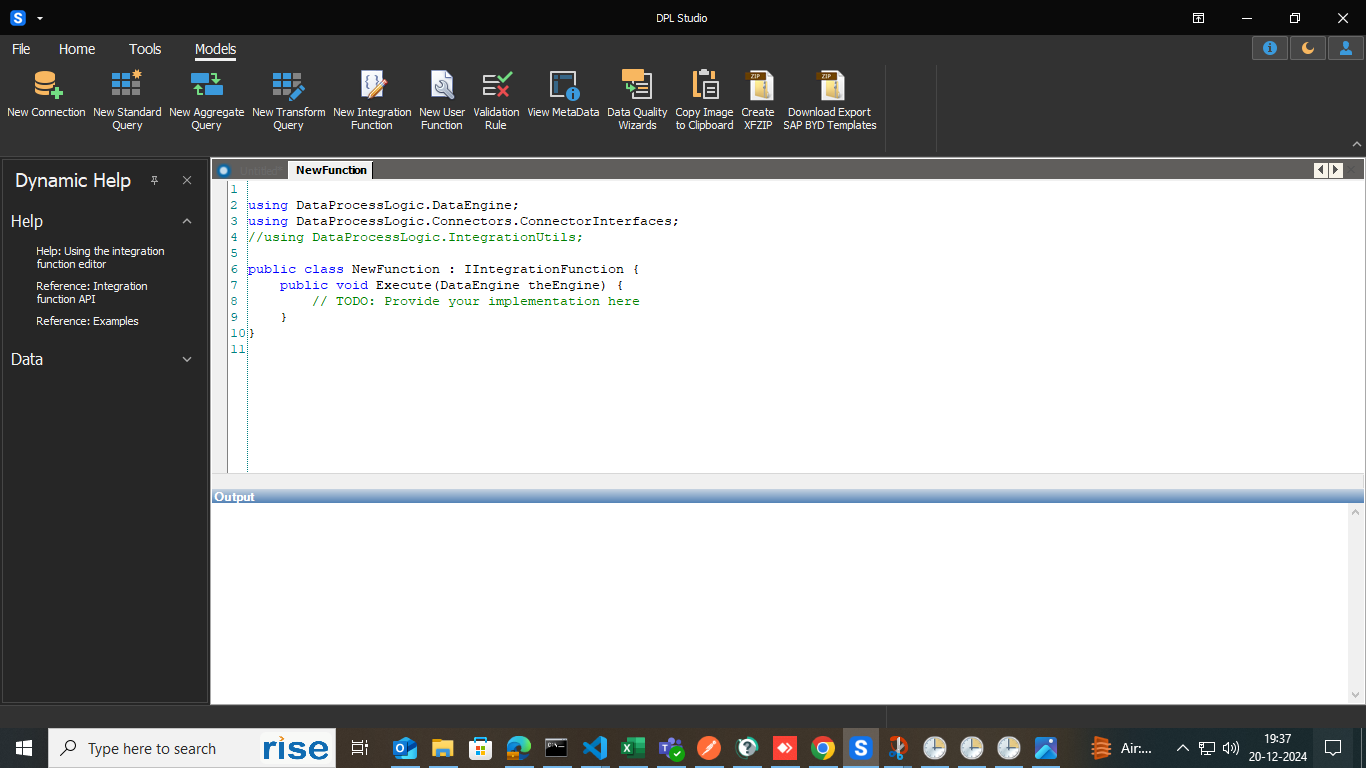
The Integration Function Editor allows you to create, test, and execute custom integration logic within DPL Studio. It provides all the functionality of the User Function Editor, along with additional features for defining parameters and executing code directly within the DPL environment.
For information about writing integration functions, refer to the available examples and API documentation.
Integration Function Editor Features
The Integration Function Editor provides the following capabilities:
- Create custom integration logic
- Define and manage input parameters
- Validate code syntax
- Execute integration functions
- Stop code execution when required
- View console output and execution results
Managing Function Parameters
Function parameters allow data and objects to be passed into the integration function.
Opening the Function Parameters Dialog
- In the Integration Function Editor toolbar, click Function Parameters.
- The Function Parameters dialog box is displayed.
Parameter Types
The following parameter types are supported: Connection, Query, String
Parameter Configuration
For each parameter, specify:
-
Parameter Name
a. The name used within the code to reference the parameter.
b. Each parameter name must be unique.
-
Parameter Type
a. Select the appropriate parameter type.
Adding and Removing Parameters
- Click Add to create a new parameter.
- Click Remove to delete a selected parameter.
- Click OK to save the parameter configuration.

Checking Code Syntax
Before executing your code, you can validate its syntax.
To Check Syntax
- Click Check Syntax on the toolbar.
- DPL Studio validates the code and reports any syntax errors.
This helps identify coding issues before execution.
Running Integration Functions
You can execute integration function code directly from the editor.
To Run Code
- Click Run Code on the toolbar.
- DPL Studio executes the integration function.
Ensure that your code has been validated before execution.
Stopping Code Execution
If the integration function is taking too long to execute or needs to be interrupted:
To Stop Execution
- Click Stop Execution on the toolbar.
- DPL Studio immediately stops the running process.
There are no built-in safeguards against destructive operations. Exercise caution when executing code that modifies data or external systems.
Viewing Output
Output generated by the integration function is displayed in the Output Pane.
Console Output
- Any text written using System.Console is automatically redirected to the Output Pane.
- Messages, debugging information, and execution results can be viewed during or after execution.
The output appears in the Output Pane for review and debugging purposes.