Configuration
-
Open Autodesk Revit application.
-
Click on File in the top left corner.
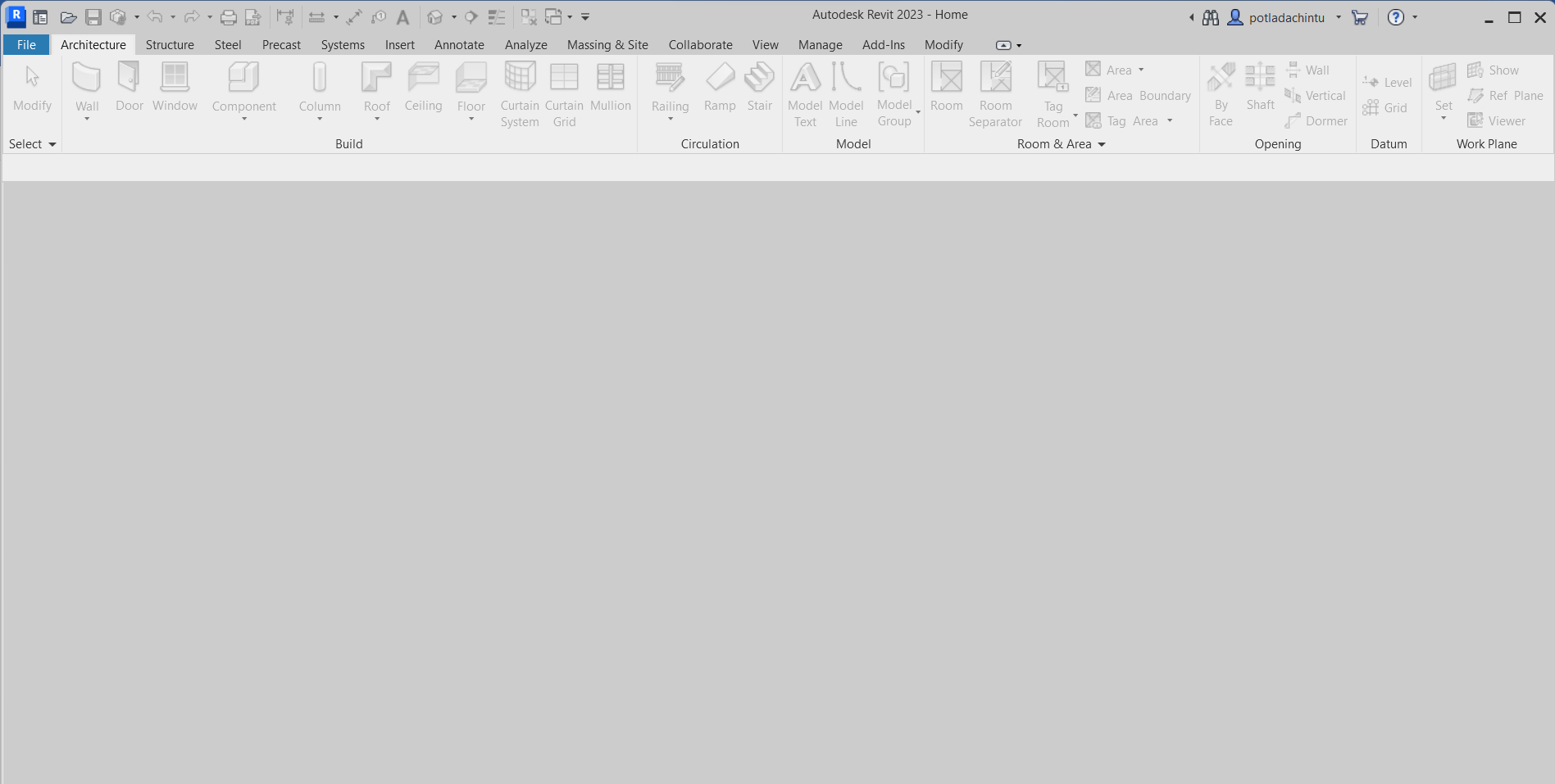
-
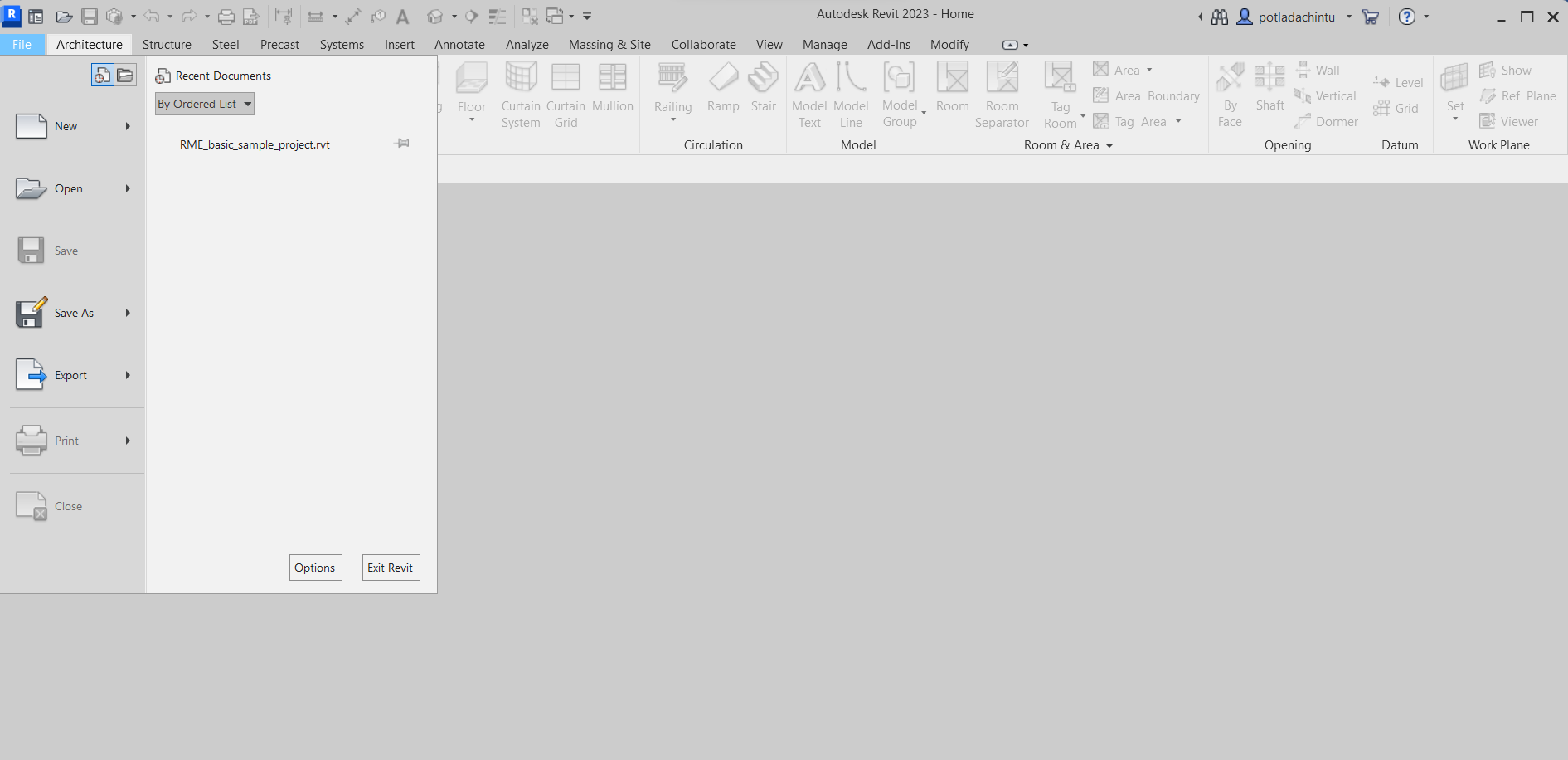
After clicking on File, a popup window will appear like this:
-
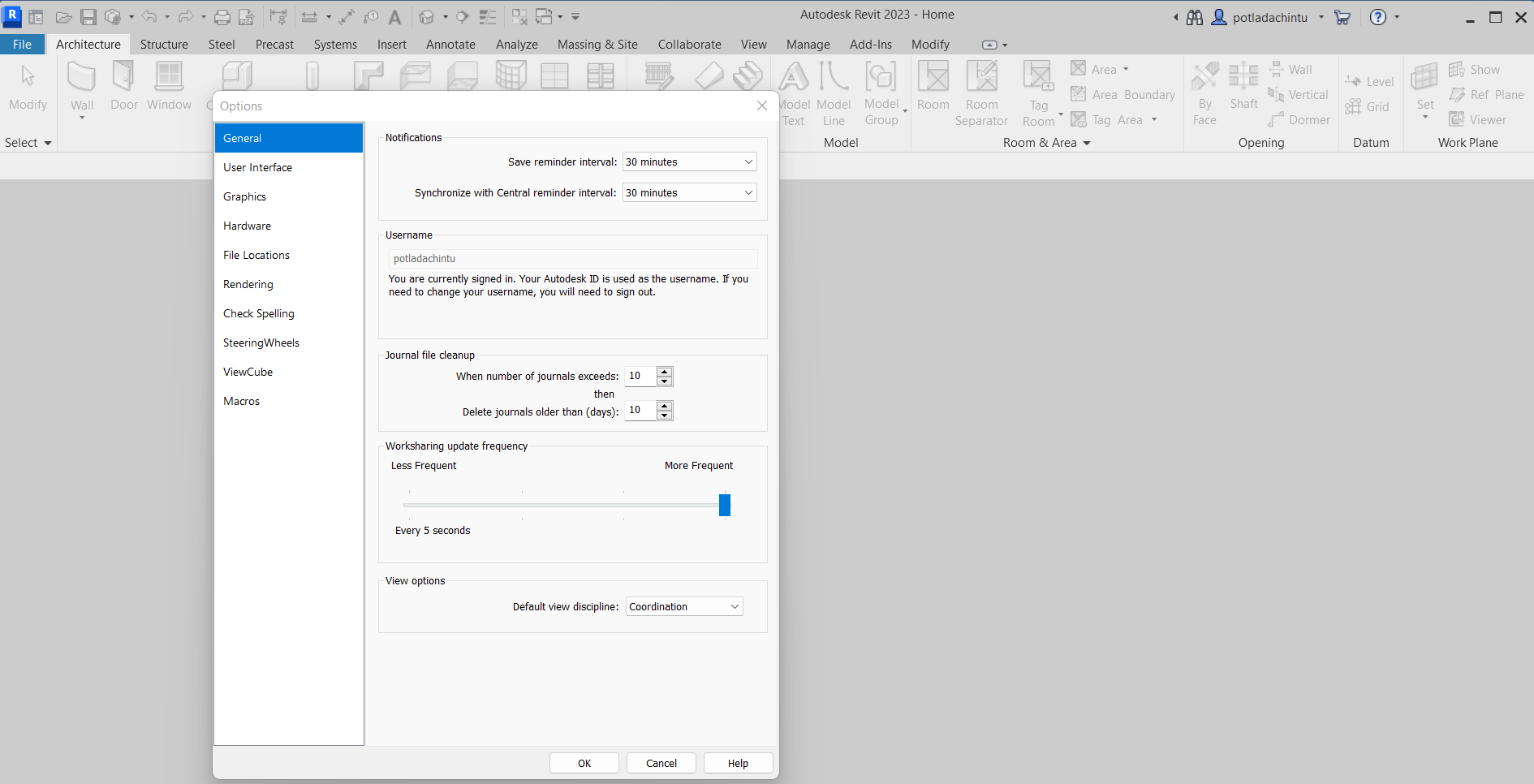
Click on Options to open a new popup window.
-
In the Options window, select the User Interface option to open the configuration popup window.
-
The Configure Page will display various tools and analysis features. Here, you can adjust several settings:
- Enable or disable the Structure Tab and Tools.
- Enable or disable the Mechanical Tools.
- Enable or disable the Electrical Tools.
- Enable or disable the Piping Analysis Tools.
- Enable or disable the Massing & Site Tools.
- Enable or disable the Recent Files List at Home option.
- Enable or disable the Display Contextual Tab on Selection.
- Additionally, set individual view switching and view experience for the display in the contextual tab on selection.
-
Once all the parameters are configured, click OK to save your settings.