Licensing
Student License for Autodesk Revit
-
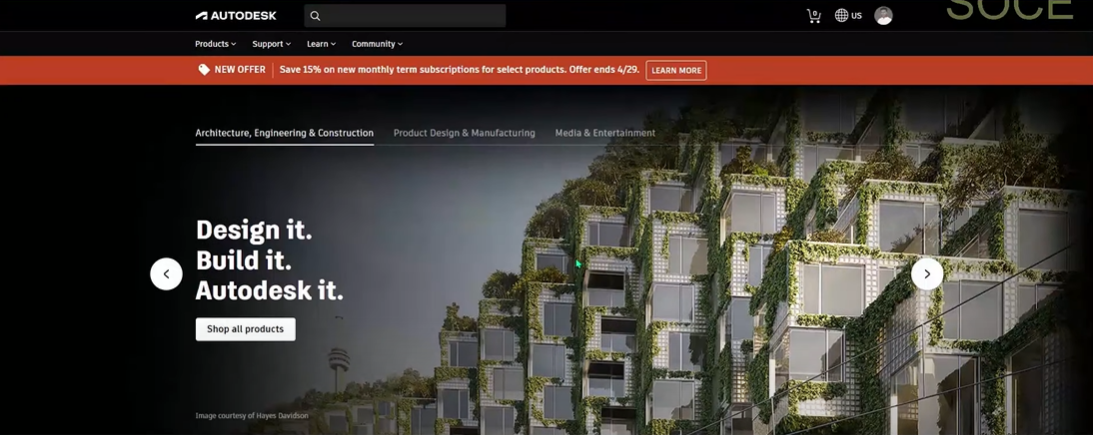
After completing the Autodesk sign-in process, you will be redirected to the main dashboard.
-
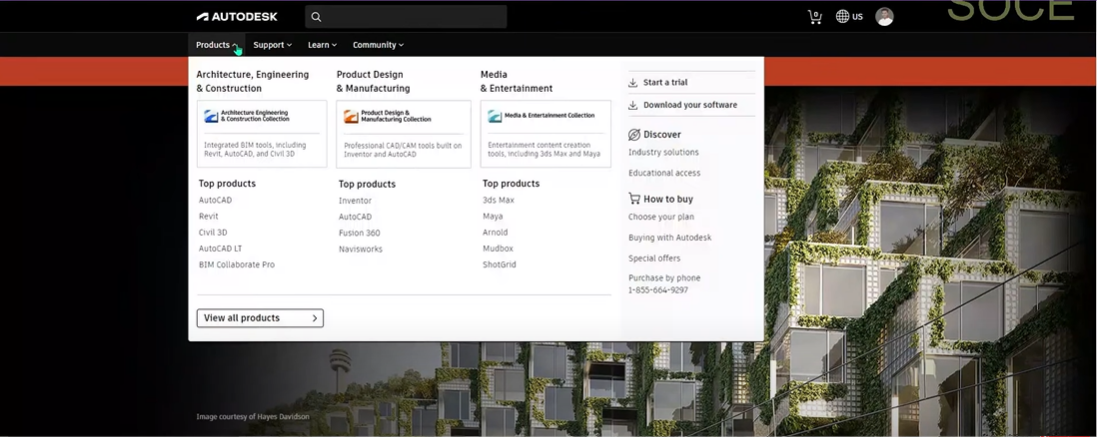
Select the Products menu.
-
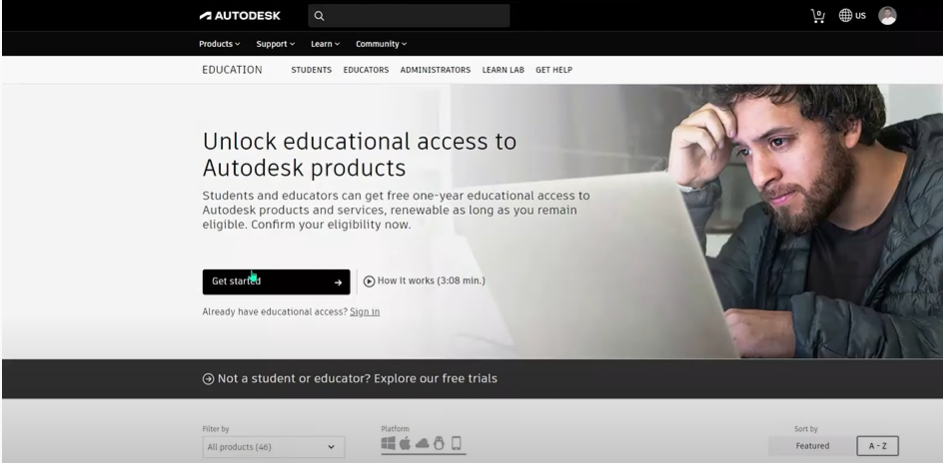
Under the Discover section, go to Educational Access.
-
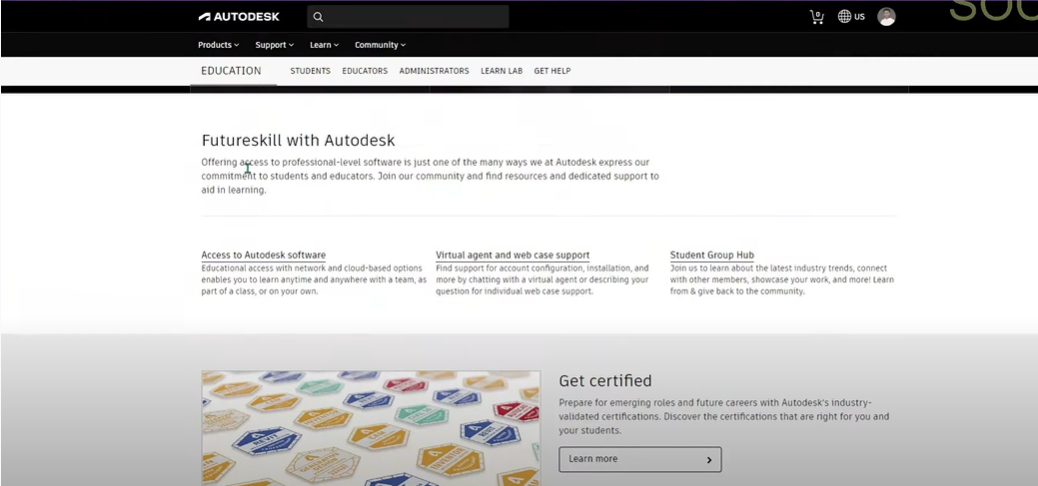
Scroll down the page until you see the Get Products option.
-
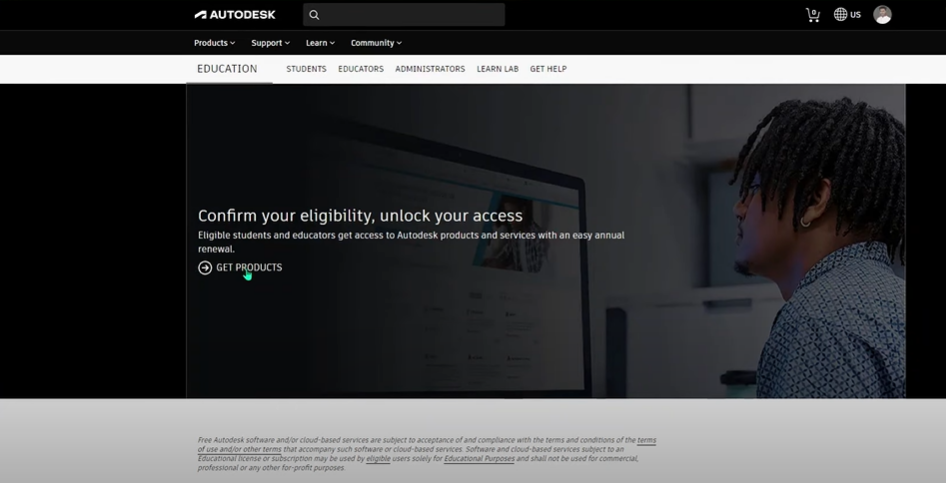
Click on Get Products.
-
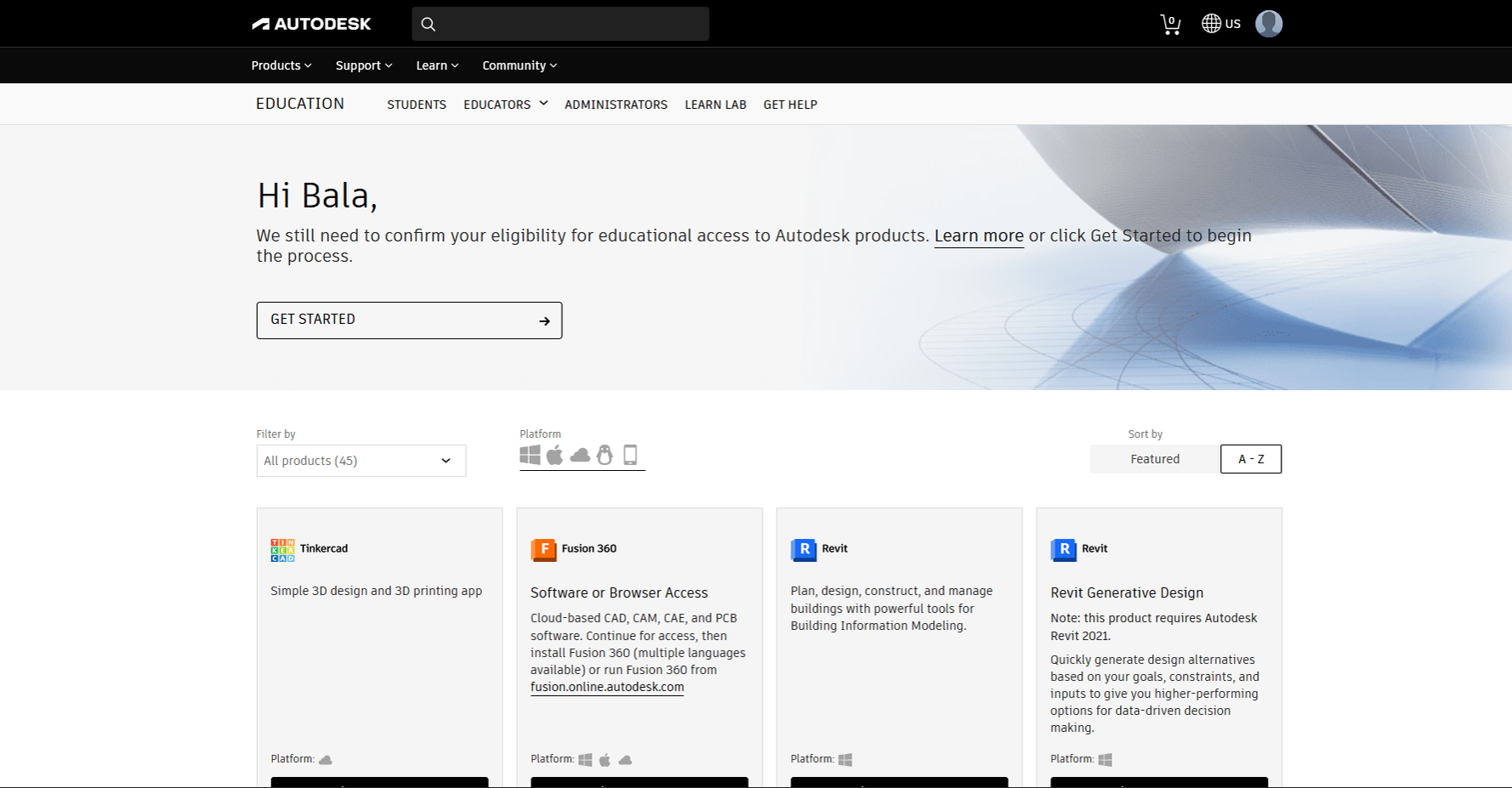
Scroll down to find Autodesk Revit and click on Download.
-
Click on Get Started below Autodesk Revit.
-
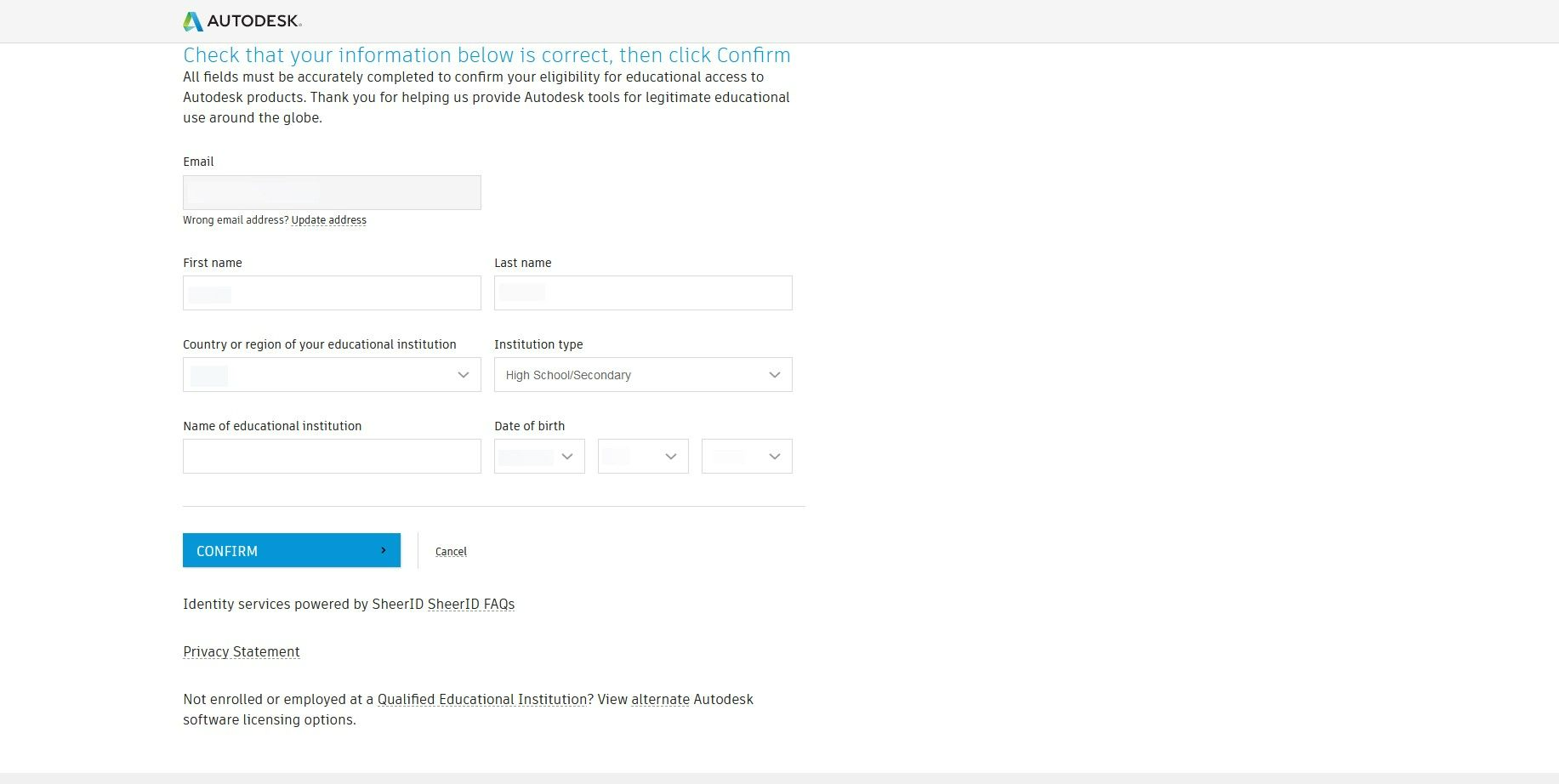
Provide your details and click on Confirm.
-
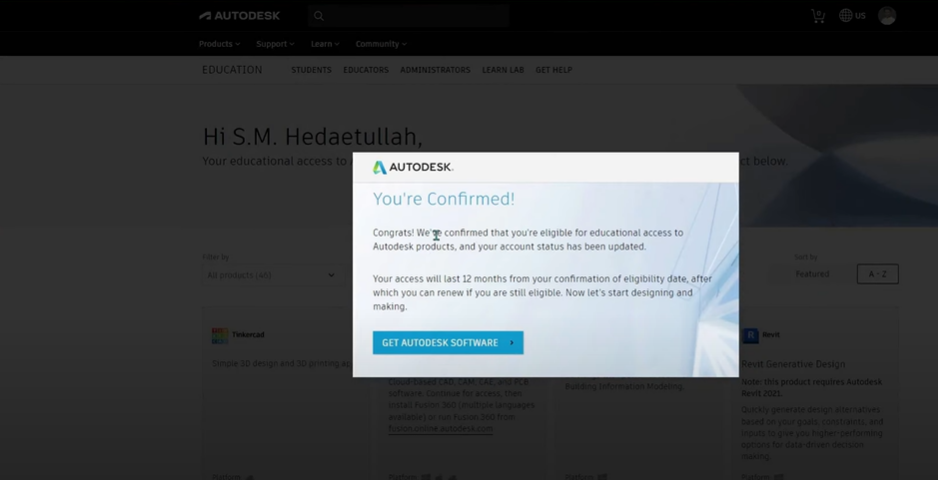
Click on Get Autodesk Software to download the software.
Professional License for Autodesk Revit
-
Visit the official Autodesk website.

-
Click on the Sign In option.

-
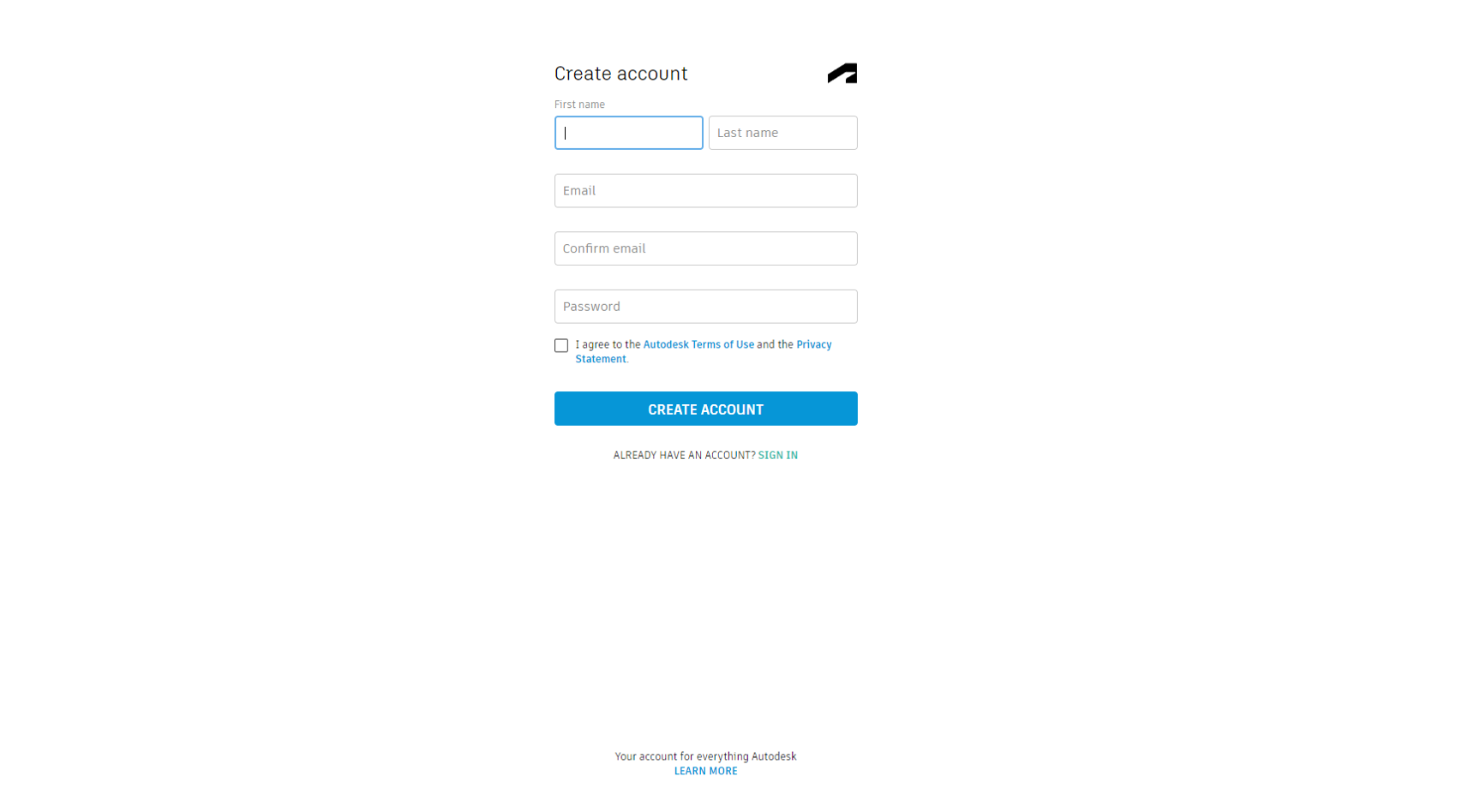
Click on Create Account.
-
Provide your details and click on Create Account.
-
Once your account is created, click on Sign In.
-
Enter your account details and click Next.

-
Click on Sign In to complete the process.
-
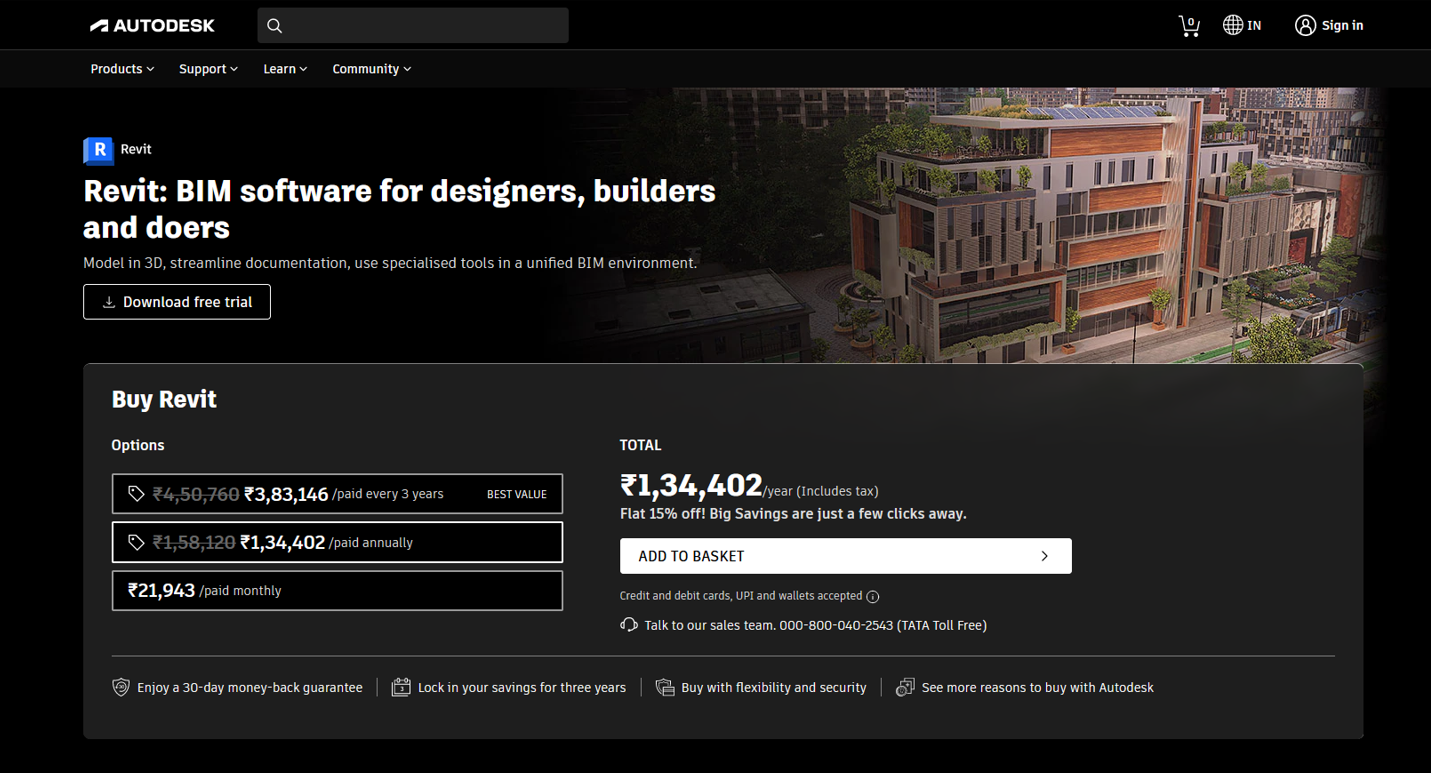
Go to the Product Menu and select Autodesk Revit.
-
Click Add to Basket and proceed with the billing process.
-
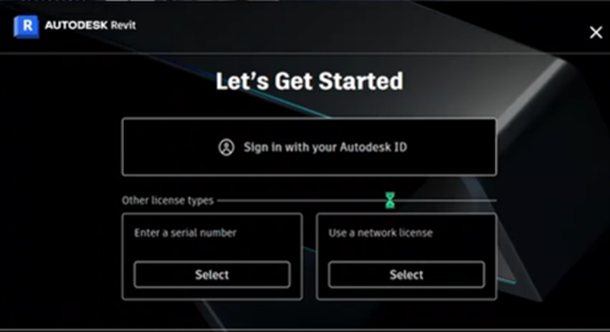
After the installation is complete, Autodesk Revit will open.
-
Select Sign In with your Autodesk ID and enter your Autodesk login credentials.
Your license will be activated.