Command-line Export
Using Command-Line Export
Command-Line Export in DPL Studio provides a convenient way to export data directly through the command prompt.
Usage Options:Export Data export.exe <Digital Process Logic Pack Path> <Export Template Title>
Append Status Messages to a Log File export.exe <Digital Process Logic Pack Path> <Export Template Title> -o <Log File>
List Template Titles in the Workspace export.exe <Digital Process Logic Pack Path> -l
Run All Template Titles in the Workspace export.exe <Digital Process Logic Pack Path> -r
Run Export with Parameters.Parameters can be dynamically passed using the -p option. By default, parameters are read from the XML file.
export.exe -d <XML File Path> [-pParameterName=Value]
Example XML File for Export Template Parameters <root>
<workspace path="C:\Temp\UpdateData.slfusion" />
<template name="UpdateData">
<mapping sourceQuery="UpdateData" destinationTable="temp">
<queryParameters>
<queryParameter name="MyParam1" value="40" />
<queryParameter name="MyParam2" value="50" />
</queryParameters>
</mapping>
</template>
</root>
Run Integration Function export.exe <Digital Process Logic Pack Path> -if <Integration Function Name>
List Integration Functions export.exe <Digital Process Logic Pack Path> -il
Run Integration Functions with Parameters.Parameters can be dynamically passed using the -p option. By default, parameters are read from the XML file.
export.exe -id <XML File Path> [-pParameterName=Value]
Example XML File for Integration Function Parameters <root>
<workspace path="C:\Temp\UpdateData.slfusion" />
<integrationFunctions>
<integrationFunction name="UpdateData">
<queryParameters>
<queryParameter name="MyIFParam" value="30" isExpr="false" />
<queryParameter name="MyIFParam2" value="500" isExpr="false" />
<queryParameter name="MyIFDateParam" value="10/10/04" isExpr="false" />
</queryParameters>
</integrationFunction>
</integrationFunctions>
</root>
Run Action export.exe <Digital Process Logic Pack Path> -ra <Action Name>
List All Actions export.exe <Digital Process Logic Pack Path> -al
Steps to Use Command-Line Export
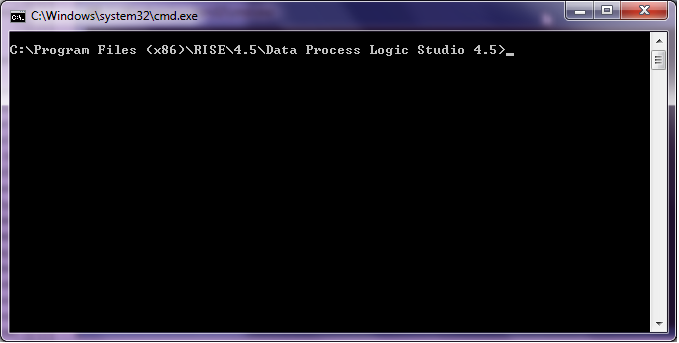
- Open the Command Prompt.
- Navigate to the Bin folder in the installed directory of DPL Studio.
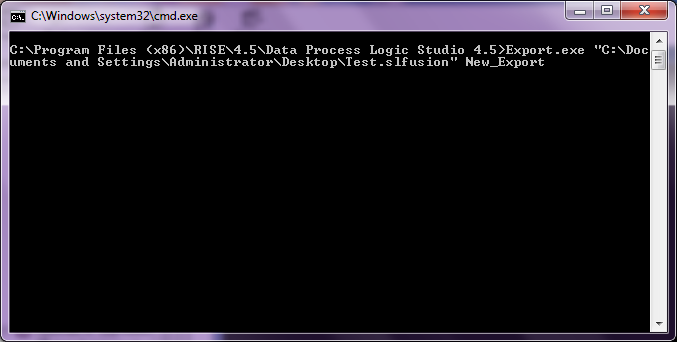
- Enter the required command based on the operation you want to perform and press Enter. Example: export.exe "C:\Temp\textTest.slfusion" ExportToExcel
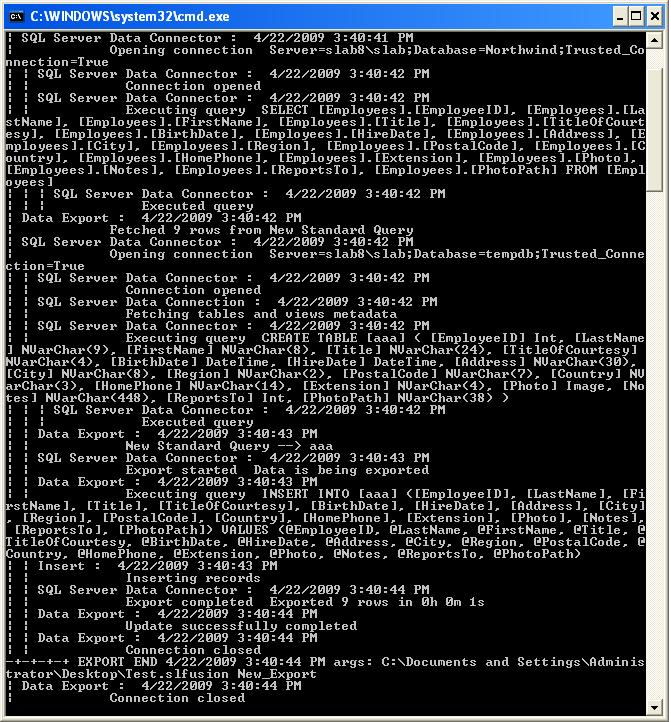
- The export status messages will be displayed in the Command Prompt window.