Cyclone3DR Workflow-2
Extracting Panorama Images from. LGS and. E57 in Cyclone 3DR. LGS Format
-
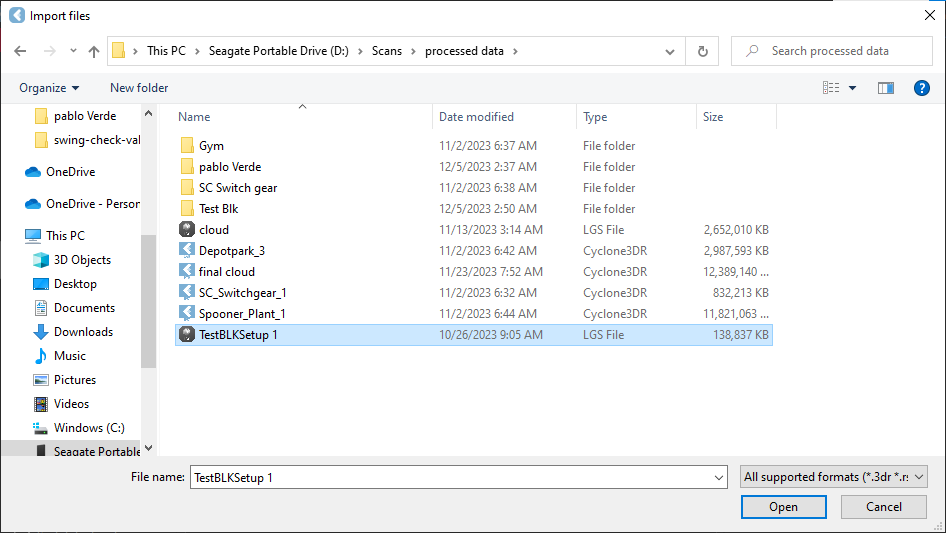
Import .Lgs file in 3dr application .Lgs file in shown below.

-
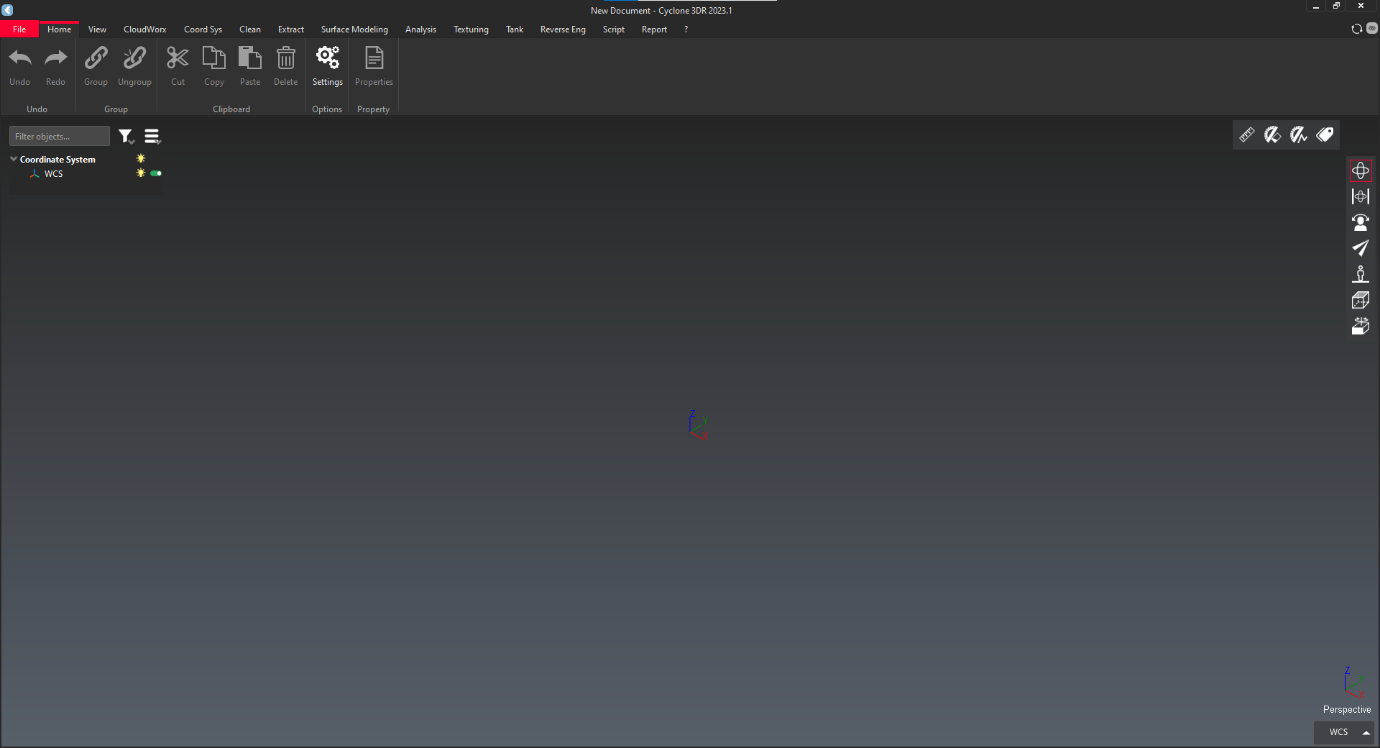
Open Cyclone 3DR applications.Home Interface shown below.
-
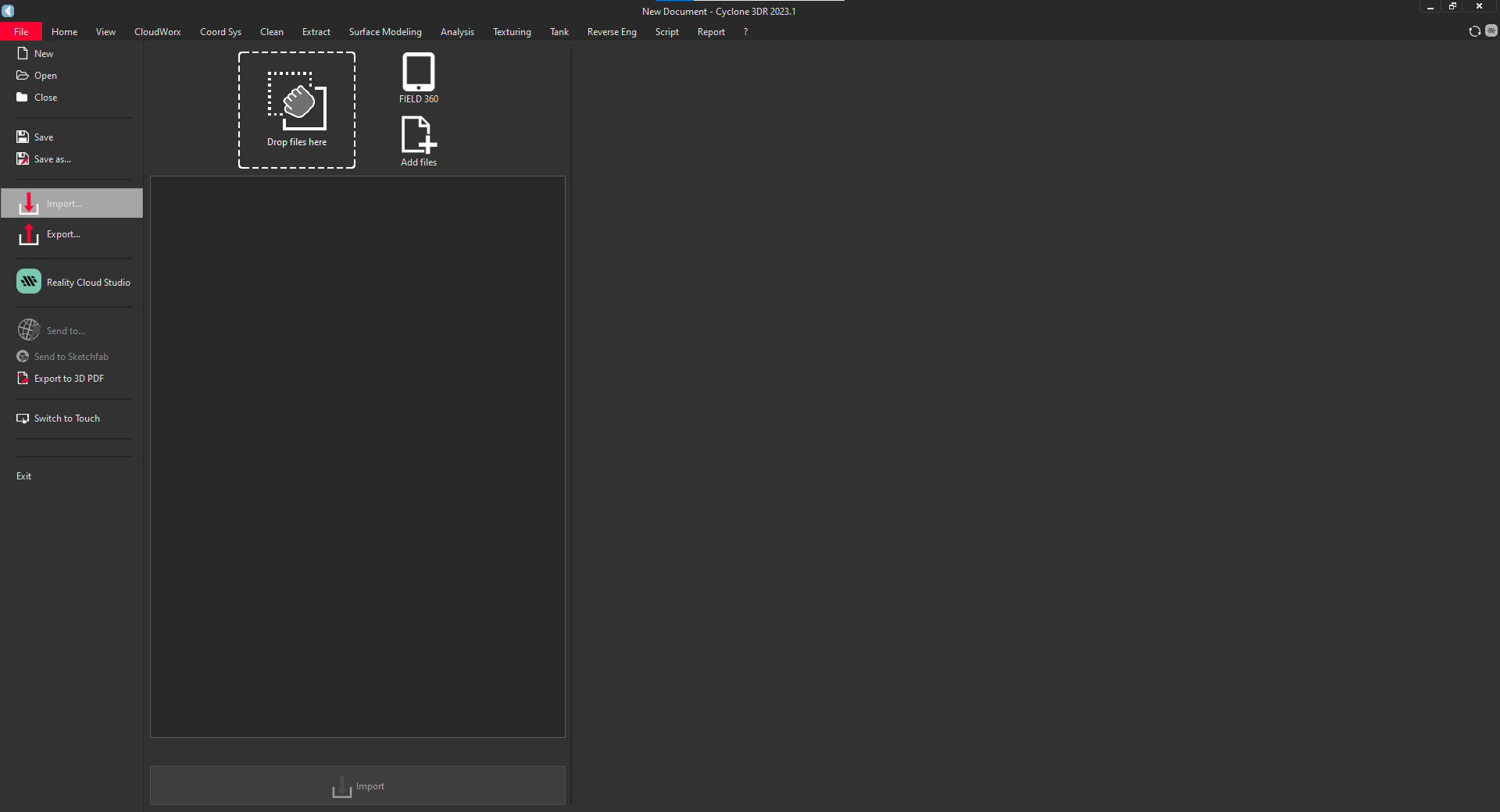
Click on "File" and click on import.
-
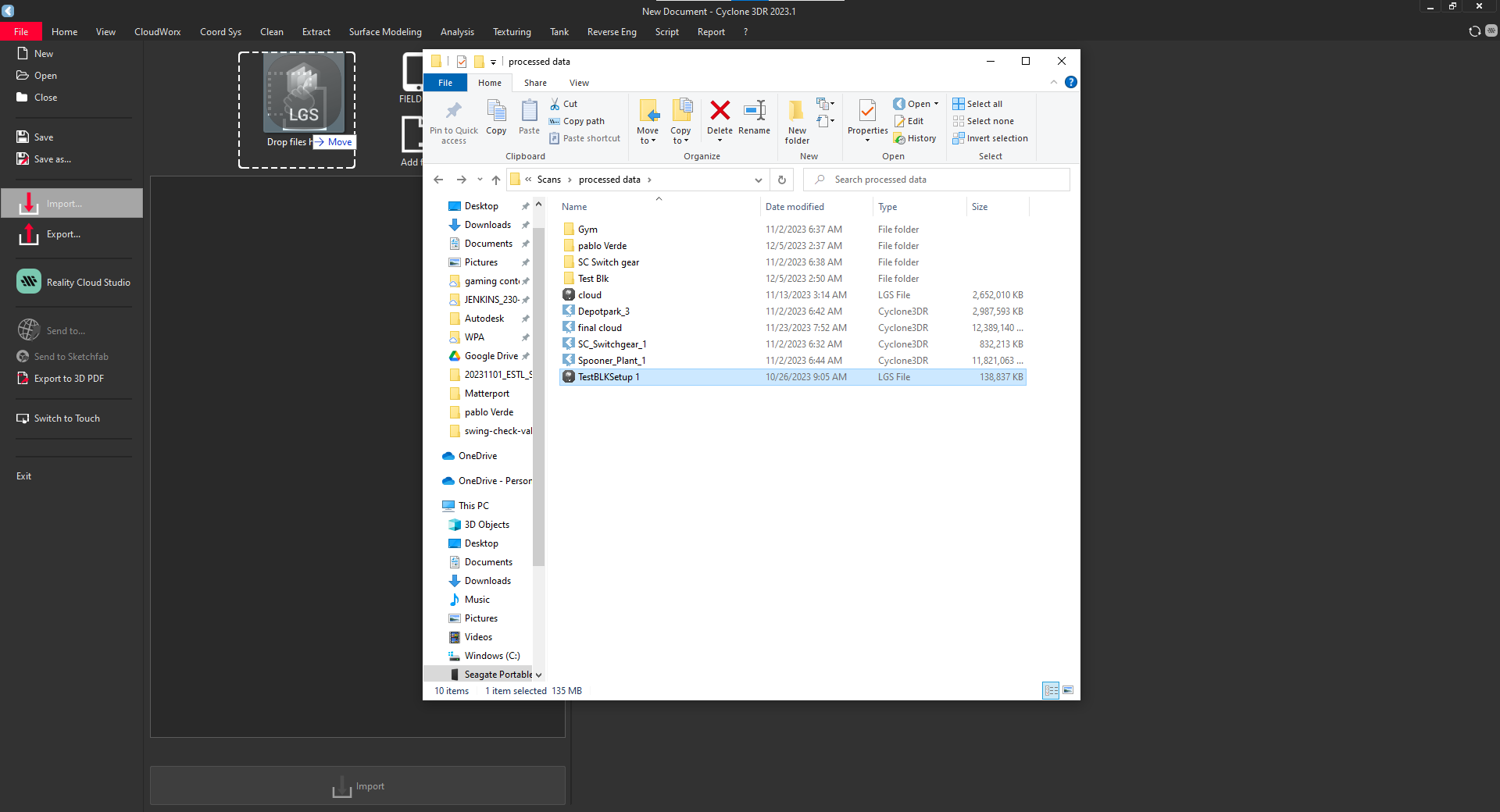
To import the file, they are two ways to import.
-
Drag and drop option: simply drag the file into rectangular box.

-
Browse option: - click on "Add Files" and browse the file.

-
-
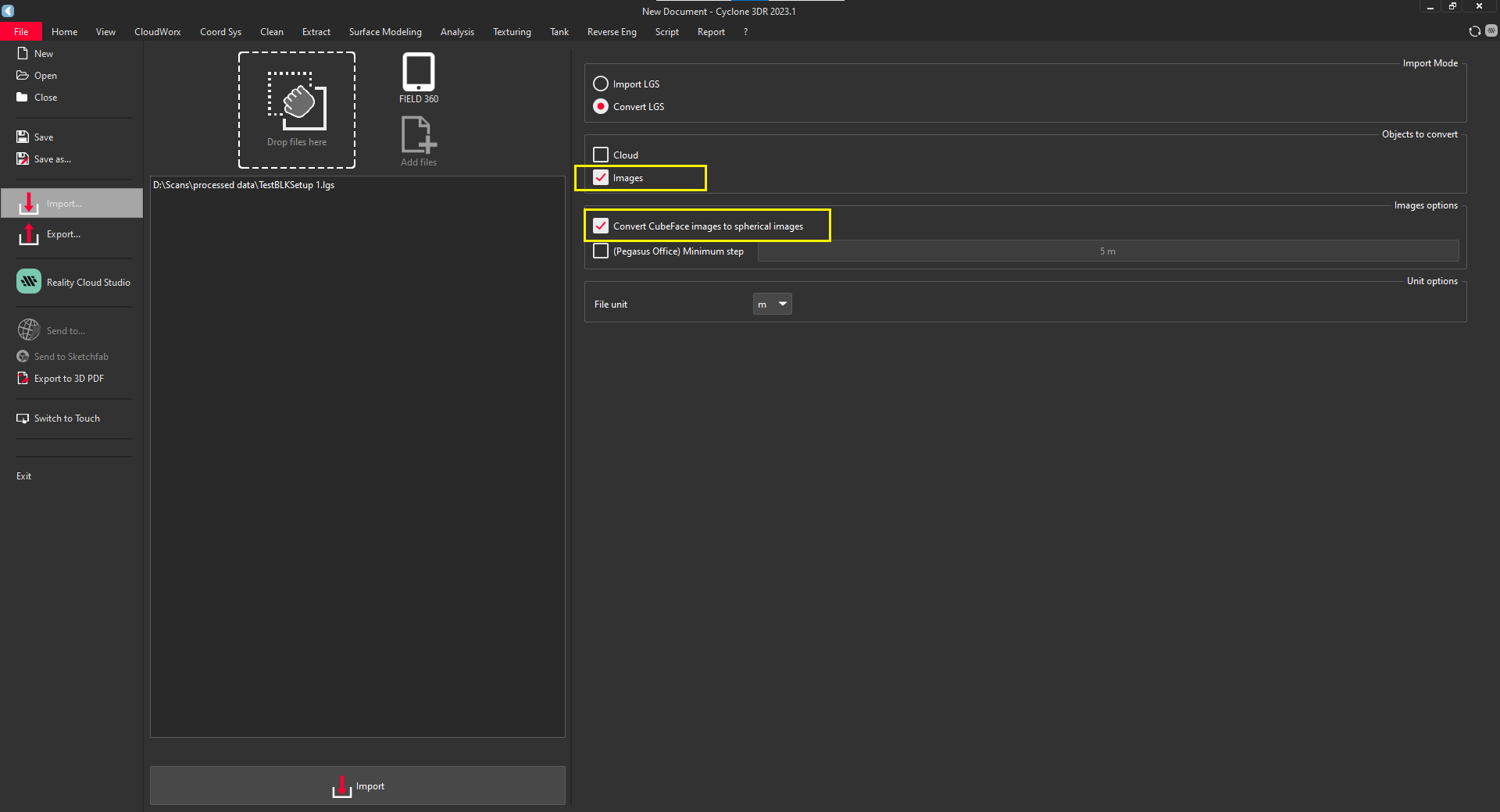
After importing the file click on "Convert LGS" and select "Convert Cube face images into spherical image" Finally click on "Import".
-
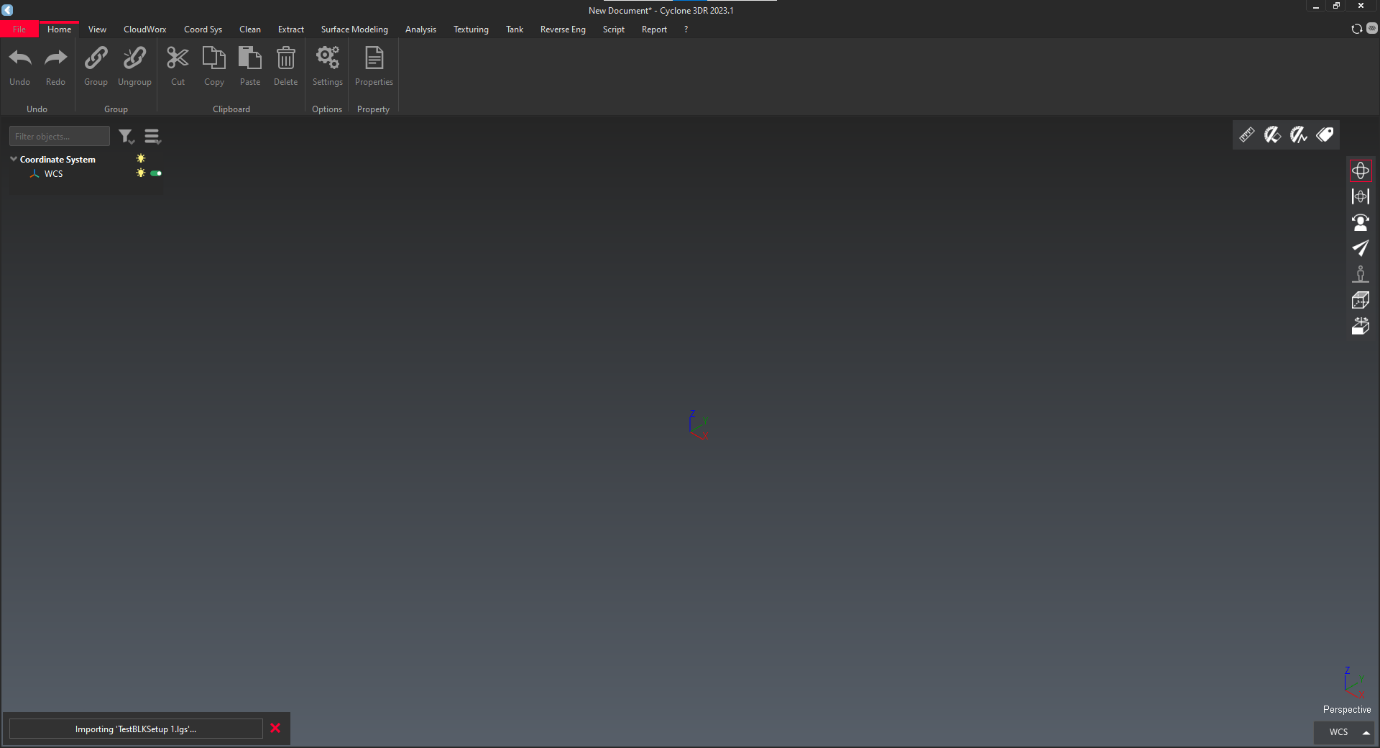
It takes some time to import.
-
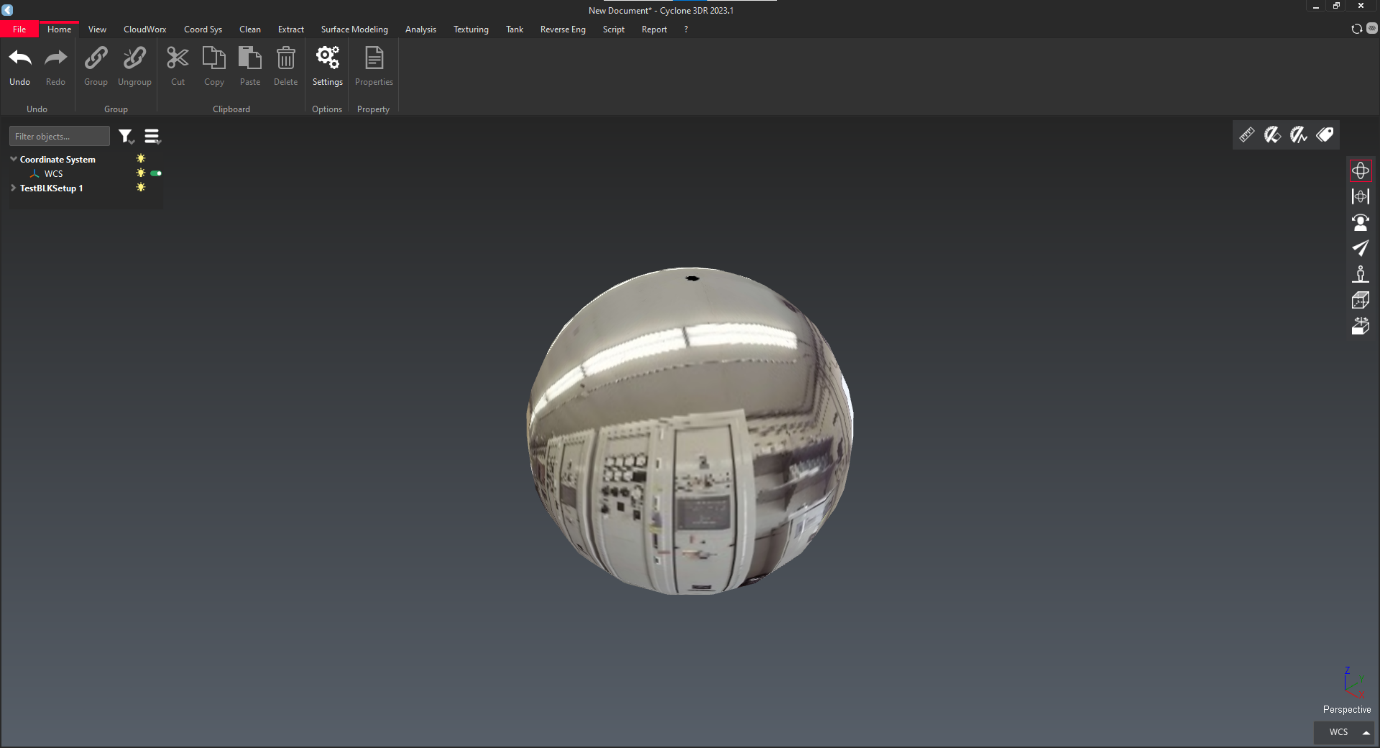
After successfully import interface shown in below.
-
Click on "File" and select "Export". Choose "Visible object".
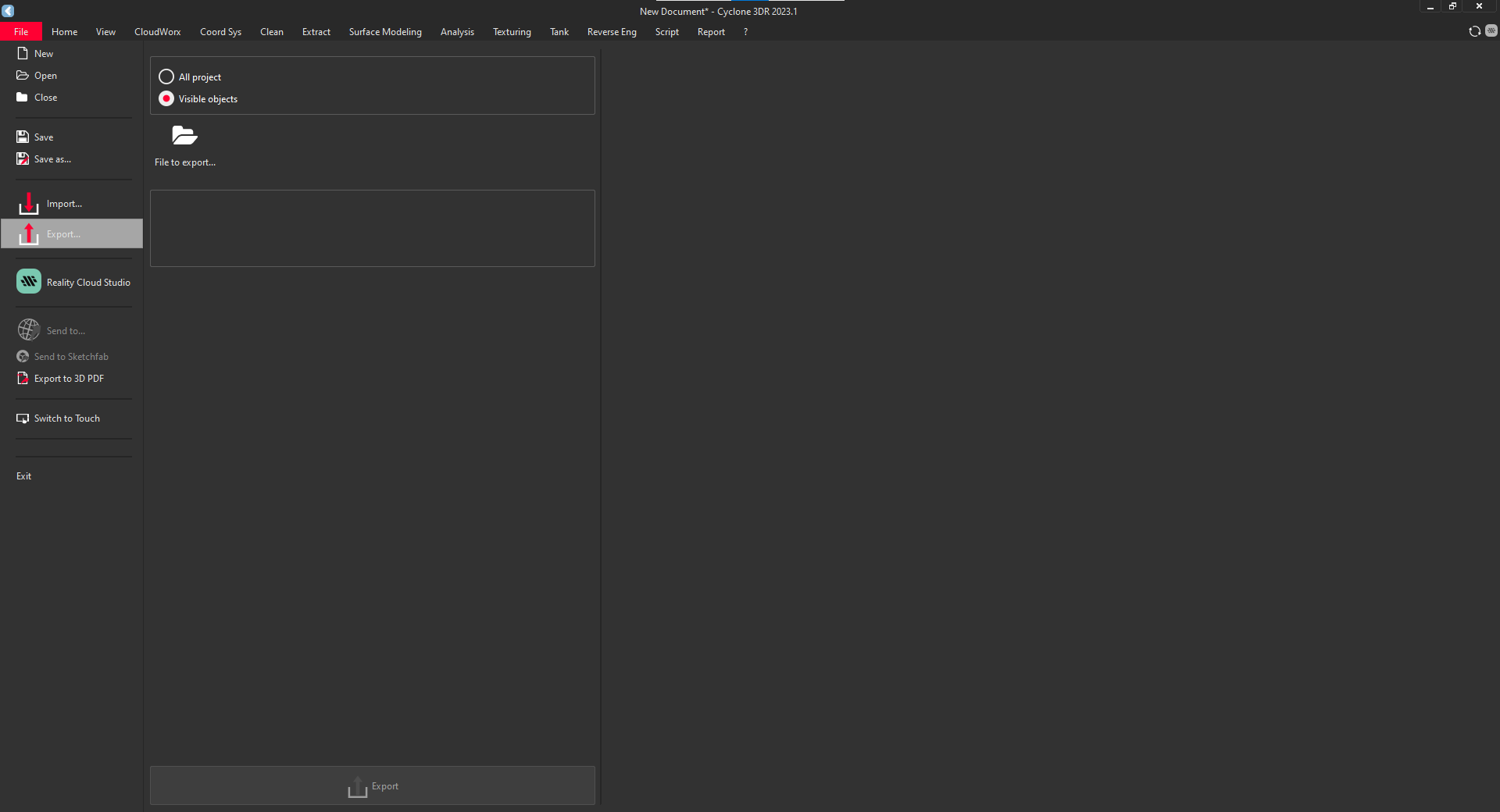
-
Choose the path and find ".jpeg format" option. Name the file and press "save" to save the file.
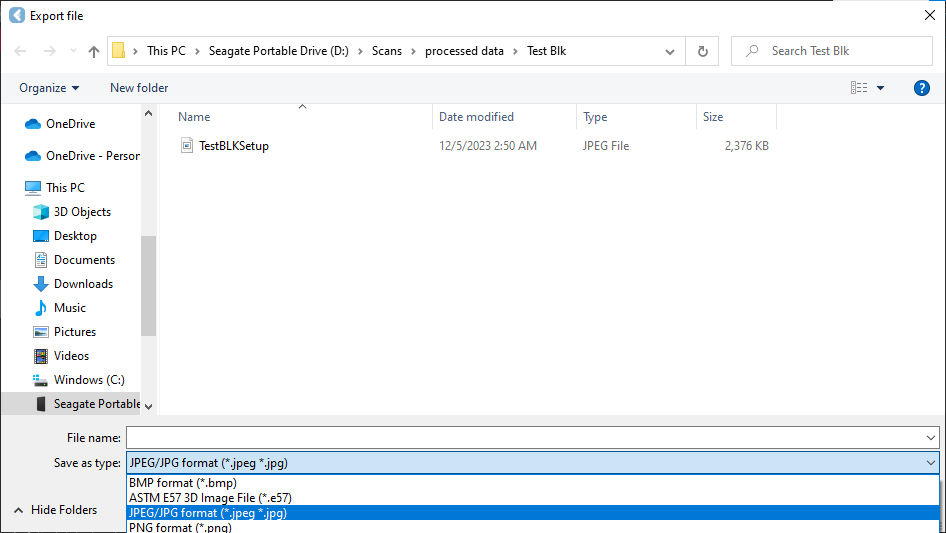
-
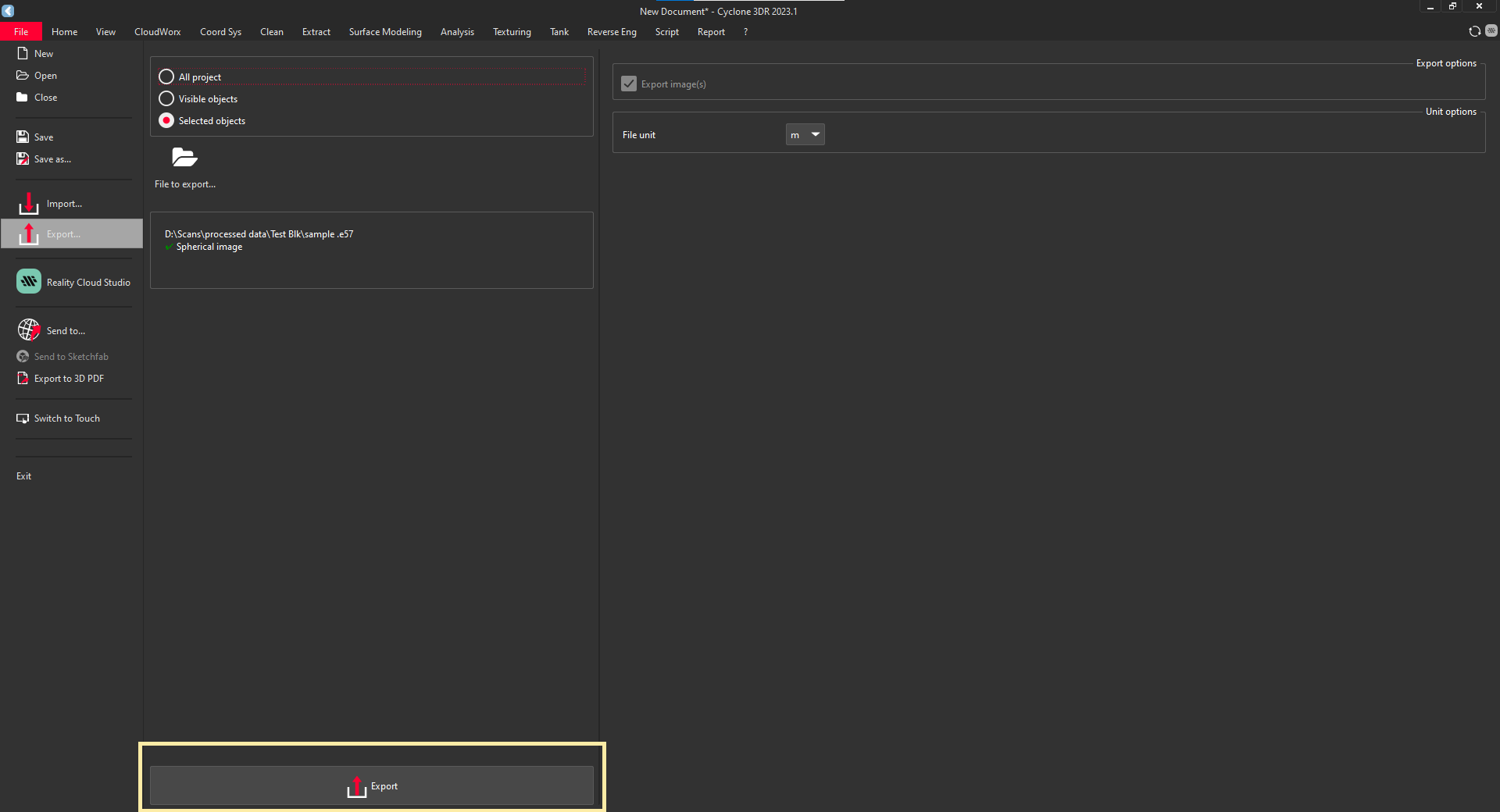
Check whether, there should be tick mark in spherical image.

-
Click on "Export" to save the file.
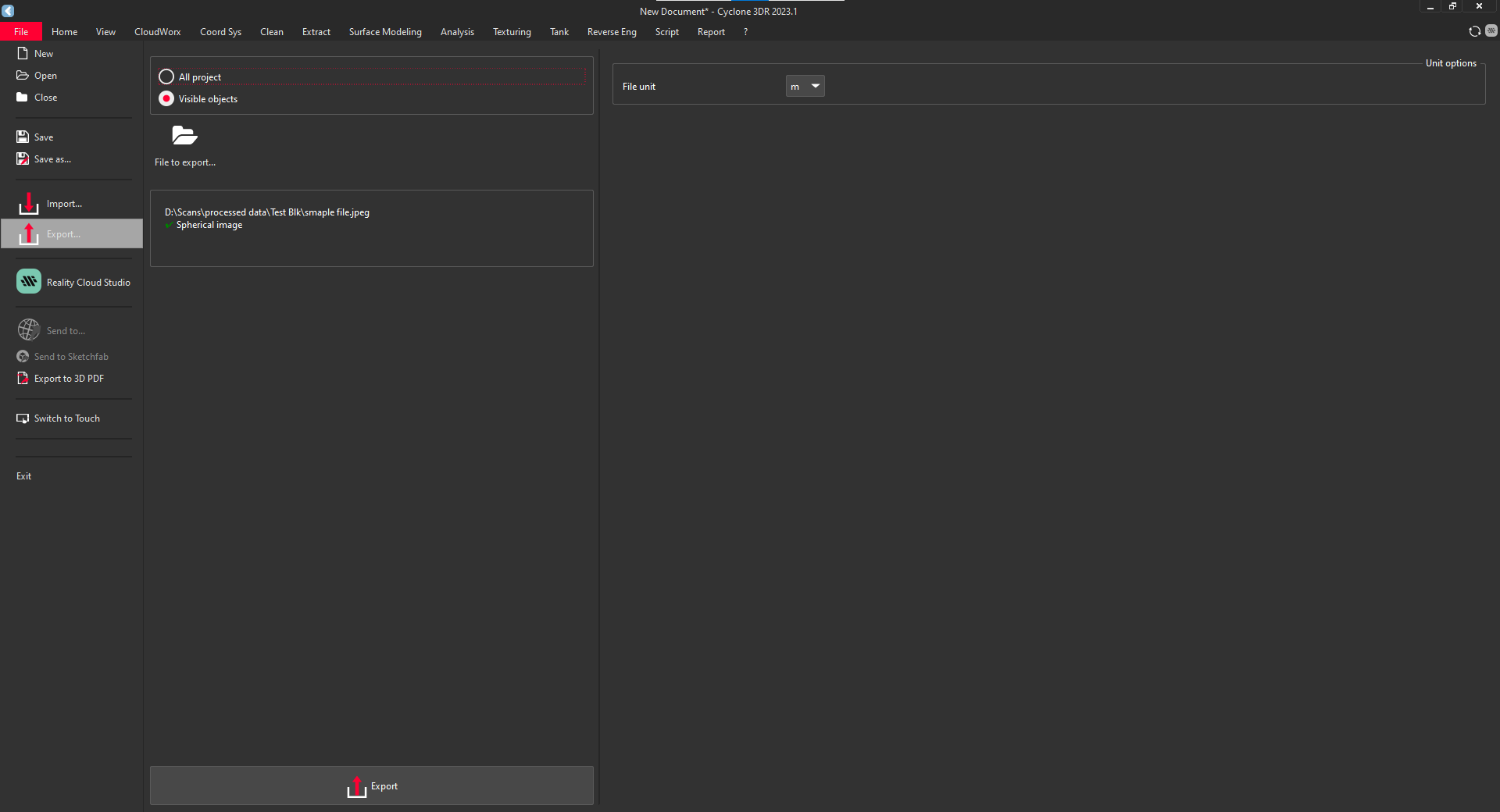
.E57 format
-
Import. E57 format file in 3dr application.. E57 file shown in the below image.

-
Open Cyclone 3DR applications. Home Interface shown below.
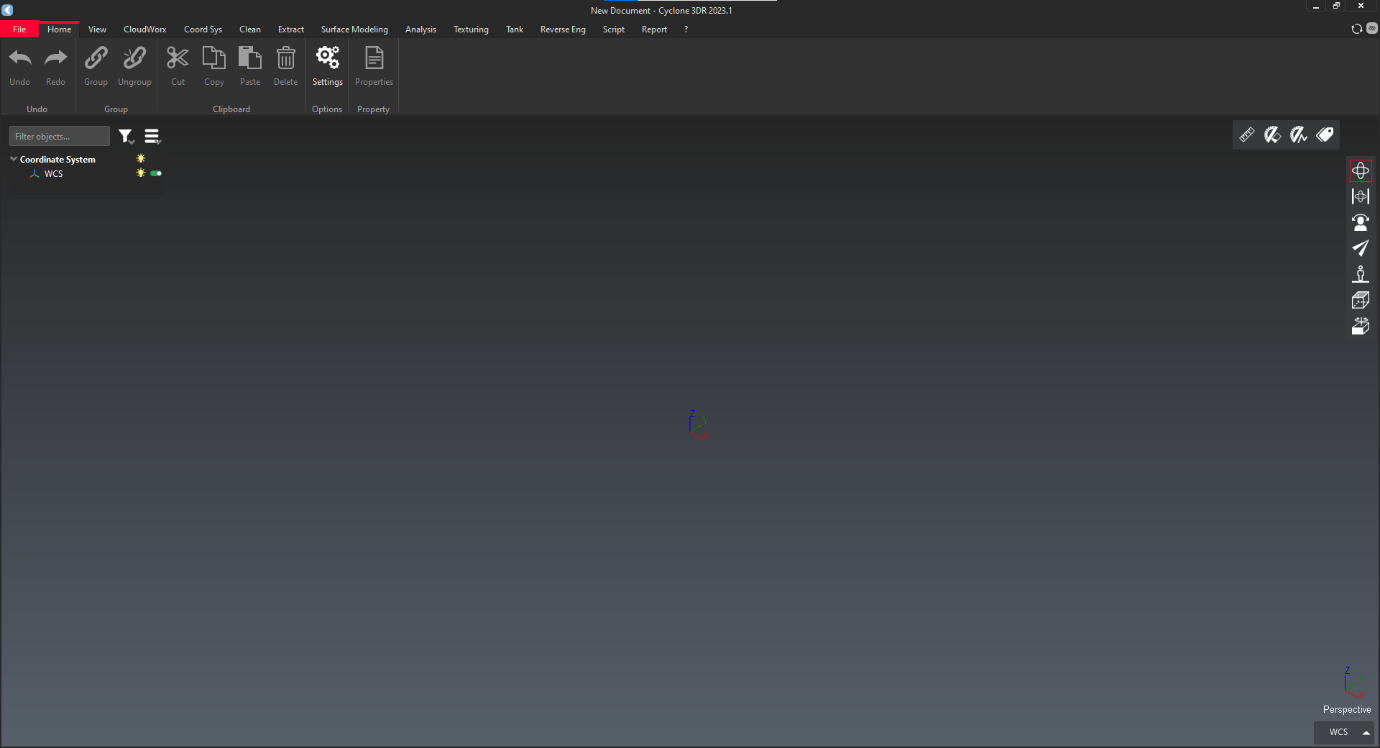
-
Click on "File" and click on import.
-
To import the file, they are two ways to import.
- Drag and drop option: simply drag the file into rectangular box.
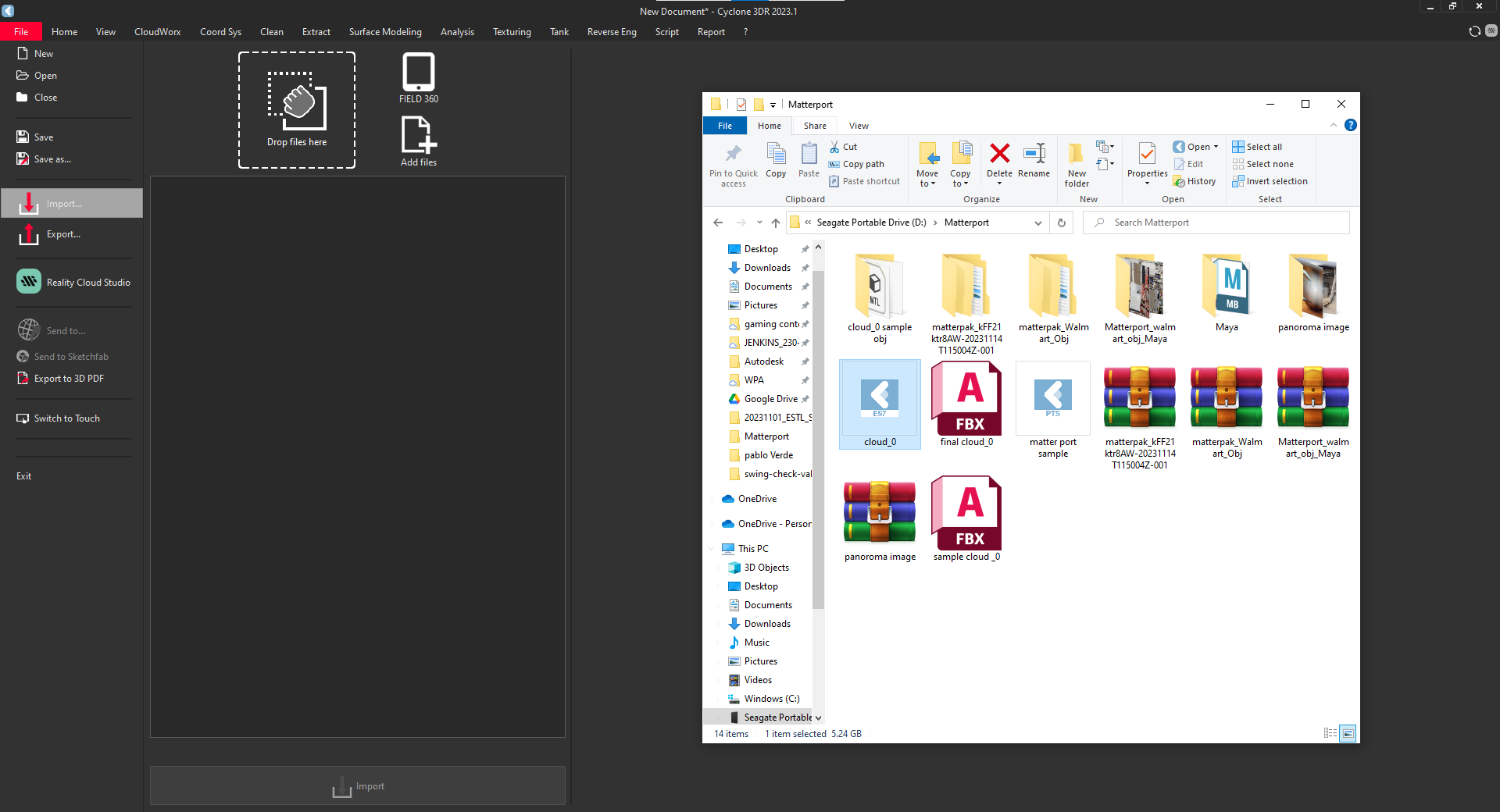

- Browse option: click on "Add Files" and browse the file.
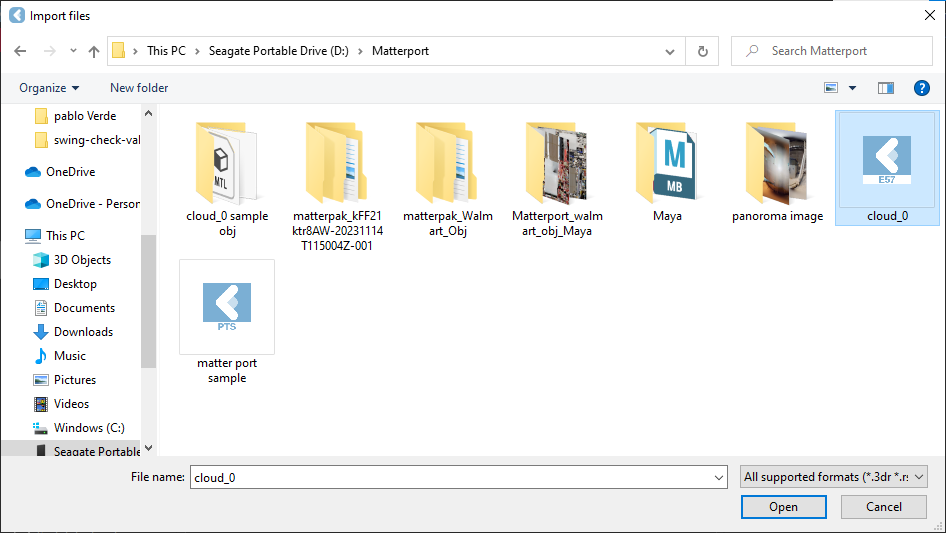
- Drag and drop option: simply drag the file into rectangular box.
-
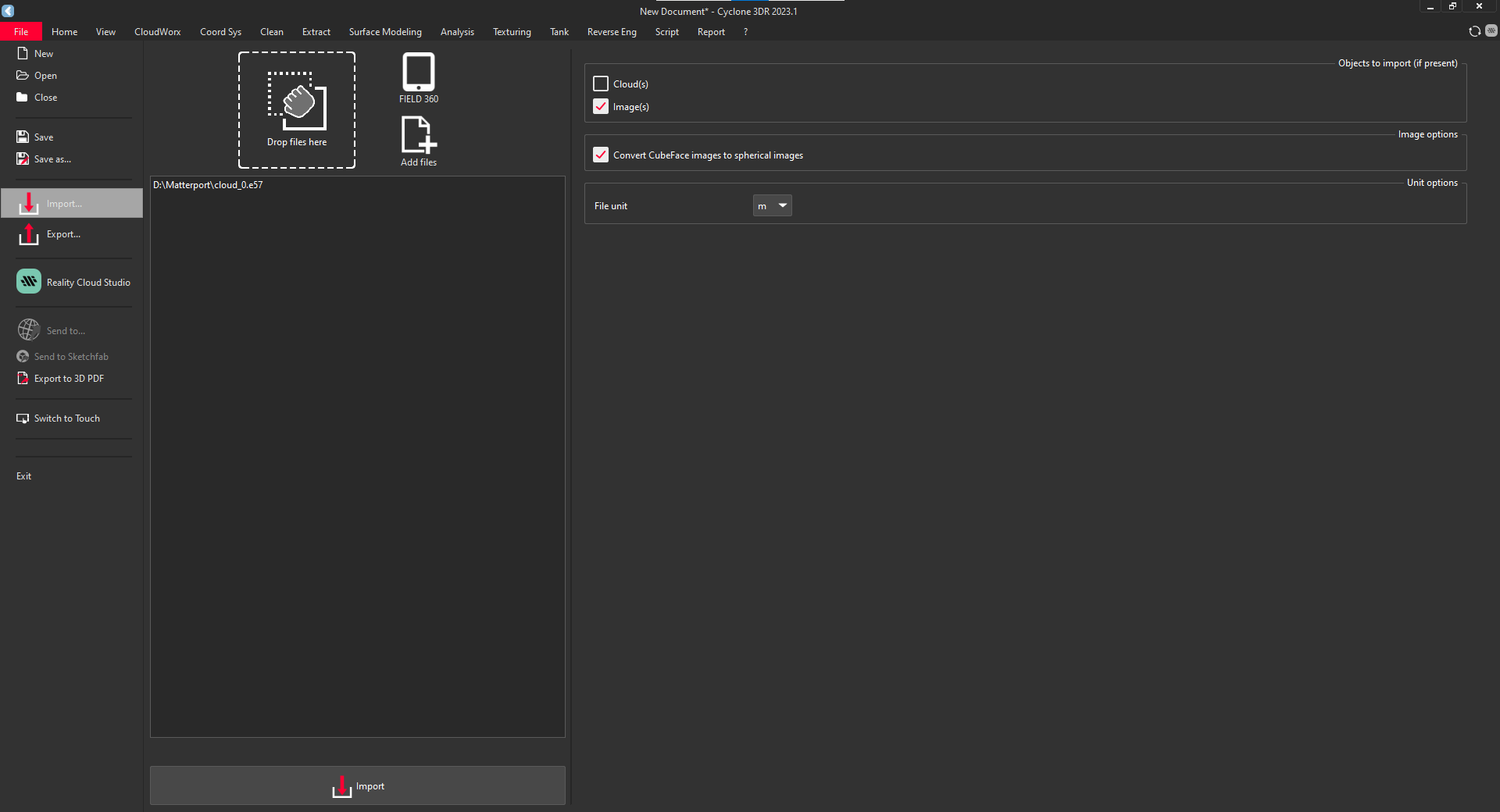
After that select "Images" and "convert Cube Face Image" into "Spherical Image".
-
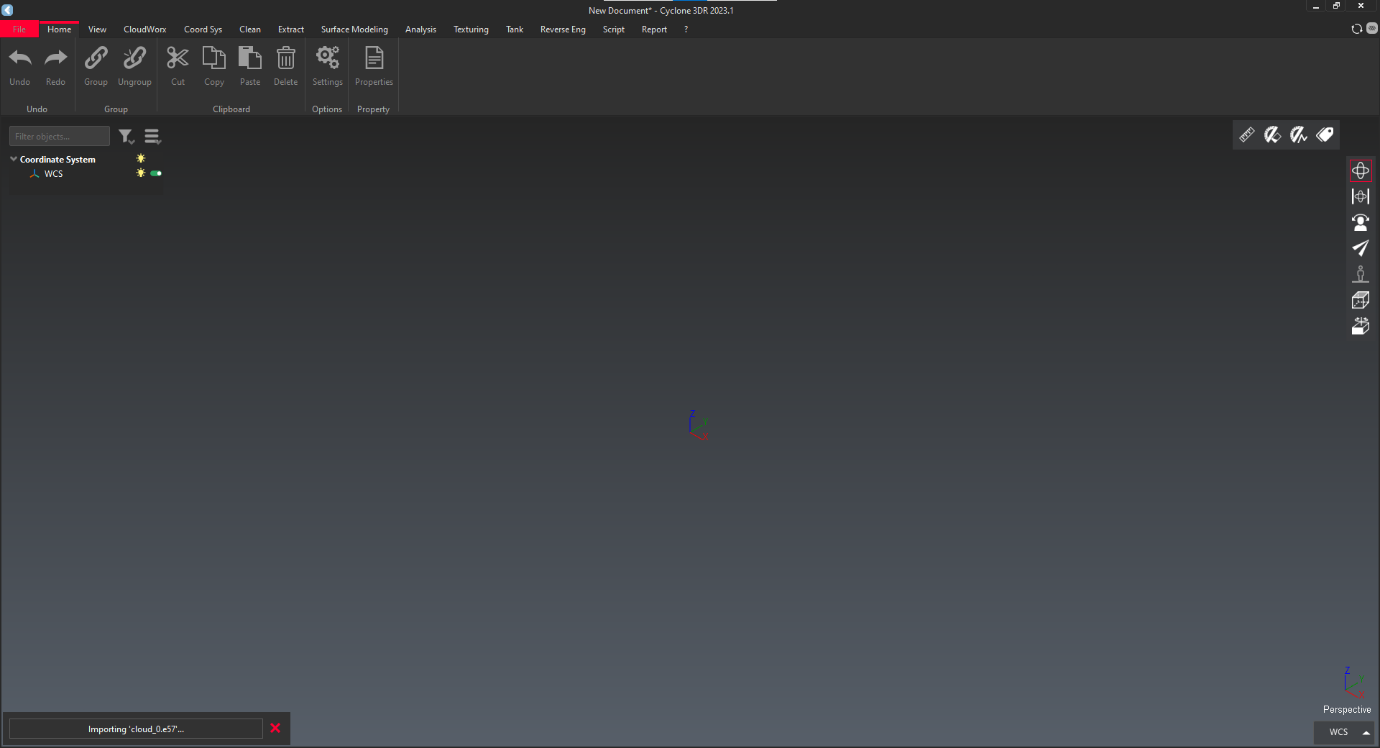
It takes some time to import.
-
After successfully import interface shown in below.
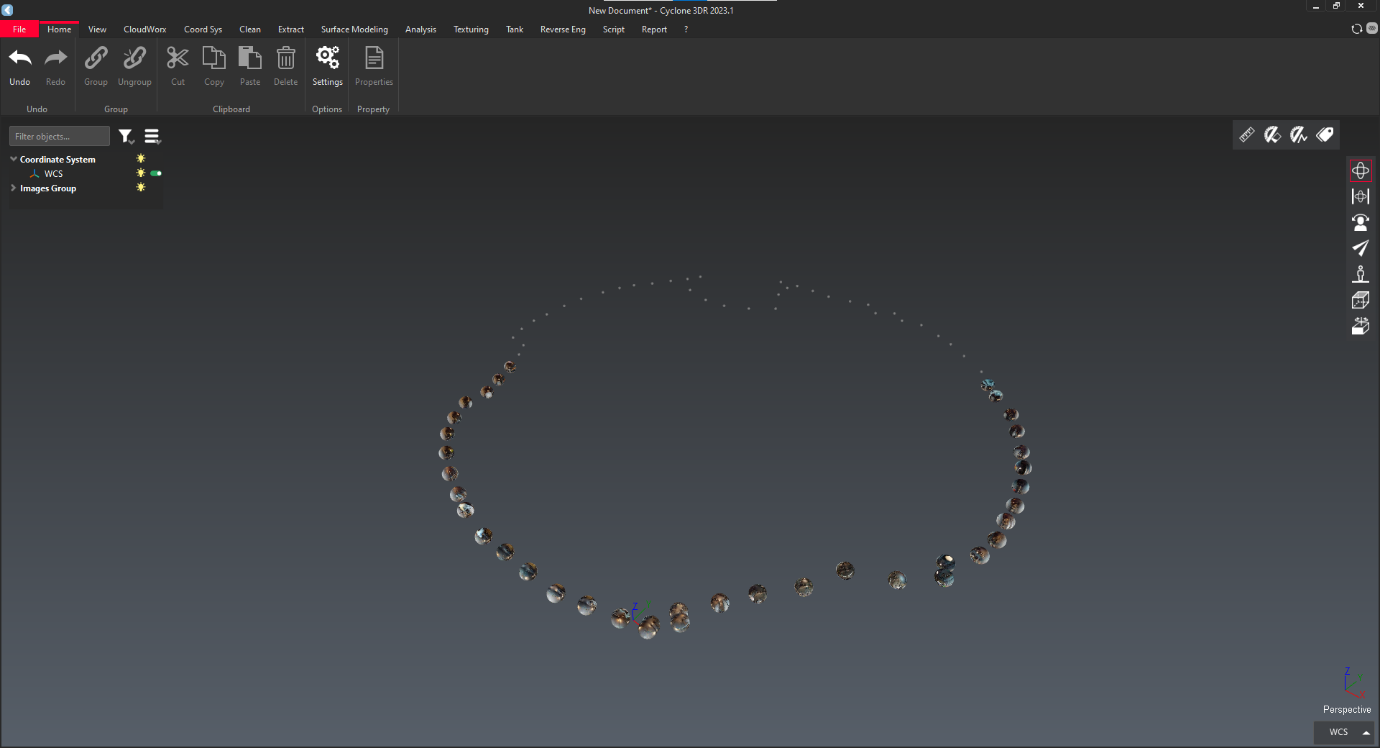
-
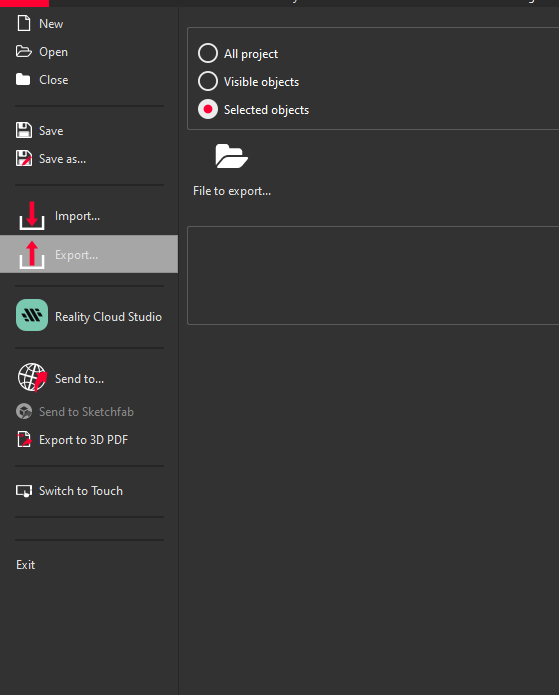
Click on "File" and select "Export". Choose "Visible object". If you need single object, then select "Selected Object".And click on "File to export"
-
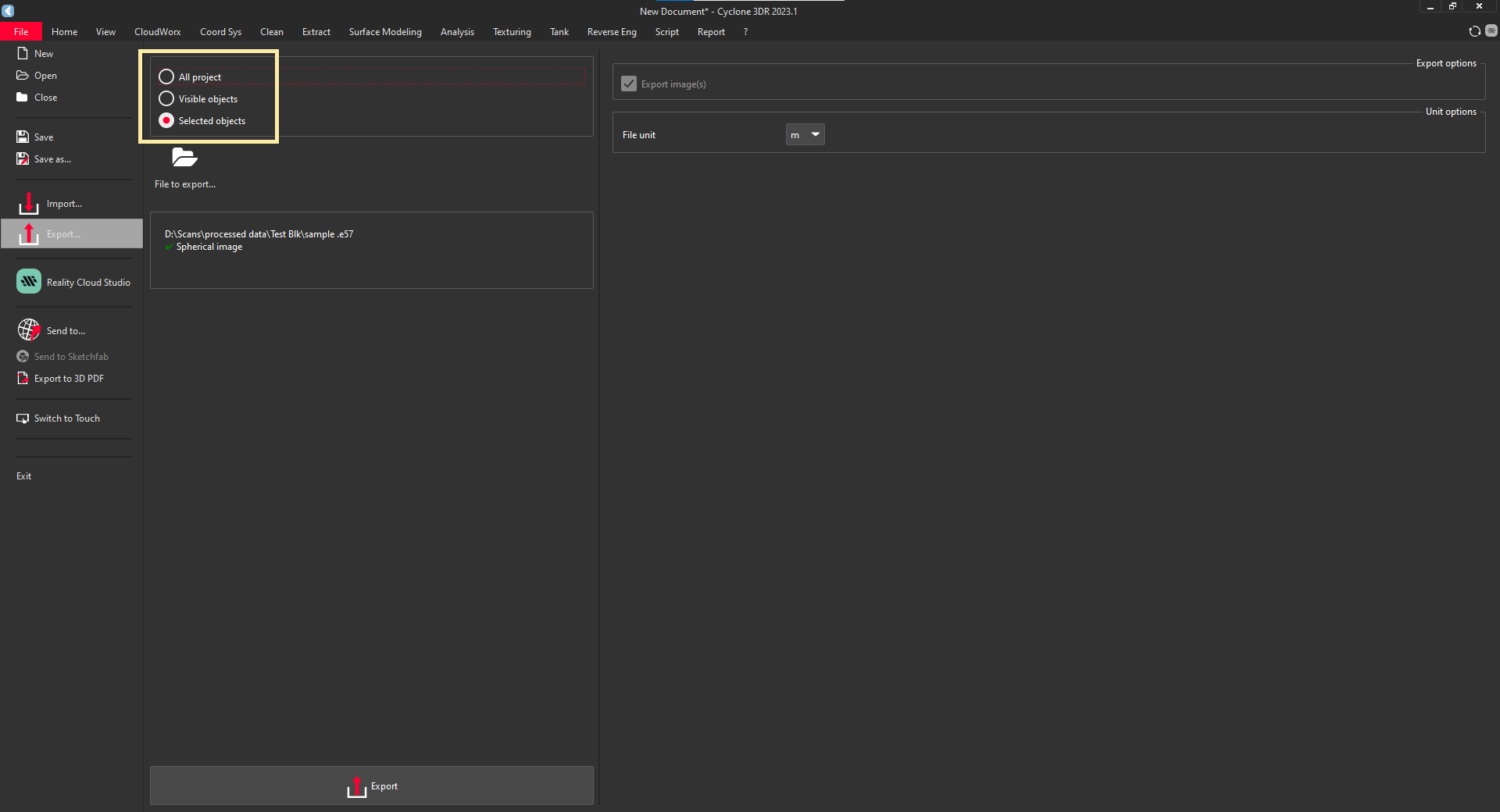
Select required format to export.
-
Check whether, there should be tick mark in spherical image.
-
Click on "Export" to save the file to your Local Disk.