Data Flow Map
Using Data Flow Map
When you open an existing DPL package or create a new one, the document area displays the Data Flow Map. The Data Flow Map is a graphical representation of the contents and hierarchy of the package. It helps users quickly visualize and diagnose how data flows throughout the package.
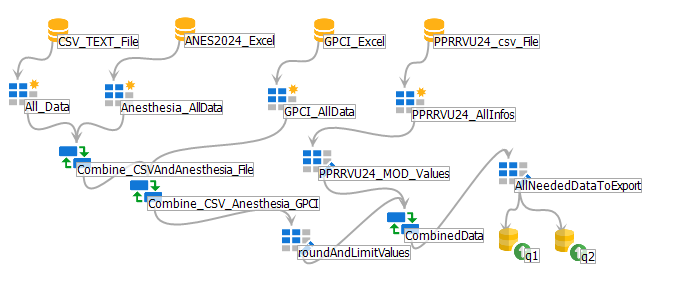
Nodes and Data Flow
Each item displayed in the Data Flow Map is called a Node. The gray lines between nodes represent the flow of data among them.
As you work within the DPL package:
- Nodes are automatically created or removed based on changes made to the package.
- DPL Studio attempts to position newly created nodes automatically.
- After creation, node placement can be adjusted manually.
- Rearranging Nodes
Nodes can be repositioned anywhere within the document area by: Clicking and dragging the node
The placement of nodes is only for visual organization and does not affect the functionality of the DPL package.
Node Types and Icons
Different icons are used to represent different item types within the package.
- Data Connector – Represents data source connections
- Standard Query – Represents a normal query
- Aggregate Query – Represents grouped or summarized query data
- Transform Query – Represents transformed or modified data
- Export Template – Represents export or reporting templates
Selected items are highlighted with a pale starburst effect.
| new connection icon | data connector (unselected) |
|---|---|
| selected new connection | data connector (selected) |
| standard query 2 | standard query (unselected) |
| new aggre | aggregate query (selected) |
| new trans | transform query (unselected) |
| targetconn | export template (selected) |
Add a New Connection or Query
To create a new connection or query:
Right-click on a blank area in the Data Flow Map Select:
- New Connection, or
- Create [Type] Query
Edit a Query
To edit an existing query:
- Right-click the query node
- Select Edit
Add a Filter to a Query
To apply filters to a query:
- Right-click the query node
- Select : Transform Wizards → Filter Wizard
Build a New Query from an Existing Query
To create a new query using data from another query:
- Right-click the existing query node
- Select : Transform Wizards → Select Columns Wizard
This allows users to create customized queries using selected columns from existing data.
Edit an Export Template
To modify an export template:
- Right-click the template node
- Select Edit Template
Delete a Connection, Query, or Report
To remove an item from the DPL package:
- Right-click the node
- Select Delete
Preview Query Data
To preview the data returned by a query:
- Double-click the query node (OR)
- Right-click the query node
- Select View Data
Run an Export Template
To export data using a template:
- Right-click the export template node
- Select Run Export