mySQL Data Connector
Setting Up MySQL Export Connectors
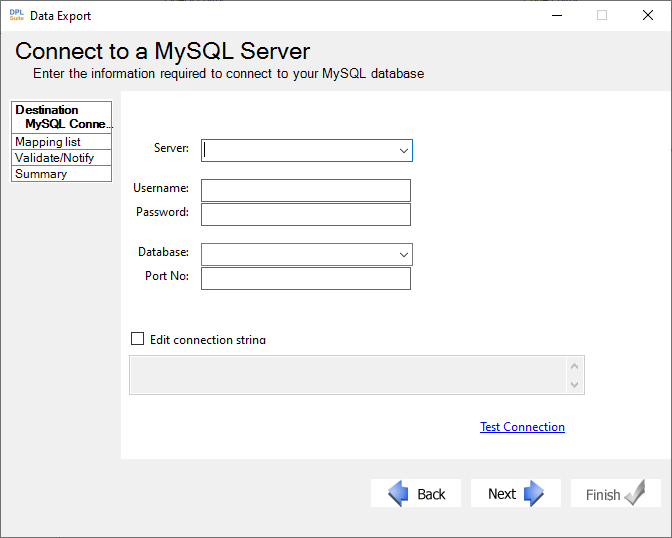
Setting up a MySQL export connector in DPL Studio requires specifying the server, database, port number, and appropriate authentication details.
Steps to Set Up an MySQL Export Connector
-
In the Set Destination Connection dialog of the Data Export Wizard, select MySQL Data Connector.
-
Provide the required connection details: a. In the server field, select the required server from the dropdown list.
- Enter the appropriatee Username and Password in the respective fields.
- Select the required Database from the dropdown list.
- Enter the appropriate Port Number if you are not using the default port.
DPL Studio automatically populates the database list based on the selected server.
-
Optionally, select the checkbox labeled Edit Connection string to manually enter a connection string.
-
Click Test Connection to allow DPL Studio to verify the database connection and display the connection status.
-
Click Next to proceed to the next step in the wizard and configure the table mappings between the source and destination files.