SAP Data Connector
Setting Up SAP Destination Connection
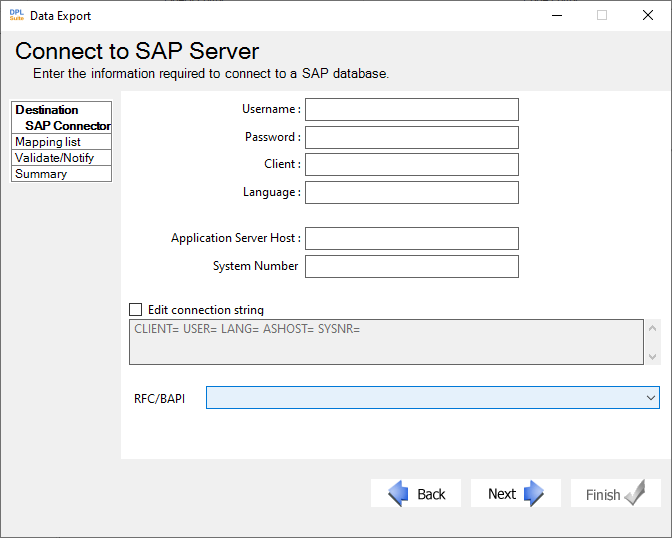
Setting up an SAP destination connection in DPL Studio requires specifying the SAP server details and providing the required authentication information.
Steps to Set Up an SAP Business One – Business Object Connector
- In the Set Destination Connection dialog of the Data Export Wizard, select SAP Data Connector.
- Enter the required connection details, including:
- UserName
- Password
- Client
- Language
- Application Server Host
- System Number
-
Optionally, select the Edit Connection String checkbox to manually modify the connection string as needed.
-
Select RFC/BAPI from the dropdown list.
-
Click Test Connection to verify the connection to the specified SAP data source. (If the connection fails, verify that all settings are correct. Incorrect credentials, spelling errors, or case sensitivity may cause connection failures.)
-
Click Next to proceed to the next step in the wizard and configure the table mappings between the source and destination files.