XML Data Connector
Setting Up XML Export Connectors
Setting up an XML export connector in DPL Studio requires specifying the .xml file that will store the exported data.
Steps to Set Up an XML Export Connector
-
In the Set Destination Connection dialog of the Data Export Wizard, select XML Data Connector.
-
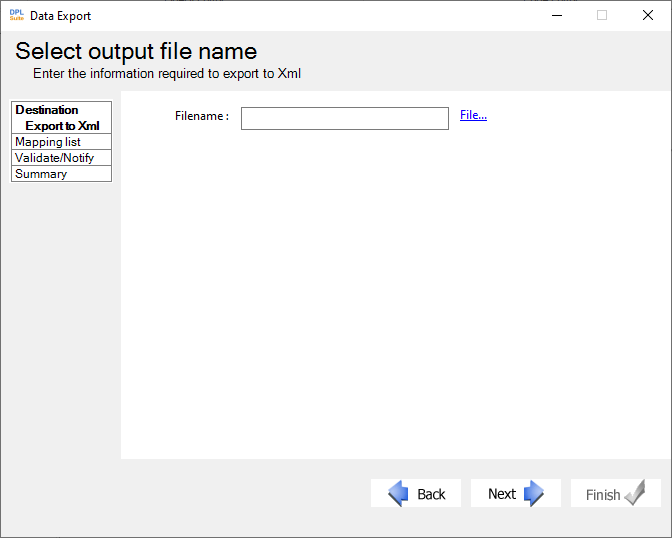
In the Set Output File dialog:
- Enter the complete file path and filename for the required output XML file, -OR-
- Click File... to browse and select the required location. (If an existing XML file is selected, DPL Studio will overwrite the existing data.
- If the specified file does not exist, a new XML file will be created automatically.)
- Click Next to proceed to the next step in the wizard and configure the table mappings between the source and destination files.