ODBC Data Connector
Setting Up ODBC Export Connectors
Setting up an ODBC export connector in DPL Studio requires identifying the database and providing the required connection and security information.
Steps to Set Up an ODBC Export Connector
-
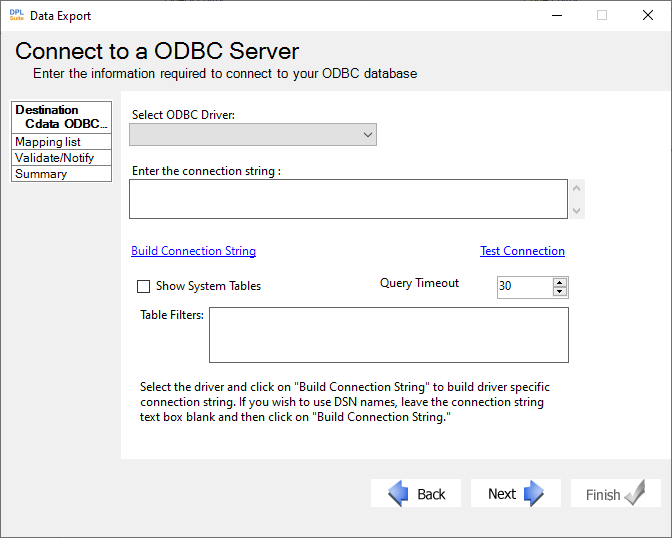
In the Set Destination Connection dialog of the Data Export Wizard, select ODBC Data Connector.
-
Select the appropriate Provider from the dropdown list.
-
Select the required ODBC Driver.
-
Configure the connection using one of the following methods:
- Click Build Connection String to open the ODBC setup dialog for the selected driver and enter the required connection details. -OR-
- Manually enter the connection string in the Enter the Connection String field.
-
Click Test Connection to verify the connection to the selected data source. (If the connection fails, verify that all settings are correct. Spelling mistakes, incorrect credentials, or case sensitivity may cause connection failures.)
-
Click Next to proceed to the next step in the wizard and configure the table mappings between the source and destination files.